There is a specific kind of frustration that comes with misplacing a device you use every day. The iPhone slides between couch cushions. AirPods disappear inside a backpack. A MacBook remains somewhere in the house but refuses to reveal itself.
Apple Watch reduces that moment of panic.
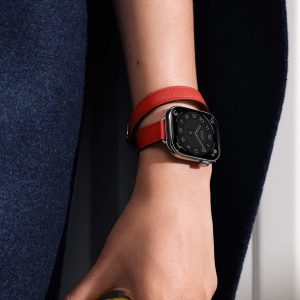
With Apple Watch Find Devices, you can locate supported Apple products directly from your wrist. There is no need to search for another device first. The watch becomes the starting point.
How Find Devices Works on Apple Watch
Apple Watch integrates with the Find My network, allowing you to track devices associated with your Apple ID.
To access it:
Press Digital Crown > Find Devices
The interface lists devices connected to your account, including iPhone, iPad, Mac, AirPods, and other supported hardware.
Selecting a device reveals available actions depending on proximity and connectivity.

Finding iPhone With a Ping
One of the most used features is locating a nearby iPhone.
On Apple Watch:
Control Center > Tap iPhone Ping Icon
The iPhone emits a sound to help you identify its location. On newer models, holding the ping button also triggers the camera flash, making it easier to find in dim lighting.
This works over Bluetooth range and does not require the phone to be unlocked.
It is often faster than walking room to room manually checking surfaces.
Locating AirPods
AirPods can also be located if they are out of their case and within range.
Open Find Devices > Select AirPods
The watch displays proximity information. If supported, it can trigger sound playback from the earbuds.
This feature is particularly helpful when one AirPod goes missing independently.
If AirPods are outside Bluetooth range, the watch shows their last known location via the Find My network.
Tracking Mac or iPad
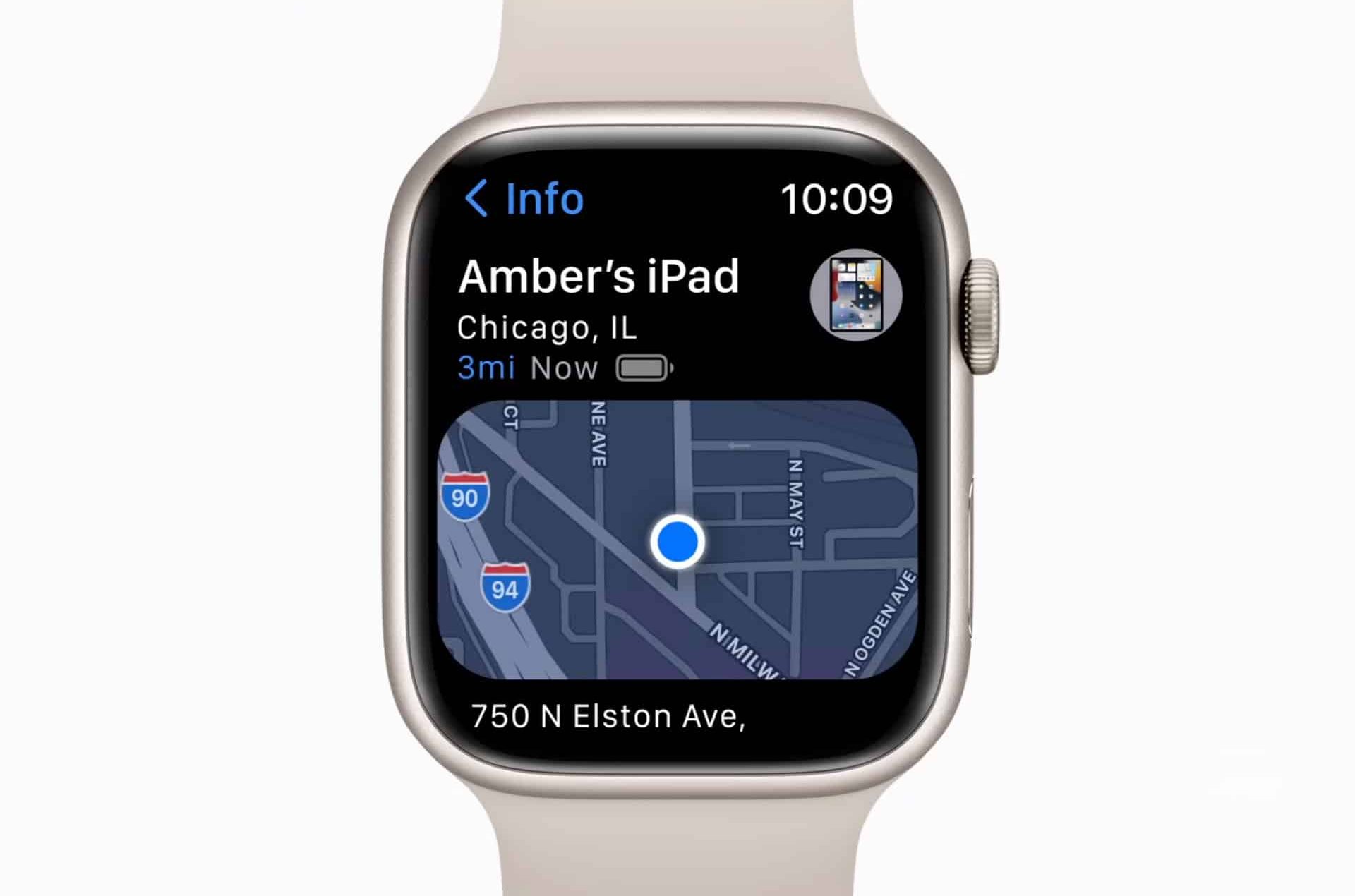
For larger devices such as MacBook or iPad, Apple Watch provides location visibility through the Find My system.
If the device is online, real-time location updates appear. If offline, the last known position remains available.
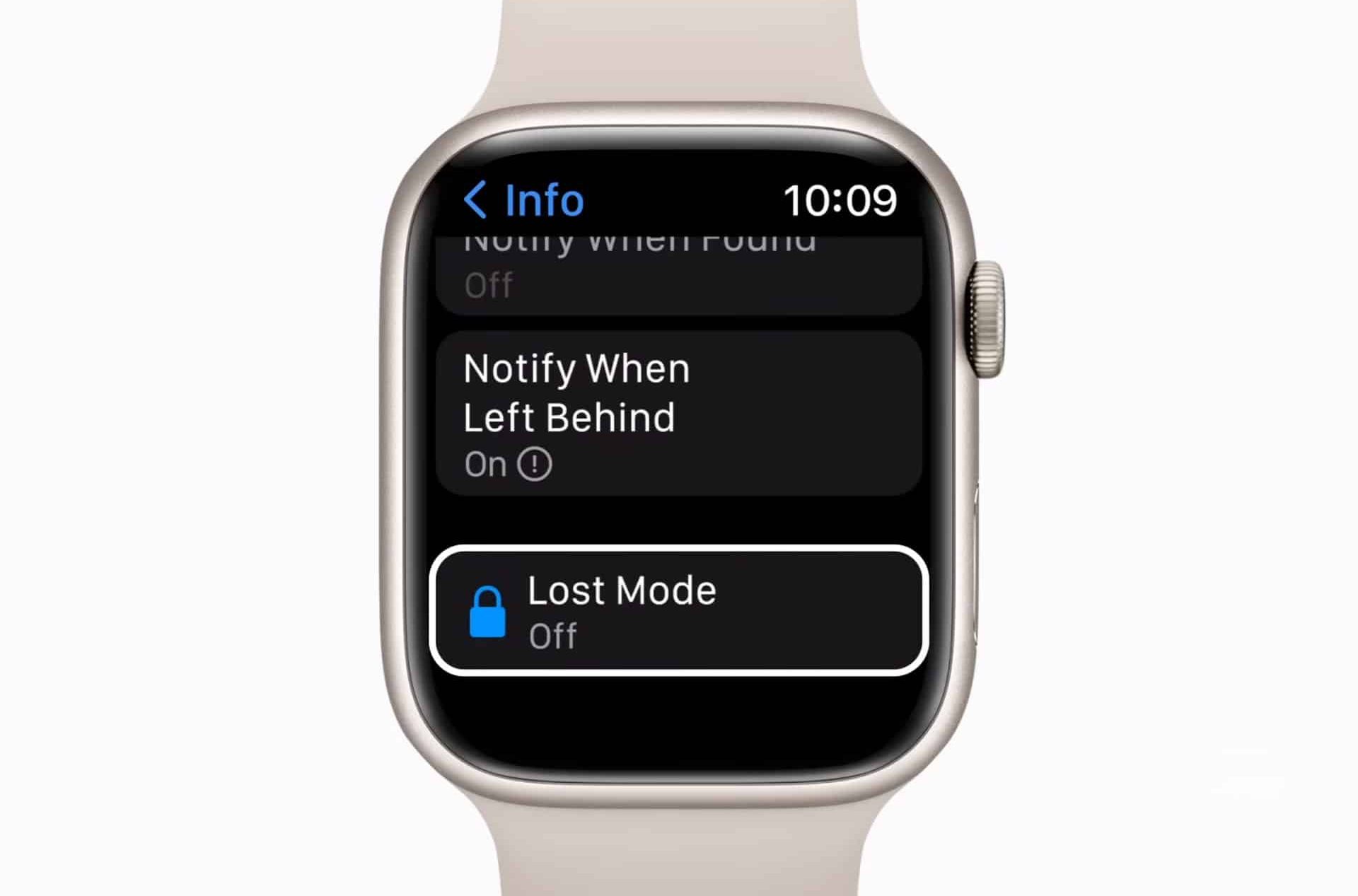
You can also enable Lost Mode directly from the watch:
Find Devices > Select Device > Activate Lost Mode
This locks the device and displays contact information on the screen.
Precision Finding
On supported iPhone models, Apple Watch can guide you more precisely toward your phone using directional indicators and distance estimates.
This feature leverages Ultra Wideband technology when available.
Instead of just hearing a sound, you see directional cues guiding you toward the device.
Using the Find My Network
When a device is outside your home and not connected to Wi-Fi or cellular, the broader Find My network may assist.
Apple devices nearby anonymously relay location signals to your account. The process is encrypted and does not expose identity.
This means a lost MacBook in a public place may still appear in Find Devices if another Apple device passes nearby.
If a device has no battery or connectivity, only its last recorded location will be visible.
Find Devices cannot power on hardware remotely. Still, knowing where it was last active often narrows the search significantly.
Battery and Connectivity Requirements
Apple Watch must be connected either to iPhone or cellular service (for cellular models) to update device locations.
If the watch is offline, it cannot retrieve updated information.
Keeping Bluetooth and network services enabled ensures consistent performance.
Practical Everyday Scenarios
Common use cases include:
- Finding iPhone inside the house
- Locating AirPods before leaving
- Confirming whether a MacBook was left at work
- Checking if an iPad remains in a bag
The speed of access matters. Raising your wrist is faster than searching through apps on another device.
Privacy and Security
Find Devices operates within Apple’s encrypted ecosystem. Location data remains associated only with your Apple ID. Enabling Find My on all devices in advance is essential.
On iPhone:
Settings > Apple ID > Find My
Ensuring activation ahead of time allows the watch to function as a locator when needed.
Apple Watch Find Devices transforms the watch into more than a notification display. It becomes a recovery tool.
Misplacing devices remains common. Being able to locate them instantly from your wrist reduces disruption and keeps your workflow uninterrupted.