
AirDrop is one of Apple’s most practical features. It lets you share photos, videos, files, links, locations, and more between Apple devices instantly, without cables, apps, or internet connections.
Built directly into iPhone, iPad, and Mac, AirDrop uses a combination of Bluetooth and peer-to-peer Wi-Fi to detect nearby devices and transfer data securely. For many Apple users, it’s the fastest way to move content from one device to another.
What Is AirDrop and How It Works
AirDrop creates a direct connection between nearby Apple devices. Bluetooth is used to discover devices, while Wi-Fi handles the actual data transfer at high speed.
Because transfers happen directly between devices, AirDrop doesn’t rely on cellular data or cloud services. Files stay local and are encrypted during transfer, making AirDrop both fast and private.
AirDrop works across:
- iPhone to iPhone
- iPhone to Mac
- iPad to Mac
- Mac to Mac
As long as devices are nearby and AirDrop is enabled, sharing takes only a few seconds.

What You Can Share With AirDrop
AirDrop supports a wide range of content types, which is why it’s used so often in daily life.
Common AirDrop uses include:
- Sending photos and videos in full quality
- Sharing documents and PDFs
- Passing links from Safari
- Sending locations from Maps
- Moving files between Mac and iPhone
- Sharing contacts
Because it preserves original quality and metadata, AirDrop is especially useful for photos and videos that shouldn’t be compressed.
How to Use AirDrop
Using AirDrop is straightforward and consistent across devices.
Workflow
Share button > AirDrop > Select nearby device
On the receiving device, you simply accept the transfer. The content appears in the appropriate app automatically, such as Photos, Files, or Safari.
AirDrop settings allow you to control who can see your device: Contacts Only or Everyone for a limited time.

What Is NameDrop
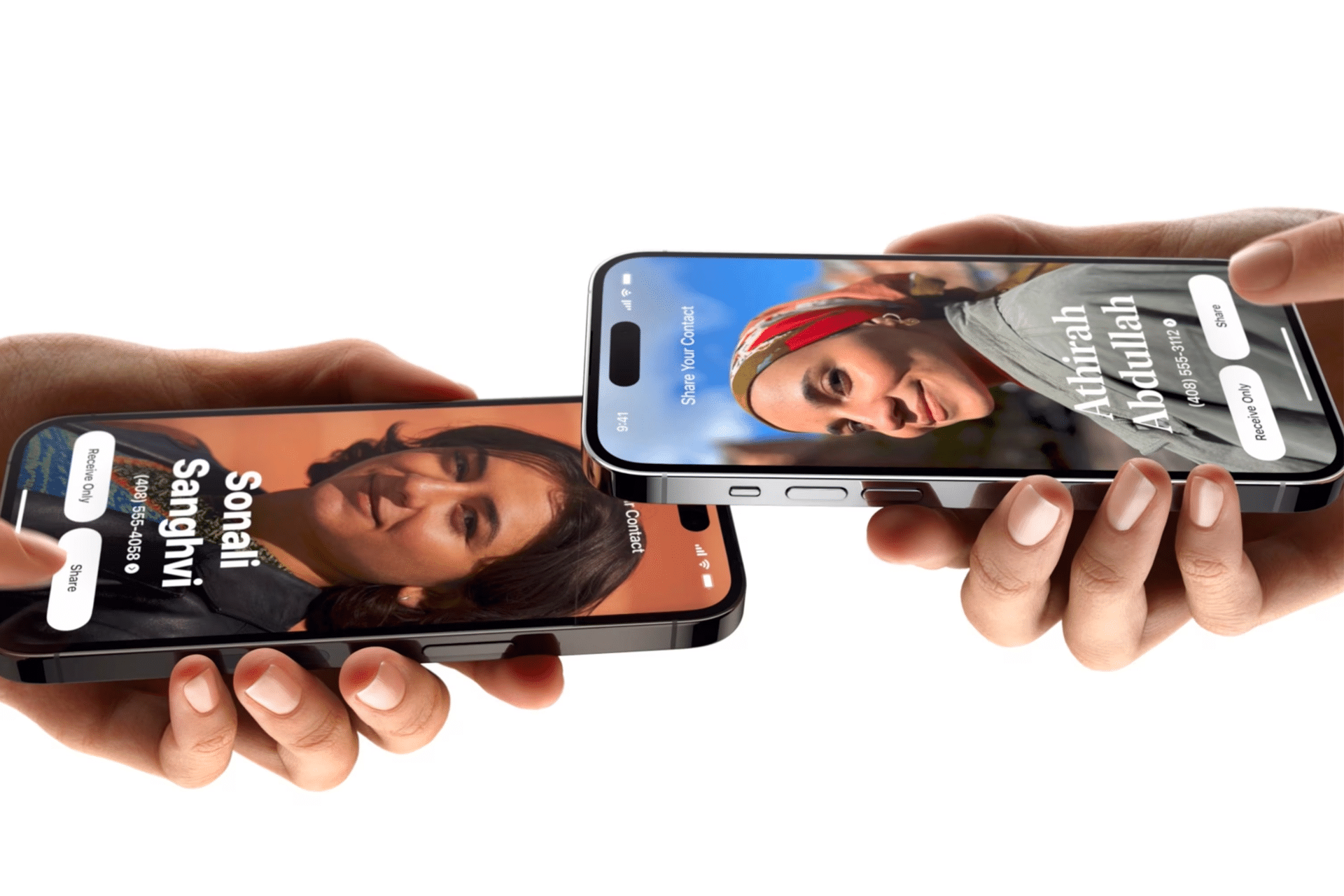
NameDrop is a newer Apple feature designed specifically for sharing contact information. Instead of sending files or media, NameDrop exchanges contact cards between two people.
NameDrop uses the same underlying technology as AirDrop, but its purpose is narrower and more social.
To use NameDrop, two people bring their iPhones close together. The system recognizes the interaction and prompts both users to share contact details instantly.
AirDrop vs. NameDrop: What’s the Difference
AirDrop is about content. NameDrop is about identity.
AirDrop is best when you want to:
- Share photos, videos, or files
- Move content between your own devices
- Send links or documents quickly
- Transfer large items without compression
NameDrop is best when you want to:
- Exchange contact information
- Meet someone new and share details instantly
- Avoid typing phone numbers or emails
- Keep contact sharing intentional and limited
In short, AirDrop moves things. NameDrop introduces people.

Which One Should You Use and When
If you’re sending anything that isn’t a contact card, AirDrop is the right choice. It’s flexible, fast, and designed for repeated daily use.
If you’re meeting someone and want to share your contact details cleanly and securely, NameDrop is the better option. It avoids accidental oversharing and keeps the interaction simple.
Both features can coexist without confusion, because Apple designed them around different moments.
Your Privacy
Both AirDrop and NameDrop are built with privacy in mind. You control visibility, approve incoming transfers, and decide what information is shared.
Despite newer features like NameDrop, AirDrop remains one of the most useful parts of the Apple ecosystem. It removes friction from sharing and works reliably across devices, years after its introduction.
Together, AirDrop and NameDrop cover two essential needs: sharing content and connecting with people. Knowing when to use each makes everyday interactions faster, cleaner, and more natural.