

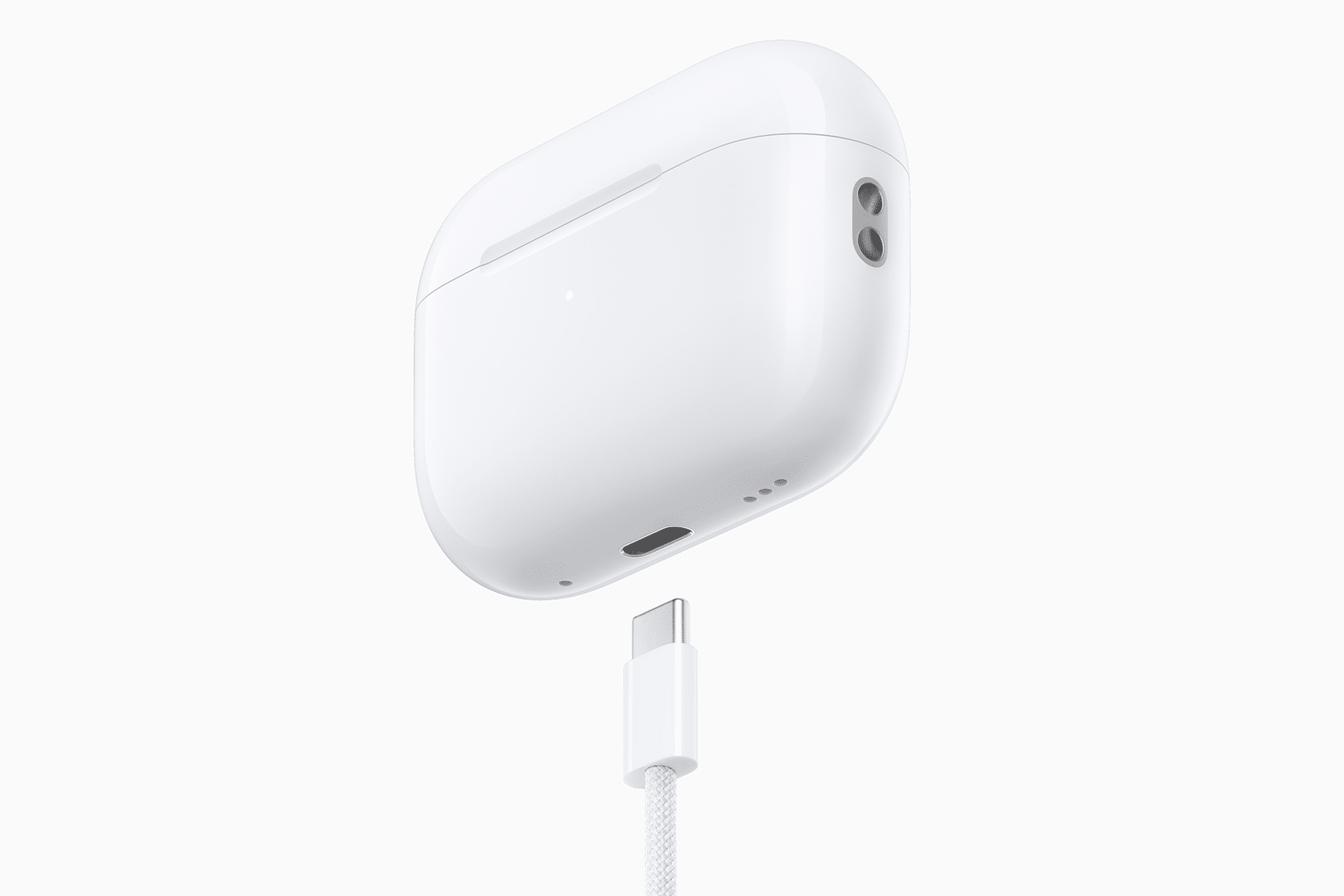
AirPods battery alerts are a small part of the Apple audio experience, but they solve one of the most common problems with wireless earbuds: knowing whether the case is ready before leaving home. AirPods can feel effortless when they are charged, paired, and waiting in the case. They feel much less magical when the case battery is low and the earbuds cannot recharge between uses.
Apple now gives users more direct control over charging notifications for supported AirPods models. When enabled, iPhone or iPad can send reminders when AirPods need to be charged and when charging is complete. Apple lists this support for AirPods 4 with Active Noise Cancellation, AirPods Pro 2, AirPods Pro 3, and AirPods Max 2, with the setting available from the AirPods battery menu when the headphones are connected.
That kind of notification is useful because the case is easy to forget. Most users naturally check the earbuds because they are wearing them. The case stays in a bag, pocket, desk drawer, car console, backpack, or bedside table. If the case drains quietly, the earbuds may charge once, then stop topping up. The next time the user reaches for them, battery life may be much lower than expected.
Battery alerts help close that gap. They turn the case from a passive accessory into something the iPhone can monitor more clearly. The feature is especially useful for people who use AirPods across work, school, workouts, travel, commuting, gaming, FaceTime, calls, and Apple TV. The more AirPods become part of the day, the more important case awareness becomes.


How to Turn On Charging Notifications
AirPods battery alerts can be managed from the AirPods settings page on iPhone or iPad. The AirPods need to be connected, and the exact options depend on model and software version.
To turn on Charging Notifications:
Settings > AirPods > Battery > Charging Notifications
Apple’s AirPods guide says users can choose to receive notifications reminding them to charge AirPods when the battery is low and notifying them when charging is complete. This is separate from simply checking the battery percentage, which can be done from the AirPods settings page, the Batteries widget, or the case pop-up when opening the lid near an iPhone or iPad.
To check AirPods battery:
Settings > AirPods > Battery
To add the Batteries widget:
Home Screen > Touch and Hold > Add Widget > Batteries
The Batteries widget is one of the easiest ways to keep an eye on both the earbuds and the case. The case battery usually appears when the case is open or when at least one AirPod is inside the case. If the case is closed and not actively connected, the battery percentage may not always update instantly. That behavior is normal for many AirPods models because the case does not stay constantly connected in the same way as the earbuds.
For quick checks, opening the case near the iPhone remains the most familiar method. The pop-up shows battery levels for the earbuds and case when available, making it easier to decide whether to charge before leaving.
Case Battery Matters More Than It Looks
AirPods battery alerts matter because the case is the real battery bank. The earbuds hold enough charge for a listening session, but the case determines how many sessions can happen before a wall charger is needed. A low case battery can turn a normal day of listening into a shorter one, especially for users who rely on AirPods for calls or commuting.
This is especially important with noise cancellation. Active Noise Cancellation, Transparency mode, Adaptive Audio, Spatial Audio, head tracking, voice calls, and low-latency gaming can all affect battery life. A pair of AirPods may last well through one session, but the case has to restore them afterward. If the case is empty, the earbuds become single-use until the next charge.
Travel makes the problem more obvious. AirPods may be used at the airport, on the plane, in a hotel, during walks, on calls, and while watching shows. If the case was not charged before leaving, the user may run out of power before the trip is over. Charging notifications can help prevent that by reminding users before the case becomes a problem.
The same applies to students and commuters. AirPods may be used for music, lectures, podcasts, phone calls, online classes, and videos. A low case battery in the morning can affect the whole day. A reminder the night before or when the battery is low is more useful than discovering the problem after the earbuds disconnect.

Optimized Charging Is Different
AirPods battery alerts should not be confused with Optimized Battery Charging. Charging Notifications tell users when to charge or when charging is complete. Optimized Battery Charging is designed to reduce battery wear by limiting the time supported AirPods spend fully charged.
Apple says Optimized Battery Charging is available for AirPods Pro and AirPods 3 or later, and it is on by default when setting up the device or updating to iOS or iPadOS 15 or later. The feature learns from daily charging routines and waits to finish charging until closer to when the user is expected to need the AirPods.
To manage Optimized Battery Charging:
Settings > AirPods > Battery > Optimized Battery Charging
AirPods Pro 3 also supports Optimized Charge Limit, according to Apple’s AirPods guide. That gives the newest model a more advanced battery-health option designed to reduce long-term wear. As with iPhone battery features, the goal is not faster charging. It is healthier charging over time.
These settings serve different needs. Charging Notifications help with readiness. Optimized Battery Charging helps with battery lifespan. A user can keep both enabled if they want AirPods to be ready while also reducing long-term battery stress.
For most users, leaving optimized charging on is the best default. Turning it off may make sense if AirPods repeatedly fail to reach full charge before an unusual schedule, but the feature is designed to learn normal routines and reduce wear quietly.
What to Do When the Case Battery Looks Wrong
AirPods battery alerts and widgets are useful, but battery reporting can occasionally feel confusing. Sometimes the case battery does not appear in the widget. Sometimes the case percentage updates only after opening the lid. Sometimes one AirPod shows a different percentage than the other. These situations do not always mean something is broken.
The case battery usually needs the case to be open or an AirPod inside for the iPhone to read the level. If the case is closed and away from the device, the widget may show older information. Uneven earbud battery levels can happen because one earbud may handle the microphone, noise processing, or connection behavior more heavily than the other.
If charging seems wrong, start with the simple checks. Make sure the case has power, reseat the AirPods, check the cable or wireless charger, and look for the status light. Apple says the case status light should turn on for several seconds when placed on a compatible wireless charger, then turn off while continuing to charge. If it does not turn on, reposition the case or connect a cable.
To check charging:
Place AirPods in Case > Connect Cable or Place on Charger > Check Status Light
If battery reporting remains unreliable, resetting the AirPods and pairing them again can help. Users should also keep iPhone, iPad, and AirPods firmware updated because charging behavior and battery reporting can improve through software.
The best everyday habit is simple: keep the case charged before the earbuds reach critical levels. AirPods are easiest to manage when the case is treated like the main battery, not an accessory.


A Better Reminder System for Everyday Listening
AirPods battery alerts make the charging experience more predictable. They do not change how long the earbuds last on a single charge, but they reduce the chance of being surprised by an empty case. That is often the difference between AirPods feeling ready and AirPods becoming one more device to manage manually.
The feature also fits the way AirPods have evolved. They are no longer used only for music. They handle calls, workouts, commuting, Apple TV viewing, Mac meetings, iPhone gaming, FaceTime, translation features, noise reduction, and everyday audio across multiple Apple devices. The case has to keep up with that broader role.
Charging Notifications, the Batteries widget, Optimized Battery Charging, and the case status light all serve the same larger goal: fewer surprises. Notifications remind the user when power is low. The widget shows the current level. Optimized charging protects long-term health. The status light gives a quick physical check.
For the best setup, turn on Charging Notifications, keep the Batteries widget available, leave Optimized Battery Charging enabled, and charge the case before long days or travel. AirPods work best when they disappear into routine. Battery alerts help keep them there.