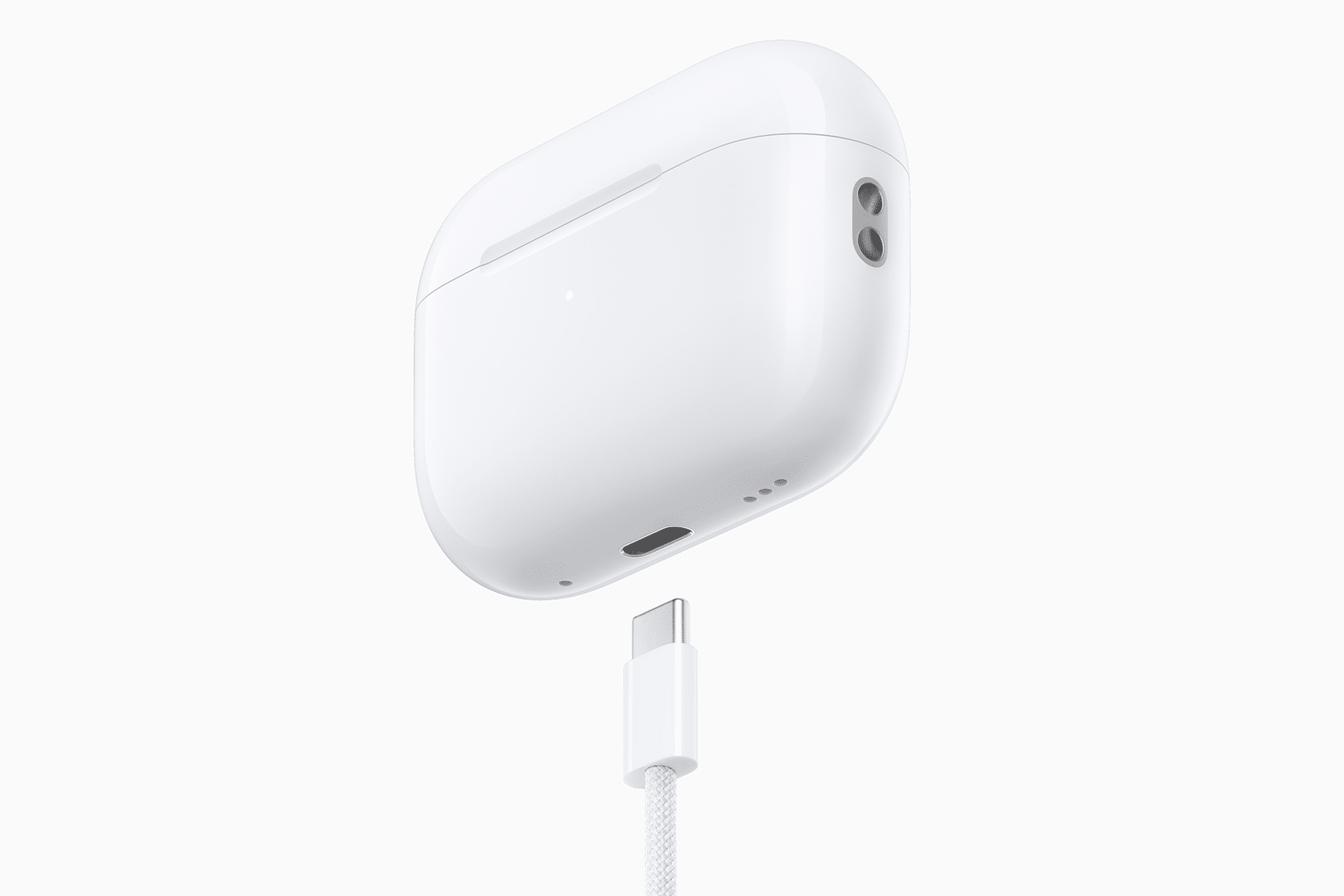
AirPods battery widgets sit quietly inside the Apple ecosystem, yet they solve a daily friction point: not knowing how much charge remains before a call, a workout, or a commute. Wireless audio is effortless until it isn’t. A sudden disconnection in the middle of a conversation can derail focus, interrupt workflow, or cut short a moment that matters. By placing battery levels directly on screen, Apple removes that uncertainty without adding complexity.
The strength of the system lies in its discretion. Battery information appears exactly where users already look — on the Home Screen, in the menu bar, inside Control Center. There is no separate app to open, no layered analytics to interpret. The data is simple: percentage remaining for each earbud and the case. Clear numbers. Immediate context.
This approach reflects Apple’s broader design philosophy. Technology should inform without overwhelming. The battery system does not demand attention; it provides reassurance. When the case opens near an iPhone, a small card appears automatically. When earbuds connect to a Mac, the menu bar reflects their status. When using an Apple Watch during a workout, charge levels remain visible with a quick swipe. The information follows the user across devices, reinforcing continuity.
How Battery Visibility Works Across the Ecosystem
AirPods communicate battery levels through Bluetooth and Apple’s continuity framework. Once connected, nearby devices recognize them instantly. The update is live. If one earbud drains faster during calls, the system shows the imbalance. If the case regains charge after a quick plug-in, the percentage adjusts in real time.
On iPhone and iPad, the batteries widget acts as the central display. It shows charge for connected accessories alongside other Apple devices. The layout is clean and compact, offering glanceable insight without taking over the screen. Users who rely on wireless audio throughout the day often place the widget near their main apps, making it part of their daily rhythm.
On Mac, the interaction is even more restrained. The Bluetooth icon in the menu bar reveals charge levels instantly. Professionals moving between meetings, editing sessions, and writing workflows benefit from having that information one click away. There is no interruption to the task at hand.
Apple Watch extends the same awareness to moments when the phone is not in hand. During a run, a commute, or a walk between meetings, Control Center shows connected audio battery status with minimal interaction. The ecosystem remains consistent.


Adding and Using the Battery Widget on iPhone
Setting up the display takes seconds and requires no downloads.
Home Screen > Touch and Hold Empty Area > Tap “+” > Batteries > Add Widget
Once placed, the widget updates automatically when earbuds connect or when the case is opened nearby. It can be resized for a compact or expanded layout depending on user preference.
For a secondary placement:
Swipe Right to Today View > Touch and Hold > Edit > Add Batteries
This keeps the Home Screen uncluttered while maintaining quick access.
Open Case Near iPhone
Opening the charging case triggers an automatic on-screen card showing precise charge levels. No taps required.
Checking Charge on Mac
On macOS, visibility remains simple.
Menu Bar > Bluetooth Icon > Select Connected Earbuds
If the icon is hidden:
System Settings > Control Center > Bluetooth > Show in Menu Bar
Hovering over the connected device reveals separate percentages for left earbud, right earbud, and case. This separation matters during longer voice calls or editing sessions where microphone use accelerates drain on one side.

Battery Awareness and Usage Habits
Clear visibility changes behavior. When users can see that charge is low, they top up during short breaks instead of waiting for shutdown. This reduces stress during important moments and supports healthier battery cycles over time.
Lithium-ion batteries perform best when not repeatedly drained completely. By monitoring levels proactively, users naturally adopt more balanced charging habits. Apple’s optimized charging system further adjusts timing to reduce wear, but awareness remains the first step.
Environmental factors also play a role. Temperature extremes can affect temporary performance. Seeing percentage changes in context helps users understand fluctuations without assuming malfunction.
Ecosystem Design
The most notable aspect of the system is what it avoids. There are no exaggerated alerts, no dramatic warnings, no cluttered dashboards. The experience is quiet and efficient. Information appears when relevant and disappears when not.
That restraint prevents distraction while still delivering value. During meetings, workouts, flights, or study sessions, battery data remains accessible but unobtrusive. The ecosystem handles communication between devices in the background so users can focus on the task in front of them.
Wireless earbuds are part of daily infrastructure. They support calls, language learning, editing, commuting, and entertainment. Monitoring charge is not dramatic, but it is essential. The ability to glance at remaining power across devices prevents small disruptions from turning into larger frustrations.