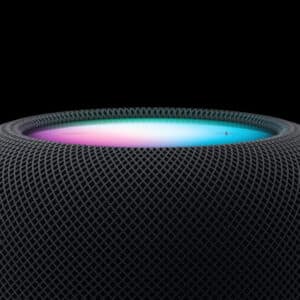
Apple AirPlay Multiroom changes how music lives inside a house. Not louder. Not more complicated. Just everywhere, at the same time, perfectly in sync.
There’s something powerful about walking from the kitchen to the living room and hearing the same song follow you without delay, echo, or awkward overlap. It feels intentional. Like the house understands rhythm.
And the setup is simpler than most people think.
How Apple AirPlay Multiroom Works
AirPlay 2 allows multiple compatible speakers — including HomePod and third-party AirPlay speakers — to play the same audio simultaneously over Wi-Fi. Unlike older Bluetooth chains, AirPlay keeps timing aligned across rooms using your home network.
You can also create independent zones. Jazz in the kitchen. A podcast in the office. Silence in the bedroom.
The control happens directly from your iPhone, iPad, Mac, or Apple TV.
Set Up Apple AirPlay Multiroom With HomePod
First, make sure every HomePod or AirPlay speaker is connected to the same Wi-Fi network and added to the Home app.
Settings > Home > Add Accessory
Assign each speaker to a room inside the Home app. This step matters. It allows you to control rooms individually or group them later.
Home App > Long Press Speaker > Settings > Room
Once speakers are assigned, grouping becomes effortless.
To play music everywhere:
Control Center > Now Playing > AirPlay Icon > Select Multiple Speakers
Tap the rooms you want. Music starts instantly, synchronized.

Create a Stereo Pair for Deeper Sound
If you have two HomePods in the same room, create a stereo pair. This doesn’t just make it louder. It creates separation, depth, and direction.
Home App > Select HomePod > Settings > Create Stereo Pair
Choose the second speaker. The system assigns left and right channels automatically. The result is a wide soundstage that fills the room without distortion.
In larger spaces, a stereo pair becomes the anchor while other rooms expand the experience.
Add Third-Party AirPlay Speakers
Apple AirPlay Multiroom isn’t limited to HomePod. Many brands support AirPlay 2 natively. Speakers from companies like Sonos, Bose, and others integrate directly.
Once connected to Wi-Fi:
Settings > Wi-Fi > Select Speaker Network
Home App > Add Accessory
They appear alongside HomePods, controllable the same way.
The beauty is consistency. It doesn’t matter if it’s a HomePod in the kitchen and a Sonos speaker in the office — timing stays aligned.

Use Apple TV as an Audio Hub
Apple TV can also join the system. If connected to a soundbar or receiver, it becomes another AirPlay endpoint.
Control Center > AirPlay > Select Apple TV
Now your television audio system becomes part of the multiroom setup. Sports commentary in the living room can extend into the dining room during a gathering.
It transforms entertainment into something shared across spaces.
Automate Multiroom Audio
Automation adds another layer.
Home App > Automation > Create Automation
You can trigger music when you arrive home, start a playlist at a specific time, or pause everything when leaving.
Example:
Home App > Automation > People Arrive > Select Scene > Play Music in Living Room and Kitchen
It turns audio into part of the house rhythm.
Control With Siri
Voice control keeps things fluid.
- “Hey Siri, play this everywhere.”
- “Hey Siri, move music to the bedroom.”
- “Hey Siri, lower volume in the office.”
Siri understands rooms because you assigned them earlier. That small organizational step unlocks smooth control later.

Managing Volume Across Rooms
Inside Control Center, each selected room shows its own slider. You can lower the bedroom without affecting the kitchen.
Control Center > AirPlay > Adjust Individual Sliders
This flexibility prevents that “one room too loud” problem during gatherings.
Apple AirPlay Multiroom isn’t about technical setup. It’s about atmosphere. Morning coffee with music in the kitchen and hallway. A podcast following you while you tidy the house. A dinner party where music doesn’t disappear when someone steps away from the table.
Sound becomes architectural. And because it runs over Wi-Fi, the quality stays consistent. No compression surprises. No Bluetooth dropouts.
Troubleshooting Sync Issues
If one speaker lags or disconnects:
Settings > Wi-Fi > Confirm Same Network
Home App > Remove Accessory > Add Again
Also ensure devices run the latest software:
Settings > General > Software Update
AirPlay timing relies on stable Wi-Fi. A strong router improves reliability across rooms.
Energy Considerations
HomePods remain efficient when idle. Still, grouping only the rooms you need avoids unnecessary usage.
Control Center > AirPlay > Deselect Unused Rooms
The system responds instantly.
A Home That Listens Together
Apple AirPlay Multiroom isn’t about showing off speakers. It’s about removing friction between rooms.
You press play once. The house responds. And when the music fades at night, every room falls silent at the same time.