

Apple Cash is one of the most practical features inside Apple Wallet. It turns your iPhone or Apple Watch into a simple way to send, receive, and spend money without needing a physical card. Whether it’s splitting groceries, managing a child’s allowance, or paying when a credit card isn’t available, Apple Cash works quietly in the background.
Designed for speed and privacy, Apple Cash keeps payments uncomplicated and easy to control.
What Apple Cash Is and How It Works
Apple Cash is a digital balance stored in Apple Wallet. Money you receive goes straight into Apple Cash and can be spent anywhere Apple Pay is accepted, sent to friends, or transferred to a bank account.
Payments happen instantly and stay private. Merchants don’t see personal card numbers, and transactions are protected by Face ID, Touch ID, or a device passcode.
Apple Cash is especially useful for small, everyday payments where speed matters more than complexity.

How to Set Up Apple Cash
Setting up Apple Cash takes only a few moments and happens entirely within Apple Wallet.
Workflow
Wallet app > Apple Cash card > Set Up Apple Cash
Once activated, Apple Cash appears like any other card in Wallet. You’re ready to receive money immediately, even before adding funds.
How to Add Money to Apple Cash
To spend with Apple Cash, you can load money using a linked debit card or bank account. The process is designed to be quick and flexible.
Workflow
Wallet app > Apple Cash > Add Money > Choose Amount > Confirm
You can add funds manually when needed or set up automatic reloads to keep a minimum balance available. This is helpful for regular expenses like lunches, transportation, or small purchases.
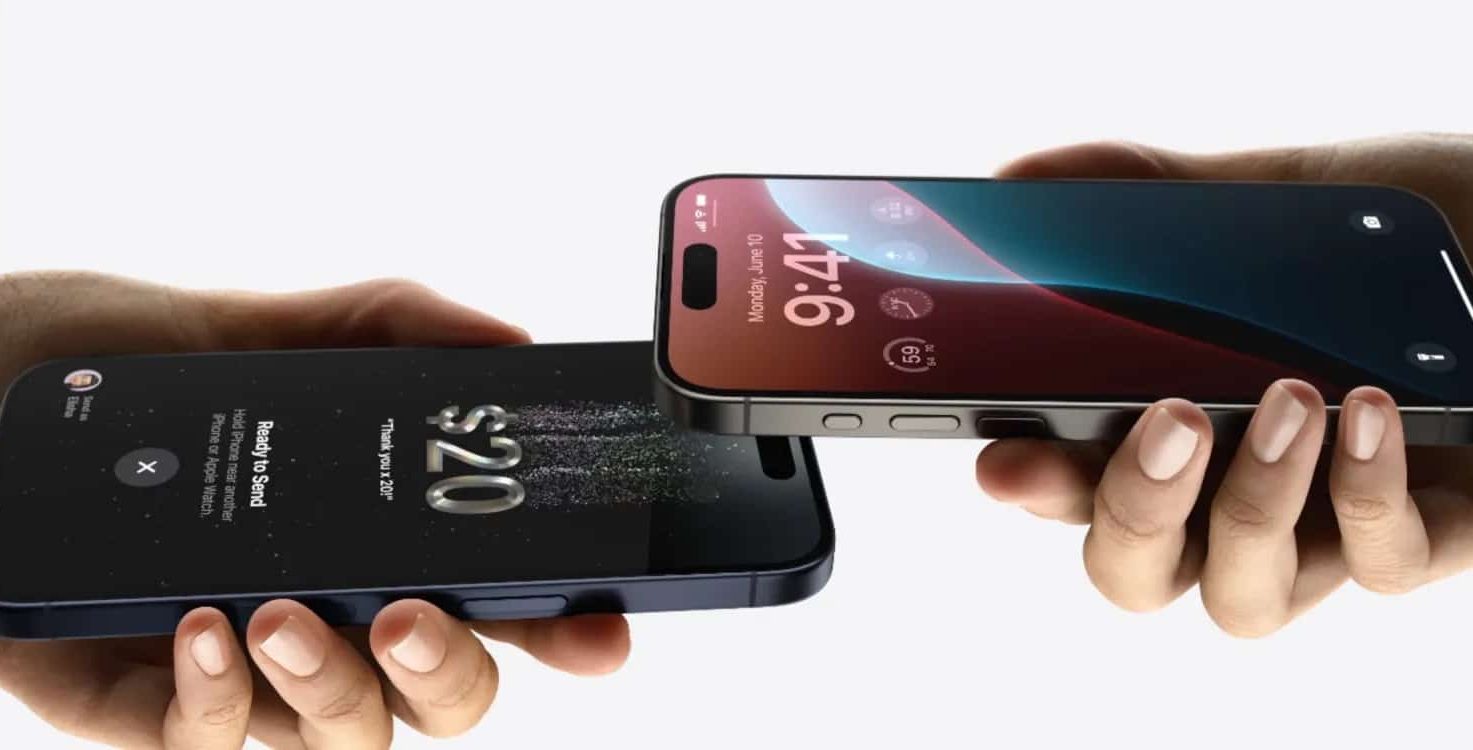
Sending and Receiving Money Instantly
One of the most popular uses of Apple Cash is sending money through Messages. Payments feel like part of the conversation, not a separate task.
Workflow
Messages > Open Conversation > Apple Pay button > Enter Amount > Send
Receiving money works the same way. Funds arrive instantly and are ready to use right away, without waiting for processing times.
Using Apple Cash for Daily Payments
Apple Cash works anywhere Apple Pay is accepted. Just choose Apple Cash as the payment method at checkout and authenticate.
This is useful when a credit card isn’t available, when you want tighter spending control, or when sharing money within a family. Apple Cash can also be set up for children through Family Sharing, giving parents visibility and control over allowances and spending.
Workflow
Apple Pay checkout > Select Apple Cash > Face ID or Touch ID

Managing Your Balance and Transfers
At any time, you can move money from Apple Cash to a linked bank account or simply keep it available for future use.
Workflow
Wallet app > Apple Cash > Transfer to Bank
Transfers help keep Apple Cash flexible, acting as both a spending balance and a temporary holding place for shared money.
A Practical Tool Inside Apple Wallet
Apple Cash fits naturally into daily life because it removes friction. Payments are fast, balances are easy to understand, and privacy is built in by design. From family expenses to quick purchases, it turns Apple Wallet into more than a place for cards.
It’s a small feature with an outsized impact on how people move money every day.


