Apple Home Hub is entering a new phase. Starting February 10, 2026, Apple will no longer support iPads as Home Hubs, and the legacy HomeKit architecture will stop working entirely. This change affects lighting, security cameras, automations, and remote access for millions of homes.
If your setup still relies on an iPad as a Home Hub, action is required. The good news is that migrating to Apple TV is straightforward, and it brings faster performance, stronger security, and full support for Matter and Apple Intelligence.
Why Apple Is Ending iPad Home Hub Support
The original HomeKit architecture was designed when smart homes were smaller and simpler. Over time, devices multiplied, automations grew more complex, and new standards like Matter emerged.
Apple’s newer Home architecture, introduced with iOS 16.2, was built to handle these demands. It improves responsiveness, strengthens encryption, and allows more advanced automations. Maintaining compatibility with older hub types, especially iPads that move around and sleep aggressively, limited reliability.
Apple TV and HomePod are designed to stay powered on, connected, and responsive at all times. That consistency is now mandatory.

What Happens If You Don’t Upgrade
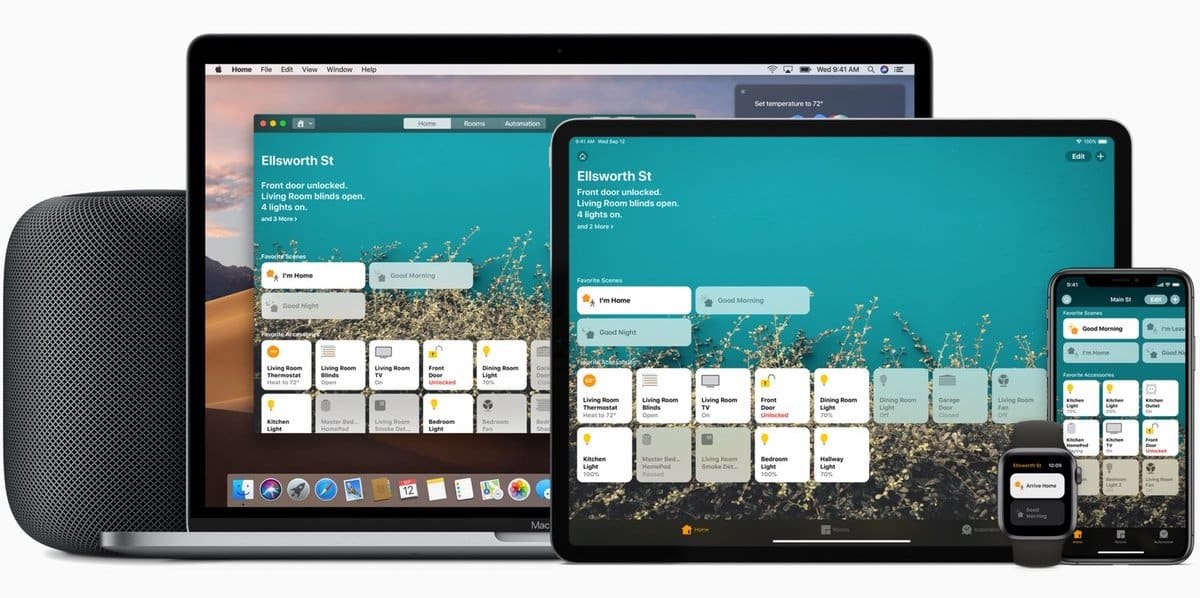
On February 10, 2026, the previous Apple Home architecture will stop working. Homes that haven’t upgraded will lose remote access, automations may fail, and some accessories may stop responding entirely.
This is not a soft transition. Apple has already begun notifying users directly, and the cutoff is final.
What You Need Before Migrating
To complete the Apple Home Hub migration, you need:
- An Apple TV (4K or HD) running the latest tvOS
- An iPhone or iPad updated to the latest iOS or iPadOS
- Your Apple ID signed in on all devices
- All Home members updated to compatible software
Apple TV becomes the primary and most reliable Home Hub once set up.
How to Set Apple TV as Your Home Hub
On Apple TV
Settings > AirPlay and HomeKit > Home Hub > Enable
Once enabled, Apple TV automatically registers as the active Home Hub. If you have multiple hubs, Apple chooses the best one based on connectivity and availability.
You don’t need to manually disable the iPad yet. That happens naturally once the architecture is upgraded.
How to Upgrade to the New Apple Home Architecture
On iPhone or iPad
Settings > Home > Home Settings > Software Update > Update Now
This process upgrades your entire home, not just one device. During the update, accessories may go offline briefly. This is normal.
Once completed, the Home app will confirm the new architecture is active.

What Changes After the Migration
After moving your Apple Home Hub to Apple TV, most users notice faster response times, more reliable automations, and improved stability across accessories.
Matter devices integrate more smoothly, remote access becomes more consistent, and Home Intelligence features work without delays. Scenes trigger faster, and status updates feel immediate.
Apple TV also supports Thread and Ethernet (on select models), which further improves reliability in larger homes.
If You Use HomePod Too
If you have HomePod or HomePod mini, it can also act as a Home Hub. Apple will automatically assign priority between Apple TV and HomePod based on network conditions.
For most homes, Apple TV remains the strongest anchor, especially if connected via Ethernet.
Final Check Before February 10, 2026
Make sure
- Your Home architecture is updated
- Apple TV shows “Connected” as a Home Hub
- All Home members accept the upgrade
- Automations run correctly outside your home
Once completed, your Apple Home setup is future-ready and aligned with Apple’s long-term smart home strategy.