


An Apple ID is more than a login credential. It is the gateway to iCloud storage, purchases, backups, device syncing, subscriptions, and encrypted communications. Trusted devices strengthen that gateway by acting as verification endpoints whenever sensitive changes occur. When signing in on a new device or browser, Apple sends a verification code to a trusted device to confirm identity before access is granted.
Understanding how to add and remove Apple ID trusted devices is essential for maintaining account integrity, especially when upgrading hardware, selling older devices, or reorganizing family and work accounts.
What Is an Apple ID Trusted Device
An Apple ID trusted device is an iPhone, iPad, Mac, Apple Watch, or other Apple hardware that has been signed in with two-factor authentication enabled. These devices can receive verification codes and approve sign-in attempts.
Trusted devices differ from devices merely listed under your Apple ID. To qualify as trusted, the device must:
- Be signed in with your Apple ID
- Have two-factor authentication enabled
- Be secured with a passcode or password
Only devices meeting these conditions can receive authentication prompts and verification codes.
Viewing Apple ID Trusted Devices
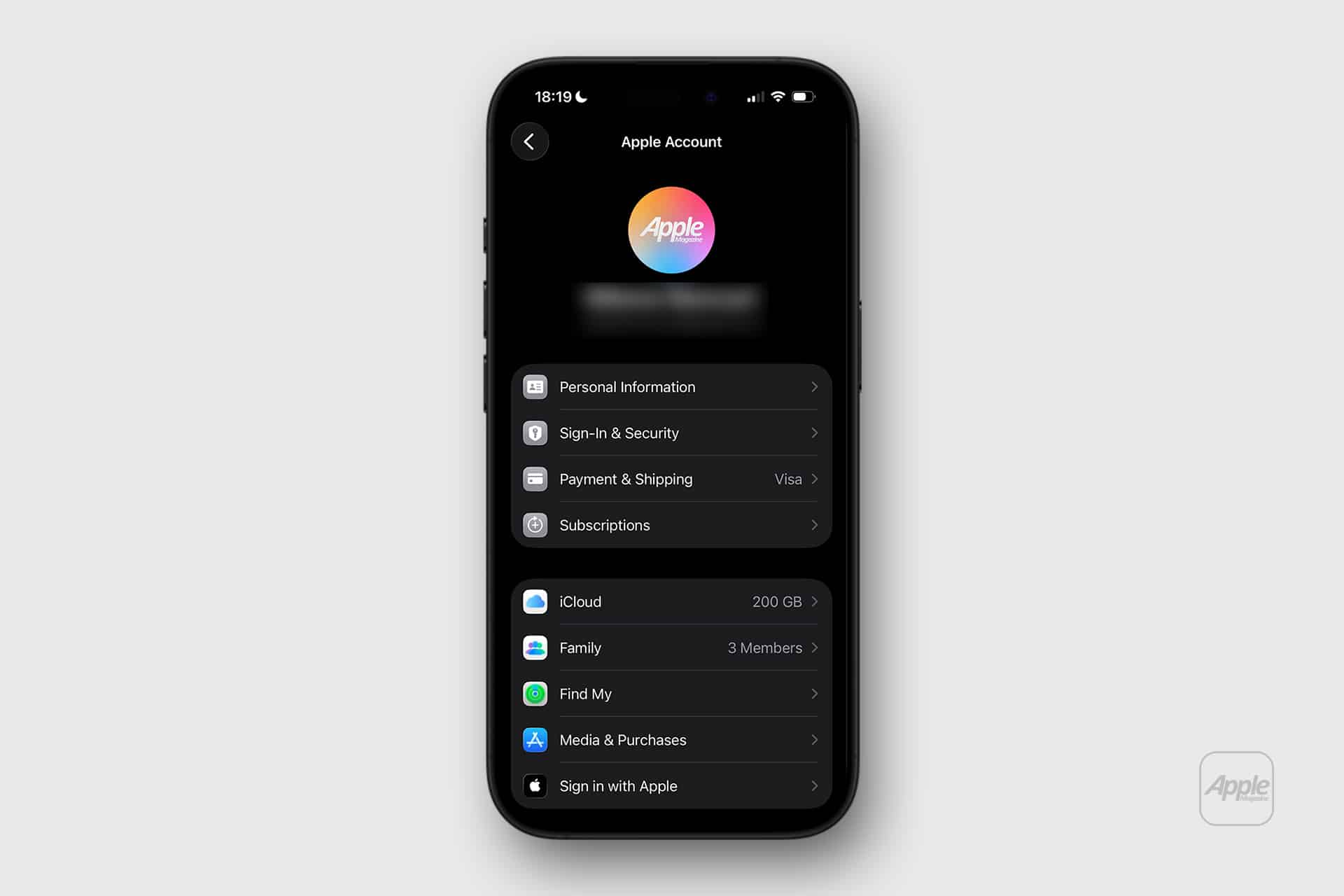
To review your Apple ID trusted devices on iPhone or iPad:
Settings > [Your Name]
On Mac:
System Settings > [Your Name]
From there, you’ll see a list of devices currently associated with your Apple ID. Selecting a device reveals model details, serial number, and whether it is active.
You can also manage devices from the web:
appleid.apple.com > Sign In > Devices
This overview is useful for identifying older hardware that may still be linked to your account.

Adding Apple ID Trusted Devices
Adding Apple ID trusted devices typically happens automatically when signing in with two-factor authentication enabled.
To add a device:
- Sign in with your Apple ID on the new device.
- Enter the verification code sent to an existing trusted device.
- Enable passcode protection if prompted.
Once verified, the device becomes trusted and can receive future verification codes.
If you are setting up a brand-new device, the trusted status is established during initial Apple ID sign-in.
Removing Apple ID Trusted Devices
Removing Apple ID trusted devices becomes necessary when selling hardware, replacing devices, or ending shared access.
On iPhone or iPad:
Settings > [Your Name] > Select Device > Remove from Account
On Mac:
System Settings > [Your Name] > Select Device > Remove from Account
Via web:
appleid.apple.com > Devices > Select Device > Remove from Account
Removing a device disconnects it from your Apple ID. If that device still has your account signed in, you may need to sign out directly on the hardware before removal is allowed.
Before selling or transferring ownership, users should sign out of iCloud and erase the device entirely to avoid activation lock complications.
Trusted Phone Numbers and Backup Access
In addition to trusted devices, Apple ID security includes trusted phone numbers. These numbers can receive verification codes if no trusted device is immediately accessible.
To manage trusted numbers:
Settings > [Your Name] > Sign-In & Security > Two-Factor Authentication
Keeping at least one current phone number ensures account access even if all trusted devices are unavailable.

Security Considerations When Managing Trusted Devices
Reviewing Apple ID trusted devices periodically helps detect unauthorized access. If you see an unfamiliar device in your list, removing it immediately prevents further verification prompts from being routed there.
Changing your Apple ID password after removing an unknown device adds another layer of protection.
For users with multiple devices, maintaining trusted status across primary hardware ensures smooth authentication without unnecessary friction.
Family Sharing and Shared Devices
Apple ID trusted devices are account-specific. Even in Family Sharing setups, each family member’s Apple ID maintains its own list of trusted devices.
Shared iPads or Macs used by multiple family members should have separate user accounts to avoid cross-authentication conflicts.
Enterprise and managed devices may follow different administrative policies depending on mobile device management (MDM) configuration.
Account Recovery Implications
Trusted devices accelerate account recovery by enabling secure verification. Without trusted devices or trusted numbers, account recovery may require identity verification steps that take additional time.
Ensuring that at least one active device remains trusted prevents complications during password resets or sign-in attempts from new locations.
Routine audits of Apple ID trusted devices, particularly after hardware upgrades or repairs, help maintain a secure and streamlined authentication structure across the Apple ecosystem.
