
Apple Maps has grown into a powerful navigation tool, especially for longer drives. One of its most useful features for travelers is multi-stop routing, which allows you to add several destinations to a single route and let the app handle the order and navigation smoothly.
Whether you’re planning a weekend road trip, coordinating errands across a city, or mapping out a day of meetings, Apple Maps makes it easy to keep everything in one continuous journey.
What Is Multi-Stop Routing in Apple Maps
Multi-stop routing allows you to add multiple stops between your starting point and final destination. Instead of ending navigation and restarting directions each time, Apple Maps guides you through the entire route step by step.
Stops can include:
- Restaurants and coffee breaks
- Gas stations or charging stops
- Hotels and accommodations
- Friends’ homes or business meetings
- Scenic viewpoints along the way
Apple Maps recalculates routes in real time, adjusting for traffic, road closures, and delays as you move from one stop to the next.


How to Add Multiple Stops in Apple Maps
Setting up a multi-stop route takes only a few moments.
Workflow
Apple Maps > Search for your destination > Get Directions > Add Stop
After starting navigation, you can tap the route card and select Add Stop to include another location. You can repeat this process to add several stops in sequence.
Apple Maps keeps navigation active while you add new locations, so you don’t lose progress or context.
Reordering Stops for a Better Route
Apple Maps allows you to change the order of your stops if your plans change.
Workflow
Apple Maps > Route Card > Edit Stops > Drag to Reorder
This is especially helpful for road trips where timing, traffic, or spontaneous plans affect where you want to go next. Reordering stops instantly updates the route without restarting navigation.

Using Multi-Stop Routing During Active Navigation
One of the strengths of Apple Maps is how naturally multi-stop routing works while you’re already driving.
You can:
- Add a stop without ending navigation
- Skip a stop if plans change
- Let Apple Maps reroute automatically
This makes Apple Maps ideal for flexible travel, where not everything is planned in advance.
Multi-Stop Routing for Road Trips
For longer drives, multi-stop routing becomes a planning tool as much as a navigation feature.
You can build a route that includes:
- Charging stations for electric vehicles
- Rest areas spaced across long highways
- Meal stops at specific times
- Overnight stays on multi-day trips
Apple Maps continuously updates arrival times for every stop, helping you manage the day without mental math or guesswork.
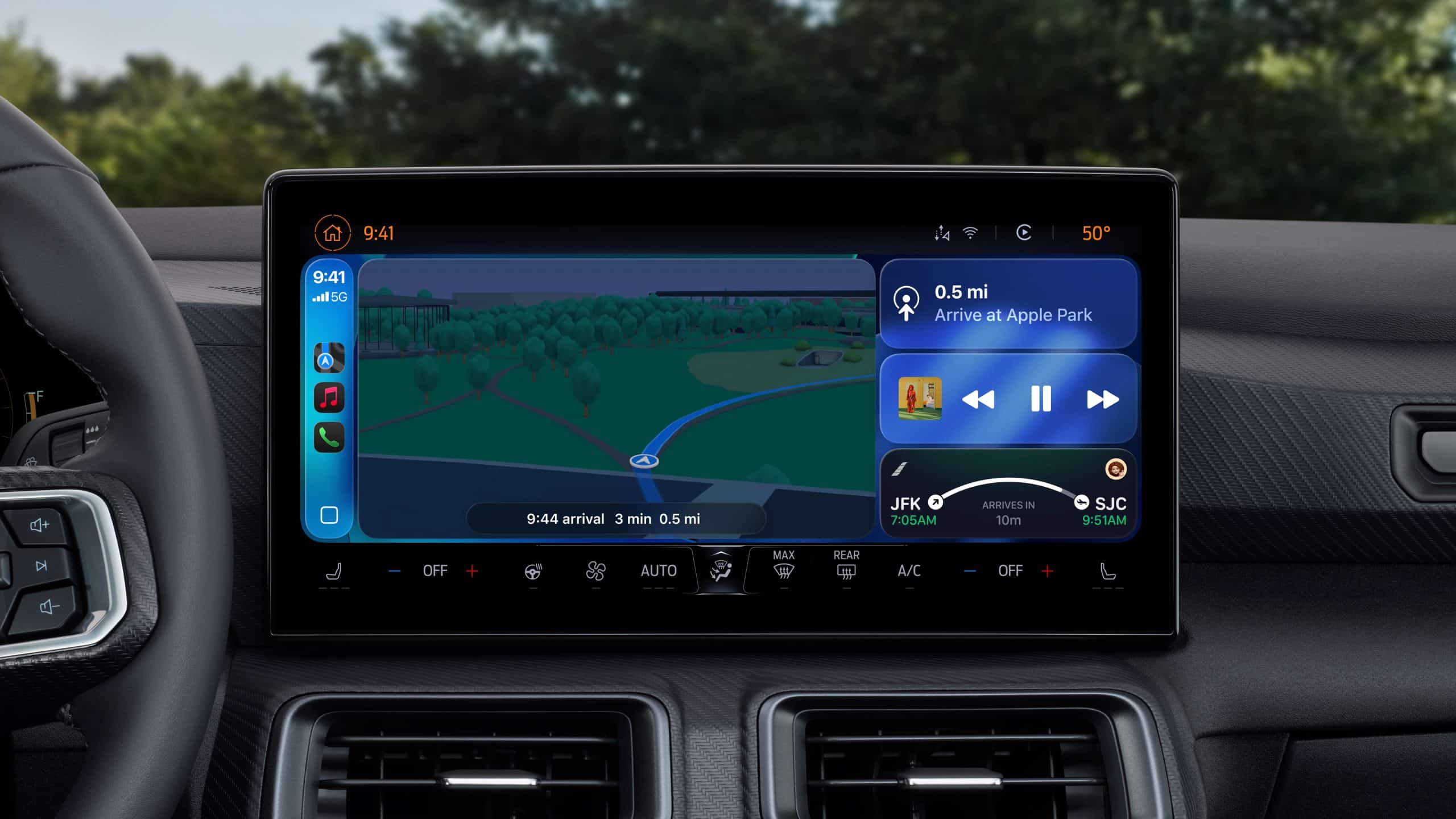

Multi-Stop Routing With CarPlay
When using Apple Maps with CarPlay, multi-stop routing stays fully accessible.
Stops appear clearly on the CarPlay screen, and Siri can assist with changes while you drive. You can ask to add a stop, skip one, or check arrival times without taking your eyes off the road.
This integration makes Apple Maps especially effective for long drives where safety and simplicity matter.
Multi-stop routing reflects Apple Maps’ focus on real-world use. Travel rarely follows a single straight line, and Apple Maps adapts to that reality.
By keeping routes flexible, readable, and easy to adjust, Apple Maps reduces friction and lets the trip unfold naturally. It’s a feature that quietly changes how road trips feel, turning navigation into a background companion instead of a constant task.
Once you start using multi-stop routing, it quickly becomes part of how you plan every drive, short or long.