

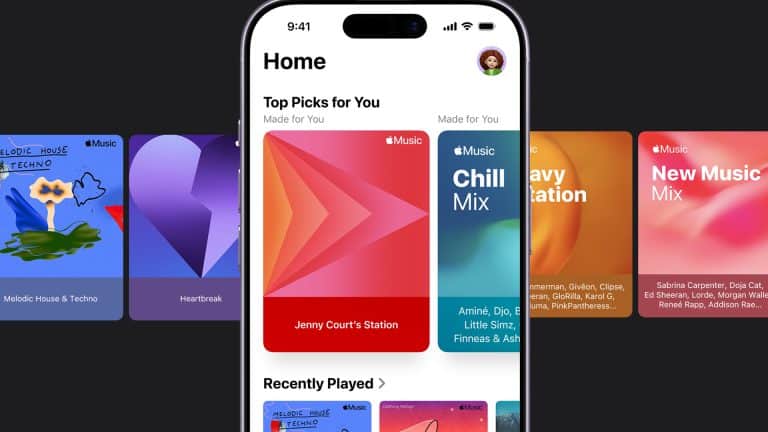
Apple Music discovery settings quietly shape what appears in Listen Now, autoplay queues, and curated mixes. The platform constantly analyzes your plays, skips, library additions, search behavior, and even how long you listen to a track. Over time, that data builds a listening profile. If recommendations start missing the mark, adjusting a few key behaviors can recalibrate the system.
Apple Music does not offer a single “reset algorithm” button. Instead, discovery quality improves through consistent listening patterns and selective adjustments across history, suggestions, and library management.
How Listening History Influences Recommendations
Listening history plays a central role in Apple Music discovery settings. Every song you stream contributes to your recommendation profile — unless you disable history tracking.
To manage listening history:
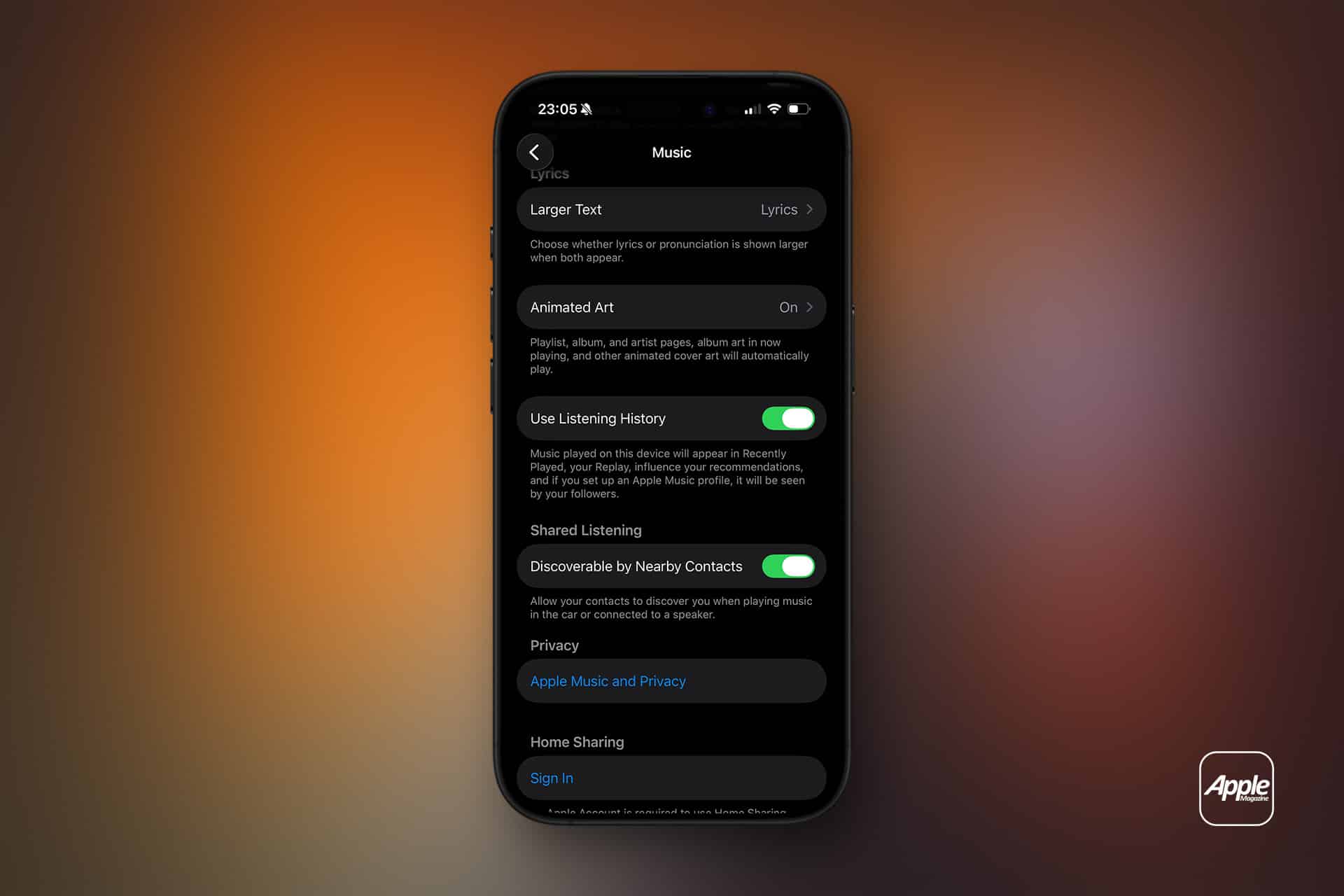
Settings > Apps > Music > Use Listening History
If enabled, songs played on your device influence your mixes and personalized stations. If disabled, playback on that device will not affect recommendations.
This setting becomes useful in shared environments. For example, if a HomePod is used during gatherings or children’s playlists are streamed on a family iPad, disabling listening history on that device prevents those sessions from reshaping your personal recommendations.
Be aware that Apple Music Replay, which tracks your annual listening statistics, also depends on listening history being active.

Refining Suggestions Through Active Feedback
Apple Music discovery settings respond strongly to feedback. You can guide the system by signaling preferences directly within the app.
When browsing or playing a song:
Tap the three-dot menu > Suggest Less
Or:
Tap the three-dot menu > Love
Selecting Love increases the weight of similar artists and genres. Suggest Less reduces the likelihood of related recommendations appearing in curated mixes or autoplay queues.
Consistent feedback across several listening sessions improves recommendation accuracy more effectively than occasional adjustments.
Managing Your Library for Better Discovery
Your library influences discovery more than many users realize. Adding albums, artists, or playlists signals deeper interest compared to casual streaming.
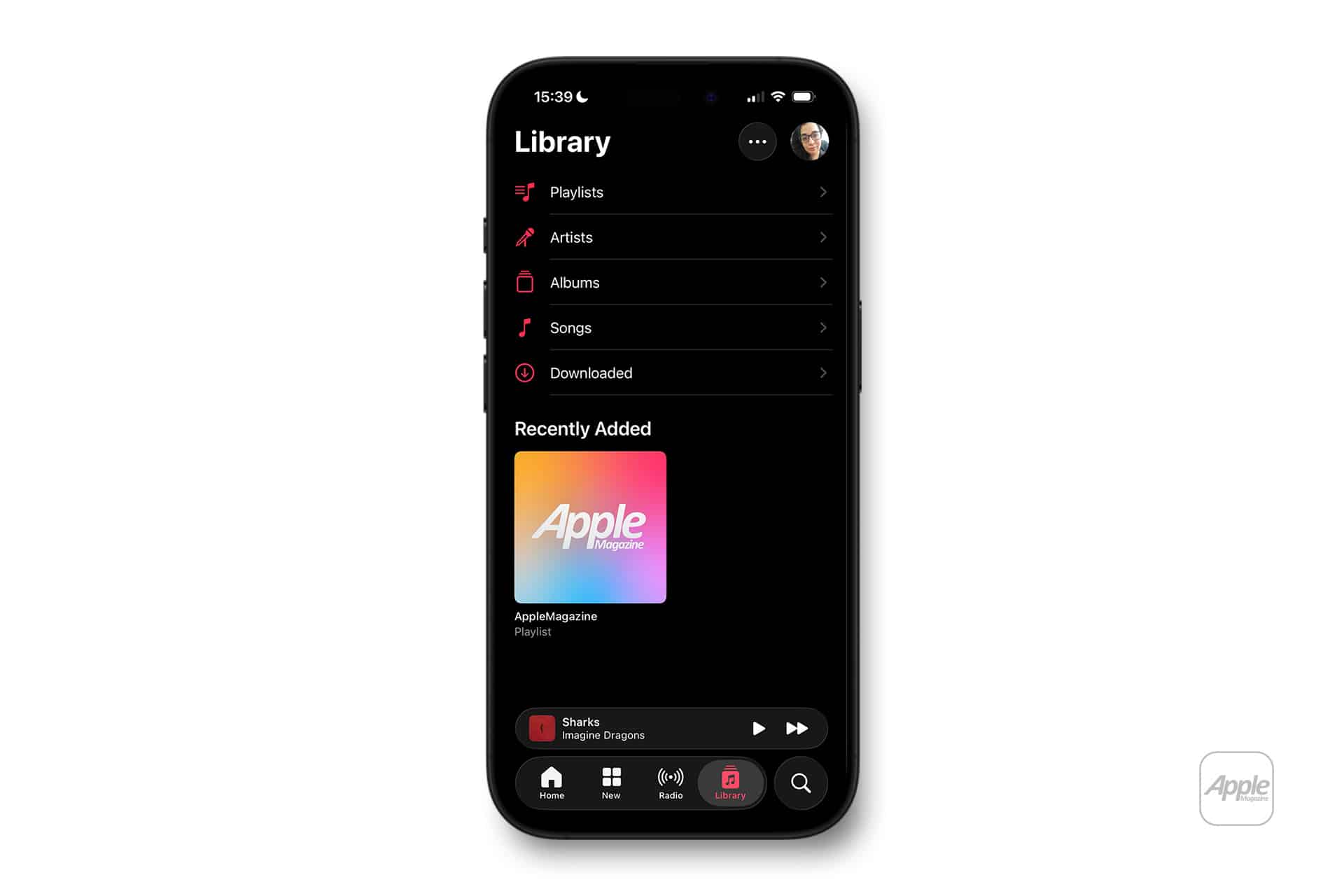
To review your saved content:
Music App > Library
Removing artists you no longer follow can gradually shift recommendations. If older genres dominate your profile, pruning the library reduces their algorithmic weight over time.
Similarly, adding new artists you genuinely enjoy accelerates personalization. Discovery responds more strongly to repeated listening and library saves than to isolated plays.
Using Autoplay Strategically
Autoplay extends playback with algorithmically selected tracks once your queue ends. It can refine Apple Music discovery settings if used intentionally.
To control autoplay:
Music App > Now Playing Screen > Infinity Symbol
When enabled, autoplay adds similar tracks. If those selections consistently miss your taste, actively skipping or using Suggest Less helps recalibrate future autoplay sessions.
Repeated full plays of autoplay tracks reinforce those patterns in your profile.
Resetting the Listening Direction
While Apple does not offer a complete recommendation reset tool, you can gradually redirect suggestions by:
- Consistently playing new genres
- Saving new artists to your library
- Removing outdated preferences
- Using Love and Suggest Less regularly
- Disabling listening history on shared devices
Within several weeks of consistent behavior, Listen Now and curated playlists begin reflecting updated patterns.
Profile and Social Listening Impact
If you share playlists publicly or follow friends inside Apple Music, those interactions can influence discovery signals indirectly. Listening to shared playlists repeatedly strengthens the genres represented in them.
Review your profile:
Music App > Profile Icon > View Profile
Removing public playlists or unfollowing accounts does not immediately reset recommendations but reduces recurring influence.
Cross-Device Consistency
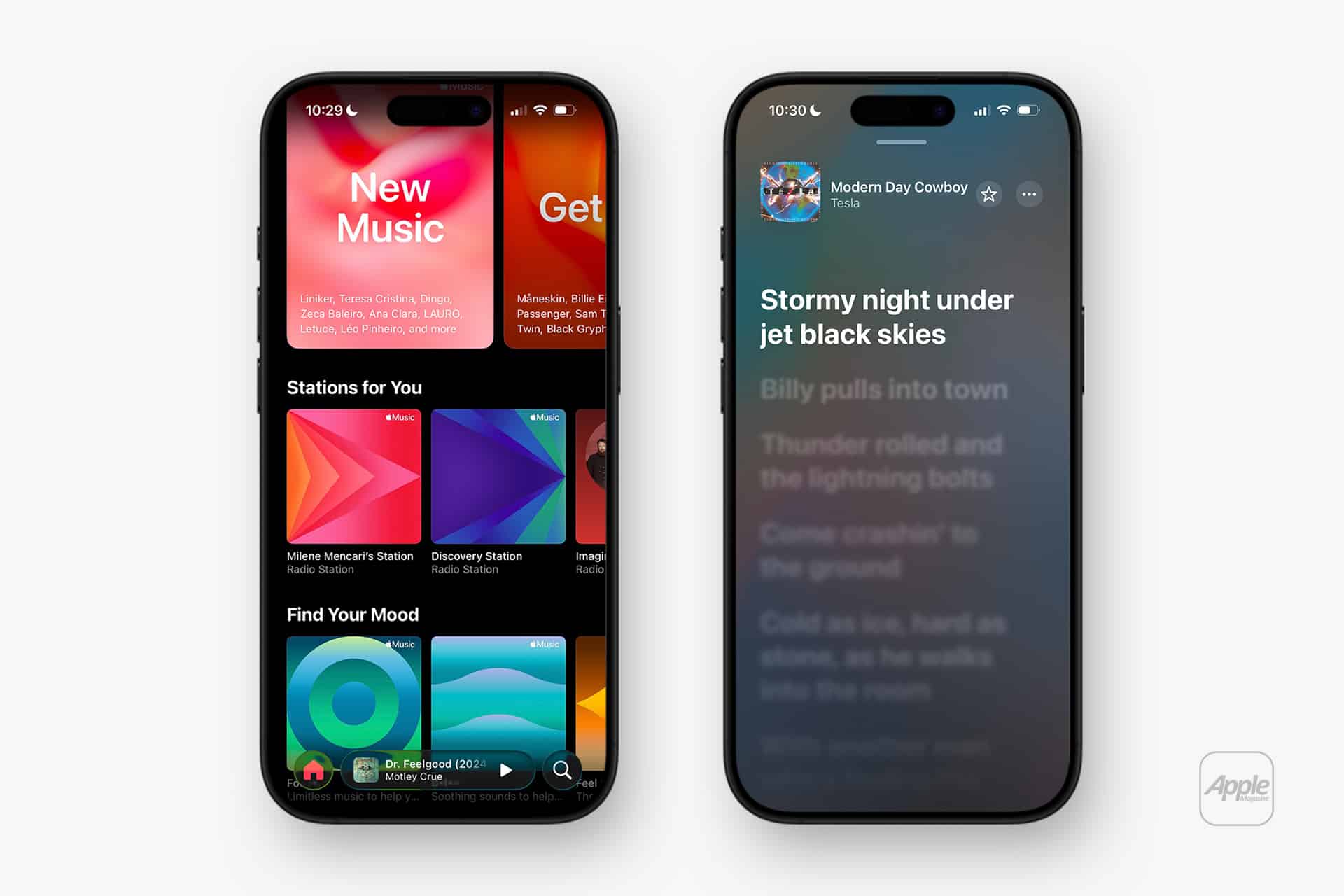
Apple Music discovery settings operate across devices linked to the same Apple ID. iPhone, iPad, Mac, and Apple TV all contribute to the same listening profile.
Ensure Use Listening History is configured intentionally on each device:
Settings > Apps > Music > Use Listening History
If a secondary device skews recommendations, adjusting its history setting prevents further distortion.
Time and Consistency Matter
Improving Apple Music discovery settings is not instant. The algorithm adjusts based on patterns, not isolated actions. Regular listening aligned with your true preferences is more effective than attempting rapid changes.
Focused listening habits over several weeks typically produce noticeable refinement in curated mixes such as Favorites Mix, New Music Mix, and personal radio stations.
Apple Music discovery settings respond to behavior. By actively managing listening history, refining library content, and signaling preferences consistently, you shape a recommendation engine that better reflects your evolving taste.