


Streaming makes music instantly accessible, but it also makes it dependent on signal strength, roaming plans, and data caps. The moment you board a flight, enter a subway tunnel, travel internationally, or drive through rural areas, that convenience disappears. Apple Music offline downloads remove that dependency. When music is stored directly on your device, playback continues regardless of connectivity.
Offline listening is not a separate mode you switch on. It is a result of downloading content to your device while your Apple Music subscription remains active. Once downloaded, songs, albums, and playlists live locally and play without buffering or interruption.
For travelers, commuters, athletes, students, and professionals who rely on music throughout the day, offline access changes how the service functions.
Downloading Songs and Playlists on iPhone or iPad
Before downloading, content must be added to your Library.
Music > Find Album or Playlist > Add to Library
After adding it, download it for offline use:
Music > Library > Select Album or Playlist > Download
A downward arrow icon confirms that the content is saved locally. Once downloaded, you can enable Airplane Mode and playback will continue without interruption.
To download individual tracks:
Music > Library > Tap the three-dot menu next to a song > Download
Downloaded content appears automatically inside your Library.
If you want to see only locally stored files:
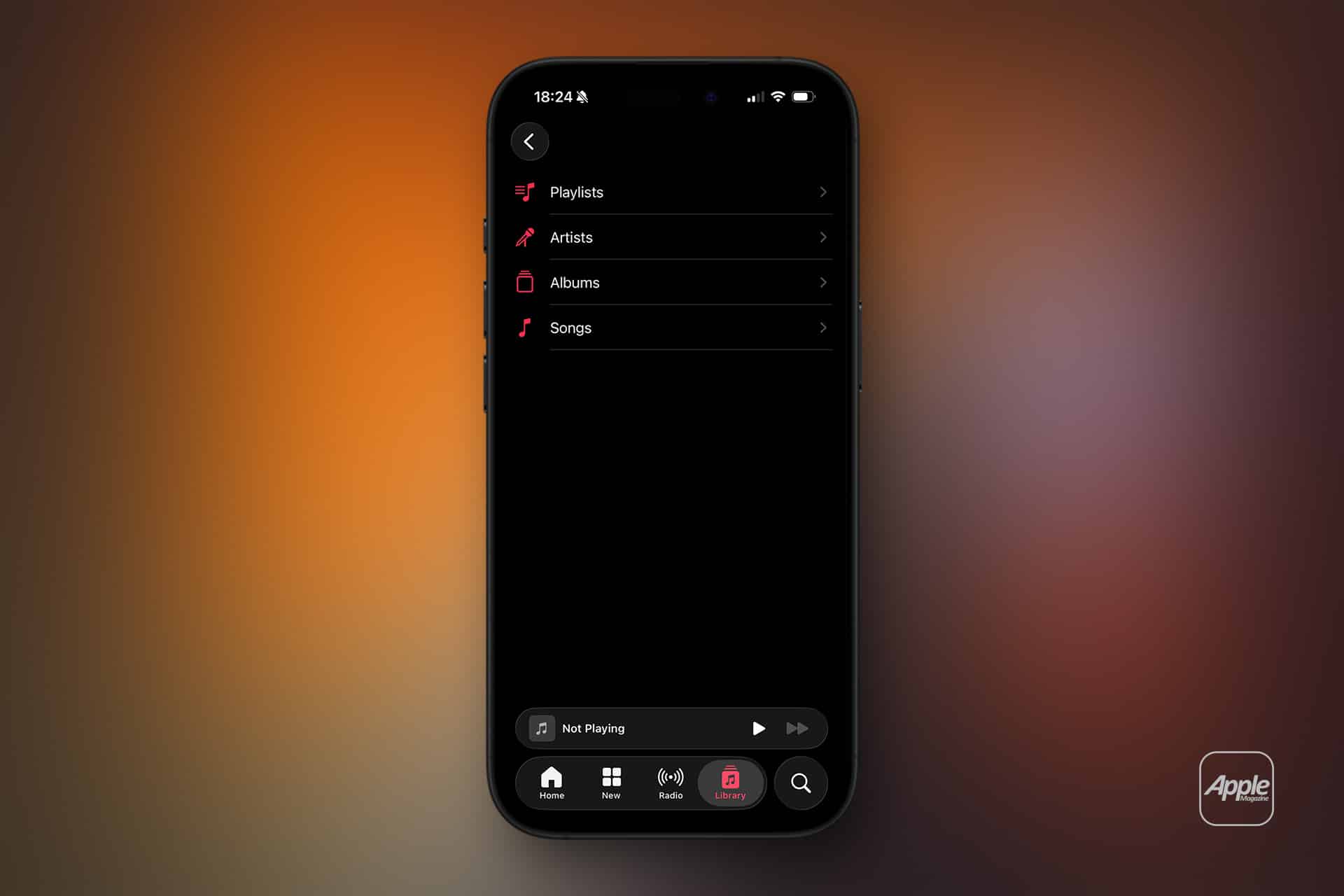
Music > Library > Downloaded
This filtered view ensures you are accessing music that does not require internet access.

Downloading Music on Mac
Offline playback also works on Mac through the Music app.
Music (Mac) > Find Album or Playlist > Add to Library
Music > Library > Download
Downloaded files remain accessible even if the Mac disconnects from Wi-Fi temporarily.
Managing Storage Strategically
Downloaded music consumes device storage. The amount depends on audio quality and library size. For users storing hundreds or thousands of songs, storage management becomes important.
To review downloaded content:
Settings > Music > Downloaded Music
Here you can delete specific artists, albums, or all downloaded content if necessary.
If you want music added to your Library to download automatically:
Settings > Music > Automatic Downloads
This setting ensures that every new addition is stored offline immediately.
For users concerned about storage limits:
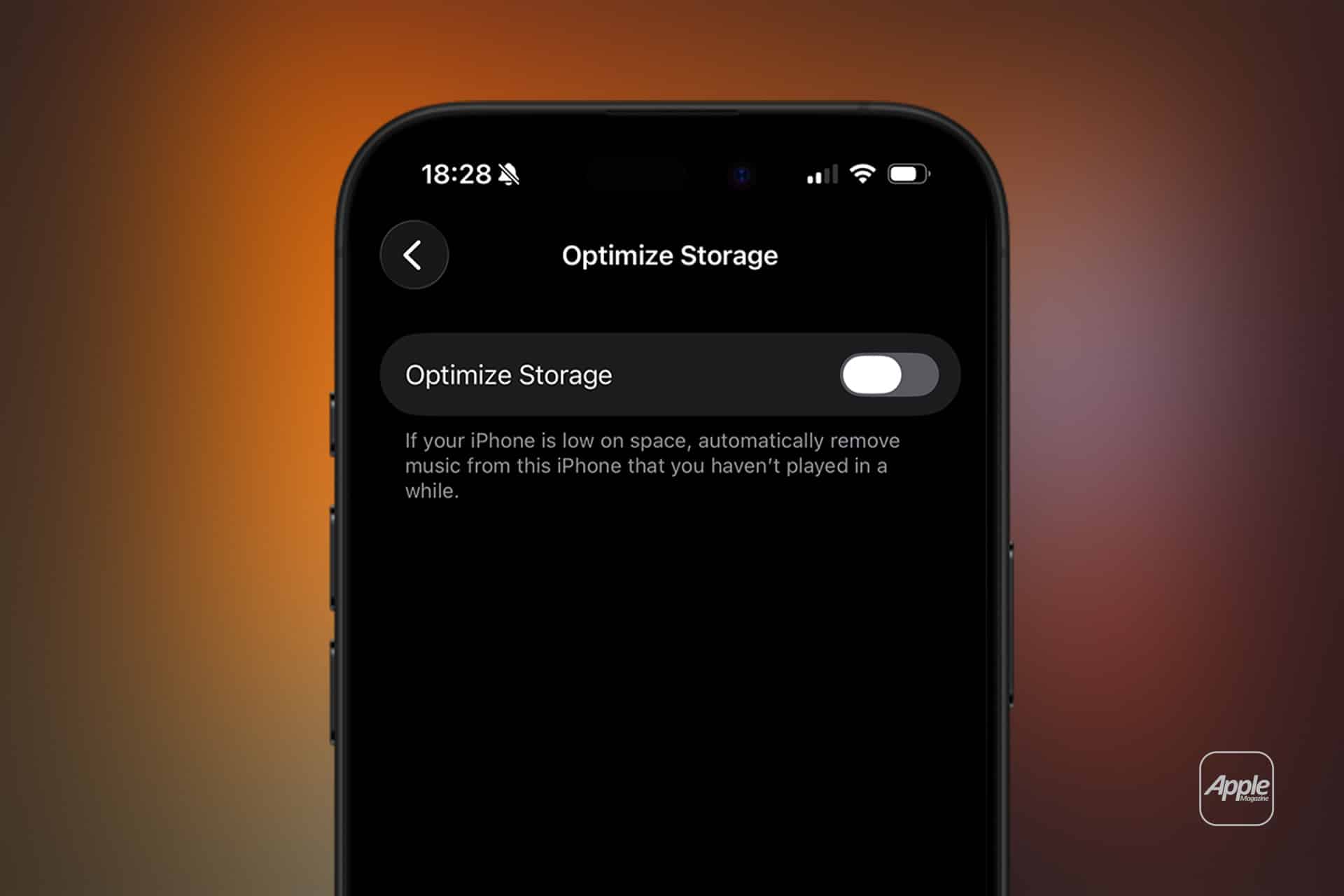
Settings > Music > Optimize Storage
Enable this to allow iOS to remove rarely played downloads automatically when storage runs low. The songs remain in your Library and can be re-downloaded later.
Audio Quality and Offline Strategy
Audio quality directly affects storage usage. Standard AAC files require less space. Lossless and high-resolution lossless files require significantly more.
To adjust download quality:
Settings > Music > Audio Quality > Download in Lossless
Lossless downloads provide higher fidelity but increase file size. For devices with limited storage, standard quality may be more practical.
Professionals using wired headphones or high-end audio systems may prefer lossless downloads for accuracy. Casual listening during travel may not justify the additional storage.
Reducing Cellular Data Usage
Offline listening also helps control data consumption.
To manage streaming over mobile networks:
Settings > Music > Cellular Data
You can disable cellular streaming entirely or restrict high-quality audio when not connected to Wi-Fi.
For international travel, downloading playlists in advance avoids roaming charges.
Offline Listening in Real-World Scenarios
Frequent flyers download playlists before boarding. Long train commuters store daily mixes to avoid signal interruptions in tunnels. Students download lecture background playlists for campus areas with unstable coverage. Athletes preload workout playlists to prevent connection drops during outdoor runs.
In each case, the process is simple: add, download, verify.
Before leaving connectivity behind, confirm the download icon appears next to the content.
Then test by enabling Airplane Mode and opening:
Music > Library > Downloaded
If playback works, the music is stored locally.
Subscription Dependency
Offline playback requires an active Apple Music subscription. If the subscription lapses, downloaded tracks remain on the device but become unplayable. The files are encrypted and tied to your account status.
This protects licensing agreements while still giving subscribers flexibility to listen offline.
Seamless Sync Across Devices
If iCloud Music Library is enabled, your library stays consistent across iPhone, iPad, and Mac. However, downloads remain device-specific. Downloading on iPhone does not automatically download the same album on Mac unless Automatic Downloads is enabled there as well.
Each device manages its own storage and offline files.
Apple Music offline listening transforms the service from streaming-only to hybrid access. Whether reducing data usage, preparing for travel, or ensuring uninterrupted playback in low-signal environments, downloading content ensures your music remains available exactly when needed.