

Apple Music playlist sorting can make a large music library feel easier to manage, especially for users who have years of saved songs, personal playlists, downloaded albums, and mixes built for different moods, trips, workouts, or projects. The larger a library gets, the harder it becomes to find the right song without scrolling through hundreds of tracks or opening the wrong playlist.
Apple’s Music app gives users several ways to bring order back to playlists. On iPhone, users can sort songs inside a playlist by playlist order, title, artist, album, or release date where available. On Mac, the Music app offers deeper library controls, including column sorting, playlist folders, smart playlists, and more flexible organization for users who manage a large personal collection.
The feature is not always obvious because Apple Music often emphasizes discovery, recommendations, stations, and playlists made by editors. But for users who build their own music library, sorting and filtering can be the difference between a playlist that feels alive and one that slowly becomes impossible to use.
Apple Music Playlist Sorting on iPhone
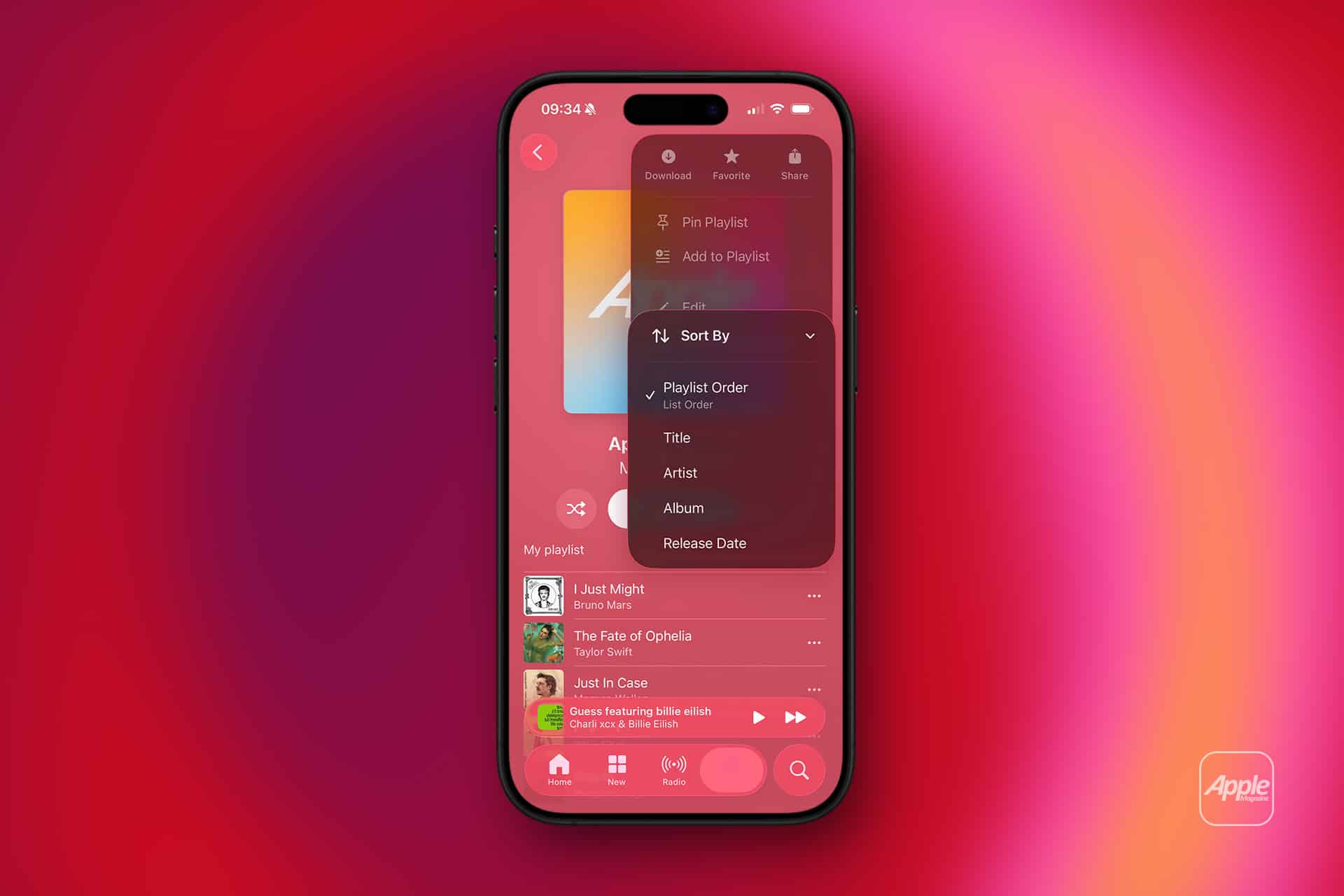
Apple Music playlist sorting on iPhone is the simplest place to start. A playlist can be sorted from the More menu, letting users change the order without manually dragging every track. This is useful for long playlists that have grown over time and no longer have a clear structure.
To sort a playlist on iPhone:
Music > Library > Playlists > Choose Playlist > More Button > Sort By
From there, users can choose the available sorting option. Playlist Order keeps the custom sequence. Title sorts songs alphabetically. Artist groups tracks by performer. Album organizes songs by album title. Release Date can help when a playlist is built around eras, new releases, or discographies.
Each option serves a different purpose. Title sorting is useful when looking for a specific song. Artist sorting helps when a playlist has many tracks from the same performers. Album sorting is better for users who add complete albums to playlists. Release Date can be useful for historical listening, year-based playlists, or following an artist’s evolution.
The most important option is still Playlist Order. This preserves the order the user created manually. For a carefully sequenced playlist, such as a workout mix, dinner playlist, road-trip set, or mood-based collection, custom order may be more important than alphabetical sorting.
Sort options are not a replacement for curation. They are a way to inspect and clean the playlist before returning to the order that feels right.

Playlist Filters Help With Large Libraries
Filtering is useful when the problem is not order, but volume. Apple Music libraries can become crowded with saved songs, downloads, albums, playlists, and recommendations. The Library tab helps users narrow the view by category, including Playlists, Artists, Albums, Songs, Made for You, Downloaded, and other sections depending on the account and device.
To filter the library on iPhone:
Music > Library > Choose Category
For downloaded music only:
Music > Library > Downloaded
This is especially useful when traveling, saving data, or listening without a strong connection. Downloaded view removes the confusion of cloud-only songs and shows what is actually stored on the device.
Search also works inside Apple Music, but browsing by category can be faster when users already know the type of item they want. A playlist name, artist, album, or song title may be easier to find when the library is filtered first.
A good cleanup routine starts by checking playlists, removing duplicates or old tracks, sorting by artist or title to see what is inside, then returning to custom playlist order when the mix is ready to use.
Playlist Folders Keep Projects Separate
Playlist folders are one of the most useful organization tools for people with many playlists. Instead of keeping every playlist in one long list, users can group them by purpose: Workouts, Travel, Work, Sleep, Kids, Favorites, 2000s, New Music, Party, Classical, or Research.
On iPhone, Apple lets users organize playlists in folders. This makes the Playlists screen cleaner and easier to scan.
To organize playlists into folders on iPhone:
Music > Library > Playlists > Touch and Hold Playlist or Folder > Move To
On Mac, playlist folders are even more useful because the sidebar gives more room for structure. A Mac user can build folder systems for personal playlists, smart playlists, imported music, work projects, DJ-style sets, or seasonal collections.
To create a playlist folder on Mac:
Music > File > New > Playlist Folder
Folders are helpful because they solve a different problem than sorting. Sorting arranges songs inside one playlist. Folders arrange playlists themselves. A user who has 60 playlists may not need better song order first. They may need fewer playlists visible at once.
Mac Music App Gives Deeper Sorting Tools
The Music app on Mac remains the better place for serious library management. iPhone is excellent for listening, adding songs, and making quick edits, but Mac gives users more space and more control.
On Mac, users can view playlists as songs and click column headers such as Name, Time, Artist, Album, Genre, Year, Date Added, Plays, and Last Played, depending on which columns are visible. This makes it easier to audit a playlist, find duplicates, group tracks, or build a better order.
To adjust playlist view on Mac:
Music > Choose Playlist > View > As Songs
To change visible columns:
Control-Click Column Header > Choose Columns
This is useful for users who want to sort by Date Added, Year, Genre, or Plays before deciding what belongs in a playlist. A user can find songs added recently, remove tracks that no longer fit, or rebuild a playlist around a specific decade or style.
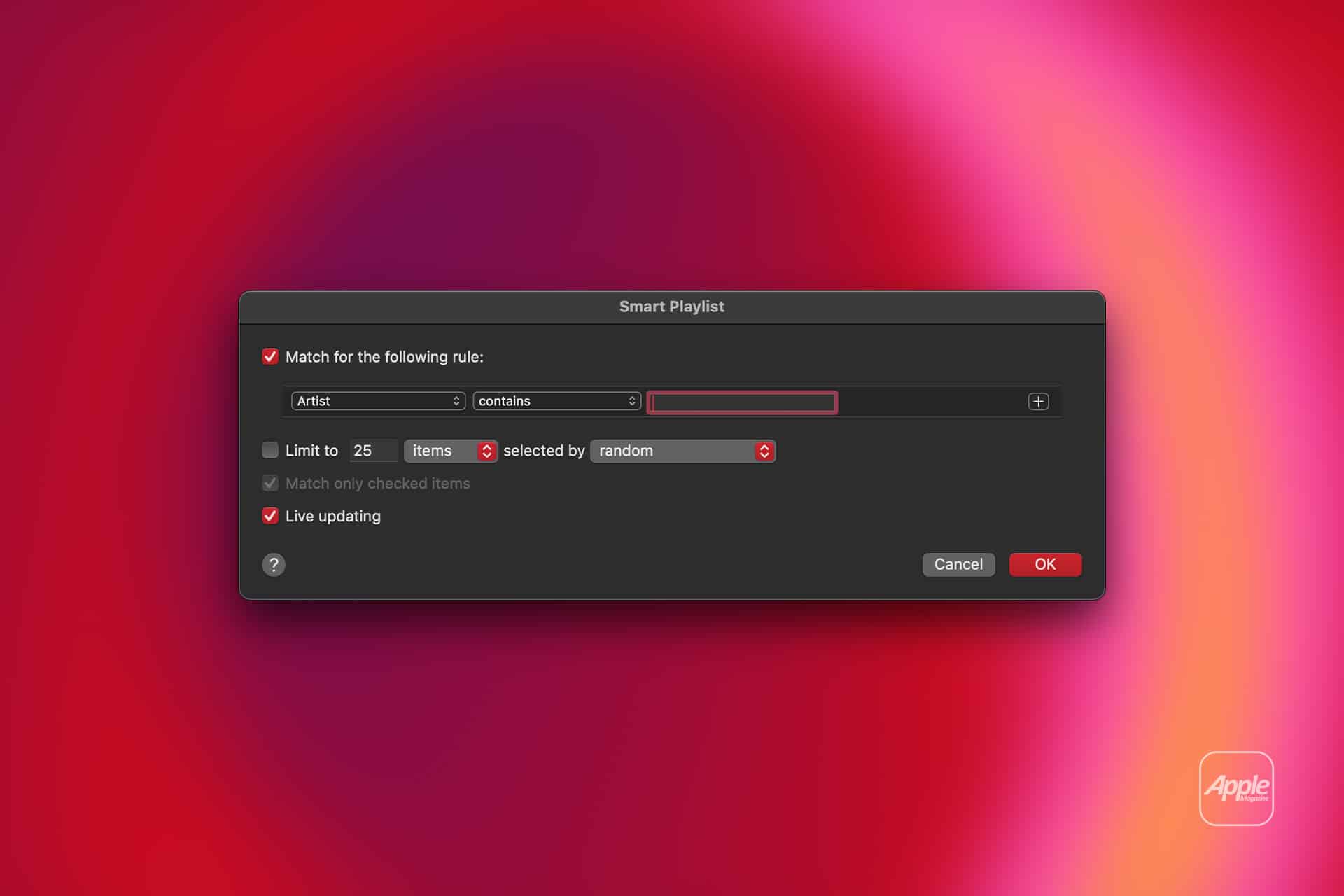
Mac also supports Smart Playlists, which can automatically collect music based on rules. A Smart Playlist can gather songs by artist, genre, rating, year, play count, date added, or other library data. This is one of Apple Music’s strongest organization features for users with large personal libraries.
To create a Smart Playlist on Mac:
Music > File > New > Smart Playlist
Smart Playlists are not available in the same way on iPhone, but they can sync to iPhone through the library when Sync Library is enabled. That makes Mac the best place to build advanced playlist systems that are then used on iPhone.
Sorting Is Also a Discovery Tool
Sorting is not only about cleanup. It can change how a playlist is experienced. A playlist sorted by release date can become a small history of a genre or artist. A playlist sorted by artist can reveal which performers dominate the collection. A playlist sorted by album can show when full albums were added rather than individual tracks.
This can help users rediscover music they forgot they saved. A long playlist may contain older songs buried under new additions. Sorting by title, artist, or album can bring those songs back into view. Sorting by release date can make a playlist feel like a timeline.
For users who follow new music, sorting can also show whether a playlist has become outdated. If the newest songs are from months ago, the playlist may need a refresh. If one artist appears too often, the playlist may need more variety. If several tracks from the same album are scattered around, they can be grouped or removed.
The best playlists usually combine structure and feeling. Sorting helps reveal the structure. Manual order brings back the feeling.
How to Keep Playlists Cleaner Over Time
A playlist becomes messy when it has no purpose. Apple Music makes it easy to add songs quickly, but a playlist can lose its identity if everything goes into the same place. The best fix is to give each playlist a clear role.
A workout playlist should be built around energy. A sleep playlist should avoid sudden loud tracks. A travel playlist can be longer and more varied. A favorites playlist should stay selective. A new-music playlist can be temporary and cleaned often. A shared playlist should be easier for others to understand.
Sorting helps maintain that role. Once a month, users can open a playlist, sort by artist to check repetition, sort by title to find duplicates, sort by album to remove tracks that do not fit, or sort by release date to refresh old mixes.
A simple cleanup path:
Music > Playlist > More Button > Sort By > Artist or Title
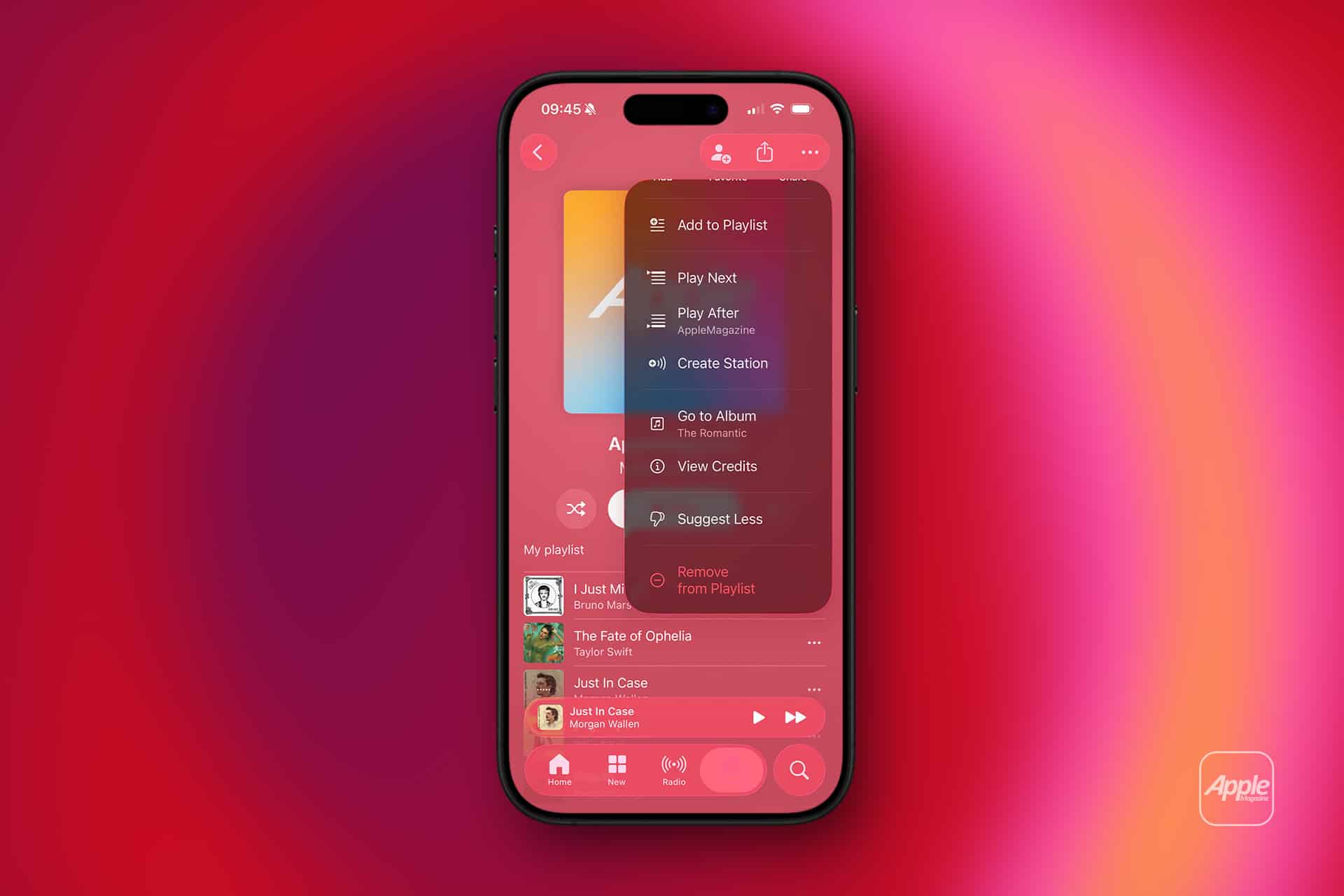
Then remove tracks that no longer fit:
Playlist > More Button Beside Song > Remove From Playlist
Removing a song from a playlist does not necessarily delete it from the library. It only removes that track from the playlist, unless the user chooses a separate delete option.
Shared Playlists Need Even More Structure
Shared playlists can become messy faster because more than one person may add songs. Sorting can help everyone understand what is inside the list before it turns into a random collection.
For collaborative listening, a clear playlist name and description matter. A shared playlist for a trip, party, workout, or project should have a purpose. Sorting by recently added or scanning by artist can help users see what others have contributed.
When a shared playlist gets too large, it may be better to create a second version instead of endlessly adding to the original. For example, “Road Trip 2026” is easier to manage than one permanent “Road Trip” playlist used for years.
Apple Music’s collaborative and sharing features make playlists more social, but organization still matters. A shared playlist works best when it feels intentional rather than abandoned.
Apple Music Still Needs Better Filters
Apple Music sorting is useful, but there is room for improvement. Many users still want stronger filtering inside playlists, including easier duplicate detection, mood filters, release-year ranges, genre filters, explicit-content filters, playlist search, and more consistent sorting between iPhone, iPad, Mac, and the web.
The Mac Music app remains more powerful than the iPhone version, especially for smart playlists and detailed library sorting. That makes sense for serious library management, but it can make iPhone feel limited for users who do most of their listening there.
Apple has been adding more intelligence and discovery tools to Music, but playlist management could still become more modern. Better filtering would help users who are not only discovering music through Apple’s recommendations, but actively building personal collections.
A stronger Apple Music playlist system could eventually combine manual curation, smart rules, AI suggestions, duplicates cleanup, mood analysis, and cross-device consistency. For now, users can still get a much cleaner library by using the tools already available: sorting, folders, downloaded filters, Mac columns, and smart playlists.
A Better Way to Manage Music
Apple Music playlist sorting is one of the simplest ways to make a large library feel personal again. It helps users find songs, clean up old mixes, organize by artist or album, revisit older tracks, and keep playlists useful after months or years of additions.
The best setup is simple. Use iPhone for quick sorting and everyday listening. Use folders to separate playlist types. Use Downloaded view when offline music matters. Use Mac for deeper sorting, smart playlists, and large library cleanup. Keep each playlist tied to a purpose, and remove songs when they no longer fit.
Apple Music is strongest when it works as both a streaming service and a personal library. Sorting and filtering help bring those two sides together, turning a crowded collection into something easier to browse, easier to clean, and more enjoyable to play.