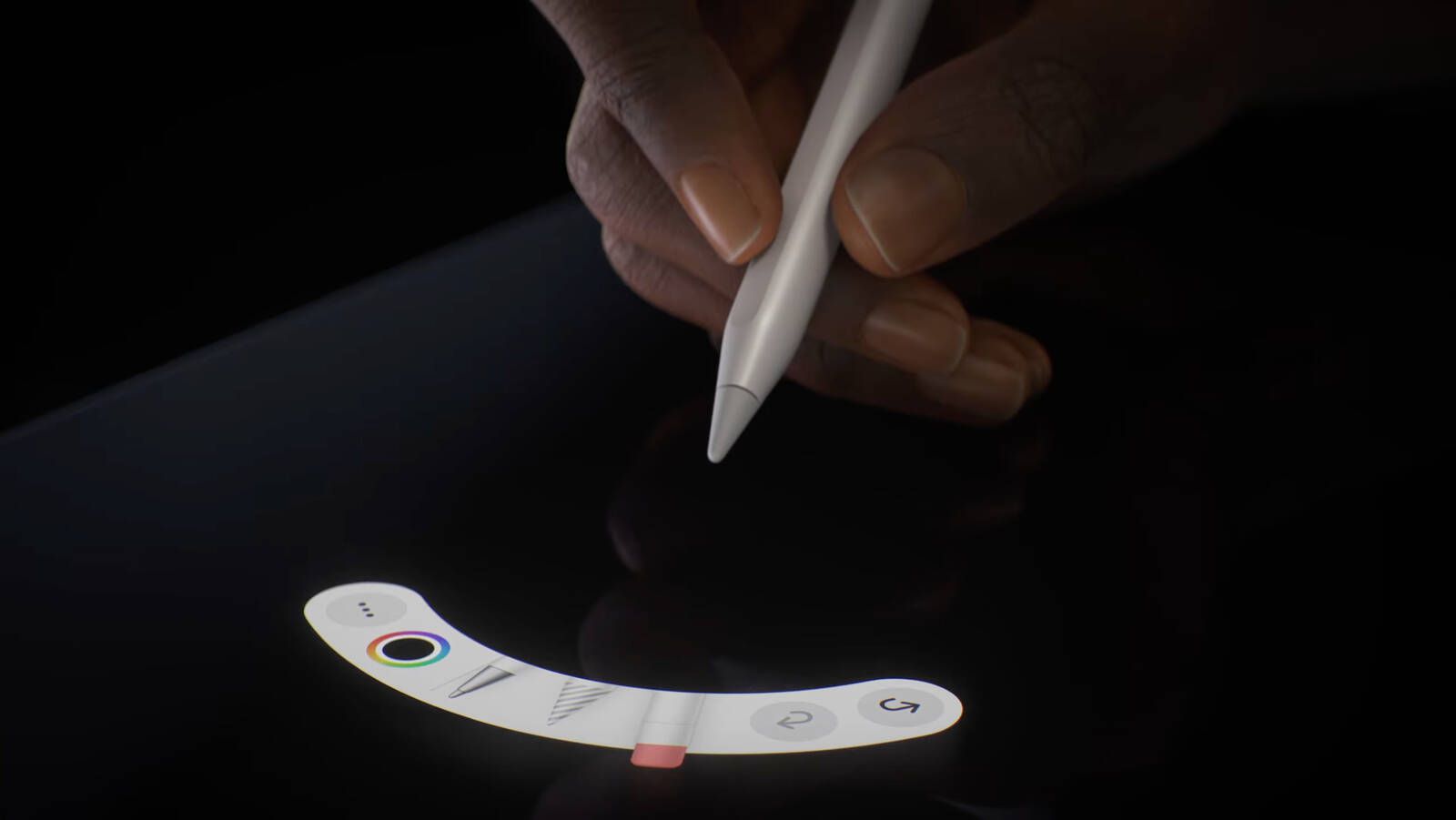
Apple Pencil hover introduced a new way of interacting with the iPad screen, allowing the tip of the Pencil to be detected before it actually touches the display. Instead of committing immediately to a brush stroke, highlight, or selection, the interface responds as the Pencil approaches the surface, showing previews of what will happen next. For artists, designers, students, and anyone editing documents or images, this small shift changes how precision work feels across many daily tasks.
Hover detection works through sensors embedded in supported iPad displays that track the Pencil up to several millimeters above the screen. As the tip moves, the cursor follows, showing brush size, tool placement, or control highlights. This behavior mirrors the experience of professional graphics tablets long used in design studios, now integrated directly into the iPad workflow.
Supported iPad models include recent iPad Pro generations equipped with advanced display sensing hardware. When paired with Apple Pencil (2nd generation or Apple Pencil Pro, depending on the model), the hover feature activates automatically, requiring no manual setup. Once enabled, compatible apps begin showing previews instantly.
How Hover Improves Drawing and Illustration
Digital illustration benefits immediately from hover previews. When using painting or sketching apps such as Procreate, Affinity Designer, or other professional tools, brush outlines appear before the stroke touches the canvas. This preview allows artists to position lines more accurately, align strokes with existing shapes, and control spacing without undoing mistakes repeatedly.
Layer editing also becomes more efficient. Hovering over interface buttons highlights their function before tapping, helping navigate complex editing panels without accidental selections. When adjusting gradients, masks, or blending tools, seeing placement previews allows smoother adjustments without committing changes prematurely.
Hover interaction also improves erasing workflows. Instead of testing eraser size directly on the drawing, hovering shows the exact coverage area, helping avoid unintended removal of fine details.
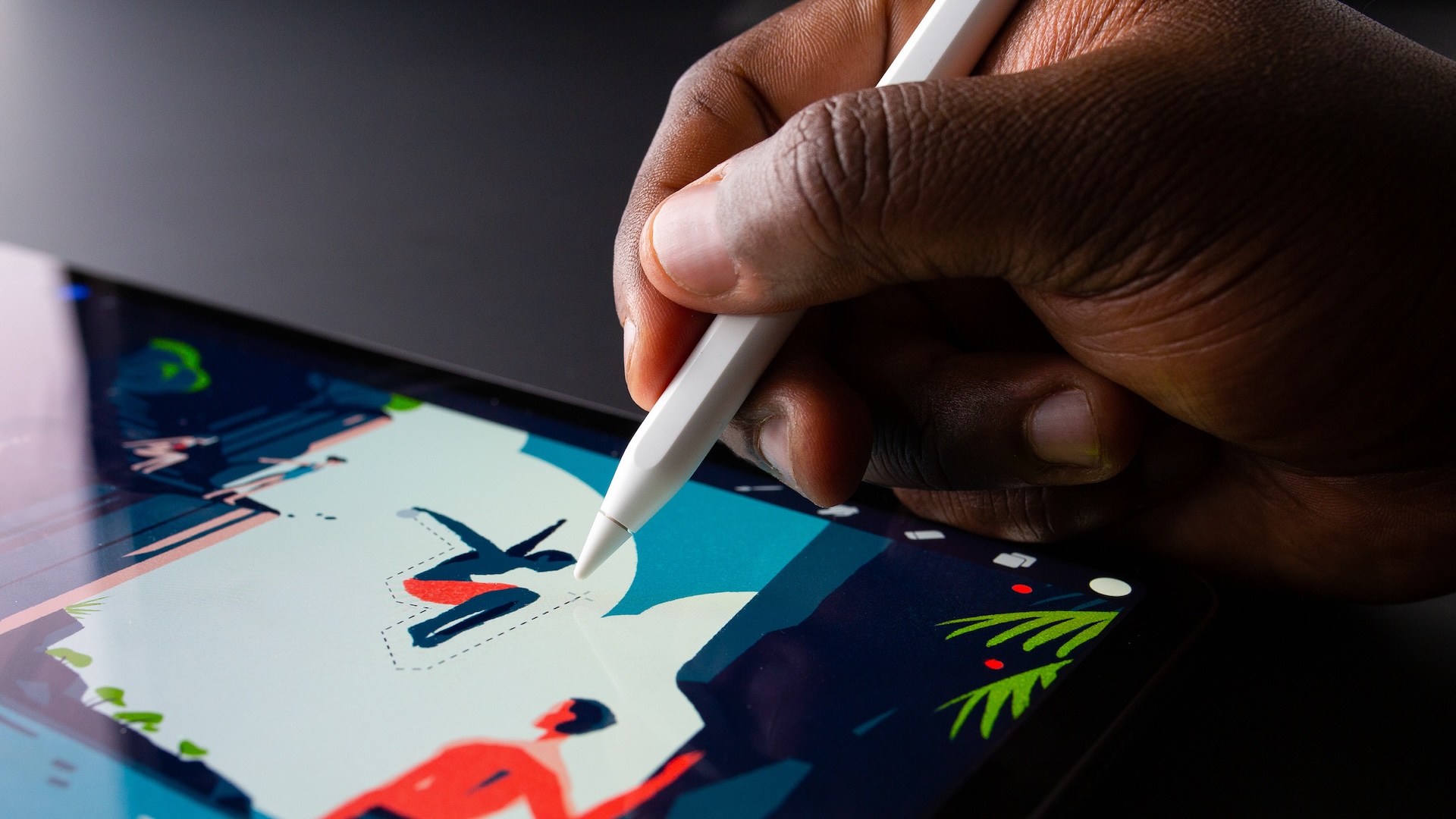

Using Hover in Notes and Document Editing
The feature is not limited to drawing. Note-taking apps benefit by allowing text selections, highlights, and annotation tools to be positioned before contact. When hovering over text with a highlight tool, the preview shows exactly where the mark will begin, reducing the need for corrections. Students annotating PDFs or marking research materials often notice faster editing and cleaner results.
Spreadsheet and productivity apps also integrate hover awareness. Cells, buttons, or menu items can highlight as the Pencil approaches them, making navigation easier when working with large documents or touch-dense interfaces.
How to Use Apple Pencil Hover
Hover works automatically once the Apple Pencil is paired with a compatible iPad. There are no additional activation steps required, though users can verify Apple Pencil pairing in system settings if necessary.
Settings > Bluetooth > Apple Pencil (Verify Connected)
Once paired, opening a compatible drawing, note-taking, or editing application activates hover previews immediately. Moving the Pencil slightly above the display reveals cursor feedback or brush outlines depending on the app’s design.
Creative Workflows That Benefit From Hover
Artists working on detailed illustrations often combine hover previews with zoomed-in editing for pixel-level control. Architects and designers sketching structural lines use hover positioning to ensure alignment accuracy before applying strokes. Video editors working in timeline-based apps may also see pointer previews while navigating editing controls.
Educational environments also benefit. Teachers marking student submissions on iPad can preview annotation placement, reducing editing time across large batches of graded material. Students solving mathematical equations in digital notebooks gain better handwriting positioning, especially when working within tight layout spaces.

Hover and Interface Design Evolution
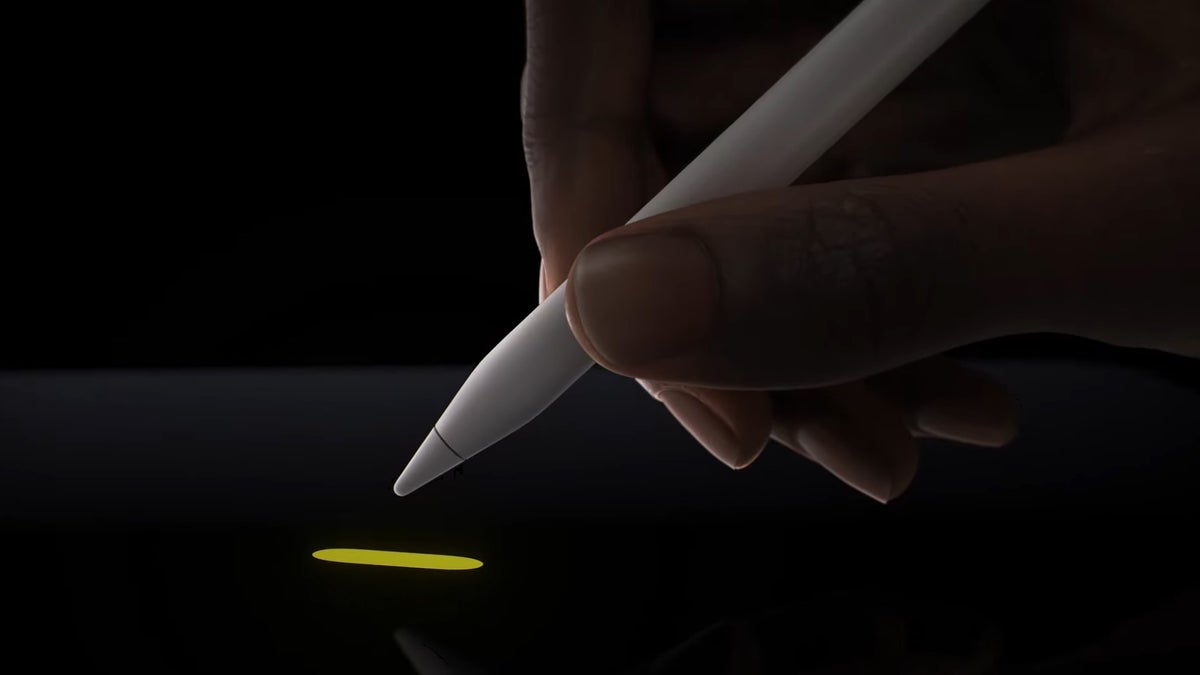
The introduction of hover detection subtly changes how app developers design their interfaces. Buttons and controls can now respond before touch, enabling tooltips, previews, and contextual highlights that guide the user visually. Over time, more productivity and creative applications are adapting their layouts to take advantage of this interaction layer, blending the responsiveness of desktop pointer systems with the flexibility of touch interfaces.
As iPad hardware continues advancing, hover interaction forms part of a broader transition toward more precise input methods. Apple Pencil becomes not only a drawing instrument but also a pointer capable of navigating complex environments without direct screen contact. This hybrid interaction model allows the same device to serve as a sketchpad, document editor, interface controller, and presentation tool across different working scenarios.
For anyone using an iPad for creative work, annotation, or productivity tasks, hover detection quickly becomes a natural extension of how the Pencil is handled. Instead of touching first and correcting later, positioning decisions can be made visually beforehand, reducing errors while speeding up detailed tasks across many applications.