You don’t think about Apple Recovery Mode until something goes wrong.
Your iPhone gets stuck on the Apple logo. Your Mac won’t boot past a spinning wheel. A beta update fails and the device refuses to start. That’s when Recovery Mode — and sometimes DFU — stop being obscure terms and become your only path forward.
Most tutorials stop at “connect to a computer and click Restore.” But what’s really happening behind the scenes? And why does DFU feel more “serious” than Recovery Mode?
Let’s break it down in a way that actually makes sense.
What Apple Recovery Mode Actually Does
Apple Recovery Mode is a controlled startup environment built into iPhone and Mac firmware. It bypasses the normal operating system and loads a minimal recovery image instead.
On iPhone, Recovery Mode allows Finder (macOS) or iTunes (Windows) to:
- Reinstall iOS
- Update firmware
- Erase and restore the device
- Repair corrupted system files
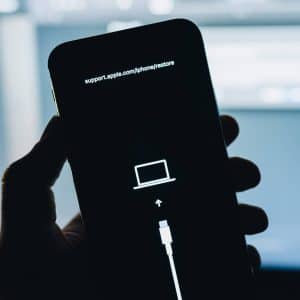
When your iPhone enters Recovery Mode, you’ll see the cable-to-computer screen. At that moment, the main iOS system isn’t running. Instead, the device is waiting for signed firmware instructions from Apple’s servers.
To enter Recovery Mode on iPhone 8 and later:
Settings > (Power off first if possible)
- Then press and quickly release Volume Up
- Press and quickly release Volume Down
- Press and hold the Side button until the recovery screen appears
On Mac with Apple silicon:
- Shut down the Mac
- Press and hold the Power button
- Release when you see “Loading startup options”
- From there you can access Recovery tools.
Recovery Mode is powerful, but it still relies on certain firmware layers being intact.

What DFU Mode Really Is
DFU stands for Device Firmware Update.
DFU Mode goes deeper than Recovery Mode. It bypasses not only iOS but also the iBoot bootloader. In simple terms, it allows your computer to communicate directly with the device’s firmware without loading any visible interface.
In DFU Mode, the screen stays black. No cable icon. No Apple logo.
This mode is used when:
- Recovery Mode fails
- Firmware is severely corrupted
- Downgrading (while signing is still active)
- Restoring after incomplete beta installs
Entering DFU on modern iPhones requires precise timing:
- Connect iPhone to Mac
- Quick press Volume Up
- Quick press Volume Down
- Hold Side button for 10 seconds
- While holding Side, press Volume Down for 5 seconds
- Release Side, keep holding Volume Down for 10 seconds
If done correctly, the screen remains black and Finder detects a device in recovery.
DFU rewrites firmware at a lower level. It doesn’t just reinstall iOS — it re-flashes core components.
What Happens During a Restore
When you click Restore in Finder, several things happen:
-
Apple’s servers verify the firmware signature (Apple only signs current versions).
-
The device erases the existing system partition.
-
A fresh firmware image is written to flash storage.
-
System integrity checks run before reboot.
On Macs, Recovery Mode allows:
- Reinstall macOS
- Erase disk using Disk Utility
- Restore from Time Machine
- Use Terminal for advanced repair
To access on Intel Mac:
- Restart
- Immediately hold Command + R
- For Internet Recovery:
- Restart
- Hold Option + Command + R
Apple silicon Macs rely on Startup Options instead of key combinations.
When You Actually Need Recovery or DFU
Most software glitches don’t require DFU.
Use Recovery Mode when:
- iPhone won’t update
- Device stuck in boot loop
- macOS fails to load
- Update was interrupted
Use DFU only if:
- Recovery fails repeatedly
- Firmware corruption suspected
- Apple Support specifically instructs it
DFU is not a “stronger reset.” It’s a deeper firmware intervention.

The Risk Factor
Both Recovery and DFU erase your device if you choose Restore. Data that isn’t backed up to iCloud or a computer will be lost.
Settings > [Your Name] > iCloud > iCloud Backup
Always confirm backup status before restoring, when possible.
For Mac:
System Settings > General > Time Machine > Enable automatic backups
What Recovery Mode Doesn’t Do
Recovery Mode does not:
- Repair hardware damage
- Fix failing storage chips
- Solve battery or logic board defects
Unlock Activation Lock
If your device still fails after a clean restore, the issue is likely hardware-related.
Why Apple Locks Downgrades
When Apple stops signing older iOS versions, you can’t restore to them — even in DFU. This protects devices from security vulnerabilities and fragmentation.
That’s why timing matters for users testing betas. Once signing closes, downgrade paths disappear.
You can check signing status via IPSW verification services (third-party tools monitor Apple’s signing servers).
What Really Happens at the System Level
Modern Apple devices use secure boot chains. Each stage verifies the next using cryptographic signatures. Recovery Mode and DFU are built into this chain as authorized repair environments.
On Apple silicon Macs, the Secure Enclave and boot ROM coordinate recovery operations. Firmware validation happens before macOS loads.
It’s not just reinstalling software. It’s a structured verification process designed to prevent tampering.
Recovery Mode is less about panic and more about architecture. It exists because Apple designs its systems with layered recovery paths built in.
When something breaks, you’re not improvising. You’re stepping into a protected fallback environment engineered from the start.