

There’s something underrated about opening the Reminders app and seeing clarity instead of chaos. Apple Reminders Lists are simple on the surface, but when used intentionally, they become a structured command center for daily life and long-term projects.
Instead of keeping everything in one endless scroll of tasks, separating work, personal life, errands, and long-term goals into dedicated lists changes how the day feels. It removes friction. It creates focus.
Start With Structured Lists
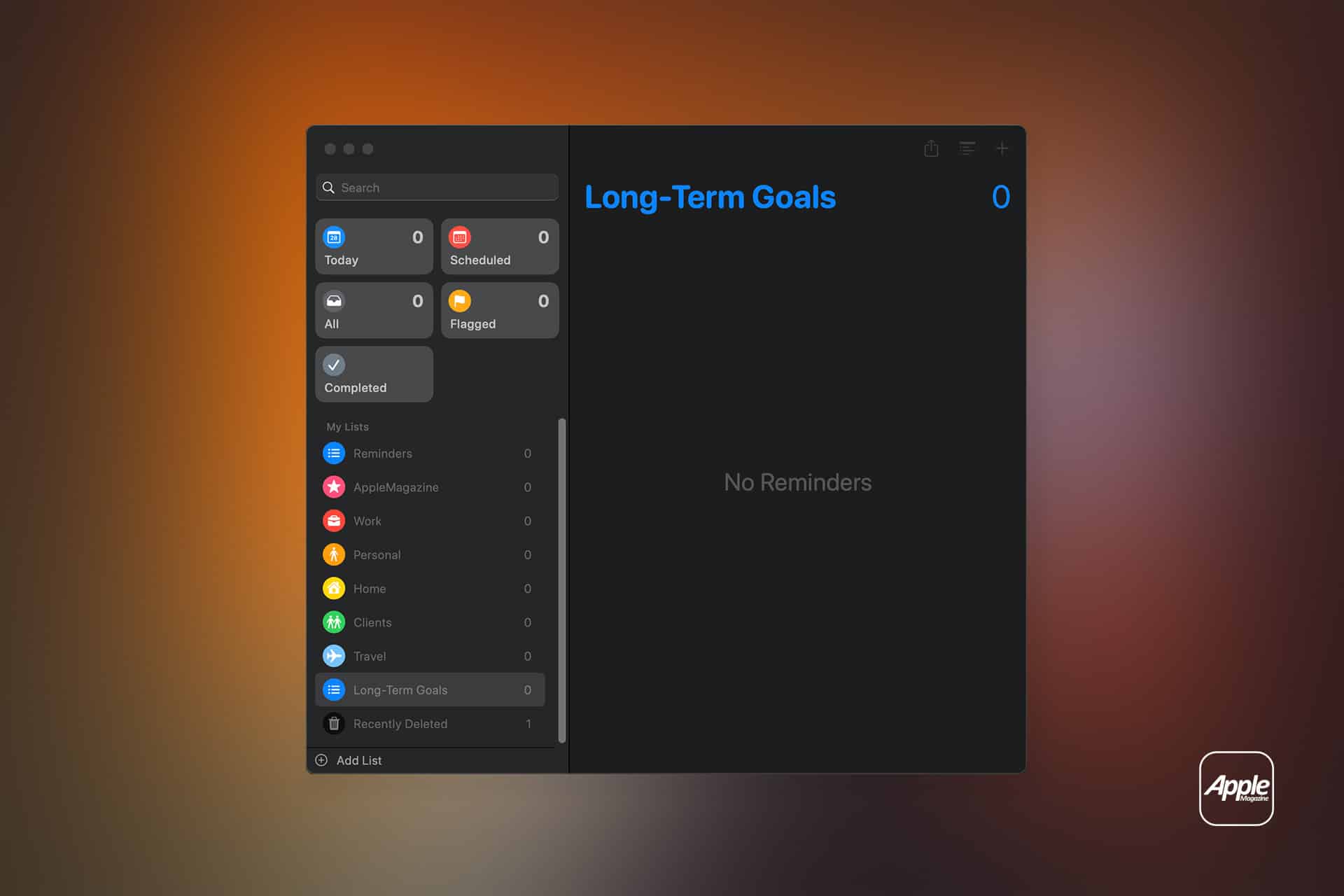
The foundation of Apple Reminders Lists is separation by context. Create lists based on real categories in your life:
- Work
- Personal
- Home
- Clients
- Travel
- Long-Term Goals
To create a new list:
Open Reminders > Add List
You can assign a color and icon to visually differentiate each area. This may sound cosmetic, but visual cues speed up recognition when scanning multiple lists.
On Mac:
Reminders > Add List
Once structured, tasks stay contained inside their proper context instead of mixing with everything else.

Use Sections for Real Projects
Lists can also contain sections. This is where Apple Reminders becomes powerful for project management.
Open a List > Tap Three Dots > Add Section
For example, inside a “Website Launch” list, you could create sections such as:
- Research
- Design
- Development
- Marketing
- Post-Launch
Tasks can be dragged between sections as they move forward. The visual organization mirrors real project stages.
Tags Create Flexible Sorting
Tags add a second layer of organization across lists.
When writing a reminder, simply type # followed by a keyword:
- Prepare contract #clientA
- Buy materials #office
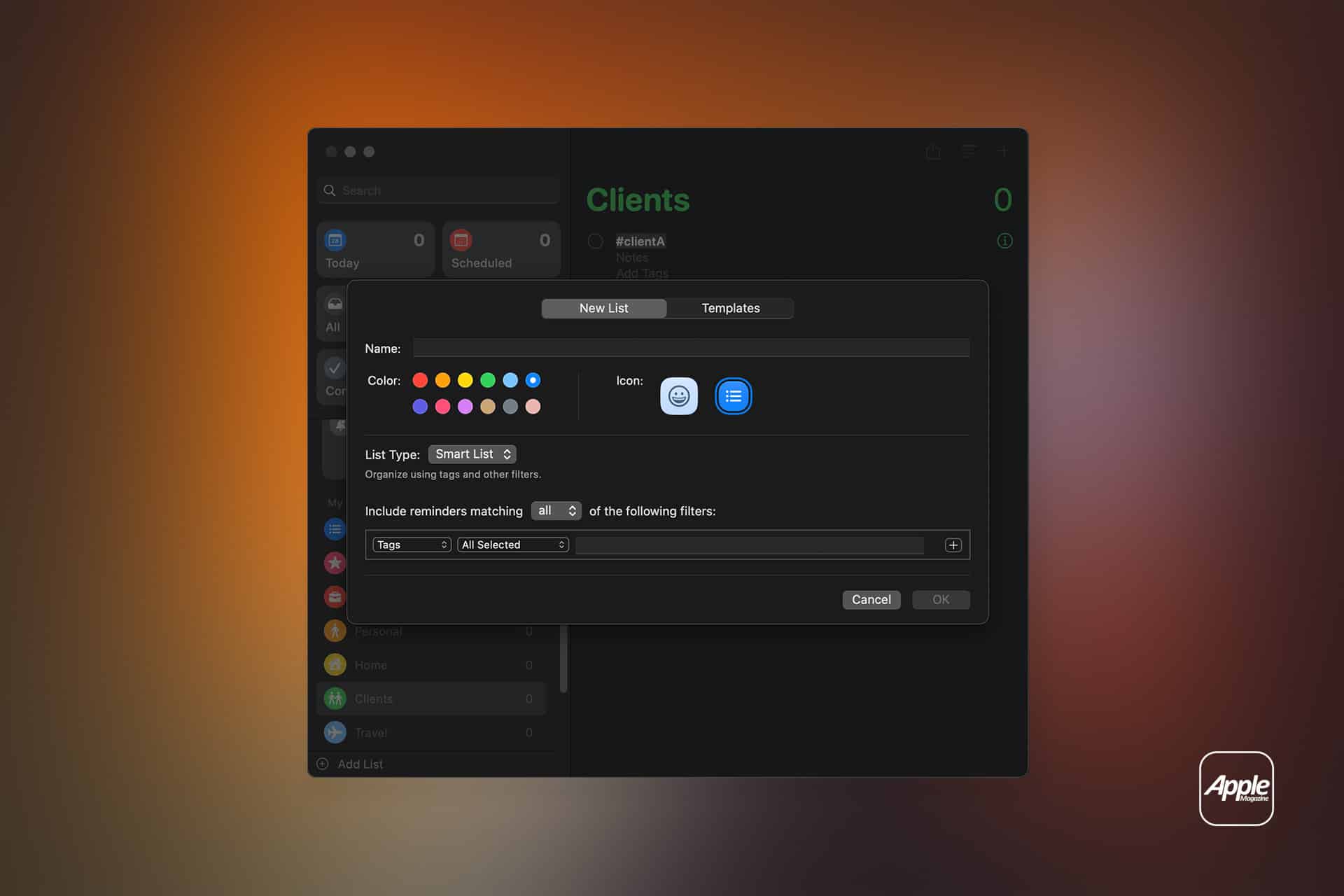
To create a Smart List based on tags:
Add List > Make into Smart List > Select Tags
Now you can see all tasks tagged #office, regardless of which list they live in.
This is useful for viewing all tasks related to a specific person, client, or context without restructuring your entire system.
Smart Lists for Daily Control
Smart Lists automatically group reminders based on criteria such as date, time, tag, priority, or location.
To create one:
Add List > Smart List
For example:
- Today (all tasks due today)
- High Priority
- This Week
- Waiting On
Instead of manually filtering, Smart Lists provide dynamic dashboards.
Location and Time Triggers
Apple Reminders Lists integrate directly with system-level intelligence.
To add a time trigger:
Open Reminder > Tap “i” > Add Date
To add a location trigger:
Open Reminder > Tap “i” > Location > Choose Location
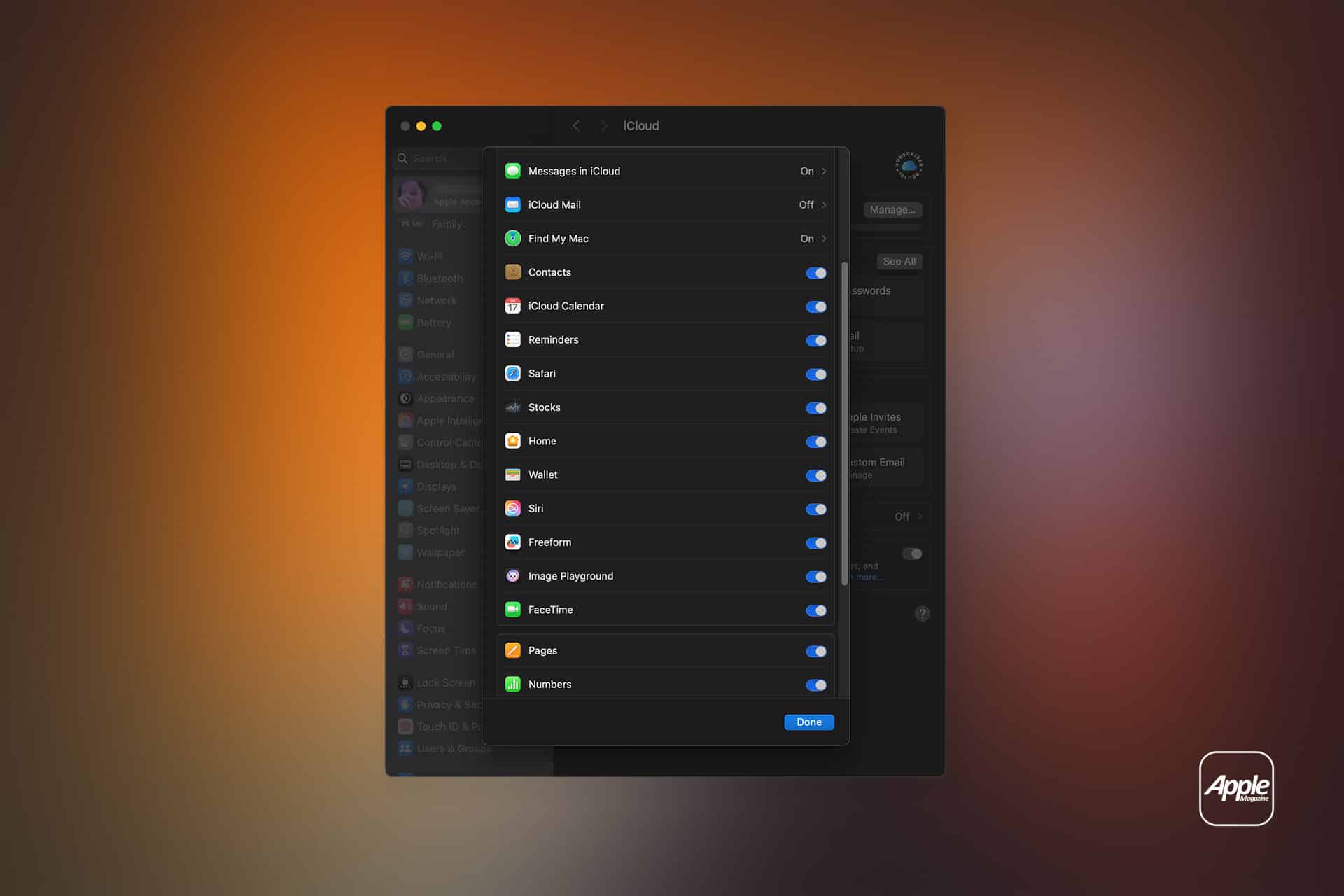
You can set reminders to activate when arriving at work, leaving home, or entering a specific address. Because Reminders sync through iCloud, these alerts work across iPhone, iPad, Mac, and Apple Watch.
Settings > [your name] > iCloud > Show All > Reminders > Turn On
Collaboration Across Devices
Shared lists allow collaboration with family or team members.
Open List > Tap Share Icon > Add Person
Everyone can add, edit, and complete tasks in real time.
For example:
- Shared grocery list
- Team content calendar
- Family travel checklist
The updates appear instantly across devices, reducing back-and-forth messages.
Subtasks for Deeper Structure
Inside a reminder, you can create subtasks.
Open Reminder > Add Subtask
This is helpful for breaking complex tasks into manageable steps.
Instead of writing: Launch campaign
You can expand it into:
- Write copy
- Design visuals
- Schedule posts
- Review analytics
Subtasks keep everything under one umbrella without creating list overload.
Priority and Focus
Each reminder can be assigned a priority level.
Open Reminder > Tap “i” > Priority
This adds visual markers that stand out in Smart Lists.
Combined with due dates and tags, priority creates a layered structure that stays flexible.
A Practical Daily System
Apple Reminders Lists work best when reviewed briefly every morning and adjusted weekly. The goal is not to overcomplicate. It’s to create clarity.
Instead of juggling mental notes, scattered sticky notes, and half-finished drafts, everything lives in one synchronized system.
Because Reminders is built into iOS and macOS, it integrates naturally with Siri as well.
You can say:
“Remind me to call Alex tomorrow at 9 a.m.”
The reminder appears instantly in the correct list.
Organizing tasks and projects does not require heavy project management software. Apple Reminders Lists provide structure, flexibility, and collaboration inside a clean interface — across every Apple device you already use.

