

A television rarely arrives perfectly adjusted for the lighting conditions of a living room. Bright retail showroom settings often push displays toward exaggerated brightness, saturated colors, and overly sharp image processing.
When Apple TV is connected to a modern television, the difference between factory settings and a properly calibrated image can be dramatic. Colors appear more natural, skin tones look realistic, and dark scenes retain detail instead of appearing washed out.
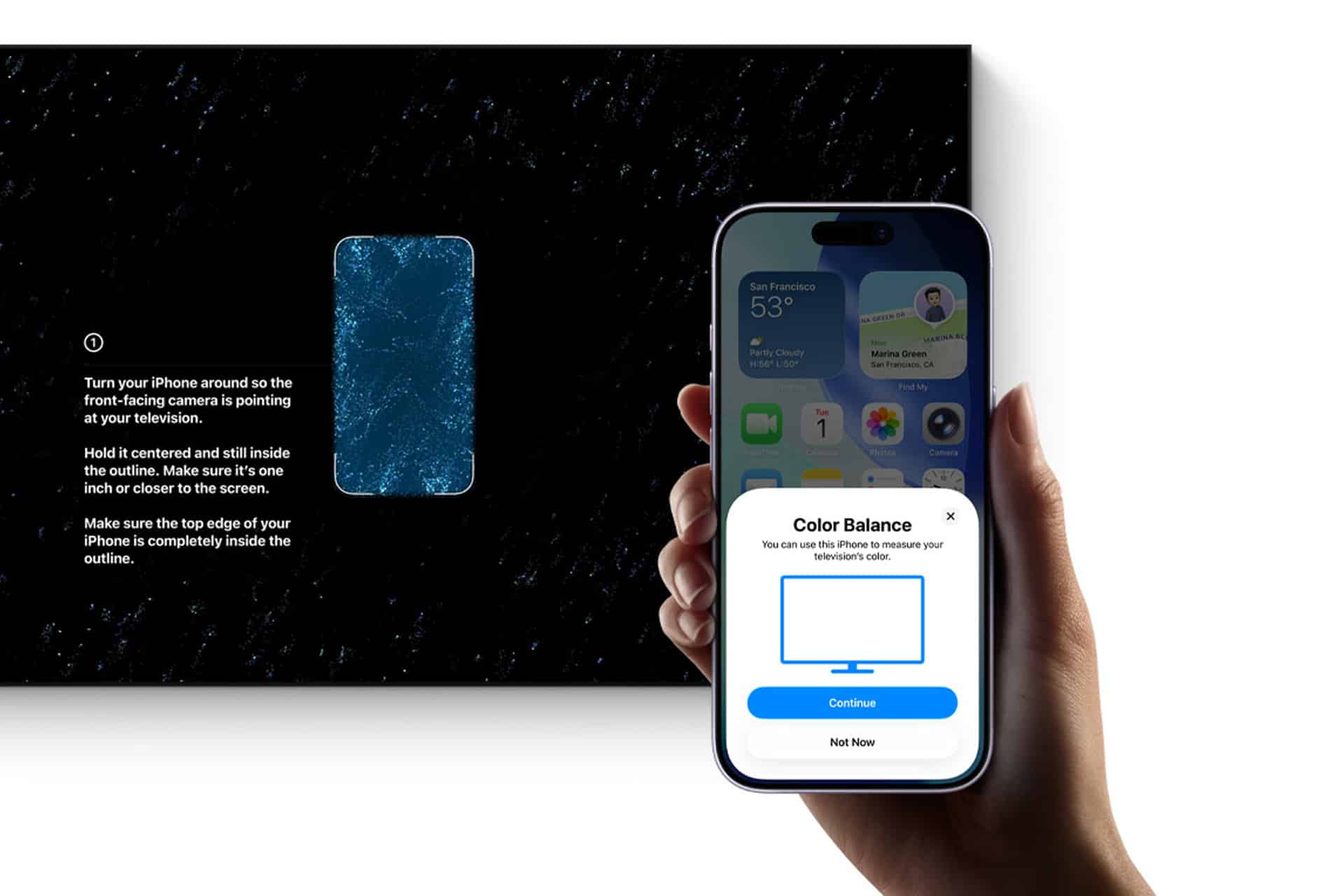
Apple introduced an elegant calibration method that uses the iPhone’s camera sensors to measure how the television reproduces colors.
Instead of relying on manual trial-and-error adjustments, the system analyzes the screen output and automatically tunes Apple TV’s video signal to match more accurate color standards. The process takes less than a minute and can noticeably improve the viewing experience for movies, sports, and streaming content.
How iPhone Color Balance Works
The iPhone contains advanced sensors capable of detecting color temperature, brightness, and color accuracy. During calibration, the phone is briefly placed near the television screen while Apple TV displays a series of test patterns.
The iPhone measures how the display reproduces those colors and sends correction data to Apple TV, which adjusts output levels accordingly.
This method does not change the internal calibration of the television itself. Instead, Apple TV optimizes the signal it sends, ensuring that the image appears closer to professional color standards even if the TV’s internal settings remain unchanged. The result is a balanced image that looks more natural without requiring complex display menus or professional calibration tools.


Enable Apple TV Color Balance
Settings > Video and Audio > Color Balance > Hold iPhone Near TV Screen > Start Calibration
Once the process finishes, Apple TV applies the recommended color profile automatically. Users can switch between the original and calibrated versions in the settings menu to compare results instantly.
Fine-Tuning Advanced Picture Settings
After color balance calibration, additional adjustments inside Apple TV’s video settings can refine the experience further. Match Dynamic Range and Match Frame Rate options allow the device to automatically switch display modes based on the content being played. Films recorded at cinematic frame rates display smoothly, while HDR content activates the proper brightness and contrast profiles when available.
Brightness and contrast adjustments should typically be handled through the television’s own settings, but enabling correct signal matching from Apple TV ensures the display receives the most accurate source image. This combination prevents overly bright highlights or crushed shadows that sometimes occur when displays remain locked to a single picture mode.
Lighting Conditions Matter
Room lighting significantly affects perceived picture quality. A calibration performed during daylight conditions may appear slightly different at night when ambient light is lower. Many viewers repeat the calibration process once under their typical evening lighting conditions, especially in rooms where movies are primarily watched after sunset. The iPhone-based system allows recalibration at any time, making seasonal or lighting adjustments easy.
Viewing Distance And Screen Size Considerations
Large displays benefit even more from proper calibration because color inaccuracies become easier to notice at bigger sizes. For viewers sitting closer to large 4K screens, accurate color balance reduces visual fatigue during extended viewing sessions. Natural tones and balanced brightness make long movie nights or multi-episode streaming sessions more comfortable.
Combining Calibration With High-Quality Content
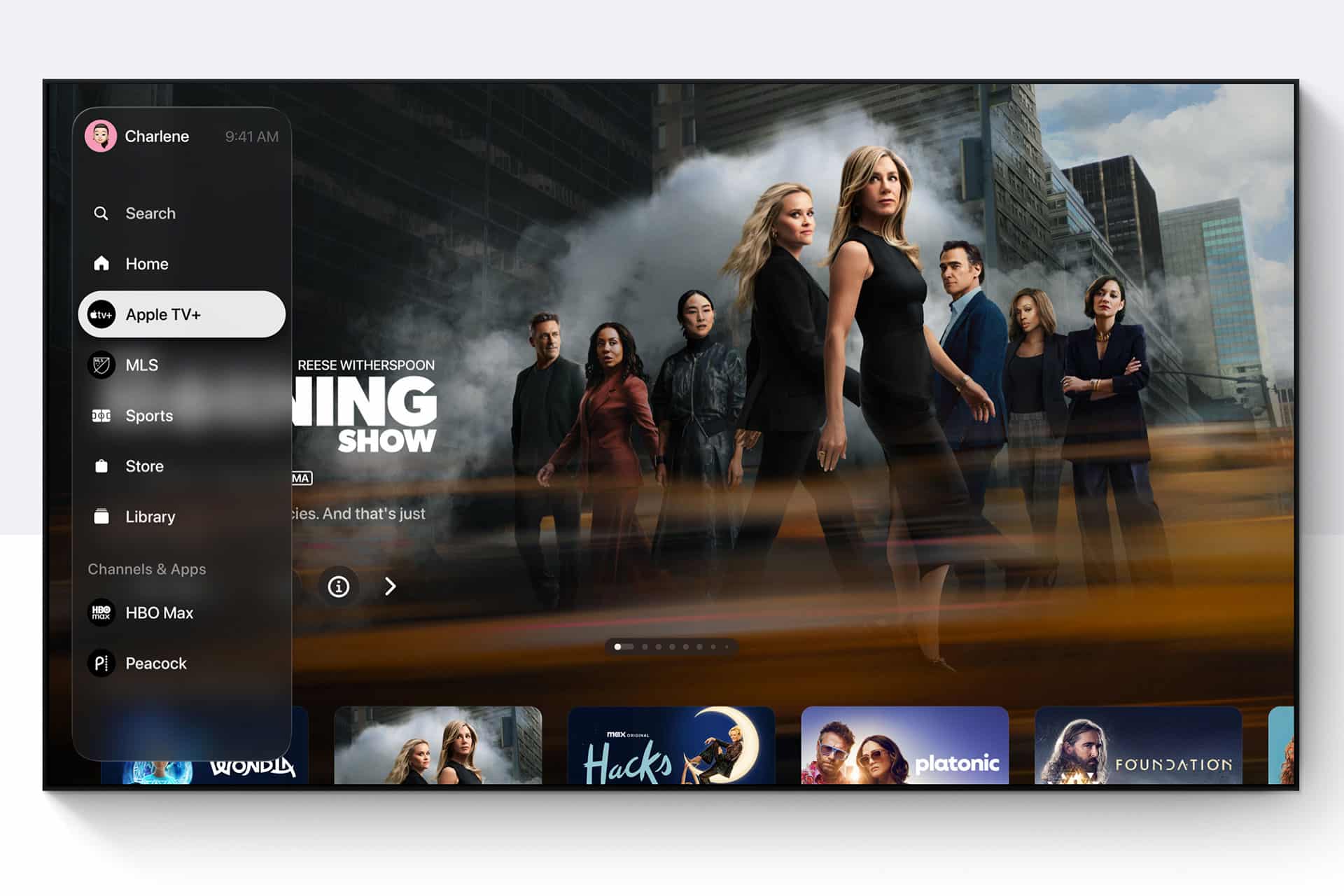
Streaming services increasingly deliver HDR and Dolby Vision content that depends on accurate display settings to look its best. When Apple TV outputs calibrated signals to a compatible television, HDR scenes maintain depth and highlight detail more effectively. Bright scenes appear controlled rather than glaring, while darker sequences retain texture that might otherwise disappear in poorly adjusted displays.
Maintaining Calibration Over Time
Television panels can shift slightly over years of use, particularly as brightness levels change with aging components. Running the calibration process periodically helps maintain consistent picture quality.
Because the iPhone-based process is quick, repeating it once or twice a year ensures the viewing experience remains balanced without the need for professional recalibration equipment.
A small adjustment made through Apple TV settings often produces one of the most noticeable upgrades in home entertainment quality. Instead of purchasing new displays or expensive calibration tools, users can achieve accurate color output using devices already in their ecosystem, bringing films, shows, and live events closer to the visual standards intended by filmmakers.

