Apple TV has quietly grown into one of the most flexible gaming platforms in the living room. What once started as a simple streaming box now supports console-style controllers, cloud gaming platforms, and a growing library of controller-friendly Apple Arcade titles. When paired with a PlayStation or Xbox controller, Apple TV Games transforms into something that feels much closer to a traditional game console, without the noise, discs, or updates that usually come with one.
The beauty of Apple TV gaming is how frictionless it is. There are no drivers to install, no complicated pairing software, and no special adapters required. Apple built native controller support directly into tvOS. As long as your controller supports Bluetooth, Apple TV will recognize it, pair it, and map it automatically.
This makes it possible to move from Netflix to a racing game or action adventure in seconds, using the same controller you already use on a PlayStation 5 or Xbox Series X.
How Controller Support Changed Apple TV
Controller support has been part of tvOS for years, but it became truly powerful when Apple added full support for PlayStation DualShock, DualSense, and Xbox Series controllers. These are not generic gamepads. They bring analog sticks, pressure-sensitive triggers, vibration, and precise input that matches what developers design for consoles.
Apple Arcade takes advantage of this by offering games that are designed with controllers in mind, including platformers, racing games, sports, and action titles that feel far better with physical buttons than touch controls.
Cloud gaming services, when available, also benefit from this setup. When you combine a controller with Apple TV’s A-series or M-series processors, the result is low-latency input that feels responsive on large screens.
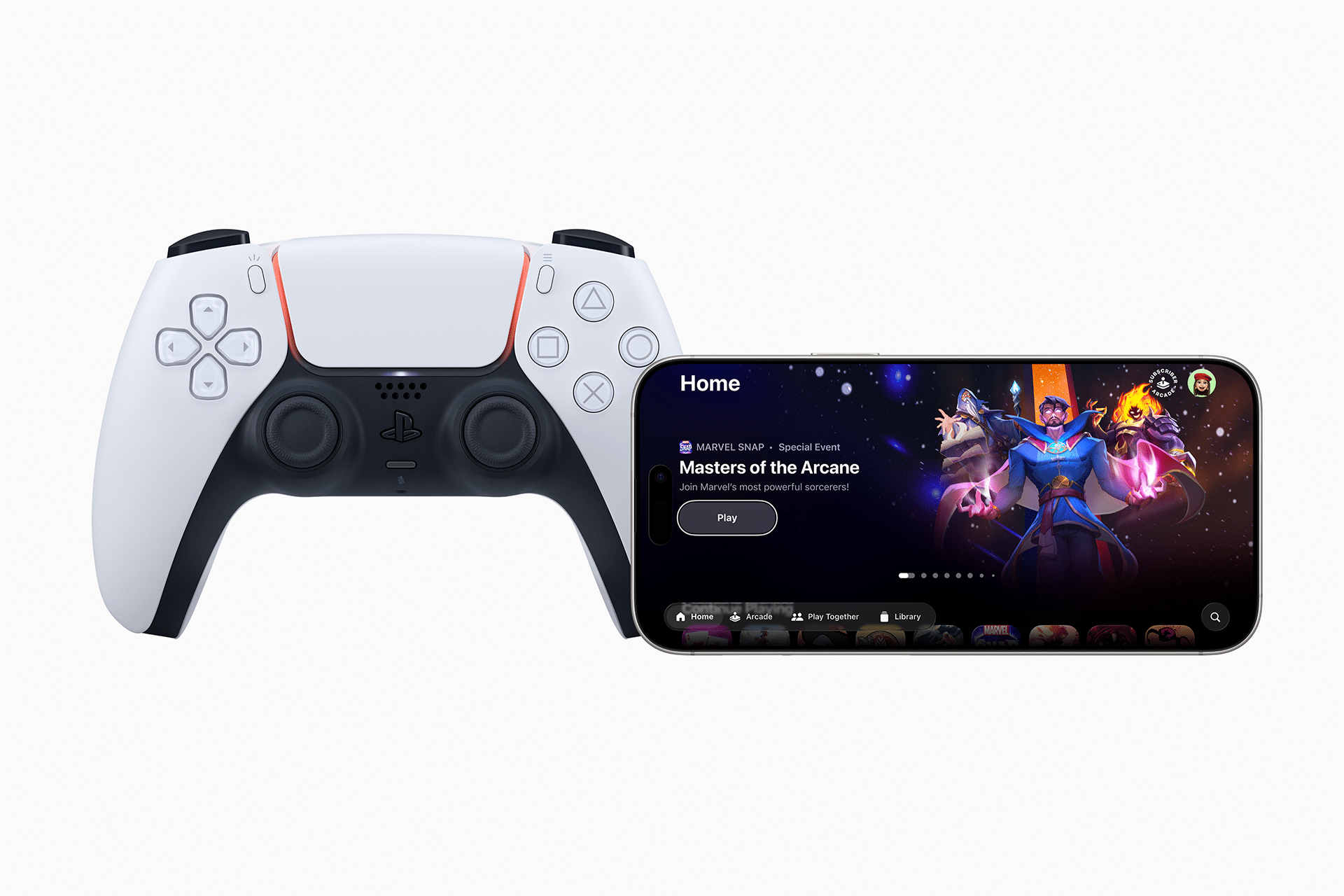
How to Put a PlayStation Controller in Pairing Mode
For DualSense (PS5)
Hold PS button + Create button until the light bar flashes blue
For DualShock 4 (PS4)
Hold PS button + Share button until the light bar flashes
When the light bar starts flashing, the controller is broadcasting itself over Bluetooth and is ready to be paired.
How to Put an Xbox Controller in Pairing Mode
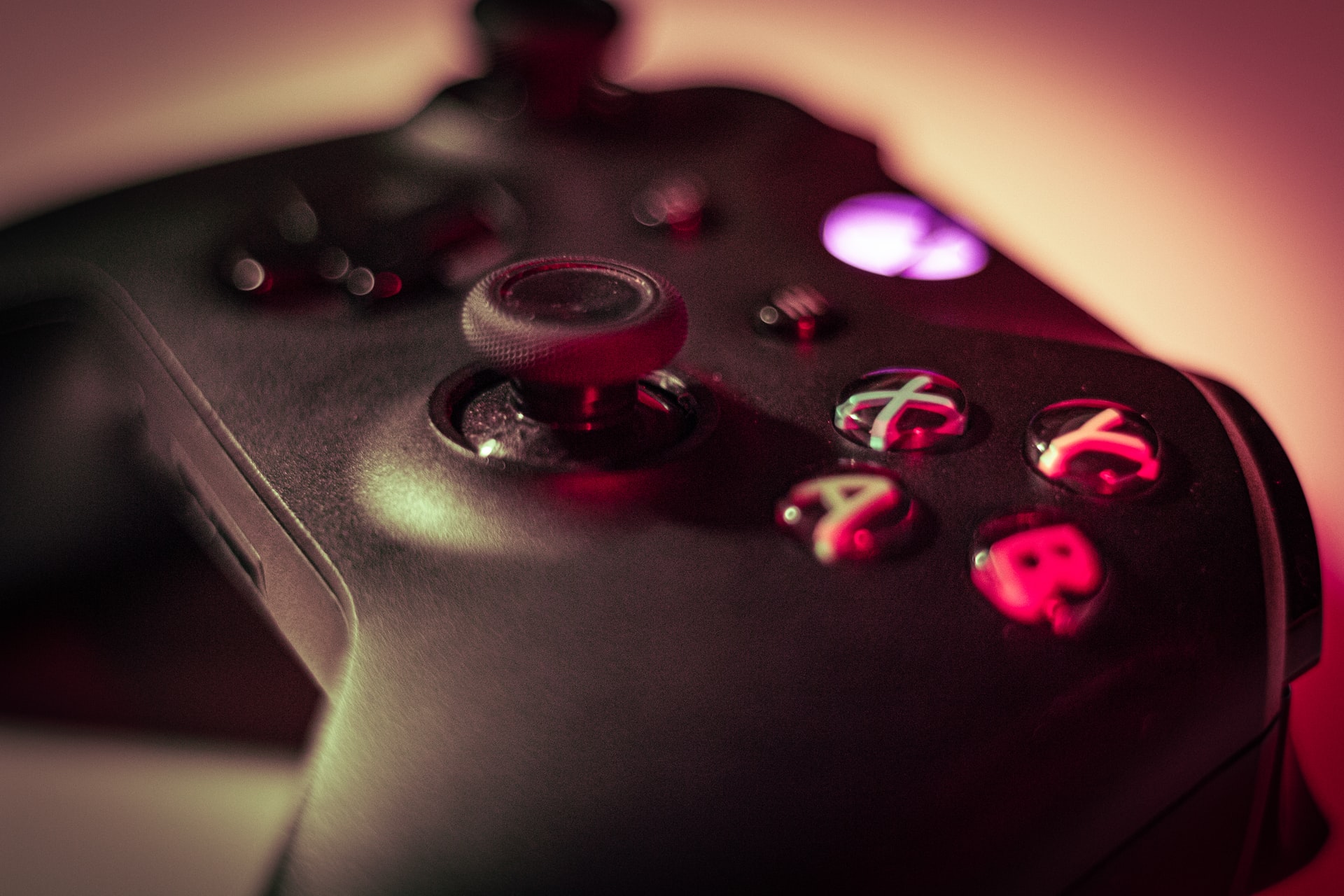
Hold the Pair button near the bumper until the Xbox logo begins to flash
This tells the controller to search for a new Bluetooth connection.
How to Connect the Controller to Apple TV
Apple TV Settings > Remotes and Devices > Bluetooth
Under Other Devices, your controller will appear. Select it, and within a few seconds the controller will be connected and ready to use. From that moment on, pressing the PlayStation or Xbox button will wake up the controller and reconnect it automatically when Apple TV is nearby.
You can pair multiple controllers at the same time, which makes Apple TV suitable for couch co-op and multiplayer games.
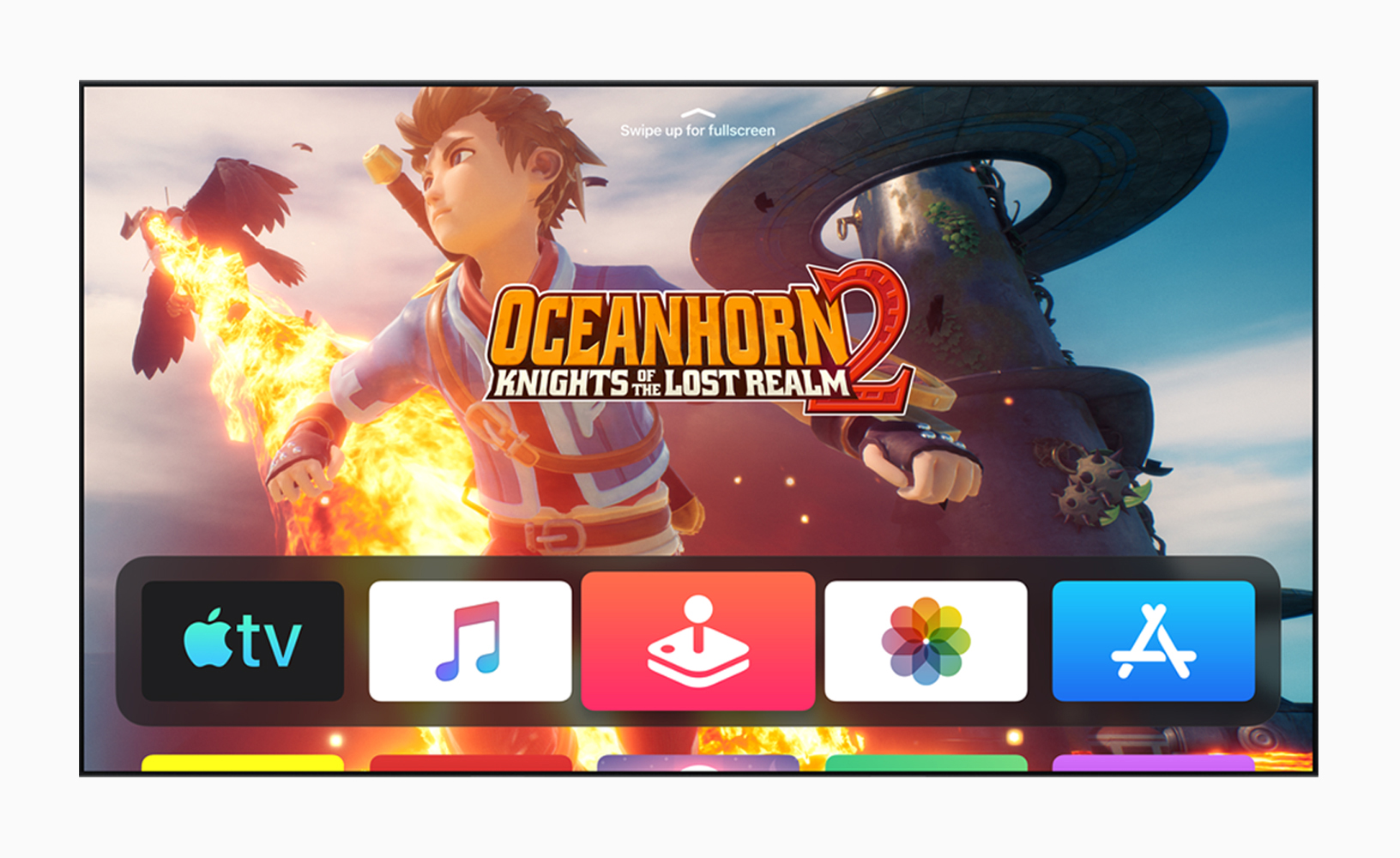
How the Controller Works Inside tvOS
Once paired, the controller works at the system level. That means you can navigate the Apple TV interface, launch apps, browse Apple Arcade, and control games using the controller instead of the remote.
Inside games, button mapping follows the same layout you are used to on console. Developers do not need to create special Apple-specific control schemes. PlayStation and Xbox layouts are supported directly.
This makes switching between your console and Apple TV feel natural.
How Apple Arcade Benefits From Real Controllers
Apple Arcade includes hundreds of games, many of which are designed specifically for controller input. Platformers, shooters, sports games, and even story-driven adventures play far better with a physical controller than with touch.
Using a controller removes screen clutter, increases precision, and makes long gaming sessions more comfortable. On a large TV, the experience starts to resemble a lightweight console that boots instantly and never needs patches or downloads.
How to Use One Controller Across Apple Devices
PlayStation and Xbox controllers can be paired with iPhone, iPad, Mac, and Apple TV. If you want to move between devices, just put the controller back into pairing mode and connect it to the next device.
This allows one controller to become part of your entire Apple ecosystem, whether you are playing on your phone, your laptop, or your television.
Why Apple TV Gaming Works So Well
Apple TV benefits from Apple’s hardware and software integration. Bluetooth is tightly controlled, input latency is low, and games are optimized for Apple’s chips. That means controllers feel responsive, even in fast-paced titles.
There are no drivers to update, no firmware tools, and no complicated setup steps. It simply works.
This is what makes Apple TV appealing for casual and serious players alike. You do not need a dedicated console to enjoy console-style gaming. All you need is the Apple TV you already own and the controller sitting next to your PlayStation or Xbox.