

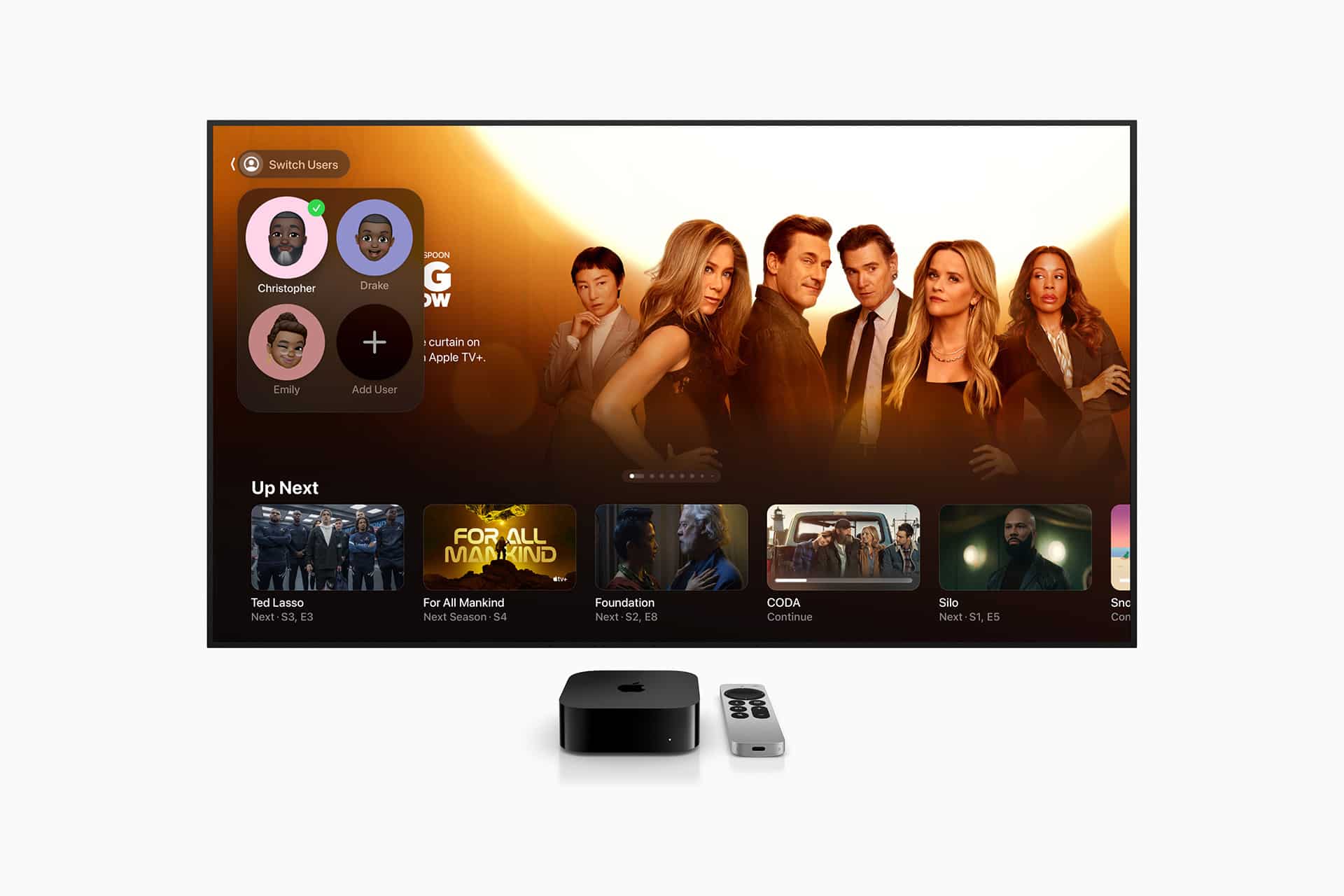
Apple TV profiles can make recommendations feel more accurate, especially in homes where several people use the same screen. When everyone watches from one profile, the TV app can mix children’s shows, sports, movies, dramas, documentaries, rentals, and unfinished episodes into the same Continue Watching and Watchlist rows. After a while, the home screen starts to feel less personal and more like a shared remote history.
Apple gives users a few ways to clean that up. The most useful step is creating separate user profiles on Apple TV or in the TV app where supported. Each person can use their own Apple Account, keeping their own Watchlist, Continue Watching row, recommendations, and play history separate from the rest of the household.
The second step is clearing or controlling play history. Apple says play history is used for personalized recommendations and Watchlist behavior across devices where the same Apple Account is signed in. Clearing it removes watched information and can also remove shows and movies from Continue Watching and Watchlist rows.
Apple TV Profiles Keep Viewing Separate
Apple TV profiles are most useful when the device is shared by a family, couple, roommates, or anyone who watches different types of content on the same Apple TV 4K. A child watching cartoons, a parent watching crime dramas, and another person watching sports can all confuse the recommendation system if everything happens under one account.
To switch users on Apple TV:
Press and Hold TV Button > Control Center > User Profile > Choose User
To add another user:
Settings > Users and Accounts > Add New User
Once profiles are set up, each person can switch before watching. That small habit makes the biggest difference. The TV app can then build recommendations around the right viewer instead of assuming every title belongs to the same person.
This also helps with Continue Watching. If someone starts a show under the wrong profile, it may stay in another person’s row. If everyone uses their own profile, unfinished episodes and movies are less likely to appear in the wrong place.

Clean Up Continue Watching and Watchlist
The Continue Watching row is convenient when it works well, but it can become messy when users sample shows, start a movie by accident, or watch something they do not plan to finish. Apple lets users remove individual titles from Continue Watching in the TV app, which is usually better than clearing the entire play history.
To remove a title from Continue Watching:
TV App > Continue Watching > Press and Hold Title > Remove From Continue Watching
On some devices, the menu may appear from the More button beside a title. The exact wording can vary by platform, but the purpose is the same: remove that show or movie from the row without clearing everything else.
The Watchlist can also be cleaned manually. This is useful when titles were added months ago, no longer interest the viewer, or were added by someone else using the same profile.
To remove a title from Watchlist:
TV App > Watchlist > Select Title > Remove From Watchlist
A cleaner Watchlist helps the TV app understand what the user actually plans to watch. It also makes Apple’s recommendations feel less random, because old or accidental titles are not sitting inside the account as active interest signals.
Clear Play History When Recommendations Are Too Messy
Clearing play history is the stronger reset. Apple says Clear Play History removes information about what has been watched and syncs that change with the TV app on other devices using the same Apple Account. It can also remove shows and movies from Continue Watching and Watchlist rows.
On iPhone or iPad:
TV App > Profile Picture or Initials > Privacy & Access > Clear Play History
To stop play history from influencing recommendations:
Settings > Apps > TV > Use Play History > Off
On Apple TV, the privacy controls are inside the TV app settings area:
Settings > Apps > TV > Clear Play History
This option is useful when recommendations have been badly mixed by shared viewing, accidental plays, or a long period of using one profile for everyone. It gives the account a cleaner starting point, although it can also remove useful Continue Watching information. For that reason, it should be used carefully.
A better routine is to remove individual titles first, then clear play history only if recommendations still feel wrong.

Turn Off Play History for Shared or Guest Viewing
Some viewing should not shape recommendations at all. A guest may watch a movie, a child may use the wrong profile, or someone may play background content that does not reflect their actual taste. In those cases, turning off Use Play History can help keep the account cleaner.
When Use Play History is off, the TV app stops using what is watched for personalized recommendations and Watchlist behavior. This can be useful on shared devices, guest rooms, vacation homes, classrooms, offices, or any Apple TV used by people who do not share the same viewing habits.
To turn off Use Play History on iPhone:
Settings > Apps > TV > Use Play History > Off
On Apple TV:
Settings > Apps > TV > Use Play History > Off
This setting is not always necessary for a personal device. For most users, recommendations are better when play history is on and profiles are used correctly. The setting becomes most useful when an account is being used in a shared environment where the viewing data is not meaningful.
A Better Setup for Family Streaming
The strongest Apple TV profile cleanup starts with a simple rule: each person should use their own profile before watching. That keeps Continue Watching, Watchlist, and recommendations more accurate without requiring frequent resets.
For families, this also helps separate adult and children’s viewing patterns. A child’s favorite shows do not need to affect a parent’s drama recommendations, and a parent’s unfinished series does not need to appear in a child’s viewing row. Profiles make the TV app feel less cluttered and more personal.
Apple TV also works well as a shared living room device because profiles can be switched from Control Center. Once everyone knows where the profile switcher is, cleanup becomes less about fixing mistakes later and more about avoiding them in the first place.
A useful monthly cleanup takes only a few minutes. Switch to the right profile, remove titles from Continue Watching that no longer matter, clean the Watchlist, and clear play history only when the account has become too mixed to fix manually.

Why Recommendations Need Maintenance
Streaming recommendations are only as good as the history behind them. A single profile used by several people gives the TV app a confusing picture. It may recommend children’s programming after a family night, crime dramas after one person’s binge, sports after a weekend game, and documentaries after a one-time search.
That does not mean Apple’s recommendations are broken. It means the account is carrying too many mixed signals. Profiles and play history controls give users a way to clean those signals without abandoning the TV app’s personalization altogether.
This also matters across devices. The TV app can sync viewing activity across iPhone, iPad, Mac, Apple TV, smart TVs, and streaming devices where the same Apple Account is signed in. A messy history on one device can follow the user elsewhere. Cleaning the account helps the experience everywhere.
Apple TV profiles are not exciting in the same way as a new show or hardware update, but they make daily streaming better. A clean profile keeps Continue Watching useful, Watchlist intentional, and recommendations closer to what each person actually wants to watch.