When more than one person uses Apple TV, profiles help keep recommendations, Up Next lists, and viewing histories distinct and meaningful. Instead of having one generic home screen where everything is mixed together, each person can build their own Apple TV experience — with tailored suggestions, personalized queues, and favorite categories that reflect their own tastes. This makes watching shows and movies faster, more relevant, and more enjoyable for everyone in the household.
Creating Apple TV Profiles
Start by opening the Apple TV app on your Apple TV device. Profiles live inside the Apple TV app and connect to Apple IDs so each person’s preferences stay attached securely to their account.
Open Apple TV app
Go to Settings > Users and Accounts > Select Add New Profile > Sign in with the person’s Apple ID or choose a guest profile
Once added, each profile gets its own Up Next queue, watch history, and personalized suggestions. If someone uses Apple TV less often or doesn’t want to sign in with an Apple ID, you can create a guest profile that still separates their activity from others without requiring a full account.


Switching Between Profiles
To switch profiles quickly:
Go to the top of the Apple TV app home screen > Select the profile icon (usually in the top right) > Choose the profile you want
This instantly changes the Apple TV interface to show that person’s recommended shows, recently watched items, and personalized categories.
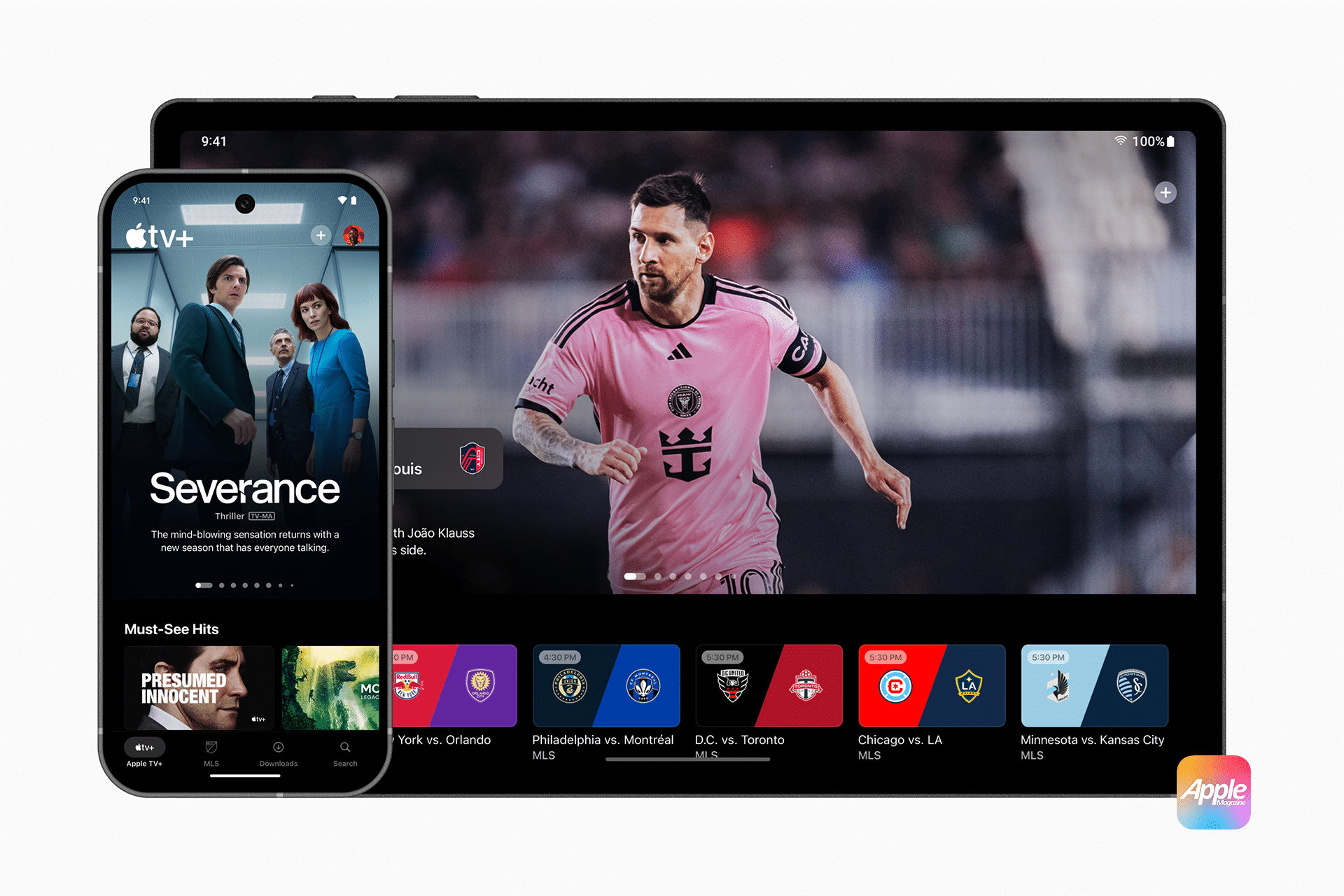
Profiles also sync across devices logged into the same Apple ID, so if someone uses Apple TV, Apple TV on iPad, or Apple TV app on iPhone, their preferences follow them.
Managing Profiles and Preferences
Profiles aren’t set and forget. You can edit or remove them as needed from the same Users and Accounts screen in Settings.
Settings > Users and Accounts > Select Profile > Edit preferences including name, icon, and Apple ID > Remove profile if it’s no longer needed
Editing a profile doesn’t delete the Apple ID or affect other Apple services attached to that Apple ID — it simply removes that person’s personalized settings from that Apple TV device. If someone returns later, you can add their profile back without losing purchases or data tied to their Apple ID.
Kids, Restrictions, and Profiles
Profiles become especially useful in households with children. You can create a separate profile for kids and pair it with Restrictions so age-appropriate content is prioritized and mature titles are filtered out.
Settings > Users and Accounts > Select Kids Profile > Content Restrictions
This keeps family viewing safe and personalized without mixing adult and children’s preferences in one queue. Apple TV ensures kids’ history and suggestions stay relevant to their interests, while parents retain control over what can be watched.
Without separate profiles, Apple TV would show mixed watch history and unrelated recommendations, which dilutes the value of the Up Next queue and personalized browsing. With profiles, each person’s Apple TV app feels like their own entertainment hub, reducing accidental episode skipping or mismatched recommendations after someone else uses the device.
This personalized approach makes Apple TV more intuitive, especially in households where tastes vary widely — from sports and documentaries to series binges and kids’ shows.