


There is a familiar moment in many living rooms. Dialogue plays softly, barely audible. You turn up the volume. Seconds later, a car explodes, music swells, or an action sequence crashes through the speakers. The room fills with sound far louder than expected.
Apple TV includes a built-in feature designed specifically to prevent that situation. Reduce Loud Sounds compresses the dynamic range of audio so that sudden spikes become less extreme while quieter dialogue remains understandable.
This setting does not eliminate surround sound or flatten audio entirely. Instead, it narrows the gap between the quietest and loudest parts of a soundtrack.
What Reduce Loud Sounds Actually Does
Movies and streaming content are mixed with wide dynamic range. That means:
- Whispered dialogue is intentionally quiet
- Explosions and musical climaxes are intentionally loud
In theaters, this works well. At home — especially at night or in apartments — it can become disruptive.
Reduce Loud Sounds applies real-time dynamic range compression. When enabled, Apple TV detects high-amplitude peaks and gently lowers them while subtly raising lower-level audio elements such as dialogue. The result is more consistent volume without constantly adjusting the remote.
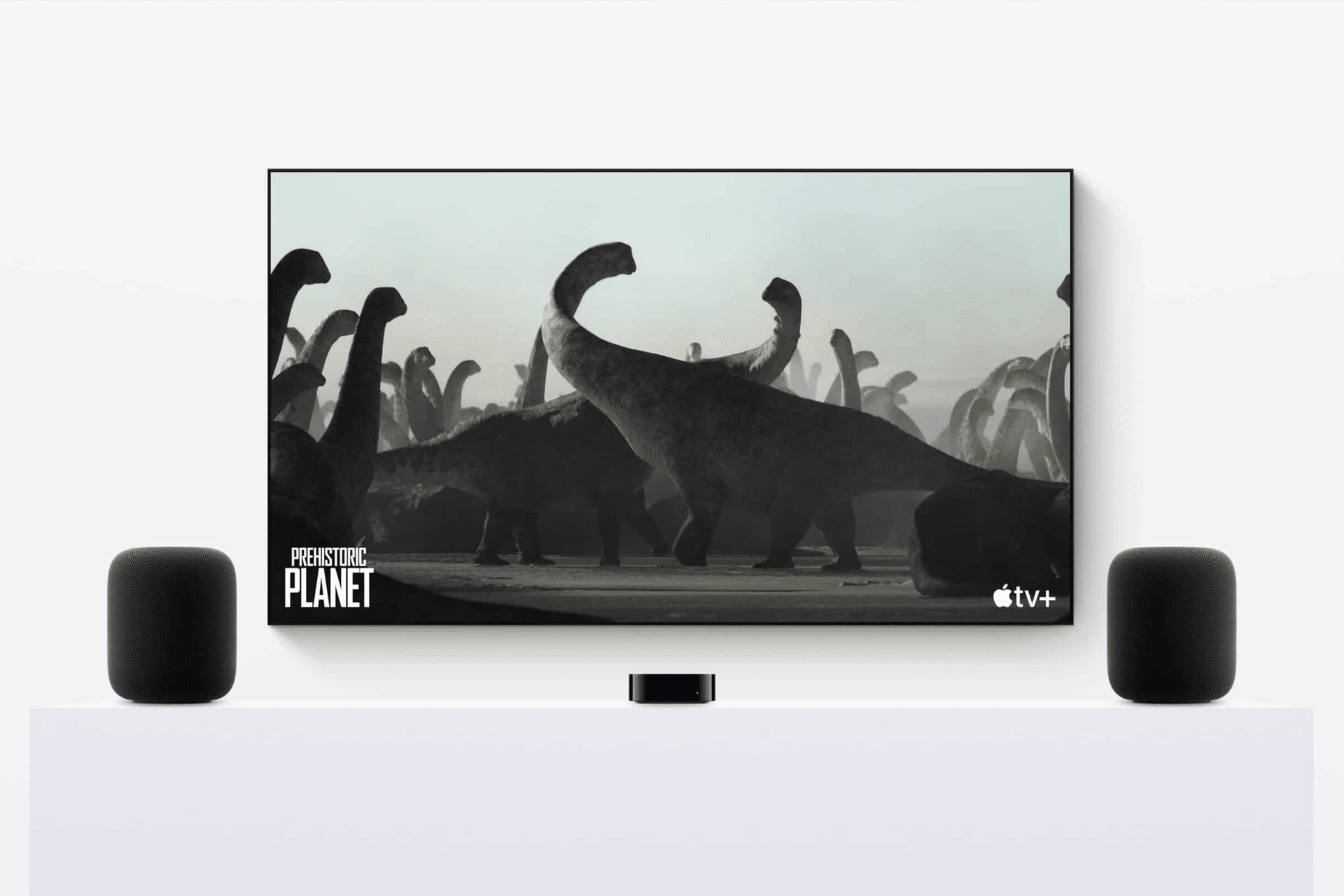

How to Activate Reduce Loud Sounds on Apple TV
To turn it on:
Settings > Video and Audio > Reduce Loud Sounds > On
The change applies system-wide across supported apps, including Apple TV, Netflix, Prime Video, and other streaming platforms.
There is no need to configure it per app.
If you use Control Center:
Press and Hold TV Button on Remote > Audio Controls > Reduce Loud Sounds
This allows quick toggling without entering full Settings.
When It Makes the Biggest Difference
Reduce Loud Sounds is especially helpful in:
- Late-night viewing
- Apartment living
- Family homes with sleeping children
- Built-in TV speakers
- Compact soundbars
If your Apple TV connects directly to television speakers, the difference is immediate. Dialogue becomes clearer at lower master volume levels.
With soundbars or home theater receivers, the effect depends on how your audio system processes signals. Some receivers apply their own dynamic compression, but Apple TV’s setting operates before the signal reaches the amplifier.
For Dolby Atmos setups, Reduce Loud Sounds still functions, but the compression applies to the overall mix rather than isolating specific channels.
Dialogue Clarity Without Increasing Master Volume
One common reason people raise volume is unclear dialogue. Many modern films prioritize cinematic mixing over living-room practicality.
Reduce Loud Sounds helps by narrowing contrast. You may find you no longer need to raise the master volume to hear conversations.
If dialogue remains difficult to understand, you can also check:
Settings > Video and Audio > Audio Format
Ensuring the correct format matches your speaker system prevents mismatched channel output.
Dynamic Range and Streaming Apps
Streaming services deliver audio in different formats depending on subscription tier and device capability. Apple TV adapts automatically.
Reduce Loud Sounds works independently of the app’s internal audio controls. Whether watching Apple Originals, live sports, or third-party content, the feature remains active at the system level.
The compression is subtle. Action scenes retain impact. Music still carries weight. The difference lies in preventing extreme jumps that force you to reach for the remote.
Does It Lower Overall Audio Quality?
Some users worry that compression reduces cinematic depth. In practice, Reduce Loud Sounds balances consistency rather than stripping detail.
For critical listening sessions or dedicated home theater experiences, leaving the feature off may preserve full theatrical range.
For everyday streaming, background viewing, or shared spaces, many prefer the smoother profile.
You can toggle the feature instantly to compare.
Press and Hold TV Button > Audio Controls > Toggle Reduce Loud Sounds
Testing during a high-action scene reveals the contrast clearly.
Accessibility and Comfort
While not labeled strictly as an accessibility feature, Reduce Loud Sounds supports comfort viewing. Sudden spikes can be physically uncomfortable for some viewers, especially in smaller rooms.
By normalizing extremes, Apple TV supports longer viewing sessions without constant adjustment.
It also reduces the chance of startling volume jumps during ad breaks in certain apps.
Paired With External Audio Systems
If your Apple TV connects to a receiver that already offers night mode or dynamic compression, you can experiment with enabling only one system at a time.
Stacking compression at multiple levels may flatten audio more than intended. Testing combinations helps find the balance that suits your room acoustics.
Why It Matters in Everyday Viewing
Streaming habits have changed. Many households watch across different times of day, with varied background noise levels and shared spaces.
Reduce Loud Sounds makes Apple TV more adaptable. It shifts audio from theatrical extremes toward practical home listening without sacrificing clarity.
The setting takes seconds to activate and can remain enabled permanently if preferred.
In environments where volume spikes disrupt comfort, the feature turns dramatic swings into smoother transitions, allowing dialogue, music, and action to coexist at manageable levels.