

The Apple TV sleep timer is one of those small features that can make a real difference at night. Many people like watching one episode before bed, leaving a comfort show running in the background, or putting on a movie they already know well while settling down. The problem is that bedtime viewing often stretches longer than planned. A show keeps playing, the TV stays on, and the room remains lit long after everyone has fallen asleep.
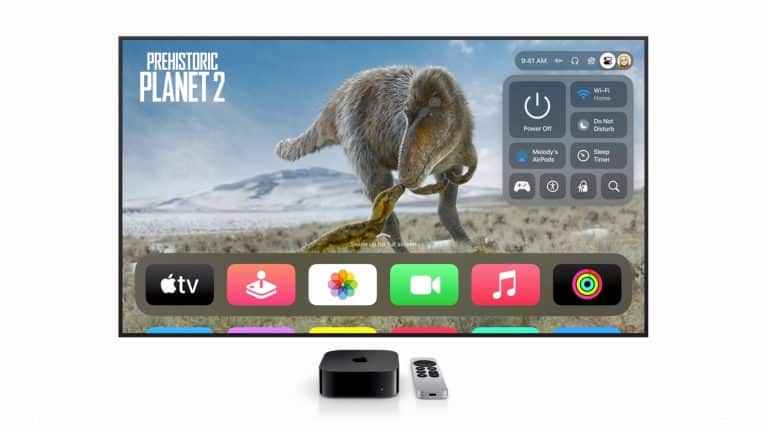
Apple added a direct sleep timer inside Apple TV 4K’s Control Center, giving viewers a simple way to set a shutoff window before playback keeps running too long. It is not a complicated feature, and that is exactly the point. The best bedtime tools are the ones that do not ask for much attention. Choose a time, let the show continue, and let Apple TV turn off when the timer ends.
The Apple TV sleep timer also fits into a larger home routine. It can reduce unnecessary power use, keep late-night streaming from running for hours, and help prevent waking up halfway through a season because autoplay never stopped. It is especially useful in bedrooms, guest rooms, family rooms, and shared spaces where someone may start watching but not be the person who turns everything off.
Apple TV Sleep Timer for Bedtime Viewing
The fastest way to use the Apple TV sleep timer is through Control Center. This works directly from Apple TV 4K and does not require digging through several settings pages. The feature is designed for the moment it is needed: while a show, movie, or app is already open.
To set a sleep timer:
Press and Hold TV Button on Remote > Control Center > Sleep Timer > Choose Time
Once selected, the countdown begins. Apple TV continues playing until the chosen time expires, then turns off. If plans change, the timer can be canceled from the same Control Center option.
To cancel the timer:
Press and Hold TV Button on Remote > Control Center > Sleep Timer > Cancel Timer
This is the cleanest option for bedtime because it works while watching. There is no need to stop playback, return to the Home Screen, or adjust general settings. The timer sits in the same quick-access space as other useful controls.
A practical habit is to set it before starting the last episode of the night. If a show is around 30 minutes, choose a nearby timer window. If it is a longer film, choose a longer interval. The goal is not to make bedtime rigid. It is to avoid leaving Apple TV and the television active far beyond the intended viewing time.

Auto-Sleep Behavior and Everyday Settings
The sleep timer is different from regular auto-sleep behavior. The timer is intentional and temporary. Auto-sleep settings control how Apple TV behaves after inactivity. Both can help, but they solve different problems.
Sleep timer is best when content is actively playing and the viewer wants Apple TV to stop after a chosen period. Auto-sleep behavior is better for moments when Apple TV is left idle, such as after pausing a show, returning to the Home Screen, or stepping away from the room.
To review sleep-related settings:
Settings > General > Sleep After
The available timing options can vary by tvOS version and device setup, but the purpose remains the same: choose how long Apple TV waits before entering sleep mode after inactivity. A shorter setting can help reduce unnecessary power use. A longer setting may be better in a living room where people pause content often and return later.
To put Apple TV to sleep manually:
Settings > Sleep Now
There is also a quick way to sleep Apple TV from the remote. This is useful at the end of the night when the sleep timer is not needed because viewing is already finished.
Press and Hold TV Button on Remote > Control Center > Power Button
For homes where Apple TV is connected through HDMI-CEC, putting Apple TV to sleep may also turn off the connected television or receiver if the TV and accessories support that behavior and the setting is enabled. This depends partly on the television, soundbar, or receiver, so results may vary by setup.
Energy-Saving Habits That Work With Apple TV
The Apple TV sleep timer can help reduce power use, but the television itself usually consumes much more energy than the Apple TV box. That means the best energy-saving setup combines Apple TV habits with TV settings.
Most modern televisions include their own sleep timer, eco mode, brightness controls, and automatic power-off behavior. Apple TV can stop playback and enter sleep, but the television may need its own settings adjusted to fully power down or reduce energy use. This is especially important for bedroom TVs that stay on overnight or large living room displays that consume more power at higher brightness levels.
A good setup begins with Apple TV’s sleep timer and auto-sleep setting, then continues with the TV’s own power options. On many televisions, these settings live under power, energy, eco, or system menus. The exact path depends on the brand.
For Apple TV’s side of the setup:
Settings > Remotes and Devices > Control TVs and Receivers > On
This setting allows Apple TV to control compatible TVs and receivers through HDMI-CEC. If supported, sleeping Apple TV can help turn off connected equipment. If the TV does not respond, check the television’s HDMI-CEC setting. Different brands use different names for it, including Anynet+, Bravia Sync, Simplink, VIERA Link, or CEC.
For better nighttime viewing, also consider lowering screen brightness or choosing a calmer picture mode on the television. Vivid or dynamic modes can make the screen much brighter than needed in a dark room. A softer picture setting can make bedtime viewing easier on the eyes and reduce power draw.

Bedtime Tips for Streaming Apps
Streaming apps can behave differently. Some apps stop after a set number of episodes. Others keep autoplay running. Some display “Are you still watching?” prompts, while others continue until the device or app is stopped. The Apple TV sleep timer helps because it works at the system level, not only inside one app.
Before starting a late-night session, it helps to check autoplay settings in the specific streaming app. Turning off autoplay can prevent the next episode from starting automatically. Pairing that with the Apple TV sleep timer creates a better bedtime setup: the app is less likely to continue endlessly, and Apple TV still has a defined shutoff point.
For Apple TV’s direct timer:
Press and Hold TV Button on Remote > Sleep Timer > Choose Time
For app autoplay controls, open the streaming app’s account or playback settings when available. Each service places this option differently, and some manage autoplay through a website rather than the Apple TV app itself.
Bedtime viewing also works better when the Apple TV remote is easy to reach. If the remote is often misplaced, the iPhone Remote in Control Center can help. It gives quick access to Apple TV controls without turning on the room lights or searching the couch.
To open Apple TV Remote on iPhone:
Control Center > Apple TV Remote > Select Apple TV
A small routine can make the feature more useful: set the timer before pressing play, lower the TV brightness, keep autoplay under control, and let Apple TV handle the rest. Apple TV sleep timer does not turn bedtime into a strict schedule. It simply gives nighttime viewing a cleaner ending, which is exactly what many streaming setups have been missing.