

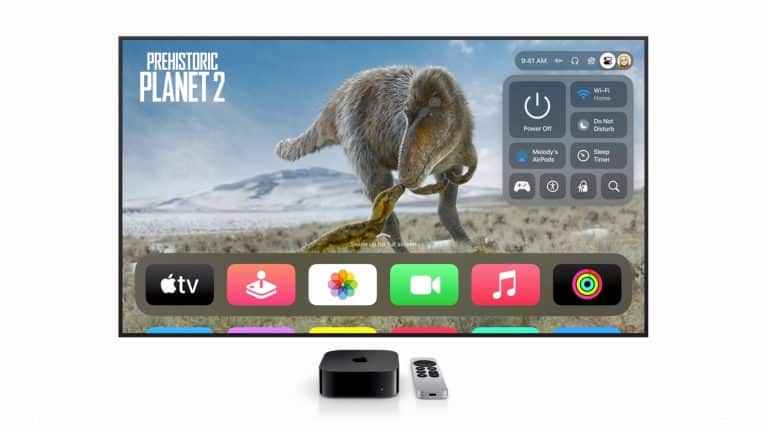
Apple TV tracking settings give users more control over how streaming apps, games, fitness apps, shopping apps, and entertainment services handle activity across the living-room screen. The Apple TV may feel less personal than an iPhone because it sits under the TV, but it can still reveal a lot about viewing habits, app use, purchases, subscriptions, family routines, and advertising interests.
Apple’s App Tracking Transparency system applies to Apple TV as well as iPhone and iPad. Apps are required to ask permission before tracking activity across other companies’ apps and websites for advertising or sharing information with data brokers. On Apple TV 4K, users can review which apps asked for permission, turn permission on or off for each app, or stop all apps from asking to track.
That matters because TV apps are often tied to advertising-supported streaming, viewing analytics, device identifiers, and household-level targeting. A living-room device can be used by several people, which makes tracking more sensitive. One person may watch sports, another may watch kids’ shows, another may use fitness apps, and another may sign in to shopping or video services. Without clear controls, that activity can become part of a broader advertising profile.
Apple TV tracking controls do not make streaming anonymous. Apps can still collect data needed to run their own services, manage accounts, provide recommendations, prevent fraud, and measure performance. The setting is specifically about tracking activity across apps and websites owned by other companies for advertising or data-broker purposes. That distinction is important because turning off tracking is not the same as turning off all data collection.
How to Control App Tracking
Apple TV tracking settings are found inside Privacy & Security. The path is short, but it is easy to overlook because Apple TV is usually controlled with a remote rather than a keyboard or touchscreen.
To manage tracking:
Settings > General > Privacy & Security > Tracking
From there, Apple TV shows a list of apps that have requested permission to track. Users can select an app and turn permission on or off. They can also turn off Allow Apps to Ask to Track, which prevents apps from showing future tracking permission prompts.
That last option is the cleanest setting for users who do not want app tracking requests appearing at all. When Allow Apps to Ask to Track is off, apps cannot ask for tracking permission through Apple’s prompt. This does not remove every form of data use inside an app, but it blocks the specific cross-app tracking permission that Apple’s framework controls.
The best everyday setup is simple: leave Allow Apps to Ask to Track off unless there is a specific reason to allow a particular app. Most streaming, sports, news, fitness, and entertainment apps should still work normally without tracking permission. The tradeoff may be less personalized advertising, not loss of core playback.
Apple TV also lets users manage other privacy categories from the same Privacy & Security area, including Location Services and app access to data such as photos, Bluetooth devices, or Apple Home devices. Those settings are worth checking because TV apps increasingly connect with phones, smart-home accessories, cameras, fitness tools, and cross-device features.

Tracking Is Different From Recommendations
Apple TV tracking settings should not be confused with recommendation settings inside the Apple TV app. Tracking controls whether third-party apps can follow activity across other companies’ apps and websites for advertising or data sharing. The Apple TV app’s own privacy settings control how play history and connected apps are used for personalization inside Apple’s TV experience.
Apple says users can disconnect third-party apps from the Apple TV app if they no longer want Apple to collect play data from those apps. On tvOS, that control is available through Settings > Apps > TV > Connect to TV. Users can select a third-party app and turn it off.
To manage connected apps:
Settings > Apps > TV > Connect to TV
This matters because a streaming app can be private from cross-app advertising tracking while still connected to the Apple TV app for playback history and recommendations. Those are different privacy layers. One affects advertising tracking across companies. The other affects how Apple’s TV app understands what has been watched and what to suggest next.
The Apple TV app also allows users on smart TVs, streaming devices, game consoles, and cable or satellite services to clear search history and manage play-history personalization. Apple’s support page says users can choose whether to use play history for personalized recommendations or clear play history from the Apple TV app.
For users who want fewer personalized suggestions, reviewing connected apps and clearing play history can be just as important as turning off app tracking.
Shared Screens Make Privacy More Complicated
Apple TV tracking settings are especially important because Apple TV is often shared by a household. An iPhone usually belongs to one person. An Apple TV may be used by parents, children, roommates, guests, partners, and visitors. That changes the privacy expectation.
A streaming profile can separate recommendations inside a service, but advertising and tracking systems may still treat the device as part of a household. A sports app, free streaming app, shopping app, or ad-supported video app may try to understand what the household watches and how it behaves across services. Turning off cross-app tracking helps limit that broader advertising profile.
Families should also think about children’s viewing. If children use Apple TV, tracking limits can reduce exposure to ad profiling across apps and websites. Parents can also combine privacy settings with restrictions, content limits, and account controls to keep the living-room experience more appropriate.
To review restrictions:
Settings > General > Restrictions
Privacy on a shared TV is not only about hiding what one person watches. It is about reducing how much the device can become a household advertising signal. The more people use the same screen, the less any one person fully controls the meaning of the data.
Apple’s Own Data Settings
Apple TV tracking settings mainly apply to third-party apps. Apple’s own apps and services have separate privacy controls and policies. This distinction has become part of broader legal and regulatory debate. A U.S. judge allowed part of a privacy lawsuit against Apple to proceed over allegations involving Apple’s own data collection through apps such as the App Store, Apple Music, and Apple TV, while dismissing claims tied to the “Allow Apps to Request to Track” setting because Apple had clearly described that setting as applying to third-party tracking.
That case shows why users should understand the categories. Turning off App Tracking Transparency permissions limits third-party cross-app tracking. It does not automatically disable every Apple analytics, personalization, or service-data setting.
Apple TV users should review analytics and personalization settings separately. Device analytics, Siri history, location access, connected apps, and TV app play history can all affect privacy in different ways. The exact options may vary by tvOS version, region, app, and account setup.
To review broader privacy settings:
Settings > General > Privacy & Security
To review TV app connections:
Settings > Apps > TV
The strongest privacy setup is layered. Turn off unnecessary app tracking. Limit connected apps if recommendations do not need play history. Review analytics and location settings. Use separate profiles where available. Keep tvOS updated so privacy controls and security fixes remain current.
A Simple Setting With Real Living-Room Value
Apple TV tracking settings are easy to ignore because the device is usually treated as entertainment hardware, not a privacy surface. But streaming has become one of the most data-driven parts of media. Apps want to know what people watch, when they watch, which ads they see, which subscriptions they keep, which trailers they finish, and which services they open next.
Apple’s controls give users a practical way to reduce some of that tracking. They do not stop every form of measurement or personalization, and they do not make Apple TV anonymous. They do make cross-app advertising tracking harder and give users a clear place to say no.
For most households, the best setup is to keep Allow Apps to Ask to Track turned off, review connected apps inside the Apple TV app, and clear or limit play history if recommendations feel too personal or shared across the wrong people. Apple TV works best when streaming remains easy without turning the living-room screen into another quiet advertising profile.