

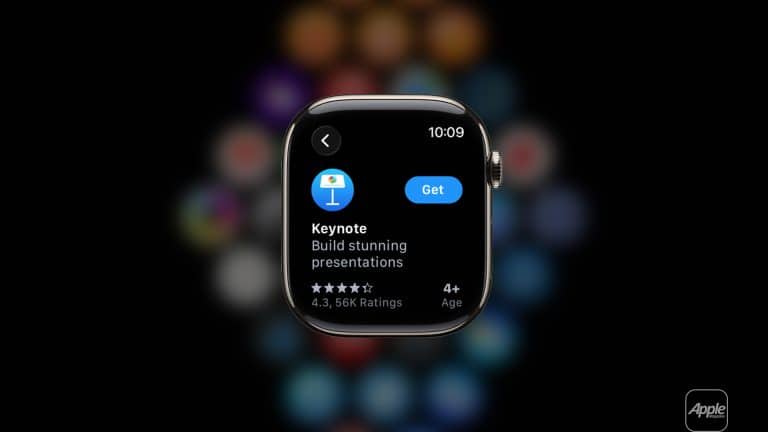
Apple Watch began as an extension of iPhone. Over time, it evolved into a more independent device capable of installing and managing apps on its own. Today, users can browse the App Store, download tools, update apps, and remove unused ones directly from the watch.
Whether using a Wi-Fi model connected to iPhone or a cellular version operating independently, managing apps on Apple Watch takes only a few steps.
How to Install Apps Directly on Apple Watch
Apple Watch includes its own App Store interface. This allows users to search, explore featured apps, and download software without opening iPhone.
To install an app directly from the watch:
Press Digital Crown > Open App Store > Search or Scroll > Tap Get
You can search using dictation, Scribble, or the keyboard (on supported models).
If the watch is connected to Wi-Fi or cellular, downloads begin immediately. Authentication may require double-clicking the side button.
Apps designed specifically for watchOS install independently, while companion apps sync with their iPhone counterparts.

Installing Apps from iPhone
Some users prefer browsing on a larger screen. Apps can also be installed through the Watch app on iPhone.
Open Watch App on iPhone > Scroll to Available Apps > Tap Install
This method is helpful when managing multiple apps at once or reviewing permissions.
Automatic App Install Option
By default, Apple Watch may automatically install watch versions of apps already on iPhone.
To control this behavior:
Watch App on iPhone > General > Automatic App Install > Toggle On or Off
Disabling automatic installation prevents unused apps from appearing on the watch.
Managing and Deleting Apps
As storage fills or preferences change, removing apps keeps the watch streamlined.
To delete directly from the watch:
Press Digital Crown > Touch and Hold App Icon > Tap Delete App
Or, if using List View:
Press Digital Crown > Swipe Left on App > Tap Trash Icon
Apps can also be removed through iPhone:
Watch App on iPhone > My Watch Tab > Select App > Toggle Off Show App on Apple Watch
Managing Storage Space
Apple Watch models vary in storage capacity. Large music files, podcasts, and apps can consume space quickly.
To review storage:
Settings > General > Storage
This screen shows which apps use the most space. Deleting rarely used apps frees memory and can improve system responsiveness.
Updating Apps on Apple Watch
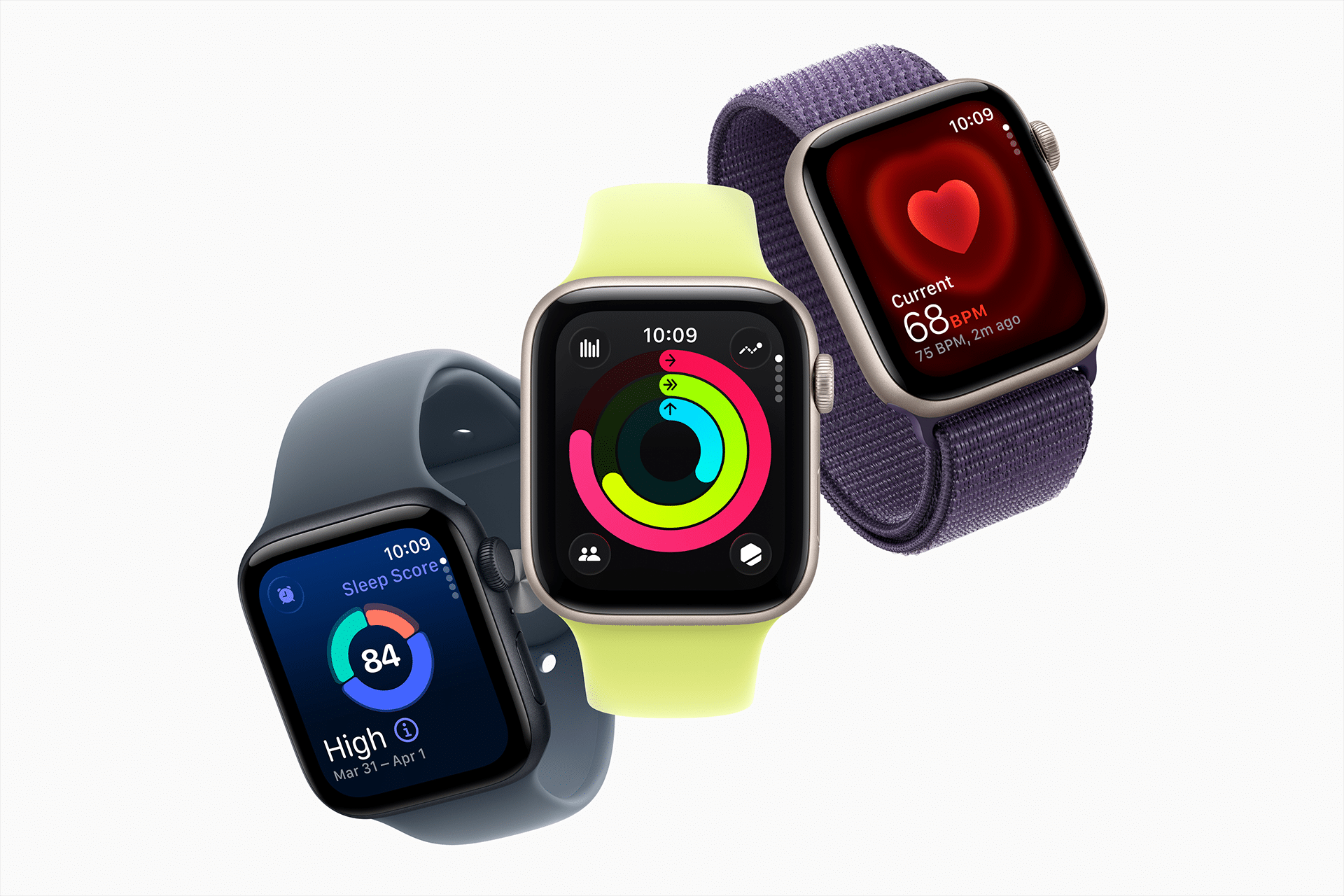
App updates can occur automatically.
To check update settings:
Watch App on iPhone > App Store > Automatic Updates > Turn On
To manually update apps on the watch:
Open App Store > Scroll Down > Account > Updates
Keeping apps updated ensures compatibility with the latest watchOS features.
Rearranging App Layout
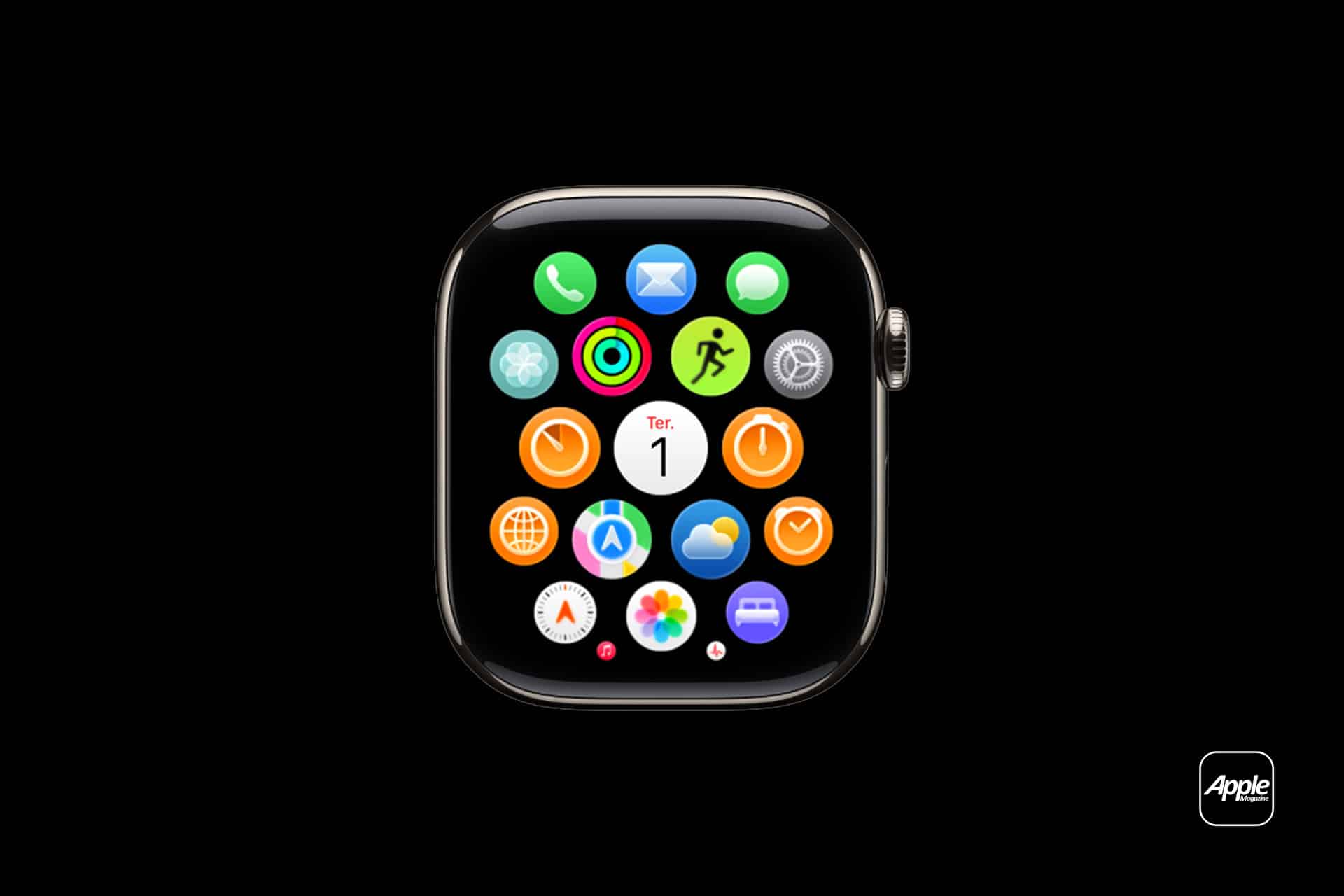
Organization impacts usability. Apple Watch offers Grid View and List View.
To change layout:
Settings > App View > Choose Grid View or List View
In Grid View, apps can be rearranged:
Press Digital Crown > Touch and Hold App > Drag to Reposition
Or through iPhone:
Watch App > App Layout > Drag Icons
Permissions and Notifications
Apps installed on Apple Watch inherit certain permissions from iPhone but can also be adjusted independently.
To manage notifications:
Watch App on iPhone > Notifications > Select App
Users can mirror iPhone alerts or customize behavior specifically for watch. Location and background activity permissions can also be adjusted in Settings.
Independent Apps and Cellular Use
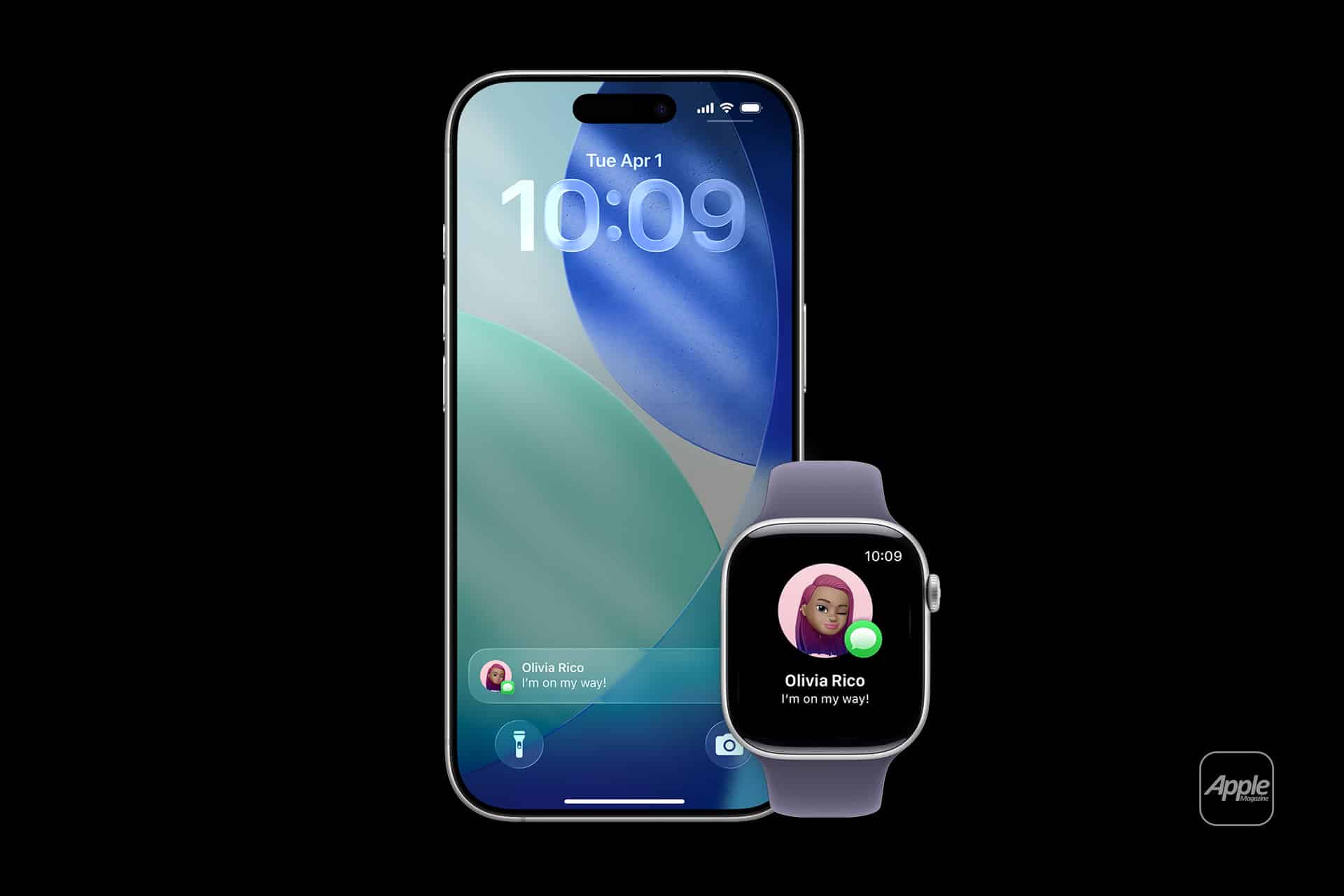
Modern Apple Watch apps increasingly operate without iPhone nearby. Cellular models can download apps, stream music, send messages, and use navigation independently.
This independence makes app management directly on the watch more relevant than ever.
Choosing Which Apps Belong on Your Watch
Not every iPhone app makes sense on a small screen. Productivity apps with quick glance features, health trackers, timers, weather tools, and navigation apps often perform best.
Heavier apps with complex interfaces may remain better suited for iPhone.
Curating your app list ensures faster access and cleaner navigation.
Apple Watch app install is no longer just a companion feature. It reflects watchOS maturity — allowing users to control their software experience directly from the wrist.