
Apple Watch gestures represent one of the most natural evolutions in wearable technology. What started as simple taps and swipes has become a full system of hand-based controls that allow you to interact without touching the screen at all. With each generation of watchOS, Apple refined how movement, sensors, and intelligence work together to turn subtle finger motions into commands.
This evolution reflects how people actually use their watches. Your hands are often busy, wet, gloved, or holding something. Gestures remove friction, allowing quick interactions in moments where touching the screen is inconvenient or impossible.
From Touch to Motion
Early Apple Watch models relied entirely on touch and the Digital Crown. Over time, Apple introduced accessibility features that used motion sensors and machine learning to recognize muscle movements. This laid the foundation for AssistiveTouch and later the system-wide gesture controls.
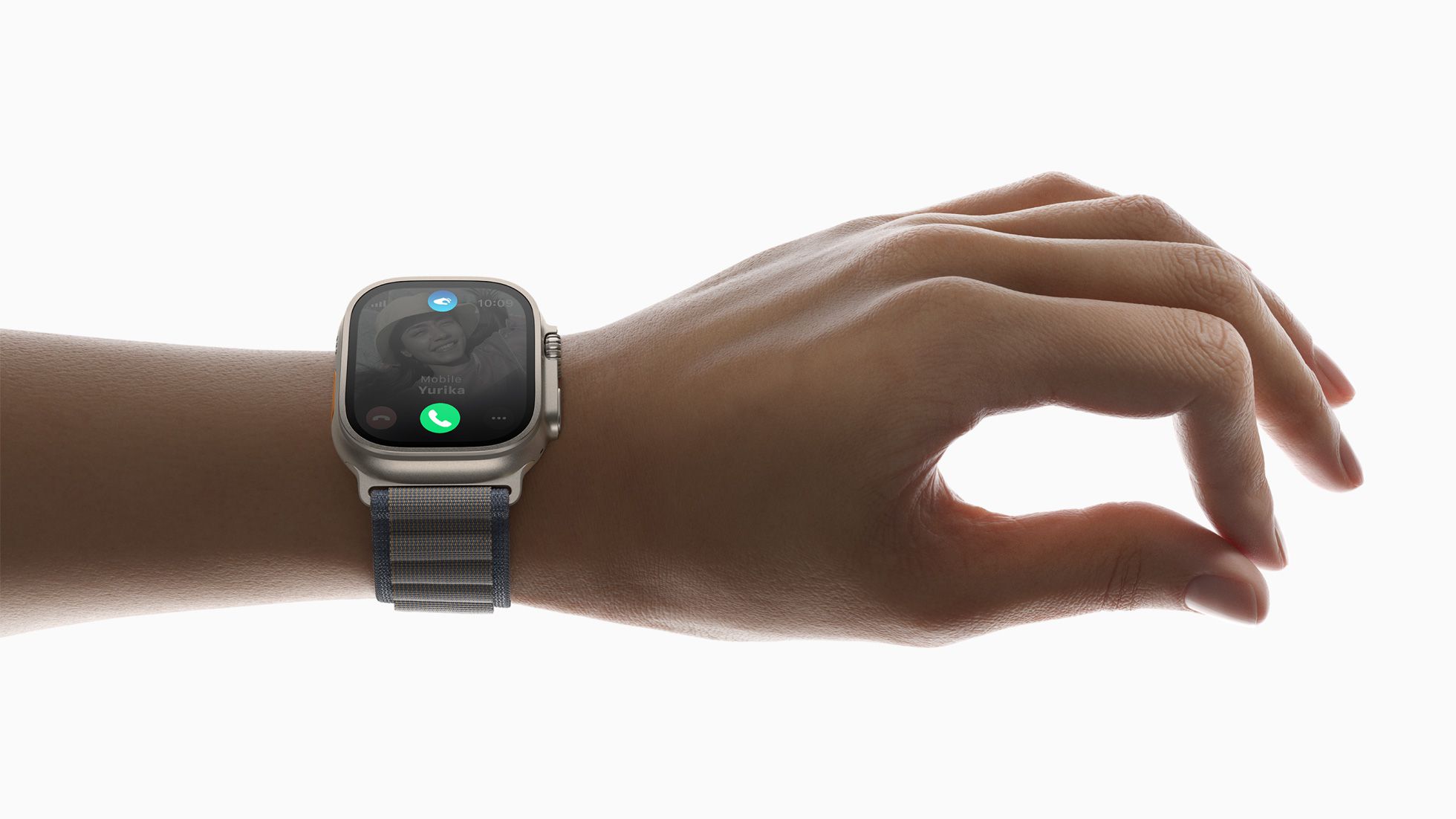
With watchOS 9 and beyond, gestures became faster, more accurate, and more deeply integrated. The Double Tap gesture, introduced with newer Apple Watch models, marked a turning point. Instead of navigating menus, you can now confirm actions, open notifications, or start timers with a simple pinch-like motion.

How Gestures Work
Apple Watch uses accelerometers, gyroscopes, and heart rate sensors to detect tiny wrist and finger movements. Machine learning interprets these patterns to understand when you perform a specific gesture. This happens on-device, ensuring quick responses and privacy.
The system recognizes movements such as pinching, clenching, and double tapping fingers together. These are mapped to actions depending on the app or screen you are using.
Common Apple Watch Gestures
- Double Tap to confirm or open
- Pinch to scroll or select
- Clench to go back or cancel
- Wrist rotation for navigation
- Raise wrist to wake
- Cover screen to mute
These gestures create a layered control system that feels intuitive and fluid.
How to Enable Apple Watch Gestures
Open Settings on Apple Watch > Accessibility > AssistiveTouch > Turn On
Then select Hand Gestures and customize actions
For newer models, you can also enable system gestures from:
Settings > Gestures > Double Tap

Daily Scenarios
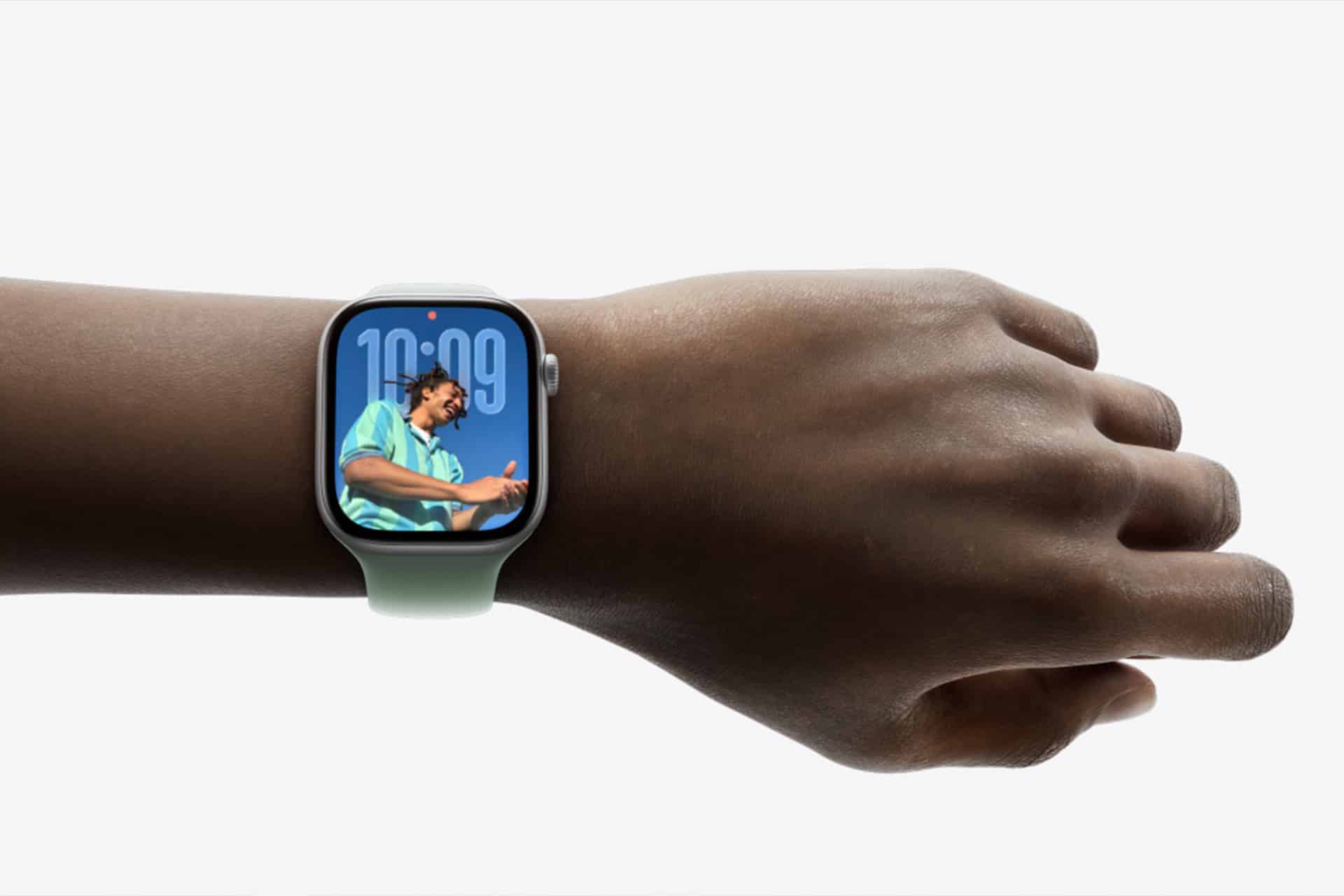
- While cooking or washing hands
- During workouts
- While carrying bags
- In cold weather with gloves
- During presentations
Gestures allow quick control without breaking your flow.
The Future of Wearable Interaction
Apple Watch gestures point toward a future where devices respond to natural movement rather than screens. They blur the line between physical and digital actions, making technology feel less like a tool and more like an extension of your body.
As Apple refines these systems, gestures will likely become the primary way people interact with wearables.