Apple Watch includes a collection of small features designed to solve everyday annoyances, and Theater Mode is one of the most practical among them. Many users originally associate Theater Mode with movie theaters, but its usefulness goes far beyond that scenario. Whether during workouts, flights, meetings, or sleep hours, preventing the display from lighting up automatically can improve comfort, reduce distractions, and avoid unnecessary battery drain.
By default, Apple Watch wakes its display whenever the wrist is raised. This behavior is helpful during normal use, yet it can become inconvenient during physical activity or while resting. Quick arm movements during workouts may repeatedly activate the display, bright lighting in dark environments can become uncomfortable, and nighttime wrist movement may illuminate the room. Theater Mode addresses these situations by keeping the screen off until the display is tapped manually, while still allowing notifications and haptic alerts to arrive normally.
How Theater Mode Works
When Theater Mode is enabled, the watch display no longer turns on automatically with wrist movement. Incoming notifications continue to arrive silently through haptics, and users can still check alerts by tapping the screen or pressing the Digital Crown. Sound output is also muted unless media playback is manually activated, making the feature particularly useful during quiet environments such as flights, lectures, or late-night hours.
Because Theater Mode does not disable alarms, timers, or health tracking, it can remain active throughout workouts or overnight sleep tracking without interfering with core functionality. Many users combine Theater Mode with Sleep Focus or Do Not Disturb to create a fully distraction-free nighttime setup, especially when the watch is worn overnight for sleep metrics.
How to enable Theater Mode
Control Center > Theater Mode > Tap the Mask Icon
Once activated, the Theater Mode icon appears at the top of the watch face, indicating that wrist-raise activation is disabled. The same steps can be repeated to turn the feature off at any time.

Using Theater Mode During Workouts
Fitness routines often involve repetitive arm motion, which can repeatedly wake the display when wrist-raise detection is active. This can create unnecessary light flashes, particularly during early-morning or evening training sessions, and can slightly increase battery consumption over long workouts. Activating Theater Mode before starting exercise sessions keeps the display dark until intentionally tapped, allowing uninterrupted activity tracking while maintaining full access to workout metrics when needed.
For treadmill running, strength training, cycling, or yoga sessions where the wrist moves frequently, Theater Mode prevents accidental screen activation without affecting heart-rate monitoring, movement tracking, or Activity ring calculations. Many athletes prefer enabling it alongside Workout Focus to create a consistent distraction-free training environment.
Travel, Flights, and Public Spaces
Theater Mode becomes equally useful during travel. On airplanes or overnight buses, the sudden glow of a wrist-activated display can be distracting to nearby passengers, especially in dim cabins. Activating Theater Mode keeps the watch discreet while still allowing silent notification awareness through gentle haptic taps. Combined with Airplane Mode, the watch becomes a quiet travel companion that preserves battery life throughout long journeys.
In meetings or classrooms, Theater Mode also prevents the screen from lighting up every time the wrist shifts on the table, maintaining a more discreet appearance without disabling notifications entirely.
Sleep and Nighttime Use
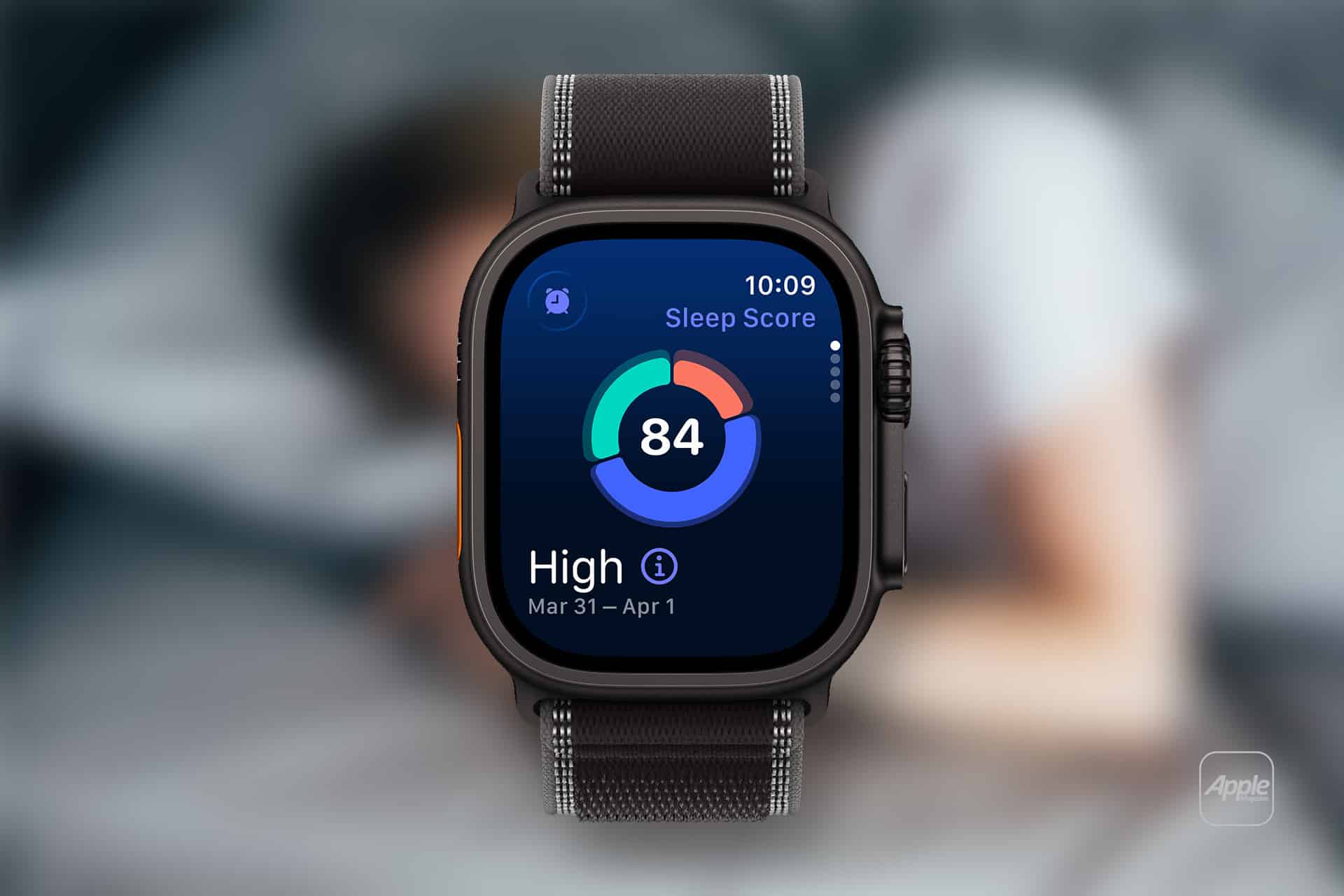
Many users wear Apple Watch overnight for sleep tracking, and Theater Mode helps keep the bedroom environment dark when the wrist moves unintentionally during sleep. When paired with Sleep Focus, the watch remains quiet while continuing to record sleep stages, heart rate, and overnight health metrics. Morning alarms still function normally, ensuring the feature does not interfere with wake-up routines.
Battery Considerations
Although the battery savings from Theater Mode are modest, preventing frequent screen activation during long workouts, travel days, or overnight use can contribute to slightly longer daily battery life. Over time, this small reduction in screen activity may reduce charging frequency, especially on heavy-use days when the watch is actively tracking workouts, navigation, or notifications.
Theater Mode remains one of the simplest yet most practical display-control tools built into watchOS. With a single tap, the watch adapts to environments where subtle operation matters, keeping notifications accessible while preventing unnecessary screen activity throughout the day.