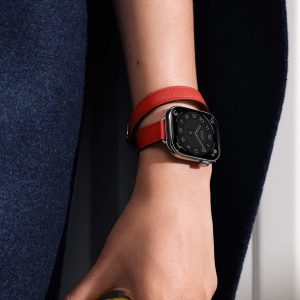
Apple Watch unlock is one of those Apple features that can disappear into daily life once it is set up correctly. A Mac wakes, the watch taps your wrist, and the desktop is ready. An iPhone has trouble recognizing your face because of a mask, sunglasses, or ski goggles, and the Apple Watch can help complete the unlock. The whole experience is built around a simple idea: the device on your wrist can confirm that you are physically present, authenticated, and close enough to trust.
That convenience is especially useful because unlocking happens constantly. A Mac may be opened dozens of times during a workday. An iPhone may be checked while walking outside, wearing sunglasses, traveling, or moving between errands. Typing passwords and passcodes is not difficult, but it adds friction. Apple Watch reduces that friction in a way that feels natural because it uses something already attached to the body.
The feature is not a replacement for passwords, Face ID, Touch ID, or passcodes. It works alongside them. Apple requires the watch to have a passcode, be unlocked, worn on the wrist, and close to the device being unlocked. For Mac Auto Unlock, the Mac and Apple Watch need to use the same Apple Account with two-factor authentication. Apple’s security documentation also describes the unlock flow as a protected process used when Apple Watch unlocks a paired Mac and approves certain requests.
Unlock Your Mac Automatically With Apple Watch
Mac Auto Unlock is probably the cleanest version of Apple Watch unlock. When the feature is enabled, the Mac can sense the unlocked Apple Watch nearby and log in automatically after waking from sleep. For MacBook users, that can happen when the lid is opened. For desktop Macs, pressing a key or waking the display can trigger it. Apple says Auto Unlock works when the unlocked watch is worn and very close to the Mac, so distance matters.
This is useful at home, at a desk, in a studio, or in an office where the same Mac is locked and reopened throughout the day. Instead of typing the password every time, the Apple Watch confirms presence and unlocks the session. The watch gives haptic feedback, so the user knows the action happened.
To enable Apple Watch unlock on Mac:
System Settings > Touch ID & Password > Apple Watch > Turn On
On some macOS versions, the path may appear under Login Password or Security settings, depending on the Mac and software version. The feature still depends on the same core requirements: Apple Watch on wrist, watch unlocked, same Apple Account, Wi-Fi and Bluetooth enabled, and two-factor authentication active.
Apple Watch can also approve certain administrator requests on Mac. This is one of the most overlooked parts of the feature. Instead of typing the Mac password for some protected actions, the Apple Watch may show a prompt asking for confirmation. A double-click on the side button approves the request. Apple lists actions such as viewing passwords or downloading an app as examples of tasks that can use Apple Watch approval.
To approve a Mac request:
Apple Watch Prompt > Double-Click Side Button
This can make everyday Mac use faster without making the system feel loose. The watch is not approving silently. It requires a deliberate physical action on the wrist.

Unlock Your iPhone With Apple Watch
Apple Watch can also unlock an iPhone, but the behavior is more limited than Mac Auto Unlock. Apple’s support guidance explains that this feature works when Face ID cannot fully recognize the user because of a face covering, sunglasses, or ski goggles. The iPhone still needs to detect that a face is present, and the Apple Watch must be worn, unlocked, protected with a passcode, and nearby.
To turn on iPhone unlock with Apple Watch:
Settings > Face ID & Passcode > Unlock With Apple Watch > Turn On
Once enabled, the action is simple. Wake the iPhone by tapping the screen or raising it, then glance at the display. If Face ID needs help because the face is partially obstructed, Apple Watch can unlock the iPhone and tap the wrist to confirm. The watch also shows an alert with the option to lock the iPhone again if the unlock was accidental.
This feature became especially valuable during the mask era, but it remains useful beyond that. Sunglasses can interfere with Face ID depending on lens type and lighting. Winter gear, ski goggles, and certain face coverings can also make recognition harder. Apple Watch gives iPhone a trusted fallback without forcing a passcode every time.
There is an important limit: Apple Watch unlock for iPhone does not authenticate Apple Pay, App Store purchases, password viewing, or protected app access. Those still require Face ID, Touch ID where available, or passcode authentication. That separation keeps the feature focused on unlocking the phone, not approving every sensitive action.
Security Details That Keep the Feature Controlled
Apple Watch unlock works because several conditions have to be true at the same time. The watch must be on the wrist. Wrist Detection must be active. The watch must be unlocked. The device being unlocked must be nearby. The Apple Account setup must be trusted. These layers help prevent the watch from becoming a loose key.
The Apple Watch passcode is central. If the watch is removed from the wrist, it locks. Once locked, it cannot unlock a Mac or iPhone until the wearer enters the watch passcode again or unlocks it through the paired iPhone when that option is enabled. Apple also notes that disabling the Apple Watch passcode turns off some features, including Apple Pay and Mac unlock.
To confirm Apple Watch passcode settings:
Watch app > My Watch > Passcode
To unlock Apple Watch when iPhone unlocks:
Watch app > My Watch > Passcode > Unlock With iPhone
Wrist Detection should stay enabled for this feature to make sense. It helps Apple Watch know whether it is still being worn. Turning it off weakens the logic behind watch-based authentication and can affect other safety and security features.
To check Wrist Detection:
Watch app > My Watch > Passcode > Wrist Detection
For Mac unlock, Bluetooth and Wi-Fi should remain on. The devices use proximity and secure communication to confirm that the watch and Mac are close together. If Auto Unlock stops working, checking Bluetooth, Wi-Fi, Apple Account, and two-factor authentication is usually the best place to start.

Fix Common Apple Watch Unlock Problems
When Apple Watch unlock does not work, the issue is usually one of a few simple conditions. The watch may be locked. The Mac or iPhone may not be close enough. Bluetooth or Wi-Fi may be off. The devices may not use the same Apple Account. The watch may need a passcode. The Mac may be too old or running unsupported software.
For Mac, Apple says Auto Unlock works with Mac models from mid-2013 or later running macOS 10.13 or later, though the exact experience depends on software version and hardware. The Mac and Apple Watch must be signed in to iCloud with the same Apple Account, and two-factor authentication must be enabled.
To check the Mac model year:
Apple Menu > About This Mac
To check Apple Account on Mac:
System Settings > Apple Account
To check Apple Account on iPhone:
Settings > Apple Account
For iPhone, the unlock feature requires an iPhone with Face ID and a compatible Apple Watch. If Face ID is working normally and the face is unobstructed, the iPhone may simply use Face ID directly. Apple Watch unlock is mainly for moments when Face ID needs help because of masks, sunglasses, or similar obstruction.
A reliable setup begins with the basics: update iPhone, Apple Watch, and Mac; keep the watch passcode enabled; leave Wrist Detection on; use the same Apple Account; keep Bluetooth and Wi-Fi active; and keep the watch close to the device. Once those pieces are in place, Apple Watch unlock becomes one of the easiest examples of Apple’s continuity features: small, secure, and useful every day.