


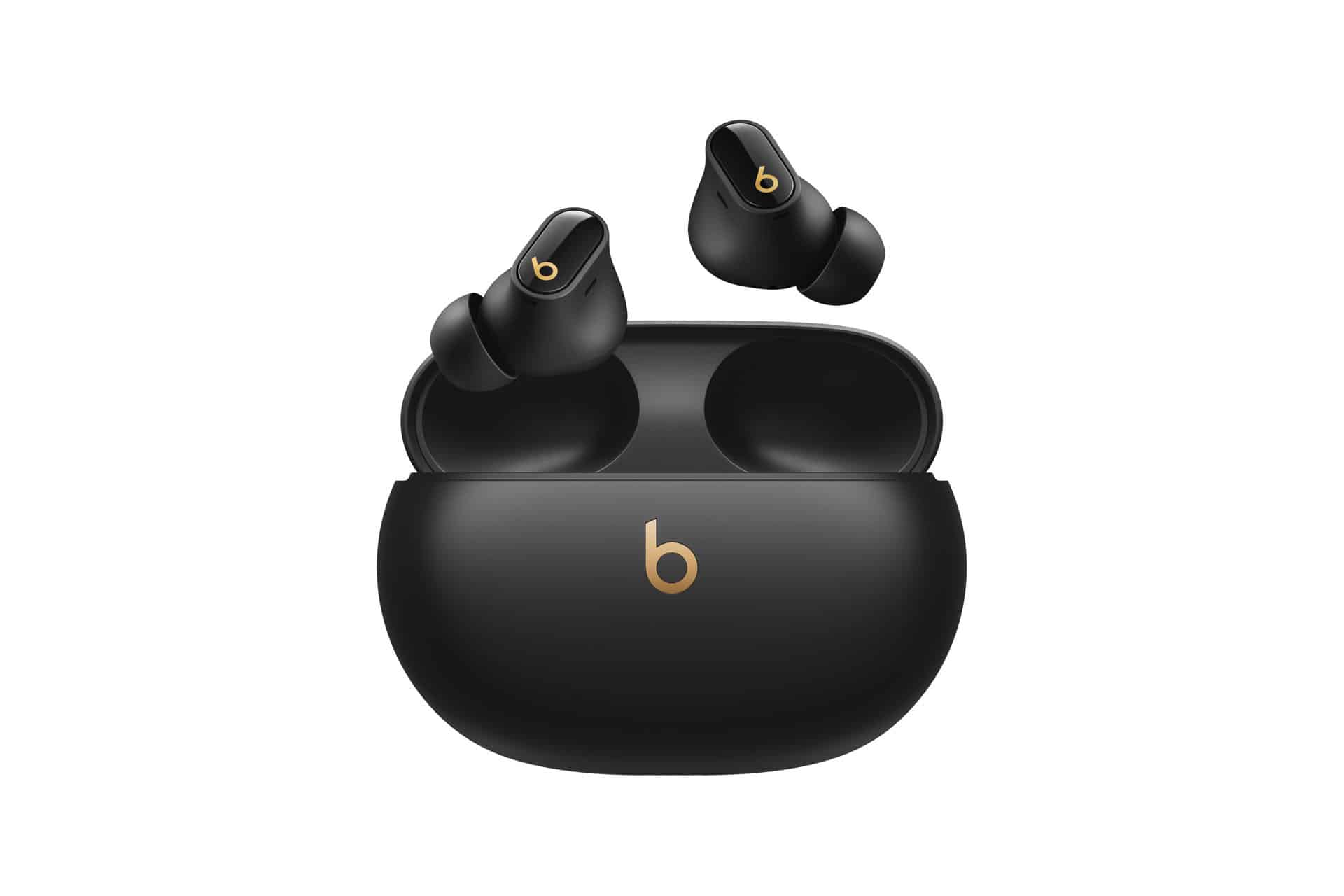
Apple has released a security update for Beats Studio Buds after disclosing a Bluetooth vulnerability that could allow a nearby attacker to listen through the earbuds’ microphone under specific conditions. The fix is included in Beats Firmware Update 1B211, which Apple says is available for Beats Studio Buds.
The vulnerability is tracked as CVE-2025-20701. Apple’s security note describes the impact in direct terms: an attacker within Bluetooth range may be able to listen through the microphone of a device that is not yet paired and is actively seeking pair requests. Apple says the issue involves open source code and that Apple software is among the affected projects. The CVE was assigned by a third party and credited to Dennis Heinze and Frieder Steinmetz of ERNW GmbH.
For iPhone owners using Beats Studio Buds, the practical message is simple: make sure the earbuds have updated to firmware version 1B211. Beats firmware updates are delivered automatically when the earbuds are paired and within Bluetooth range of an iPhone, iPad, or Mac. There is no manual software update button like the one used for iOS or macOS, so the best approach is to connect the earbuds, keep them near the Apple device, and check the firmware version afterward.
The issue does not mean every Beats Studio Buds owner was being listened to, and Apple has not said the vulnerability was used in active attacks. The attack described by Apple requires proximity and a specific pairing-related state. Still, microphone access is sensitive by nature, and a firmware update that closes an eavesdropping path should be treated as a priority.

A Bluetooth Flaw With a Narrow but Serious Risk
Bluetooth earbuds are always balancing convenience with security. They need to pair quickly, reconnect automatically, switch between devices, handle microphone access, support calls, and stay discoverable at the right moments. That convenience creates complex connection states, especially when earbuds are not yet paired or are actively looking for a device.
Apple’s description points to the vulnerable condition: Beats Studio Buds that are not yet paired and are actively seeking pair requests. In that state, an attacker within Bluetooth range may have been able to listen through the microphone. That makes the flaw different from a remote internet-based vulnerability. It would require the attacker to be physically nearby, within Bluetooth range, and able to exploit the device during the affected pairing state.
That does not make it harmless. Wireless earbuds are used during calls, meetings, walks, commutes, workouts, school pickup, work conversations, and private moments at home. The microphone is not only a call accessory; it is a sensor that can capture nearby speech and ambient audio. Any vulnerability involving unauthorized microphone access deserves attention, even if the exploit window is limited.
The affected product named by Apple is Beats Studio Buds, not the entire Beats lineup. Apple’s security note for Beats Firmware Update 1B211 specifically lists Beats Studio Buds as the available product for this fix. Owners of other Beats or AirPods models should still keep firmware current, but this particular security document is tied to Studio Buds.
The firmware number also matters. Beats Studio Buds owners should look for version 1B211. If the earbuds still show an older version, they may not have received the patch yet. Firmware rollout can take time, and because updates are automatic, the process may not happen immediately after reading about the fix.
How to Check Beats Studio Buds Firmware on iPhone or iPad
The easiest way for most users to check the update is through iPhone or iPad settings. The Beats Studio Buds need to be connected first, not just stored in the case. Once connected, the firmware version appears in the device information area.
To check Beats Studio Buds firmware on iPhone or iPad:
Settings > Bluetooth > Beats Studio Buds info button > About > Version
Apple’s Beats user guide also notes another path when the Beats appear near the top of Settings.
To check Beats firmware from the Beats settings page on iPhone or iPad:
Settings > Beats Studio Buds > About > Version
If the version shows 1B211, the security update is installed. If it shows an older version, keep the earbuds near the iPhone or iPad while connected and give the device time to apply the firmware update automatically.
To help Beats Studio Buds update from iPhone or iPad:
Connect Beats Studio Buds > Keep them near iPhone or iPad > Keep the Apple device connected to Wi-Fi > Wait for the firmware to install automatically
Apple does not provide a visible “Update Now” button for Beats firmware on iPhone or iPad. That can make the process feel less direct than an iOS update, but the system is designed to handle the firmware installation in the background.
Users who do not see the new firmware immediately should avoid repeatedly resetting the earbuds unless there is a pairing or update problem. In most cases, leaving the earbuds connected near the Apple device is the intended method.
How to Check Beats Studio Buds Firmware on Mac
Mac users can also check the firmware version when Beats Studio Buds are connected. This is useful for people who use their Beats mostly with a MacBook, iMac, Mac mini, Mac Studio, or Mac Pro rather than an iPhone.
To check Beats Studio Buds firmware on Mac:
Apple menu > System Settings > Beats Studio Buds in the sidebar > Version
Apple’s security note also points users to Bluetooth settings for checking wireless headphone firmware on Mac.
To check Beats firmware through Bluetooth settings on Mac:
Apple menu > System Settings > Bluetooth > Beats Studio Buds info button > Version
As with iPhone and iPad, the update is automatic. The earbuds need to be paired, within Bluetooth range, and near the Mac. Keeping the Mac connected to power and Wi-Fi can help avoid interruptions during background updates.
To help Beats Studio Buds update from Mac:
Connect Beats Studio Buds > Keep them near Mac > Keep Mac connected to Wi-Fi > Wait for the firmware to install automatically
The lack of a manual update button may frustrate some users, especially after a security story involving microphone access. Apple’s approach is designed to reduce the number of steps most people need to take, but it also means users have to check the firmware version rather than press a direct install button.
What Android Users Should Know
Beats Studio Buds are also popular with Android users because Beats offers wider cross-platform support than AirPods in several areas. Android owners can use the Beats app to view device details, manage settings, and check firmware information.
To check Beats Studio Buds firmware on Android:
Beats app > Beats Studio Buds > Device information > Firmware version
Apple’s Beats support materials say users can update Beats using the Beats app for Android. That makes the app especially relevant for Studio Buds owners who do not regularly pair the earbuds with an iPhone, iPad, or Mac.
To update Beats Studio Buds on Android:
Beats app > Beats Studio Buds > Follow the update instructions if available
Android users should make sure the Beats app is installed and current, the earbuds are connected, and the phone has a stable internet connection. If the firmware version is still older than 1B211, checking the Beats app again later may be necessary because updates can roll out gradually.
This is also a useful reminder that Beats products sit in a slightly different place from AirPods. They are Apple-owned and tightly supported on iPhone, but several Beats models are designed to work well outside Apple’s own devices. Security updates still matter no matter which phone the earbuds are paired with.
Why Firmware Updates Matter for Earbuds
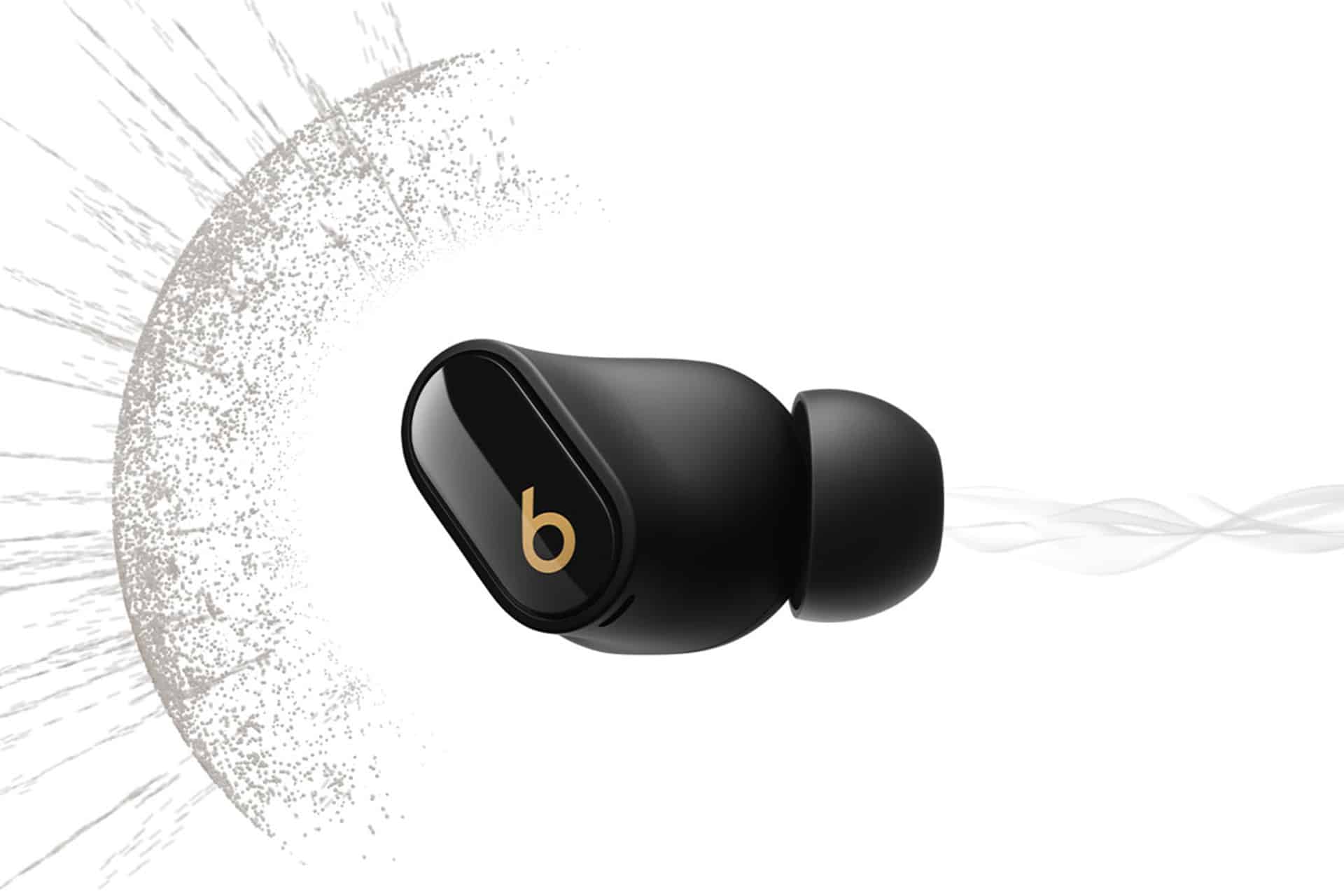
Security updates are easy to associate with phones, laptops, tablets, and web browsers. Earbuds feel different because they are small, simple, and often treated as accessories. In reality, modern wireless earbuds are tiny computers with radios, microphones, sensors, batteries, firmware, and privacy-sensitive features.
They handle audio input and output, device pairing, noise control, voice assistants, call routing, and sometimes location features. That means a vulnerability in earbuds can affect more than sound quality. It can involve privacy, device access, Bluetooth behavior, or microphone control.
Apple has published security content for AirPods and Beats firmware updates before, and this Beats Studio Buds patch fits into that pattern. The company does not disclose security issues until an investigation has occurred and patches or releases are available, which is standard for Apple security documentation. Once a fix is out, the details help users and administrators understand which product is affected and which firmware version they should look for.
For most consumers, the takeaway is not to panic over every Bluetooth security headline. It is to keep accessories updated in the same way they keep iPhone, iPad, Mac, and Apple Watch updated. Earbuds are part of the device environment, and their firmware can carry meaningful privacy fixes.
The challenge is visibility. iPhone users are trained to check iOS updates through Settings. Mac users know System Settings can show macOS updates. Earbud firmware is quieter. It often installs automatically, with the version number buried inside Bluetooth or device information. That makes articles like this useful because they give readers the exact place to check.
A Practical Privacy Check for Beats Owners
The safest response is straightforward: connect the Beats Studio Buds to an Apple device or the Beats app on Android, check the firmware version, and confirm that 1B211 is installed. If the update has not appeared yet, keep the earbuds near the paired device and check again.
There are also a few sensible habits for Bluetooth accessories. Avoid leaving earbuds in pairing mode longer than necessary. Pair them only with trusted devices. Remove old or unfamiliar Bluetooth connections. Keep iPhone, iPad, Mac, and Android devices updated. If earbuds behave strangely, reset and re-pair them using Apple’s support instructions rather than ignoring the issue.
To forget Beats Studio Buds from iPhone or iPad:
Settings > Bluetooth > Beats Studio Buds info button > Forget This Device
To forget Beats Studio Buds from Mac:
Apple menu > System Settings > Bluetooth > Beats Studio Buds info button > Forget This Device
For users who share earbuds across multiple devices, it is worth checking which device they use most often for firmware updates. Someone who pairs Beats Studio Buds mainly with an Android phone should use the Beats app. Someone who uses them with iPhone should keep them near the iPhone regularly. Someone who uses them with a Mac can check the firmware there.
This patch also shows why Apple’s accessory ecosystem needs to be treated as part of the security story, not just the audio story. Beats Studio Buds are compact and relatively affordable, but they still contain microphones and Bluetooth logic that can affect privacy. Firmware version 1B211 closes a specific eavesdropping risk, and the most useful step for owners is to confirm that the update has actually landed on their earbuds.