

The best digital planners for Mac and iPad are not necessarily the apps with the longest feature lists. A useful planner should help make the day easier to understand, keep commitments visible and reduce the number of places where tasks quietly disappear.
Mac and iPad also encourage two different planning styles. The Mac is better for typing, reviewing projects and arranging a full week across a larger screen. The iPad is more natural for handwritten notes, Apple Pencil planning and checking the day away from a desk. The strongest apps either work well across both devices or focus so successfully on one style that the compromise feels worthwhile.
Some people want a digital version of a paper agenda. Others want a visual timeline, a task manager, a calendar command center or a workspace that can hold an entire life. These are the strongest options for those different approaches.
Structured Is the Best Visual Daily Planner
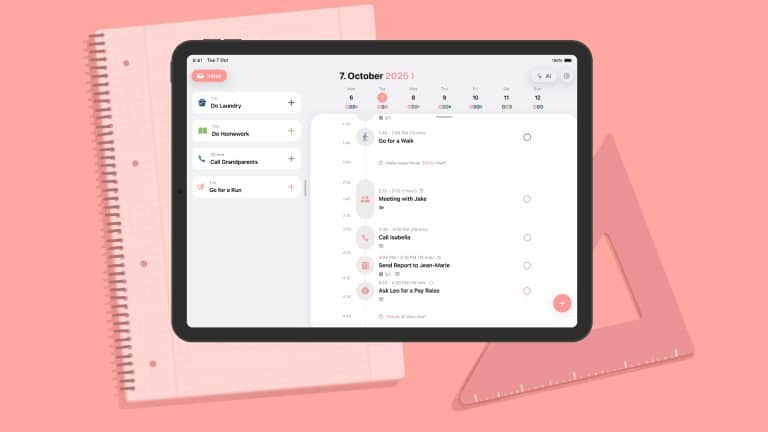
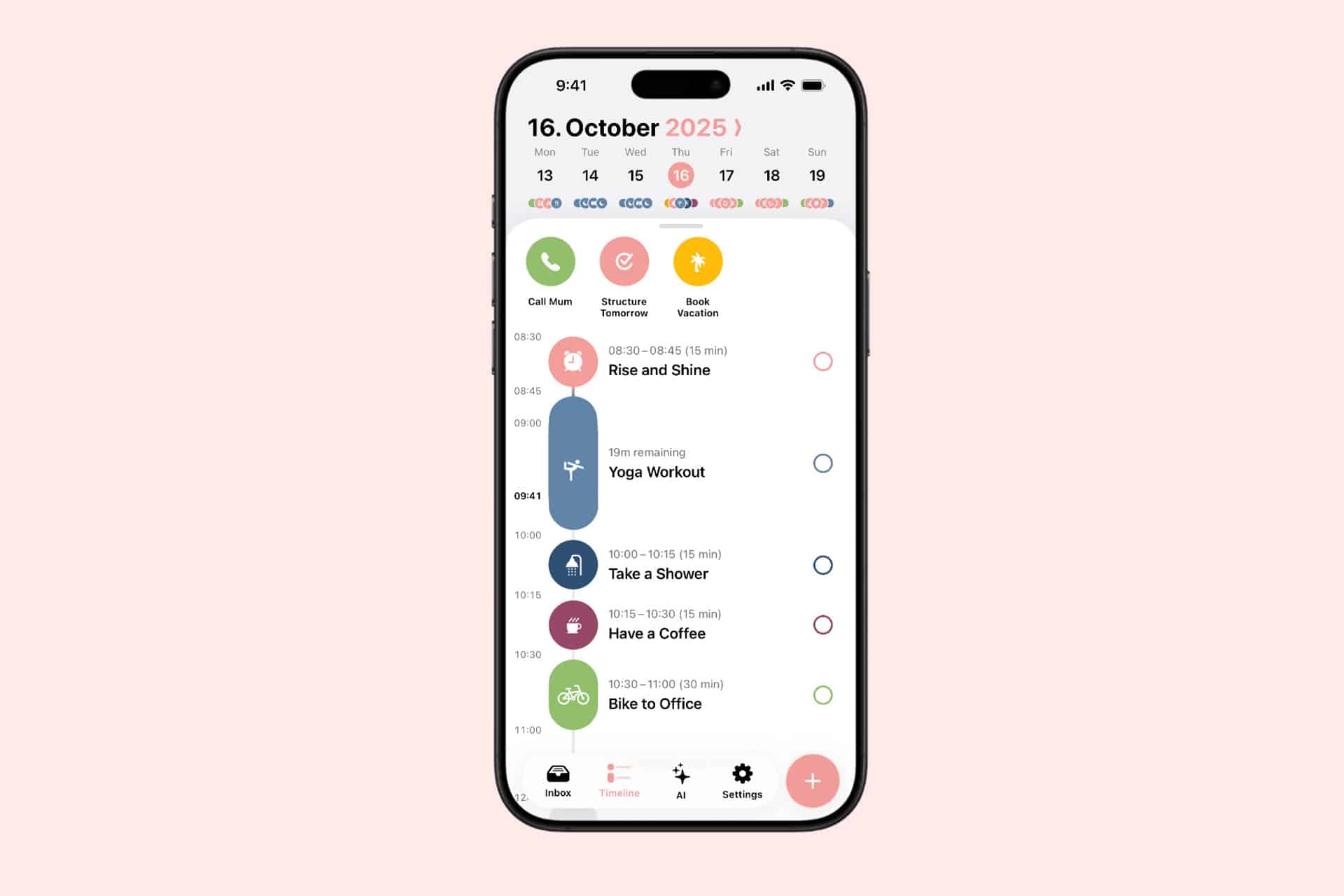
Structured is the easiest recommendation for users who want to see the day as one continuous timeline. Tasks, appointments and focus sessions appear in chronological order, making it immediately obvious when the schedule is overloaded or when a free hour actually exists.
The app feels particularly natural on iPad because tasks can be moved and adjusted visually. Its Mac version provides more space for planning the full day while preserving the same clean layout. Structured also offers apps for iPhone and Apple Watch, which helps keep the plan accessible without repeatedly opening the Mac.
This is a strong choice for students, busy families and anyone who struggles with traditional task lists. A list says what needs to happen. Structured shows where each task can fit.
Its limitation is scale. It handles daily planning beautifully, but users managing large professional projects may need a separate project-management system. Structured is best when the priority is today rather than the entire company roadmap.

Goodnotes Is Best for Handwritten Planning
Goodnotes remains one of the best digital planners for iPad users who want the experience of paper without carrying notebooks. It supports Apple Pencil handwriting, PDF planner templates, typed text, images, links, stickers and searchable handwritten notes.
The experience depends heavily on the planner template selected. Users can choose daily, weekly, monthly, academic, financial or wellness layouts and import them as PDF files. Hyperlinked tabs can make a digital planner behave like a physical binder with instant navigation between months and sections.
The Mac app is useful for reviewing pages, typing longer notes and accessing the same documents at a desk. The iPad remains the better creation device because handwriting is the central appeal.
Goodnotes does not automatically manage time like a calendar-based app. Writing “meeting at 3 p.m.” on a page does not necessarily create a calendar alert. It is best for people who enjoy manually planning and reflecting rather than expecting the software to rearrange the day automatically.
Things 3 Is Best for Focused Personal Planning
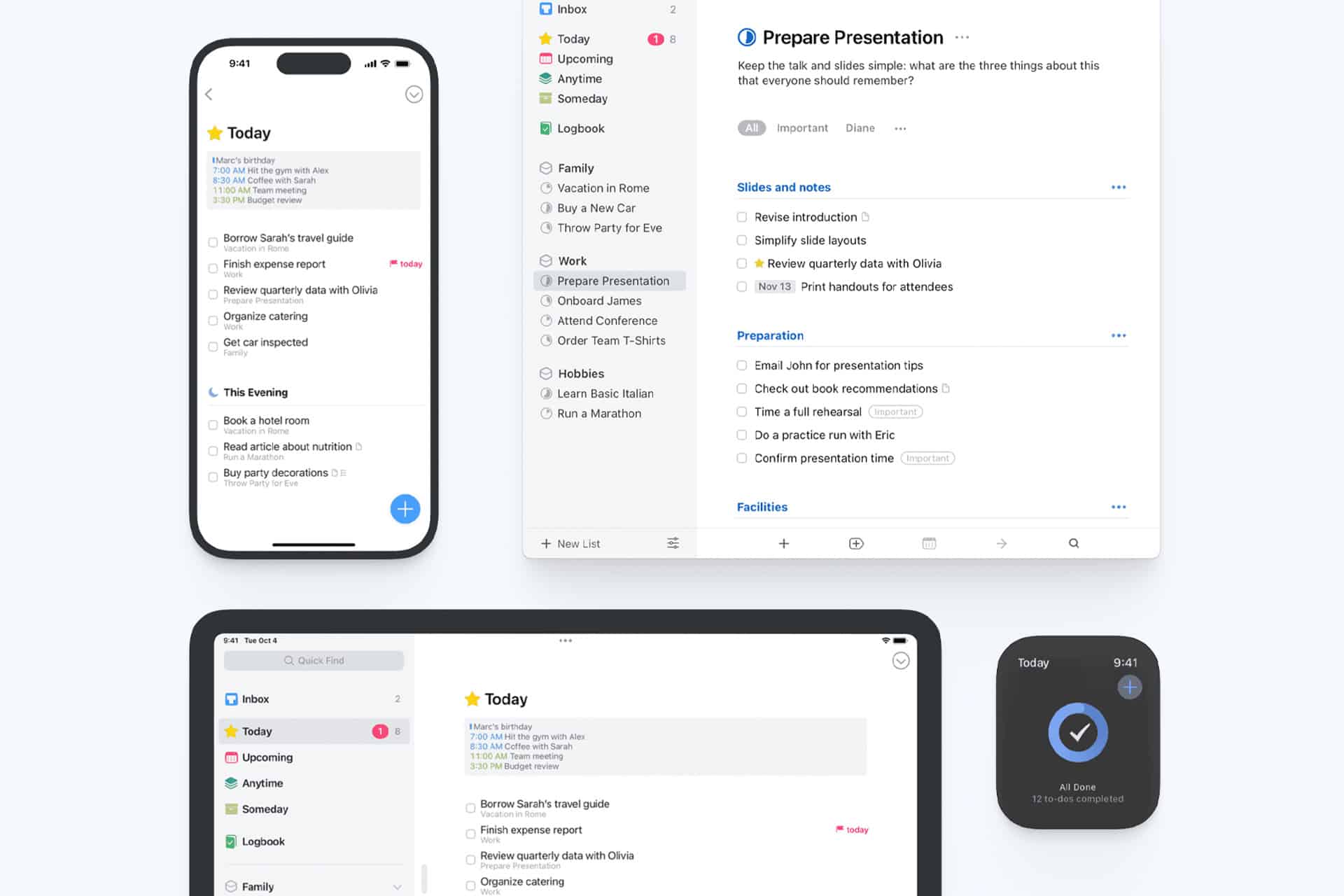
Things 3 is a task manager rather than a traditional calendar, but its Today and Upcoming views make it an excellent personal planner. The interface is calm, fast and unusually disciplined. Tasks can be collected quickly, organized into projects and areas, then scheduled without turning the app into a complicated database.
The Mac version is especially good for weekly reviews and larger project organization. On iPad, Things feels lighter and more direct, with excellent keyboard support and touch controls. Cloud sync keeps tasks aligned across Apple devices.
Things is ideal for users who want to separate tasks from appointments. Calendar events can appear beside the daily list, but the app remains focused on actions rather than becoming a full calendar replacement.
The main drawback is collaboration. Things is designed primarily for personal planning, not shared team projects or household lists. It is also sold separately for Mac, iPad and iPhone rather than through one universal purchase.
Notion Is Best for Building a Custom Planner
Notion works for users who do not want to accept someone else’s idea of a planner. It can become a project tracker, editorial calendar, habit journal, reading list, weekly dashboard or all of those at once.
Templates make the starting process easier. A user can create daily pages connected to tasks, projects, goals and notes, then display the same information through calendar, table, board or timeline views. Notion Calendar adds a more conventional scheduling layer and works well on Mac.
The flexibility is both the attraction and the warning. Notion can become a beautifully organized personal operating system. It can also become a weekend-long design project that produces more templates than completed tasks.
The iPad app is useful for reviewing plans, adding notes and working with a keyboard. It is less satisfying for freehand Apple Pencil planning than Goodnotes. Notion is the better option for structured information, connected projects and users who enjoy building their own system.
Fantastical Is Best for Calendar-First Planning
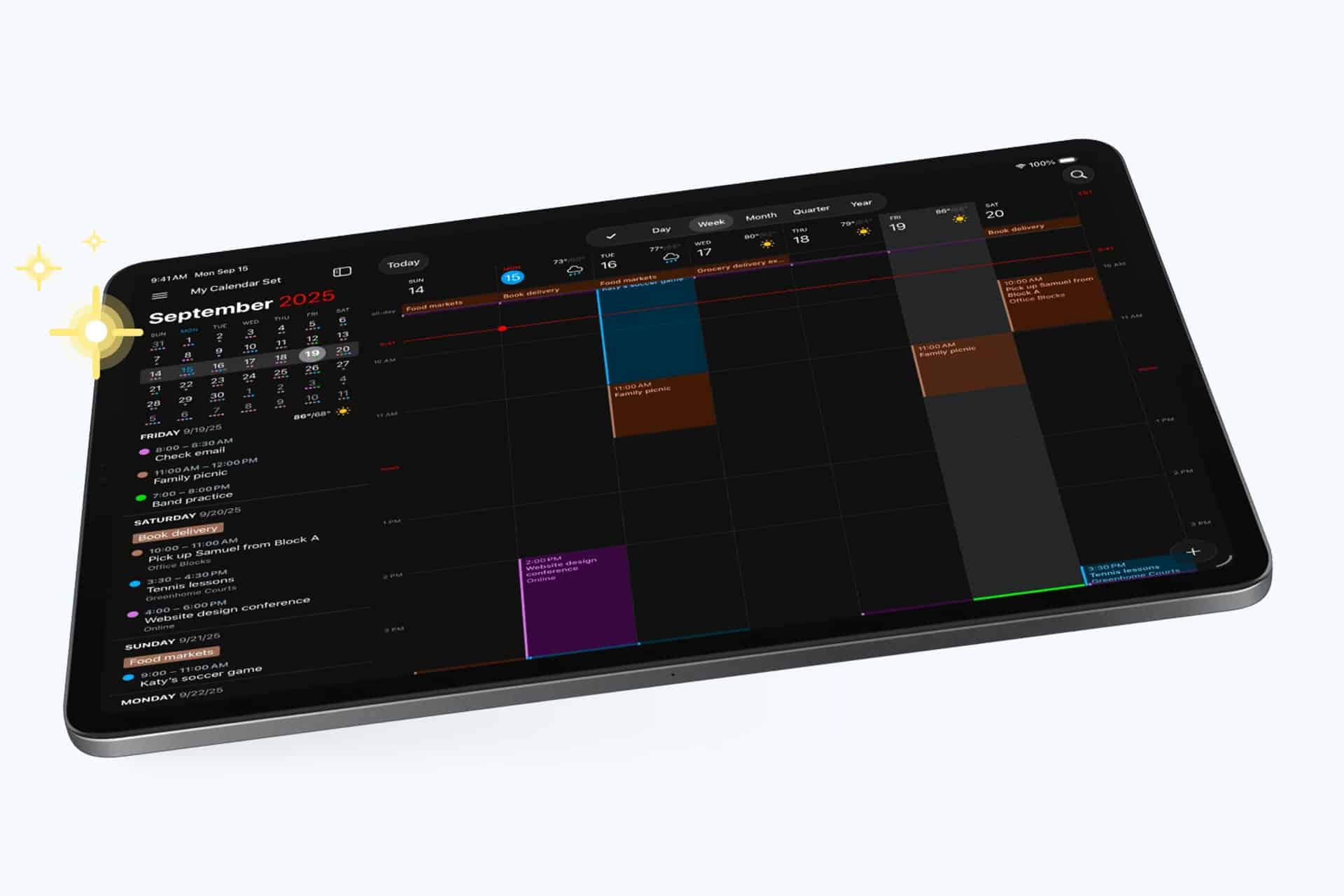
Fantastical is the strongest choice for users whose day is governed by appointments, meetings and scheduled commitments. It combines calendars and tasks in polished day, week, month, quarter and year views across Mac and iPad.
Natural-language input makes adding events fast. Typing a phrase such as “Lunch with Alex Friday at noon” can create the event without opening several fields. Fantastical also supports multiple calendar services, time zones, reminders, meeting links and scheduling tools.
The Mac app is a strong command center for professional calendars. The iPad version offers enough space to examine the week without feeling compressed. Users can also connect Apple Reminders, Todoist or Google Tasks so scheduled work appears beside events.
Fantastical is less suited to reflective journaling or handwritten planning. Its premium subscription may also be excessive for someone who only needs a basic calendar. It earns its place when the calendar itself is the planner.
Sunsama Is Best for Deliberate Work Planning
Sunsama approaches productivity as a daily planning ritual. Each morning, users review tasks, decide what belongs in the day and place that work onto the calendar through time blocking. At the end of the day, the app encourages a review rather than allowing unfinished tasks to become permanent background guilt.
It can collect work from services such as Notion, Trello, Asana and other professional tools, then combine those tasks with calendar events. This makes it useful for people whose work is scattered across several platforms.
Sunsama is more guided than most planners. That structure can help users stop planning an impossible day. The Mac experience is the main attraction, while the iPad app keeps the plan available away from the desk.
The subscription is relatively expensive, and the deliberate workflow may feel slow to users who only want a simple task list. Sunsama suits professionals who want planning to become a daily boundary around work rather than another place to collect everything.
Which Digital Planner Should You Choose?
The right planner depends on how the user naturally thinks.
Structured works best for seeing the day visually. Goodnotes is the closest replacement for a paper agenda. Things 3 provides the cleanest personal task system. Notion offers the most freedom. Fantastical serves users who live through their calendars. Sunsama brings the most deliberate approach to professional time blocking.
Using several planners at once usually defeats the purpose. A better strategy is choosing one primary system and allowing other apps to support it. Someone might use Fantastical for appointments and Things for tasks, or Goodnotes for weekly reflection while Structured runs the actual day.
The best digital planners do not create motivation by themselves. They create a reliable place to decide what deserves time. On Mac, that place can become a detailed planning desk. On iPad, it can feel closer to a notebook held in the hand. The right app should make those two experiences feel connected rather than duplicated.