

Calendar can become the center of Apple daily planning because it already sits at the point where time, tasks, people, locations, alerts, and devices meet. The app is not as flashy as Apple Intelligence, not as personal as Photos, and not as visible as Messages, but it is one of the few Apple tools that can shape the entire day before it begins.
For many users, the problem is not a lack of apps. It is the opposite. Tasks live in Reminders. Meetings live in Calendar. Notes hold project details. Mail contains invitations. Maps handles travel time. Messages brings last-minute changes. Focus controls interruptions. Apple Watch delivers alerts. The day becomes scattered across different places before anything even starts.
Calendar is the natural place to bring that structure back together. It gives the day a timeline. Reminders show what needs to be done. Events show where time is already committed. Alerts create momentum. Shared calendars keep people aligned. iCloud sync keeps the same plan visible on iPhone, iPad, Mac, Apple Watch, and the web.

Calendar as the Daily Planning Center
Calendar works best when it is treated as more than a place for appointments. It should show the shape of the day: fixed commitments, flexible tasks, travel time, deadlines, routines, and shared responsibilities. That makes it easier to see whether the day is realistic before it becomes stressful.
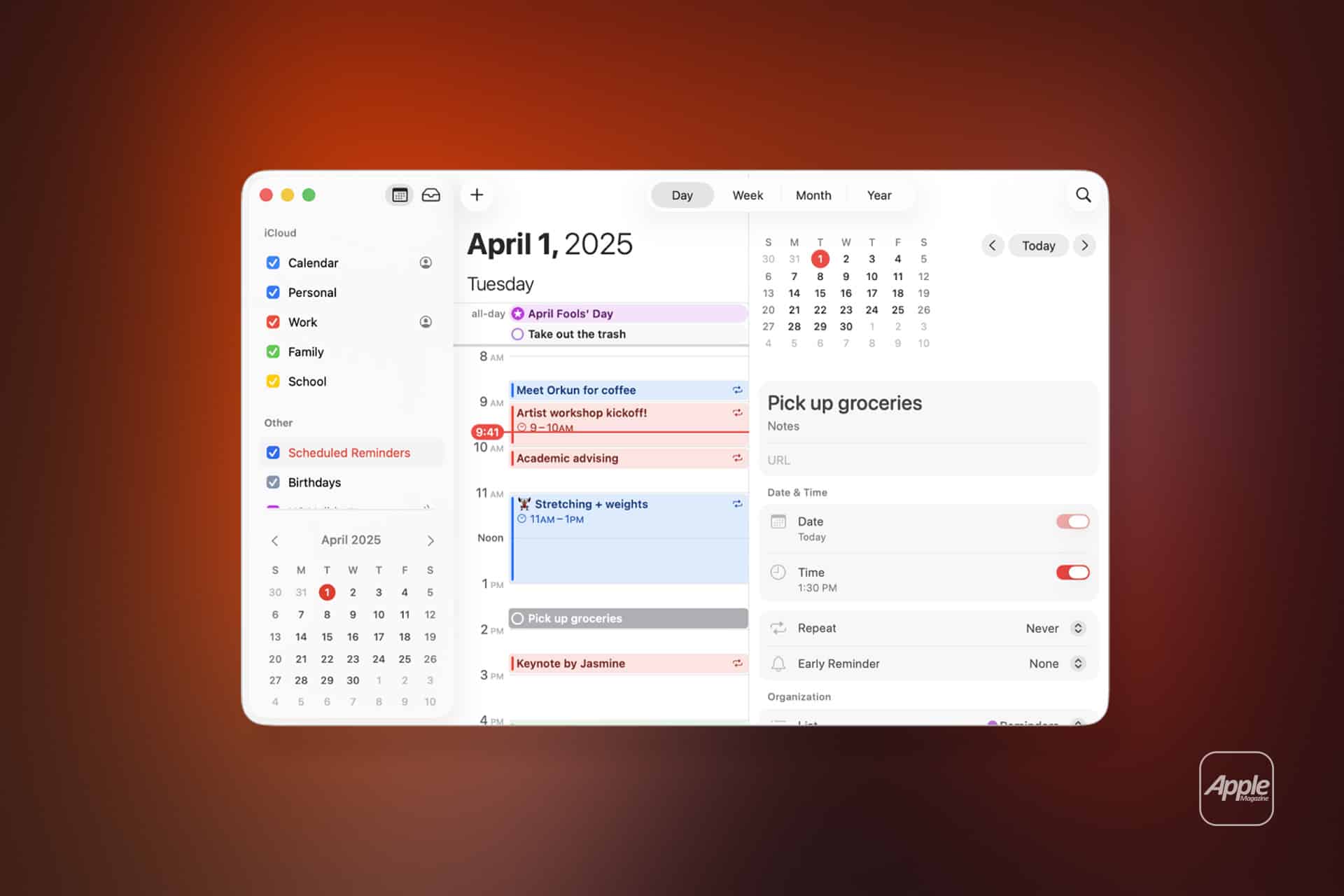
Apple has made this more practical by bringing scheduled reminders into Calendar. Users can show reminders inside the Calendar app, create reminders from Calendar, edit them, and complete them from the same daily view. This closes one of the biggest gaps in Apple’s productivity system because tasks and time now sit closer together.
To show scheduled reminders in Calendar on iPhone:
Calendar > Calendars > Scheduled Reminders
To create a reminder in Calendar on Mac:
Calendar > Create Quick Event > New Reminder
This changes how Apple’s daily planning tools work. A reminder without a time can stay in Reminders. A reminder with a date or deadline can appear beside events. That gives users a cleaner view of what they need to attend and what they need to finish.
The key is restraint. Calendar should not become a dumping ground for every task. It works best when it shows the tasks that actually depend on time. A bill due today, a school form that must be sent before noon, a grocery stop after work, or a call that needs to happen before a meeting belongs in the daily view. A long someday list does not.
Why Calendar Works Better Across Apple Devices
Calendar becomes more powerful because it follows the user across Apple devices. A plan created on Mac appears on iPhone. A meeting alert appears on Apple Watch. A shared calendar update can show up on iPad. iCloud keeps the same structure available even from a browser.
That continuity matters because daily planning rarely happens on one device. A user may organize the week on Mac, check the next event on Apple Watch, add a reminder from iPhone, and review the next day on iPad. Calendar is one of Apple’s simplest examples of ecosystem value because the same schedule stays present everywhere.
To turn on iCloud Calendar:
Settings > Apple Account > iCloud > Calendar > On
On Mac:
System Settings > Apple Account > iCloud > Calendar > On
Shared calendars also make the app more useful for households, teams, and projects. A shared calendar can track school events, work shifts, travel plans, appointments, deadlines, content calendars, or recurring routines. The benefit is not only visibility. It reduces repeated messages asking what time something starts or who needs to be where.
To share an iCloud calendar on iPhone:
Calendar > Calendars > Info Button > Add Person
This is where Calendar becomes less of a personal app and more of a coordination tool. It can hold the basic structure of a week without requiring a separate project-management platform for ordinary life.

Reminders Make Calendar More Useful
The closer connection between Calendar and Reminders is one of Apple’s most practical productivity changes. Reminders is better for task lists, recurring chores, grocery lists, project steps, and follow-ups. Calendar is better for time. Together, they can create a daily plan that feels less scattered.
A good setup keeps different types of information in the right app. Events go in Calendar when they reserve time. Tasks go in Reminders when they require action. Scheduled reminders appear in Calendar only when the timing matters.
For example, “Dentist at 3:00 p.m.” is a calendar event. “Bring insurance card” is a reminder. “Send report by 5:00 p.m.” can be a scheduled reminder because the deadline matters. “Ideas for next month” belongs in Reminders or Notes, not the calendar.
To create a timed reminder:
Reminders > New Reminder > Details > Date and Time
Once scheduled reminders are visible in Calendar, the user can see the real shape of the day. A day with four meetings and six timed reminders may be overloaded. A day with open space may be better for errands, writing, calls, or focused work.
This is where Calendar becomes a planning tool rather than only a record. It helps users notice overload before the day becomes impossible.
Alerts, Travel Time, and Focus Make the Day Smoother
Calendar is also useful because it can trigger action at the right time. Alerts are simple, but they are often the difference between a plan that works and a plan that gets forgotten.
A standard alert may be enough for a video call or reminder. A travel-related event may need more time. Calendar can include location details, and Apple’s ecosystem can help users plan around travel, traffic, and arrival time when location information is available.
To add travel time on iPhone:
Calendar > Event > Edit > Travel Time
Travel time is one of the most underrated planning features because it makes the schedule more honest. A 2:00 p.m. appointment is not really a 2:00 p.m. commitment if the user needs 25 minutes to get there, park, and walk inside. Adding travel time protects the space around the event.
Focus modes can also work around Calendar. A work Focus, sleep Focus, personal Focus, or driving Focus can reduce interruptions when the user needs to follow the plan without constant distractions. Calendar itself does not need to do everything. It works best when it triggers the right information and the rest of the system supports the moment.
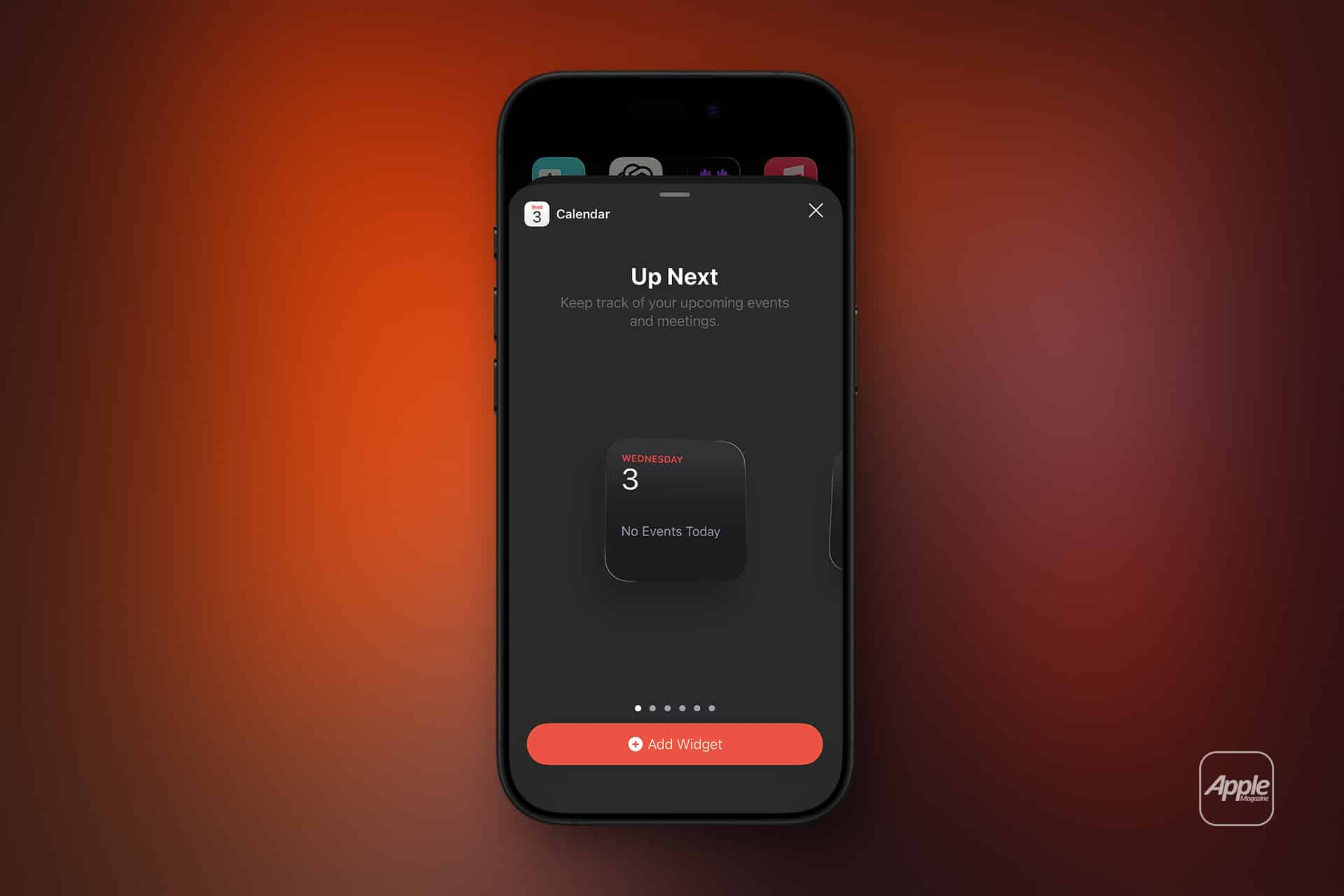
Widgets add another layer. A Calendar widget on the Home Screen, Lock Screen, iPad desktop, or Mac Notification Center can keep the next event visible without opening the app. For Apple Watch users, Calendar complications can show what is coming next at a glance.
To add a Calendar widget on iPhone:
Touch and Hold Home Screen > Add Button > Calendar > Choose Widget
This makes Calendar less of an app users check and more of a quiet daily dashboard.
Calendar Needs Cleanup Too
A messy Calendar can become as stressful as no calendar at all. Too many calendars, duplicated accounts, old subscriptions, spam events, unnecessary reminders, and cluttered shared schedules can make the day harder to read.
The first cleanup step is choosing which calendars should be visible. Many users have iCloud, Google, Outlook, school, work, holidays, subscriptions, family calendars, and app-generated calendars all turned on at once. That can make the app feel crowded.
To choose visible calendars:
Calendar > Calendars > Select or Deselect Calendars
Scheduled reminders can also become too much if every task has a date. If the Calendar app feels overloaded after turning on Scheduled Reminders, the problem may not be Calendar. It may be that too many reminders have been assigned unnecessary dates.
Spam calendar events are another common frustration. Users should avoid tapping suspicious calendar links or accepting unknown calendar invitations. If strange events appear, the user should look for unfamiliar subscribed calendars and remove them.
To remove an unwanted calendar subscription on iPhone:
Settings > Apps > Calendar > Accounts > Subscribed Calendars > Choose Calendar > Delete Account
A clean Calendar should make the day easier to understand in a few seconds. If it takes too long to read, it needs fewer visible layers.
A Better Daily Planning Routine
The best daily planning routine with Calendar is simple. Start with fixed events. Add scheduled reminders only when timing matters. Check travel time. Use alerts. Keep shared calendars visible only when they are useful. Let widgets and Apple Watch show what comes next.
A useful morning check can be done from the Calendar app:
Calendar > Today > Review Events and Scheduled Reminders
A useful evening check looks at tomorrow:
Calendar > Tomorrow > Adjust Events, Reminders, and Travel Time
This routine works because it does not require a complicated productivity system. Apple already provides the core pieces. Calendar shows time. Reminders shows tasks. Notes holds details. Mail and Messages bring updates. Maps handles movement. iCloud keeps everything synced.
The more Apple connects those tools, the more Calendar becomes the quiet center of daily planning. It does not need to become a full project manager. It needs to show what is happening, what must be done, when there is space, and where the day is overloaded.
Calendar is not the most exciting app in Apple’s ecosystem, but it may be one of the most important for daily life. When it is set up well, it turns Apple devices into a shared planning system that moves with the user from desk to pocket to wrist.