

Calendar attachments are one of the most practical planning upgrades because they connect the plan to the materials needed for it. A calendar event already tells someone when and where to be somewhere. Attachments make it tell them what to bring, what to read, what to show, what to submit, and what to remember.
That changes the role of Calendar. It becomes less of a date grid and more of a planning hub. A meeting can include the agenda. A flight can include the itinerary. A doctor’s appointment can include lab results. A school event can include the permission slip. A dinner reservation can include the confirmation. A client call can include the proposal. A family trip can include tickets, hotel details, maps, and IDs stored as files.
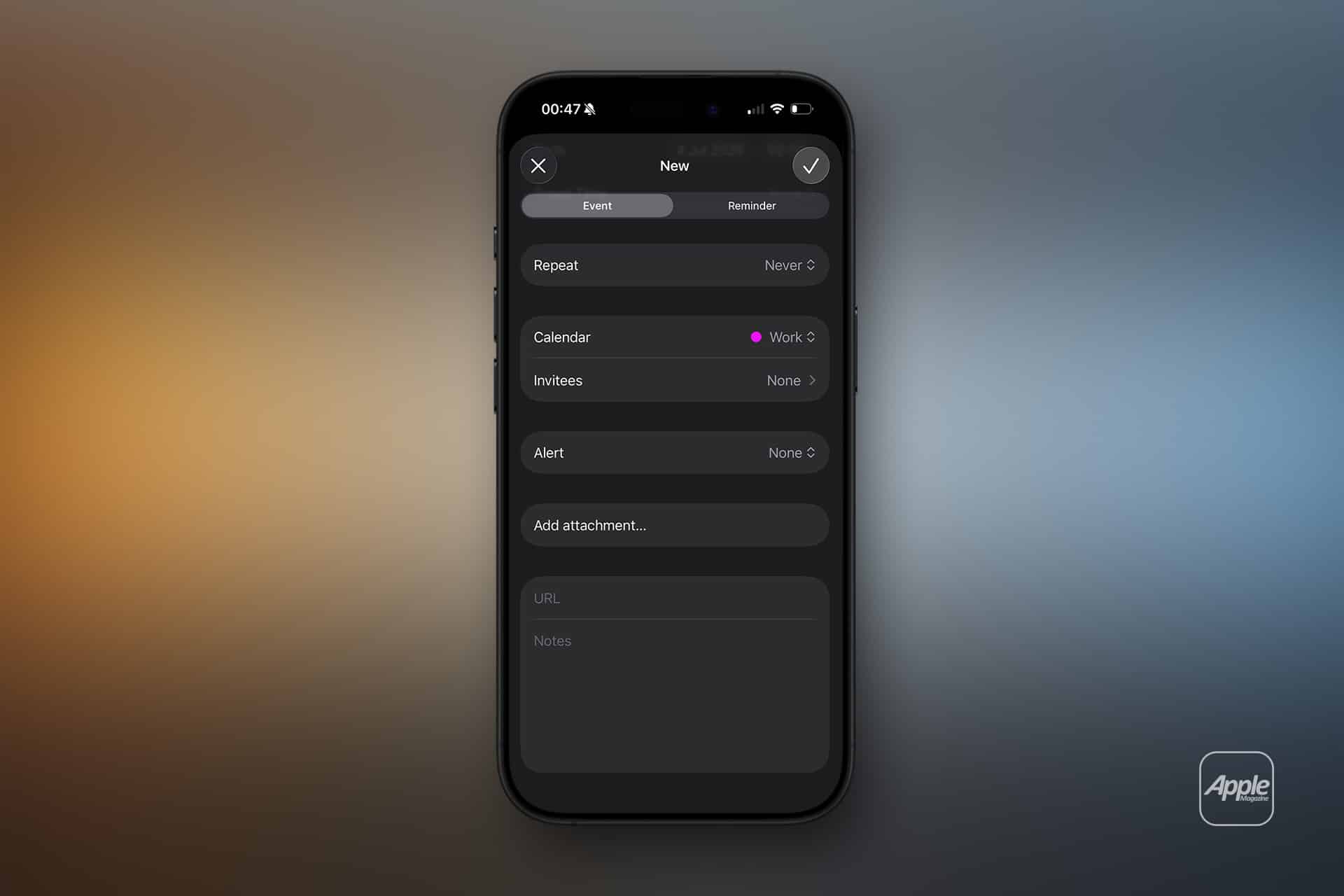
Apple supports attachments in Calendar events on iPhone and Mac, with files added through the event details. On iPhone, users can open an event, tap Edit, and use Add Attachment to attach a file. On Mac, Calendar lets users add notes, URLs, or files to events, and files can also be dragged into the event info window. Google Calendar offers a similar idea through Google Drive attachments for events, making the concept useful beyond Apple’s own ecosystem.
The upgrade is simple: the event becomes the folder.

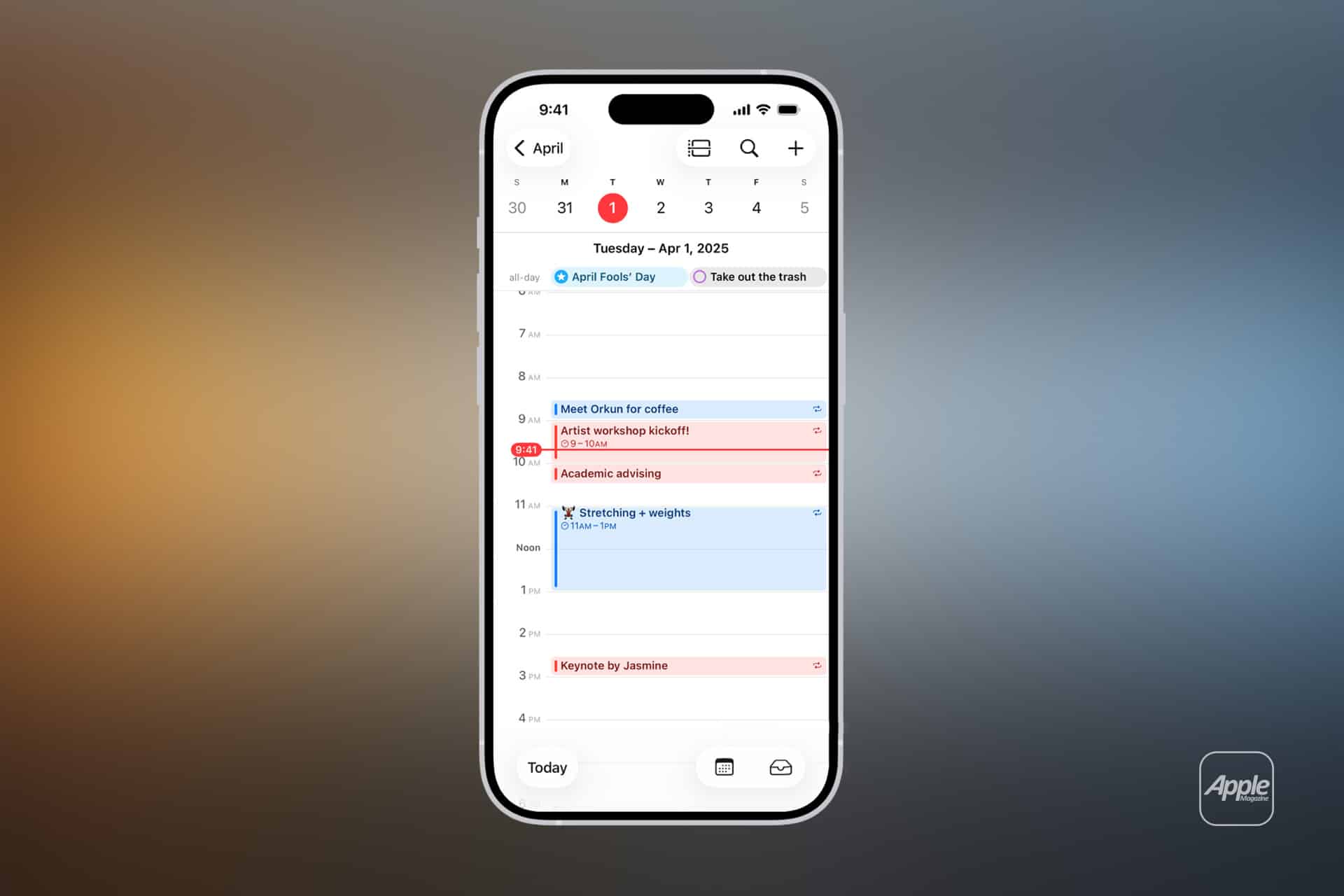
Why Attachments Make Calendar More Useful
Most planning fails because the information is scattered. The time is in Calendar. The address is in Maps. The ticket is in Mail. The agenda is in Notes. The PDF is in Files. The confirmation number is in Messages. The presentation is in iCloud Drive. The Zoom link is in a thread. The receipt is in a download folder.
Calendar attachments reduce that scattering. The user can open the event and find the relevant material in the same place as the schedule. That matters most when timing is tight: walking into a meeting, arriving at an airport, checking in at a hotel, joining a class, visiting a doctor, or handing a document to someone.
The feature also helps with memory. A calendar event created weeks earlier may be easy to forget beyond the date and time. Adding the attachment when the plan is made preserves the context. The user does not need to reconstruct the plan later.
This is useful for personal planning, but it becomes even more valuable for shared calendars. A family can attach a school flyer to a child’s event. A team can attach a meeting brief. A couple can attach a travel itinerary. A freelancer can attach a client scope or invoice. Everyone invited to the event sees more than a title.
The event stops being only a reminder. It becomes the source of truth.
The Best Use Cases Are Ordinary
Calendar attachments are most useful in everyday planning, not only formal work. Travel is one of the strongest examples. A flight event can include the booking confirmation, boarding information, hotel reservation, rental car details, travel insurance, event tickets, or a scanned document. When the trip begins, the calendar becomes a timeline of documents.
Medical planning is another strong case. A user can attach lab orders, referral letters, appointment instructions, insurance documents, medication lists, or questions for the doctor. The event becomes easier to prepare for, especially when appointments are scheduled weeks in advance.
School and family schedules also benefit. Parents can attach permission slips, activity instructions, sports schedules, concert programs, birthday invitations, supply lists, and teacher notes. Instead of searching messages at the last minute, the file sits with the event.
For work, attachments make meetings cleaner. A calendar event can include an agenda, deck, brief, spreadsheet, contract, design file, or shared document. This reduces the habit of sending another email right before the meeting with “attaching this here again.”
The practical rule is easy: if the file will be needed at the time of the event, attach it when the event is created.
How Apple Calendar Handles Attachments
Apple Calendar supports attachments through iCloud calendar events.
On iPhone, the path is straightforward:
Calendar > Event > Edit > Add Attachment
From there, the user can locate a file through the Files interface, including documents stored in iCloud Drive or other available file locations.
On Mac, Apple gives users more event-detail options:
Calendar > Event > Add Notes, URL, or Attachments
Mac users can attach a file through the event window or drag a file directly into the event info window. Apple also supports notes and URLs, which means the event can include a short brief, a web link, and a file together.
That combination matters. Not every planning detail should be a file. Sometimes the right addition is a meeting note, a confirmation number, a website, a map link, or a shared document URL. Calendar works best when users choose the lightest useful attachment instead of turning every event into a file dump.
The limitation is that support can depend on the calendar service. iCloud calendar events are the cleanest fit inside Apple’s Calendar app. Some third-party calendar accounts may not expose the same attachment behavior through Apple Calendar, even if their own apps support attachments differently.
Google Calendar Takes the Drive Approach
Google Calendar handles attachments through Google Drive. On desktop, users can create or edit an event, choose More options if needed, and add a Drive attachment in the description area. They can select an existing Drive file or upload one from the computer.
This approach fits Google Workspace because Docs, Sheets, Slides, PDFs, and shared files already live in Drive. It is especially useful for teams because permissions can be managed through Drive sharing. A meeting invite can include a document, but participants still need the right access to open it.
That permission layer is a strength and a frequent problem. Attaching a file does not always mean everyone can view it. Google Calendar may prompt users to adjust sharing, but teams still need to check access before the meeting starts.
Apple users face a similar issue with files shared through iCloud Drive or other services. The calendar event can point to the file, but file access needs to be handled correctly. A private document attached to a shared event may not behave the way users expect if permissions are not prepared.
Calendar attachments work best when file access is checked at the moment the event is created, not five minutes before the event begins.
Attachments Improve Preparation
The biggest productivity benefit is preparation. A calendar notification usually says the event is coming. An event with attachments can make the user ready for it.
That matters for meetings. If the agenda is attached, the user can review it during the reminder window. If the deck is attached, the presenter can open it from the event. If the contract is attached, the conversation starts with the right document. If the brief is attached, the meeting has less warm-up time.
It also matters for personal tasks. A home repair appointment can include photos of the issue, the quote, warranty details, or appliance model information. A government appointment can include forms and IDs. A concert can include tickets and parking. A workout class can include registration details.
Calendar becomes more powerful when the reminder leads directly to the resource.
This is different from a to-do app. A task manager is useful for actions. Calendar is useful for time-bound context. Attachments strengthen the events that depend on files, locations, confirmations, and preparation.
Security and Privacy Need Attention
Calendar attachments can also create risk if users attach sensitive files too casually. Events may be shared with invitees. Shared calendars may be visible to family members, coworkers, assistants, or teams. Some workplace calendars may be administered by an organization.
That means users should think before attaching medical documents, IDs, legal files, financial statements, personal photos, contracts, or confidential work materials. The event may be the right place for the file, but only if the calendar and file permissions match the sensitivity of the content.
A safer approach is to attach sensitive files only when necessary and use secure storage permissions. For some files, a private note or reminder to bring the document may be better than attaching the document itself. For work documents, a shared Drive or iCloud link with controlled access may be safer than uploading or duplicating a file into an event.
Phishing is another concern. Calendar invites can include links and attachments, and attackers have used calendar invites to push suspicious links or malicious files. Users should be cautious with unexpected events, unknown senders, strange attachments, or invitations that pressure them to open a document.
A calendar event feels official because it appears in a trusted app. That makes verification more important, not less.
A Better Workflow for Apple Users
For Apple users, the best workflow is to create the event first, then attach the file while the context is fresh. If the user receives a PDF confirmation, ticket, agenda, or document, it should be saved to Files or iCloud Drive and attached to the event immediately.
This prevents the common problem of searching later. It also makes Calendar more useful across devices. A document attached on iPhone can be available when checking Calendar on another Apple device, depending on the account and sync behavior.
The same thinking applies to URLs. If the event depends on a website, reservation page, agenda, shared note, or video call page, adding the URL to the event is often better than leaving it in an email thread.
For people who use Apple Notes, a practical system is to keep longer planning details in a note and add the note link or relevant file to the calendar event. Calendar keeps the time. Notes keeps the ongoing context. Files keeps the documents. The event connects them.
That is the planning upgrade: each app keeps its strength, but Calendar becomes the point of access.
Don’t Overload Every Event
Attachments are useful because they add context. They become less useful when every event turns into a storage bin. A calendar full of unnecessary files can become slower to manage and harder to trust.
The best events include only what will be needed at that time. A meeting may need one agenda and one deck, not six old drafts. A trip may need the itinerary and ticket, not every planning screenshot. A medical appointment may need the referral and questions, not an entire folder of unrelated records.
Good calendar planning is selective. The event should answer: what do I need when this starts?
That question keeps attachments practical. It also prevents users from replacing file organization with calendar clutter.
Calendar Becomes the Action Surface
Calendar attachments work because time is often the missing link in digital organization. A file in the right folder is useful. A file attached to the exact moment it is needed is more useful.
That is why the feature belongs in everyday planning. It helps users arrive prepared, reduces last-minute searching, keeps shared context attached to shared time, and turns reminders into action surfaces.
The next practical step for Apple would be deeper intelligence around event materials. Calendar could suggest attaching a boarding pass from Mail, a PDF from Messages, a screenshot with event details, a shared note, or a document mentioned in an invitation. Visual Intelligence already points in that direction by helping create calendar events from images and screenshots.
The strongest Calendar experience would not only remind users when to leave. It would make sure the right file is already waiting inside the event before they do.