

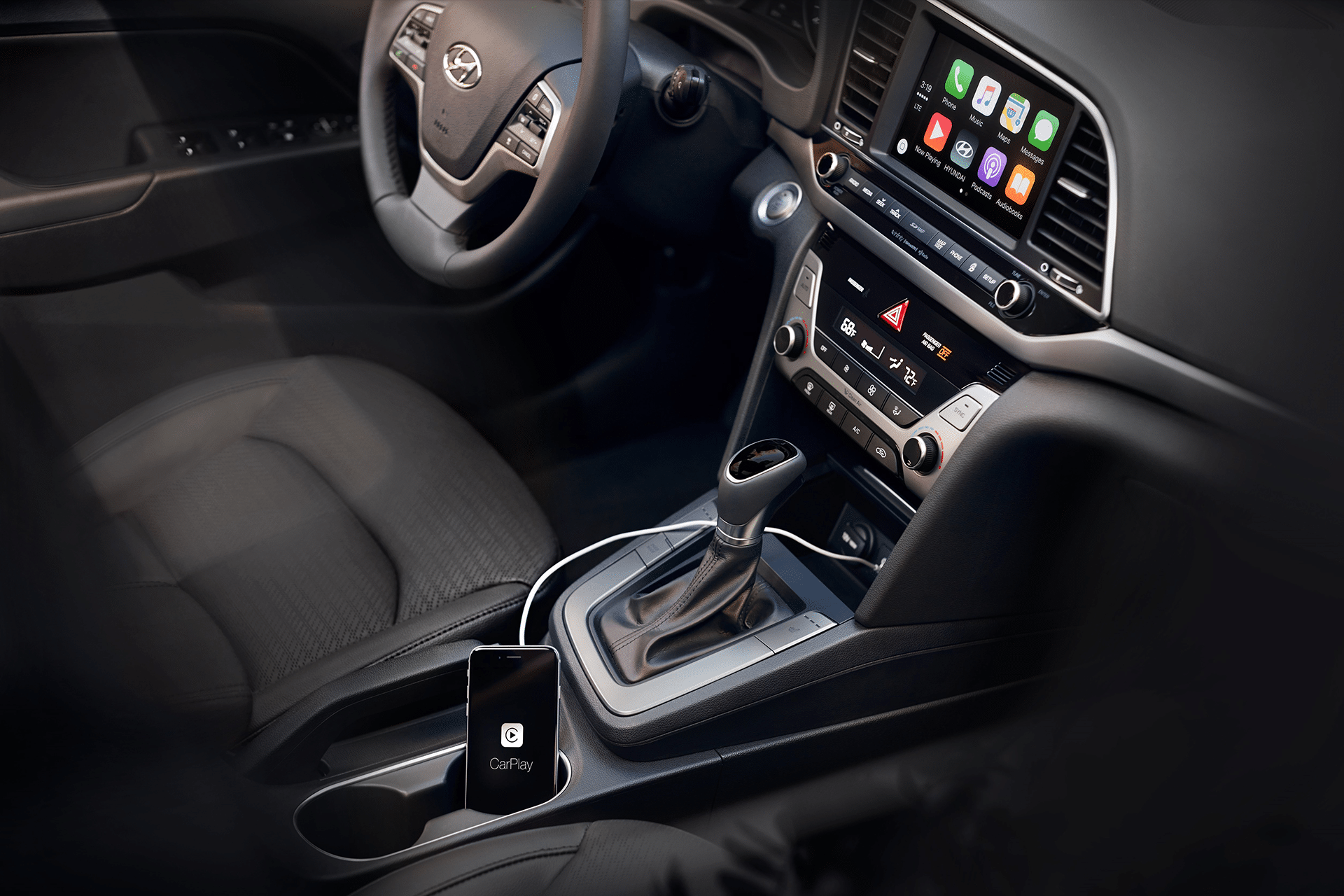
CarPlay was built around a simple principle: reduce friction between the driver and essential apps. Maps, calls, music, and messages appear on a simplified interface designed for quick glances. But accessibility features within CarPlay go further. They are not only for users with specific needs — they improve clarity, visibility, and control for anyone behind the wheel.
Driving is already a complex task. Weather conditions change, traffic shifts, notifications compete for attention. CarPlay accessibility features aim to reduce visual strain, limit physical interaction, and increase reliance on voice and simplified interface elements. The result is a safer interaction layer that respects the driving environment.
Unlike many infotainment systems that bury adjustments in deep menus, CarPlay accessibility features are largely controlled from the iPhone itself. Once configured, they automatically apply when CarPlay connects.
Voice Control in CarPlay
Voice interaction is central to safer CarPlay use. Siri handles most commands, allowing drivers to send messages, initiate calls, start navigation, and control music without touching the screen.
To enable and optimize Siri:
Settings > Siri & Search > Listen for “Siri” > Turn On
When connected to CarPlay, simply say “Siri” followed by a command such as:
- “Navigate to home.”
- “Call Sarah mobile.”
- “Play my driving playlist.”
- “Read my last message.”
For drivers who prefer steering wheel integration, most vehicles include a dedicated voice button. Press and hold to activate Siri without saying the wake phrase.
Voice Control reduces the need to tap menus, scroll lists, or type while driving. It shifts interaction from visual to verbal, lowering distraction.
For users who require more advanced spoken interface support, iOS Voice Control can also be enabled:
Settings > Accessibility > Voice Control > Turn On
While primarily designed for full-device navigation, Voice Control can complement CarPlay use when interacting directly with the iPhone before or after connecting.


Display Adjustments for Better Visibility
Lighting conditions in vehicles vary significantly. Bright sunlight can wash out screens. Night driving can cause glare. CarPlay accessibility features allow adjustments that improve readability.
To increase text size:
Settings > Display & Brightness > Display Zoom > Larger Text
For more granular text control:
Settings > Accessibility > Display & Text Size > Larger Text
These changes affect CarPlay’s interface as well, enlarging labels and navigation elements.
Drivers sensitive to bright white interfaces can enable Dark Mode:
Settings > Display & Brightness > Dark
CarPlay also includes an automatic light/dark appearance option depending on time of day.
For contrast adjustments:
Settings > Accessibility > Display & Text Size > Increase Contrast
This enhances separation between interface elements, making buttons more distinguishable.
Color Filters may assist users with color sensitivity:
Settings > Accessibility > Display & Text Size > Color Filters
Although subtle, these adjustments improve quick recognition of navigation arrows, call buttons, and media controls.
Reduce Motion for Simpler Visual Transitions
Animated transitions can be distracting. Reducing motion simplifies interface shifts.
Settings > Accessibility > Motion > Reduce Motion
This decreases animation effects within CarPlay, resulting in more static transitions between screens. Reducing motion is especially helpful for users sensitive to visual movement or those who prefer minimal interface changes while driving.


Driving Focus Integration
CarPlay works seamlessly with Driving Focus, which limits notifications during vehicle movement.
Settings > Focus > Driving > Turn On Automatically
Driving Focus can activate when CarPlay connects or when motion is detected. While active, notifications are silenced or filtered, and selected contacts can receive automated replies.
This reduces interruption frequency and keeps attention on the road.
Spoken Content and Message Handling
Instead of reading text on screen, CarPlay can read messages aloud through Siri.
When a message arrives, Siri announces the sender and reads the content. Drivers can respond verbally. This eliminates the need to glance at incoming texts.
To ensure announcements are enabled:
Settings > Siri & Search > Announce Notifications > Turn On
Choose compatible apps for spoken notifications.
Sound Recognition Support
For users who rely on auditory cues, iOS Sound Recognition can alert drivers to specific environmental sounds.
Settings > Accessibility > Sound Recognition > Turn On
While this feature primarily operates on the iPhone itself, it enhances awareness for users who may not notice external auditory signals.

Touch Alternatives and Physical Controls
Many vehicles integrate steering wheel controls for volume, track skipping, and call management. Using these hardware controls instead of screen taps reduces interaction time.
CarPlay is designed to minimize deep menu navigation. Most essential apps remain on the home screen, reducing the need for scrolling.
Keeping frequently used apps on the main CarPlay screen further reduces distraction.
To rearrange CarPlay apps:
Settings > General > CarPlay > Select Vehicle > Customize
Move essential apps such as Maps, Phone, and Music to the first screen.
Accessibility for Different Drivers
CarPlay accessibility features benefit more than one group. Drivers with vision sensitivity, older drivers needing larger text, commuters who prefer voice interaction, and users managing sensory overload all benefit from thoughtful adjustments.
What makes CarPlay distinct is that accessibility settings configured on the iPhone carry into the vehicle automatically. There is no separate infotainment setup required.
The car becomes an extension of the iPhone’s accessibility environment.
Safer Interaction by Design
CarPlay’s interface limits clutter intentionally. App icons are large. Buttons are spaced widely. Critical actions remain accessible within one or two taps.
Accessibility settings enhance that baseline design.
Instead of forcing drivers to adapt to complex interfaces, CarPlay adapts to the driver’s preferences.
Voice-first interaction reduces visual demand. Larger text improves glance readability. Motion reduction simplifies transitions. Focus filters prevent interruption overload.
These adjustments do not change what CarPlay does. They change how it behaves under real-world driving conditions.
CarPlay accessibility features are not separate tools hidden in obscure menus. They are extensions of iOS accessibility settings that make driving interactions clearer, more manageable, and safer across different environments.