

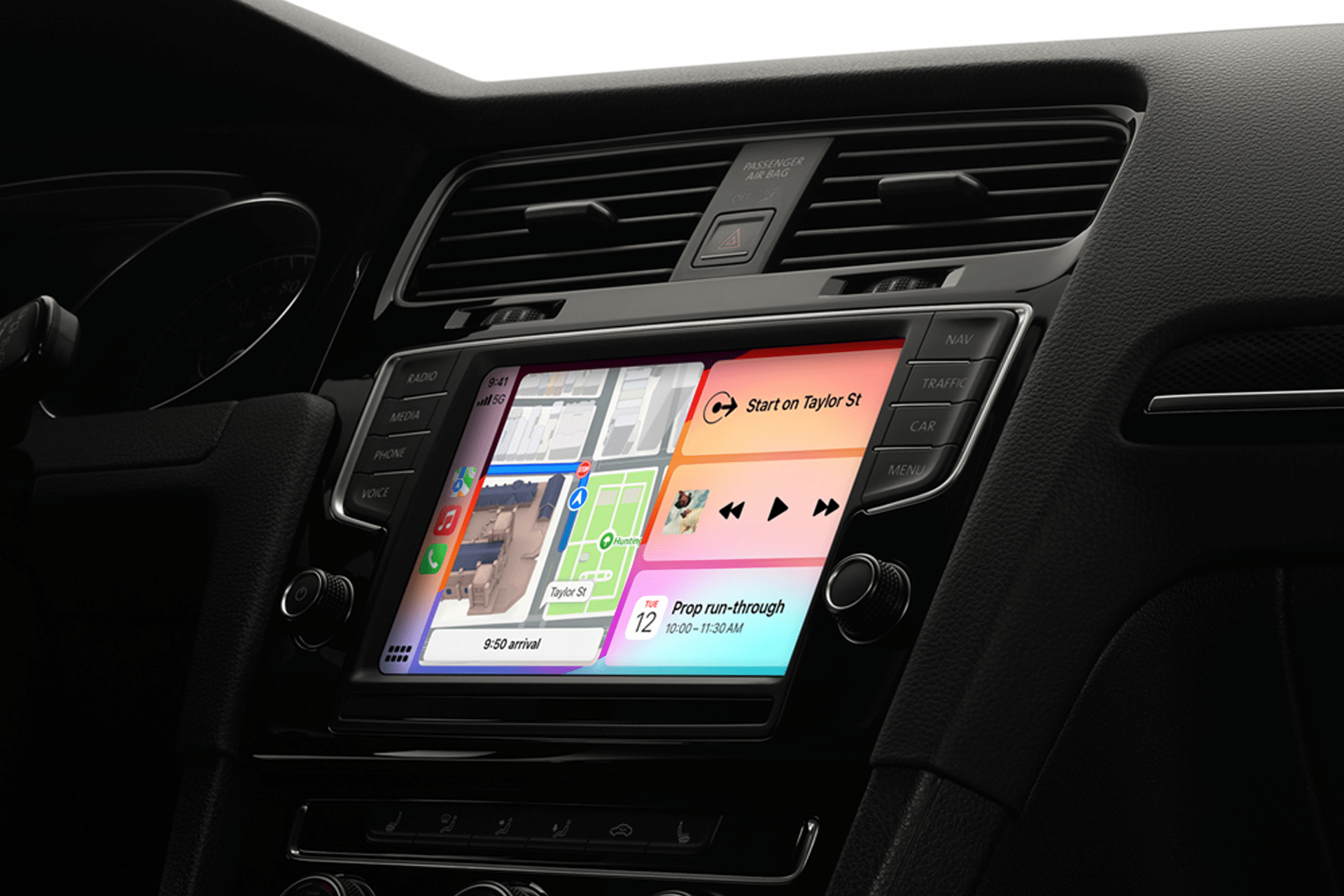
CarPlay updates in iOS 26 show how much the iPhone’s in-car interface has matured. What began as a safer way to bring calls, music, maps, and messages to the dashboard now behaves more like a real driving layer inside the Apple ecosystem. Apple says CarPlay is used more than 600 million times per day, which explains why even small interface changes can affect a huge number of drivers. With iOS 26, Apple focused on the parts of CarPlay that drivers touch most often: incoming calls, Messages, widgets, Live Activities, and the overall visual design.
The most visible change is the new design language. iOS 26 brings Apple’s updated interface style into CarPlay, making the dashboard look cleaner and more consistent with the iPhone. That does not mean Apple is trying to make the car screen feel busy or decorative. The in-car version has to stay readable at a glance. Buttons, cards, and panels need to preserve focus because CarPlay lives in a different context from an iPhone in hand. In the car, the interface has to be useful without pulling attention away from the road.
That is the core of the iOS 26 CarPlay update. Apple added more information, but the better parts of the update are the ones that reduce interruption.

Compact Calls and Smarter Messages
Incoming calls used to be one of the clearest examples of how a car interface could become intrusive. A call screen can take over important space at the exact moment a driver may need navigation instructions. In iOS 26, CarPlay introduces a compact view for incoming calls, allowing drivers to see who is calling without fully covering critical information such as upcoming directions.
That change sounds small, but it addresses one of the most practical problems in a car. Navigation is often the priority. A call should not block the next turn, exit, or lane guidance. Apple’s compact call view gives the driver the choice to answer, decline, or ignore the call without making the interface feel hijacked.
Messages also gets more useful in CarPlay. iOS 26 brings Tapbacks and pinned conversations to the car interface. Tapbacks allow quick reactions to messages, while pinned conversations make important threads easier to reach. For drivers, the best version of messaging is not typing or reading long threads. It is quick recognition and minimal interaction.
These features support that. A pinned conversation can keep a family member or close contact easier to access. A Tapback can respond without turning a short message into a full voice-dictated reply. Apple is not trying to turn CarPlay into a full messaging center. It is adding just enough communication control to make common moments easier.
To check whether CarPlay is set up properly on iPhone:
Settings > General > CarPlay > Select Your Car
If a connection needs to be reset:
Settings > General > CarPlay > Select Your Car > Forget This Car
Then reconnect through the car’s USB port or wireless CarPlay setup, depending on the vehicle.
Widgets and Live Activities Come to the Dashboard
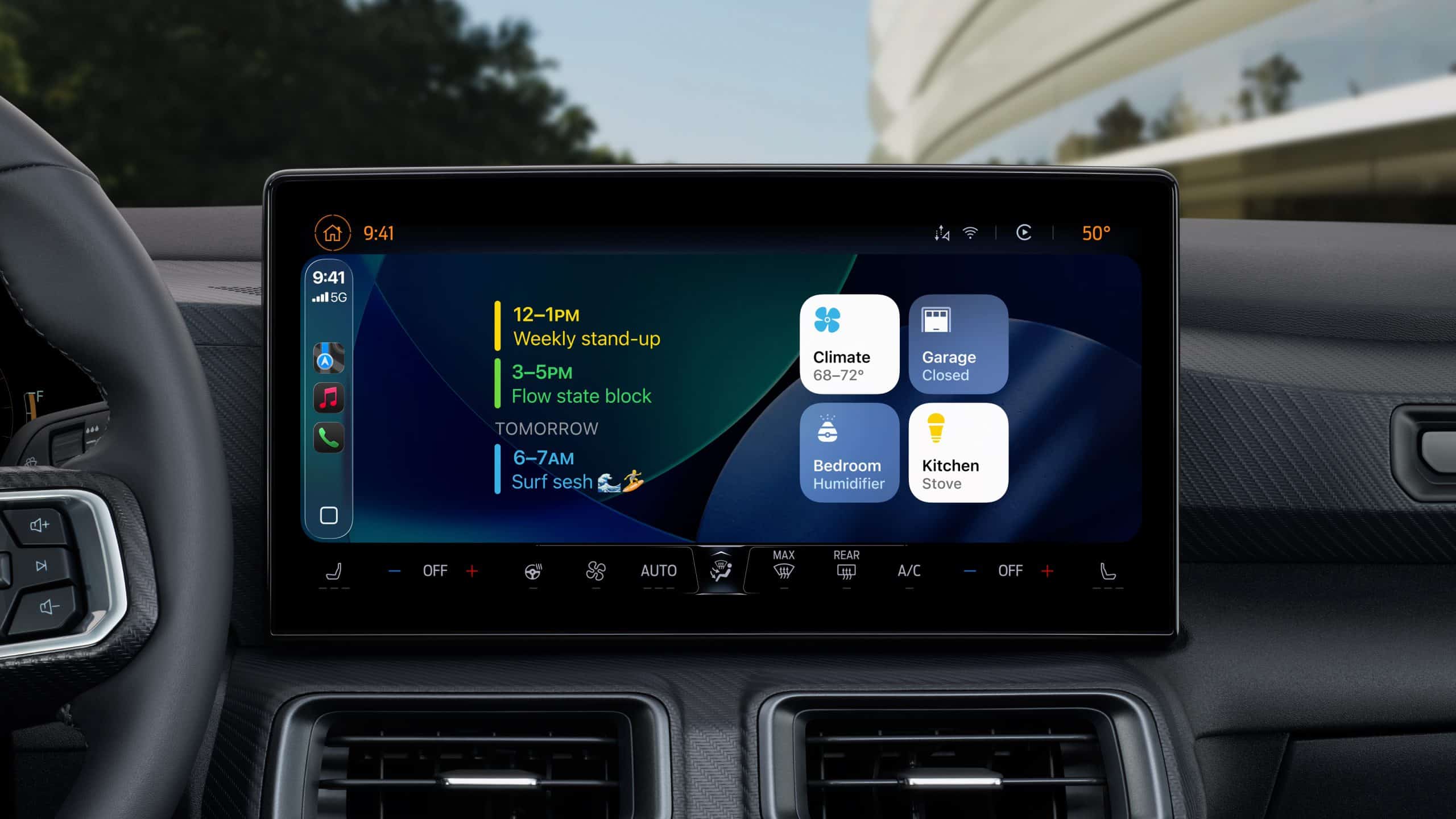
Widgets are one of the biggest additions to CarPlay in iOS 26. Apple says widgets now help drivers stay in the loop without losing focus on the road. That is the right direction for the dashboard. A widget can provide information without requiring a full app launch, which is exactly the kind of interaction a car screen should prioritize.
Live Activities follow the same idea. On iPhone, Live Activities already show time-sensitive information such as rides, deliveries, sports scores, timers, and travel updates. In CarPlay, that same concept becomes even more useful if it is handled carefully. A driver may want to track an arrival, pickup, charging session, or trip status without opening another app.
Behind the scenes, this works through app support. Apple’s developer session for iOS 26 explains that developers can bring Live Activities and widgets to CarPlay and CarPlay Ultra so people can view activity progress and relevant information at a glance. That means the feature is not only a system-level switch. App developers have to design CarPlay-appropriate versions of their information.
That distinction is important. CarPlay widgets should not behave exactly like iPhone widgets. The car screen needs larger touch targets, less density, and information that can be understood quickly. Apple’s developer framework pushes apps toward templates and structured display behavior because the vehicle environment has stricter attention requirements.
To manage CarPlay widgets and supported apps, the basic path starts on iPhone:
Settings > General > CarPlay > Select Your Car > Customize
From there, drivers can reorder or remove CarPlay apps. Widget behavior depends on app support and iOS version, but keeping the CarPlay layout clean is still one of the best ways to make the update useful.
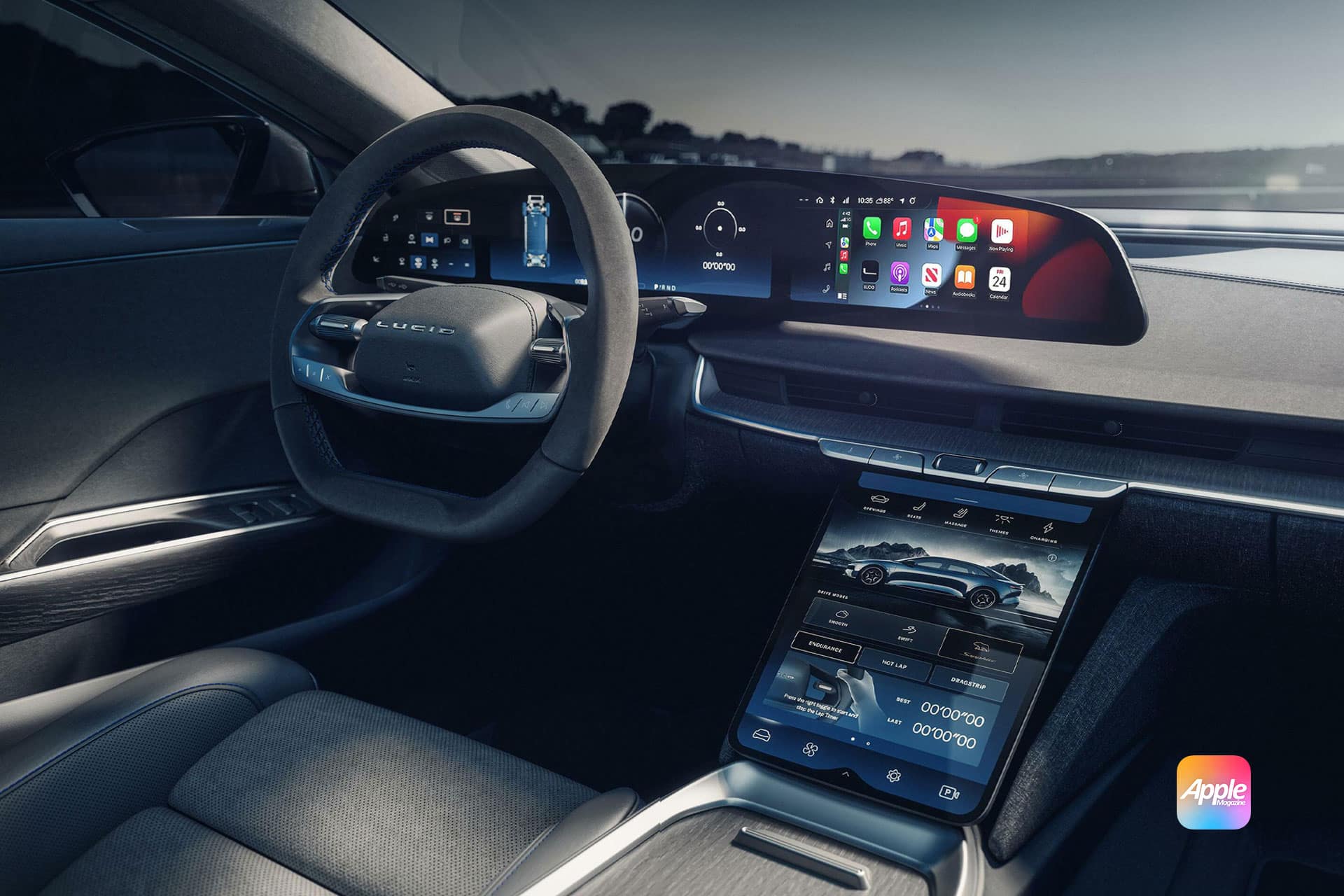
CarPlay Ultra also receives these iOS 26 updates. Apple describes CarPlay Ultra as a more deeply integrated experience that brings the best of iPhone and the car together across every screen. That includes areas beyond the center display, such as instrument cluster-style information in supported vehicles. For most drivers, standard CarPlay remains the everyday experience. CarPlay Ultra is Apple’s longer-term bet on a deeper role inside the car.

How CarPlay Works Behind the Scenes
CarPlay is not a separate operating system replacing the car’s software. It is an iPhone-driven interface projected into the vehicle display through a wired or wireless connection. The iPhone handles the apps, data, account information, Siri, maps, messages, music, and many of the interface behaviors. The car provides the screen, controls, speakers, microphone access, and vehicle integration layer.
That is why updating the iPhone changes CarPlay. When a driver installs iOS 26, the CarPlay experience can update even if the car itself does not receive a major software update. The vehicle still needs to support CarPlay, and some features depend on automaker support, but the core interface comes from the iPhone.
For wired CarPlay, the iPhone connects through USB. For wireless CarPlay, the connection uses Bluetooth for discovery and Wi-Fi for the higher-bandwidth link. Apple’s iPhone guide says that if a car supports wireless CarPlay, users should press and hold the voice command button on the steering wheel, make sure the stereo is in wireless or Bluetooth mode, then use the iPhone’s Wi-Fi and CarPlay settings to connect.
The setup path for wireless CarPlay is:
Settings > Wi-Fi > CarPlay Network > Auto-Join On
Then:
Settings > General > CarPlay > Select Your Car
Once connected, CarPlay uses the iPhone as the intelligence layer. If Messages shows Tapbacks, that is because the iPhone and iOS 26 support them. If Live Activities appear, that information is coming from iPhone apps that support the feature. If navigation updates appear, Maps or a supported navigation app is sending structured route information to the CarPlay interface.
That architecture explains both the strength and the limitation of CarPlay. The strength is that Apple can improve the experience through iOS updates. The limitation is that carmakers still control parts of the hardware environment, screen dimensions, input methods, and deeper vehicle integration.
With iOS 26, the driver-facing result is clear: fewer full-screen interruptions, more glanceable information, and better continuity with the iPhone. The dashboard becomes more informative without trying to become a second phone. That is where CarPlay works best — not by adding everything, but by choosing what belongs in the car.

