

Heavy iPhone users keep their devices active for most of the day across demanding situations. iPhones are used continuously for messaging, calls, navigation, music streaming, social media, video consumption, gaming, content creation, accessibility tools, work apps, and professional workflows. Many users remain on cellular networks for long periods, switch apps frequently, and keep the display active for hours at a time.
In this usage pattern, extending battery life is about controlling constant background drain rather than reducing occasional spikes.
Extending iPhone battery life for heavy users depends on managing the systems that consume power every minute the device is active.
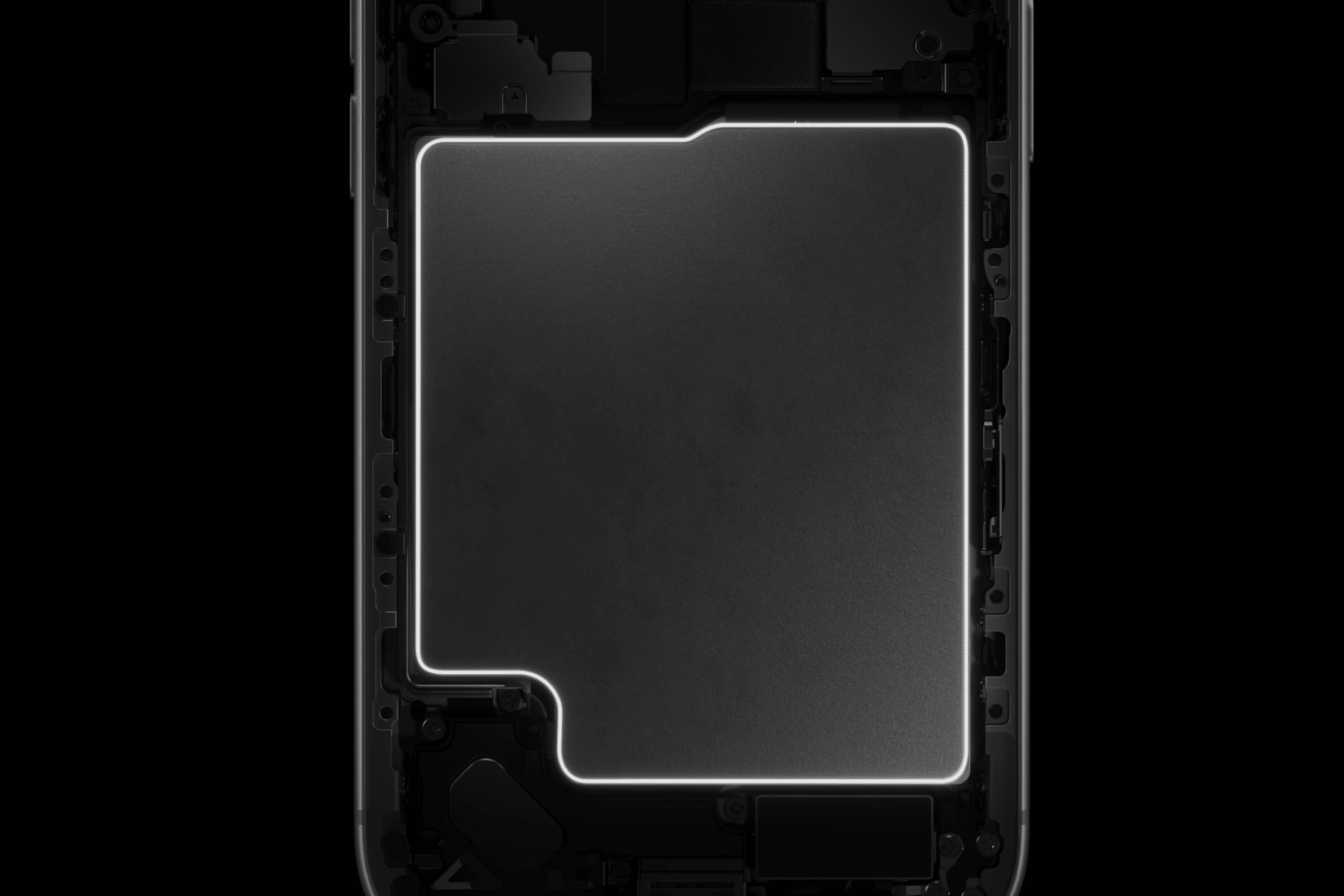
Display and Brightness Settings That Affect Battery Life
The display is the largest ongoing source of battery drain during heavy use.
Settings > Display & Brightness
Lowering brightness manually reduces sustained power draw during long screen-on sessions. Auto-Brightness should remain enabled so the system can lower brightness automatically in darker environments instead of maintaining unnecessarily high levels.
Settings > Accessibility > Display & Text Size > Auto-Brightness
Dark Mode reduces power consumption on OLED displays by minimizing bright interface elements during prolonged use.
Settings > Display & Brightness > Appearance
Reducing motion and transparency lowers GPU workload during scrolling and animations, producing incremental but continuous savings over the day.
Settings > Accessibility > Motion > Reduce Motion
Settings > Accessibility > Display & Text Size > Reduce Transparency
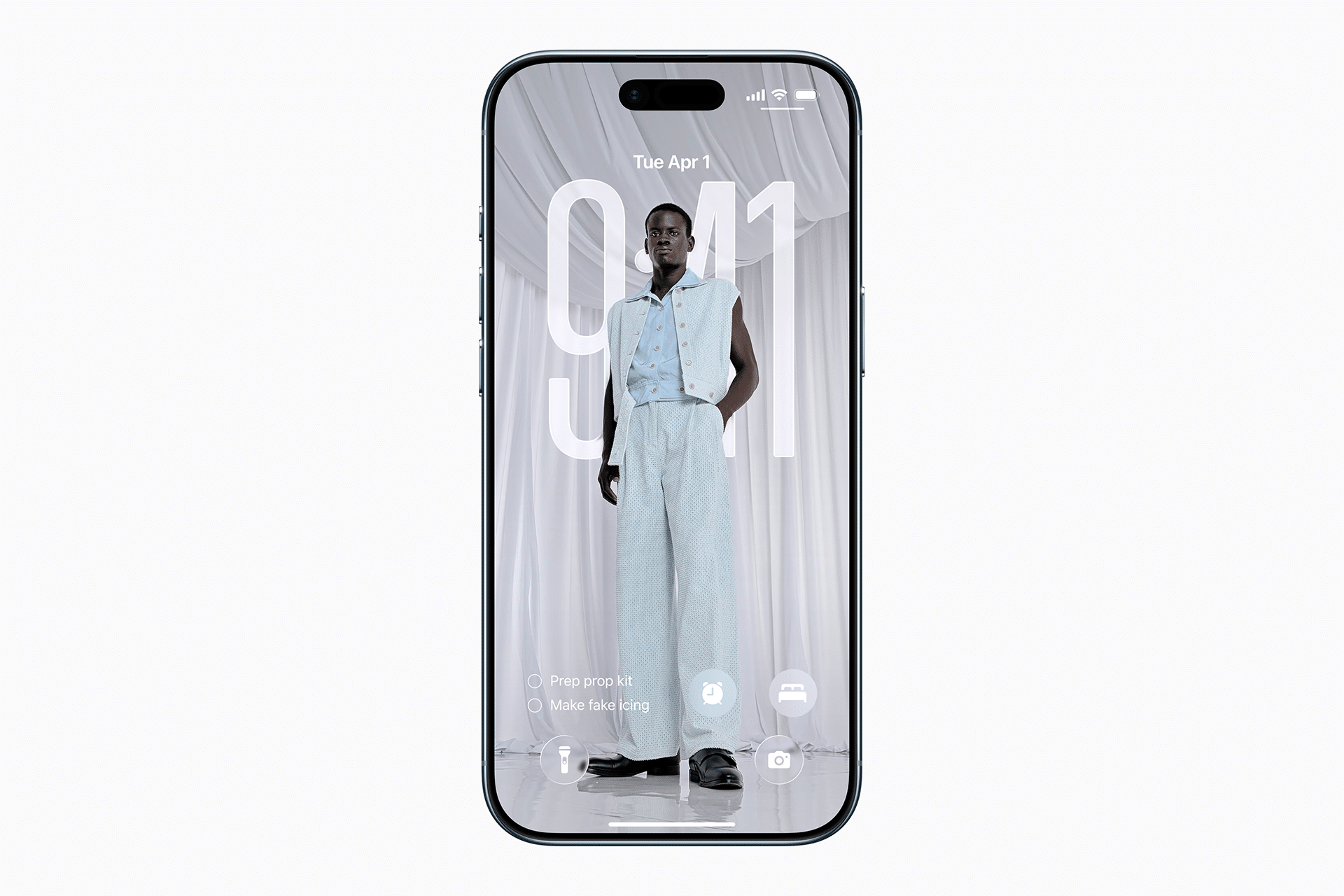
Background Activity and Network Usage Control
Background processes quietly drain battery throughout the day for heavy users.
Settings > General > Background App Refresh
Restricting Background App Refresh to essential apps or switching it to Wi-Fi only prevents constant cellular polling from social feeds, shopping apps, and noncritical services.
Location services should be limited to active use rather than continuous tracking.
Settings > Privacy & Security > Location Services
Setting most apps to While Using the App reduces persistent GPS activity while preserving navigation and Find My functionality. System services can remain enabled, but background access for nonessential apps should be reduced.
Push notifications wake the device repeatedly. Limiting notifications to high-priority apps reduces background activity without interrupting communication.
Settings > Notifications
Battery Monitoring and Power Modes
Understanding where power is being consumed is essential for heavy users.
Settings > Battery
Battery usage charts reveal which apps consume the most power over time, including background activity that continues even when the app is not actively used.
Low Power Mode can be used proactively, not only when the battery is low.
Settings > Battery > Low Power Mode
Enabling it during travel, long workdays, or extended cellular use reduces background processes while keeping core functions intact.
Charging Habits That Support Daily Endurance
Charging behavior influences how efficiently the battery performs throughout the day.
Settings > Battery > Battery Health & Charging
Optimized Battery Charging protects long-term health and stabilizes performance. Short, frequent charging sessions maintain voltage levels better than deep discharge cycles during heavy daily use.
Avoiding heat during charging prevents thermal throttling that can reduce battery efficiency later in the day. Charging while gaming or in direct sunlight increases power loss and accelerates drain after unplugging.
With deliberate display tuning, controlled background activity, and consistent power management, heavy iPhone users can extend daily battery life without reducing how the device is used. These adjustments reshape continuous power consumption, keeping the iPhone operational through long, high-demand days.


