

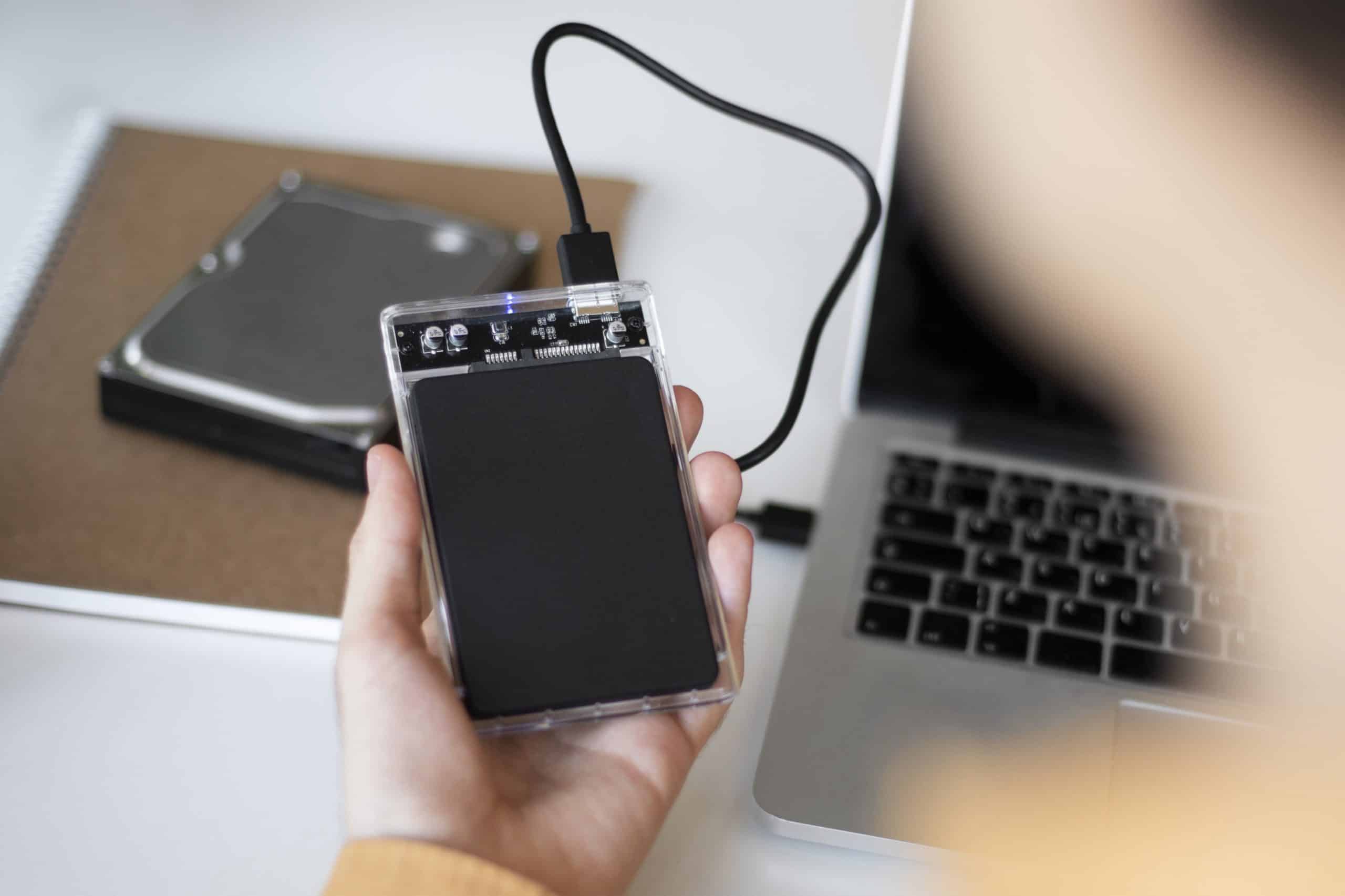
Storage needs rarely stay static. A Mac that felt spacious two years ago can feel tight today. Creative work, archived projects, and media libraries quietly accumulate. Rather than upgrading to a new machine solely for capacity, many users choose an external SSD setup to extend their storage instantly.
Unlike traditional hard drives, SSDs contain no moving parts.
They are faster, quieter, and more resistant to physical shock. For daily workflows, that difference is noticeable.
Choosing the Right External SSD
Speed matters. If you’re editing video or managing large photo libraries, look for drives that support USB-C or Thunderbolt connections. Thunderbolt drives typically offer higher sustained speeds, which makes a difference during large file transfers.
Capacity also depends on your use case. A 1TB drive may be sufficient for backups and documents. Creative professionals often prefer 2TB or more.
Apple devices increasingly rely on USB-C, making compatibility easier across Mac, iPad, and even newer iPhone models.
Formatting the Drive for macOS
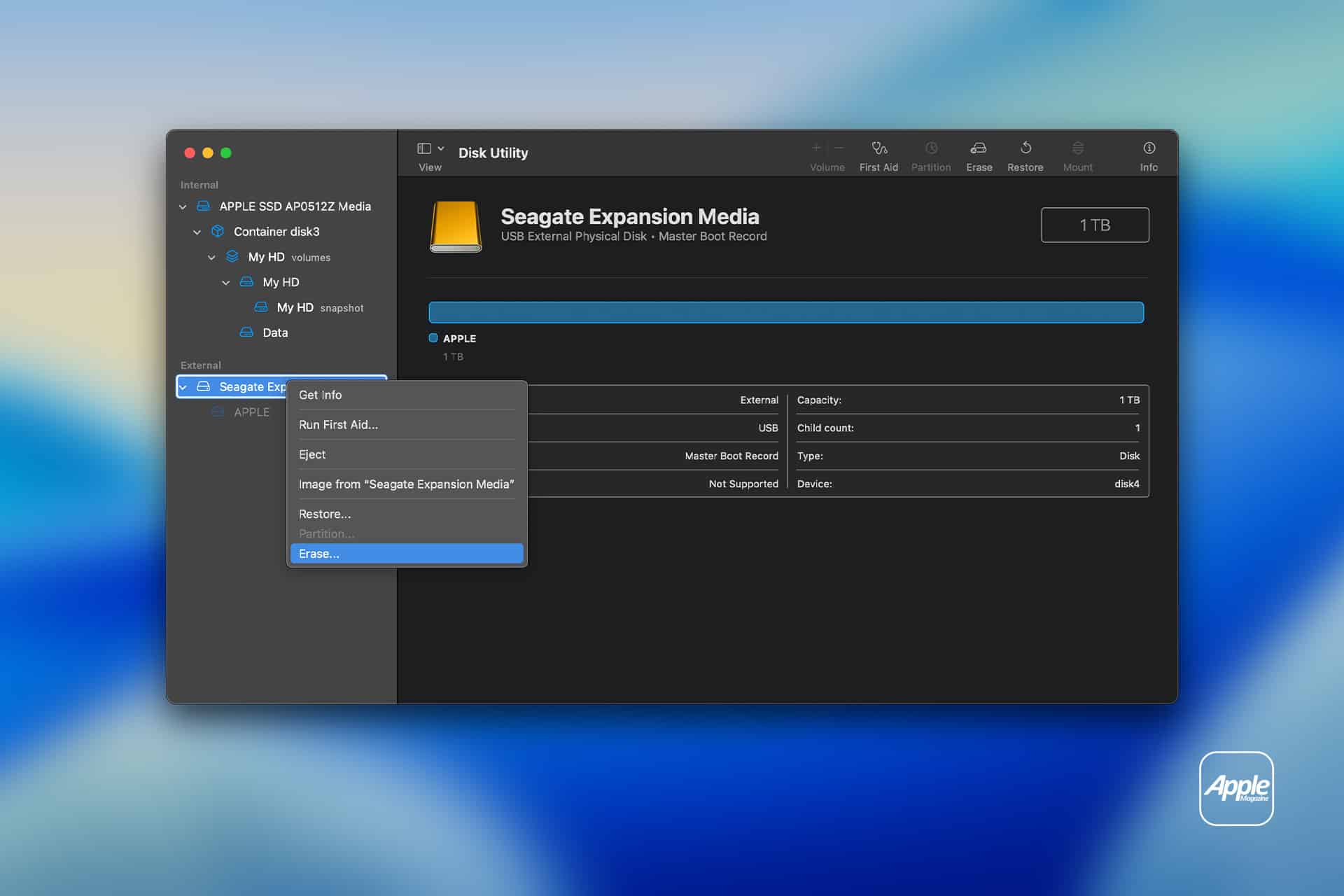
Before using an external SSD, formatting ensures compatibility and performance.
Connect SSD > Open Disk Utility > Select Drive > Erase
For most Mac users, APFS is recommended. If the drive needs to be shared between Mac and Windows systems, exFAT may be more practical.
Formatting erases all existing data, so confirm the drive is empty before proceeding.

Using an External SSD for File Storage
Once formatted, the SSD behaves like any other volume.
Drag and drop files directly into the drive, or configure creative apps to store libraries externally.
Many users move large folders such as:
- Photos libraries
- Final Cut Pro projects
- Logic sessions
- Archived documents
Keeping frequently accessed files internal and larger archives external maintains system responsiveness.
External SSD as Backup Drive
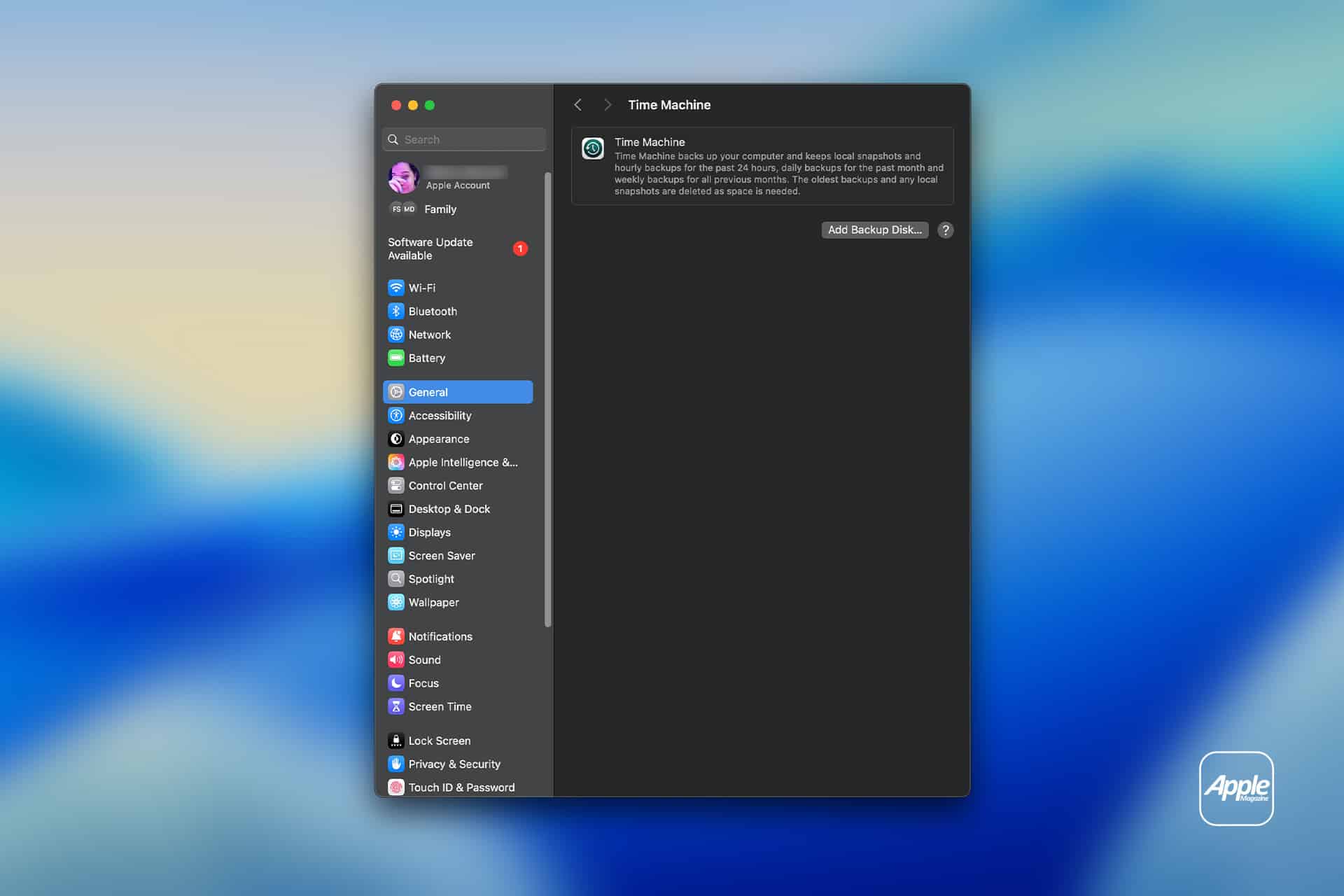
One of the most common uses is Time Machine.
System Settings > General > Time Machine > Add Backup Disk
Select the external SSD as your backup destination. Time Machine will automatically create incremental backups, protecting documents, apps, and system data.
For reliability, dedicate one drive solely for backup rather than mixing it with general storage.
Encrypting External Storage
Sensitive data deserves protection. macOS allows encryption directly through Disk Utility.
Right-click Drive > Encrypt
You’ll set a password required to access the drive. Without it, the data remains inaccessible.
Encryption is especially important if the drive travels frequently.
Using External SSDs with iPad
Modern iPads support external drives through USB-C. When connected, the Files app displays the drive instantly.
You can:
- Open files directly
- Copy media to internal storage
- Export edited content
This setup is useful for photographers or videographers managing content in the field.
Performance Expectations
SSDs significantly outperform older spinning drives. File transfers complete faster. Large media loads without long delays.
However, actual speed depends on:
- Drive quality
- Cable type
- Port specification
- File size
Using a certified cable ensures full bandwidth.
Organizing External Storage
A clean folder structure prevents clutter. Create main categories such as Projects, Media, Archives, and Backups. Keeping naming consistent simplifies long-term management.
Some users dedicate separate SSDs for specific purposes — one for backups, another for active projects.

Travel and Portability
External SSDs are compact and lightweight. Many are smaller than a credit card and durable enough for travel.
Because they lack moving components, they tolerate movement better than traditional hard drives. Still, safe handling remains important.
When an External SSD Makes Sense
An external SSD setup is ideal when:
- Internal storage is nearly full
- You work with large media files
- You need portable access to projects
- You want a reliable backup solution
It extends device longevity without requiring an upgrade.
As Apple devices continue increasing in performance and creative capability, storage demands follow. External SSD setup offers a straightforward way to match that growth — expanding capacity, supporting backups, and keeping workflows fluid without altering your main machine.