


Face ID app lock gives iPhone users a stronger way to protect private apps in everyday situations where the device may be handed to someone else, left on a table, used around family, checked during travel, or opened in a shared space. Instead of relying only on the main Lock Screen, users can require Face ID, Touch ID, or the device passcode before opening selected apps.
The feature changes how private-device use works on iPhone. A person may be comfortable letting someone make a call, look at a photo, scan a QR code, choose music, view a map, or check a webpage, but not want that person opening banking apps, health apps, private chats, dating apps, work tools, journals, cloud storage, password managers, shopping apps, or social media. Face ID app lock adds a second barrier around those apps.
Apple’s app-locking system is built into iOS. Users can touch and hold an app icon on the Home Screen, choose Require Face ID, then confirm the setting. After that, the app requires authentication before it opens. When the app is closed, it locks again, so the next opening requires Face ID, Touch ID, or passcode authentication.
This is different from an app developer’s own Face ID login feature. Some banking, password, health, and finance apps already support Face ID inside the app. Apple’s system-level app lock gives users broader control, including for apps that may not have their own biometric lock.
Face ID App Lock Adds a Second Privacy Layer
Face ID app lock is most useful because the iPhone is often private but not always isolated. People hand their phones to friends, children, partners, coworkers, repair staff, classmates, store employees, relatives, and strangers for small reasons. They may show a photo, share a boarding pass, let someone choose a song, display a ticket, or give directions.
The main device may already be unlocked in those moments. That is where app lock helps. A locked app cannot be opened without another authentication step. This gives users more control without needing to relock the entire iPhone every time someone holds it.
To lock an app:
Home Screen > Touch and Hold App > Require Face ID > Require Face ID
On devices with Touch ID, the wording changes to Touch ID. If biometric authentication fails or is unavailable, the device passcode can still be used. This is why the iPhone passcode remains important. A weak or shared passcode can weaken app locking.
Some built-in iPhone apps cannot be locked, including Calculator, Camera, Clock, Contacts, Find My, Maps, Shortcuts, and Settings. That limitation matters because users should not assume every Apple app can be protected with app lock. For sensitive data, the best approach is to review app-specific privacy settings, notification previews, account security, and what information appears outside locked apps.


Hidden Apps Go Further
Face ID app lock protects access to an app. Hiding an app goes further by removing it from the Home Screen and placing it in the Hidden folder inside App Library. Hidden apps require Face ID, Touch ID, or a passcode to view and open. Notifications and alerts from hidden apps are also hidden, reducing the chance that private app activity appears unexpectedly.
To hide an app:
Home Screen > Touch and Hold App > Require Face ID > Hide and Require Face ID > Hide App
Hidden apps can be opened from the App Library.
To open a hidden app:
Home Screen > Swipe Left to App Library > Hidden Folder > Authenticate > Open App
Apple notes that apps installed with iOS cannot be hidden. Only apps downloaded separately from the App Store can be hidden. Some apps may still be visible in certain places, such as Screen Time, Battery Usage by App, and App Store purchase history. That means hiding an app is not the same as making every trace disappear.
This distinction is important for honest privacy expectations. Hidden apps are harder for someone casually using the iPhone to find or open. They are not erased from the device, purchase records, system settings, or account history.
Private-Device Use Needs More Than App Lock
Face ID app lock works best as part of a larger privacy setup. A locked app is helpful, but private information can still appear through notifications, widgets, Siri suggestions, search results, screenshots, shared albums, browser tabs, recent documents, or account previews. Users who want a more private iPhone should also review what appears before authentication.
To hide notification previews:
Settings > Notifications > Show Previews > When Unlocked
This setting keeps notification content from appearing on the Lock Screen until the iPhone is authenticated. It is useful for messages, email, banking alerts, delivery updates, calendar events, and work apps.
Users should also review widgets and Lock Screen information. A widget can reveal calendar events, reminders, messages, delivery status, fitness data, or other personal information without opening an app. App lock does not automatically remove every visible widget or preview.
To edit Lock Screen widgets:
Lock Screen > Touch and Hold > Customize
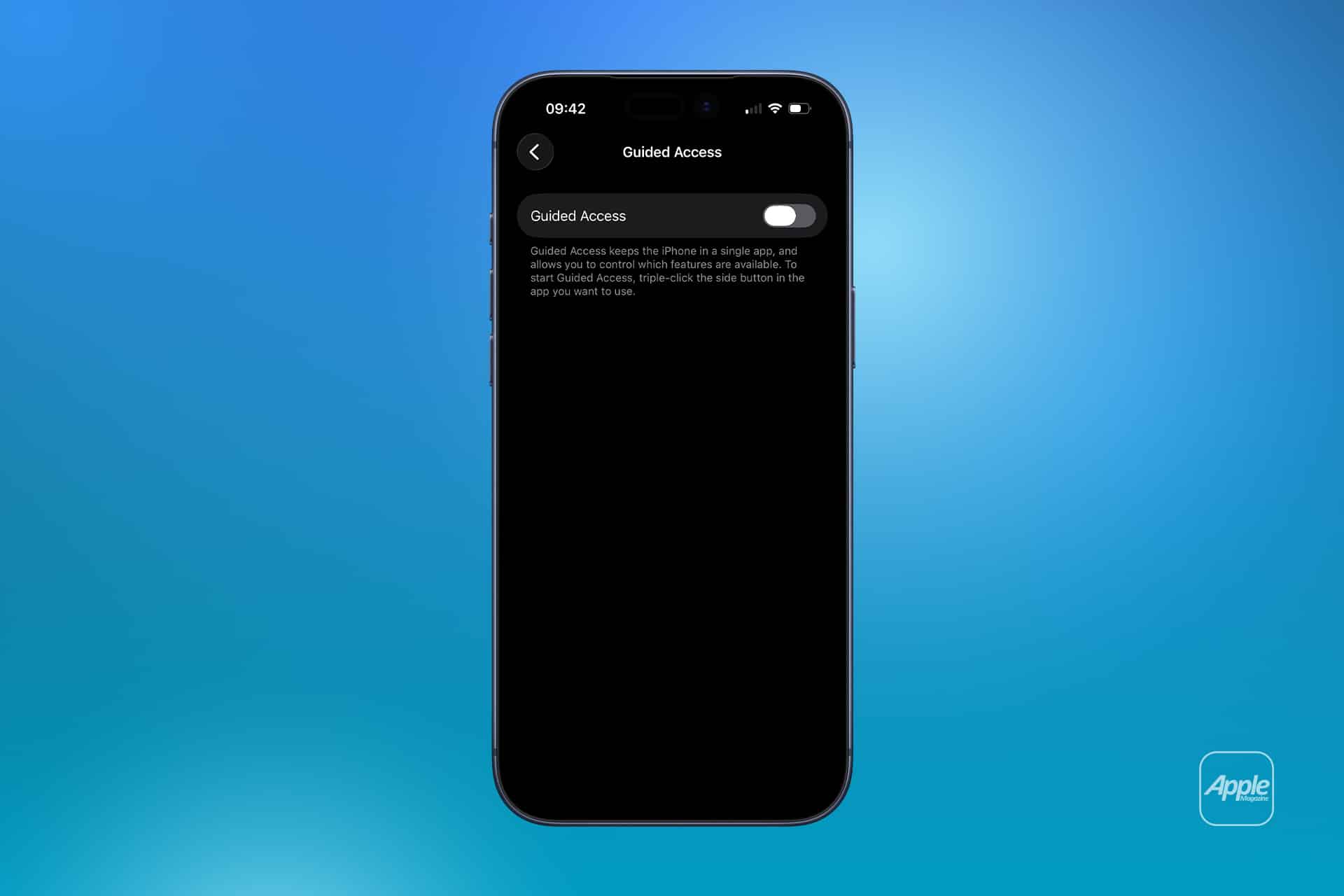
For shared-device moments, Guided Access can also help. Guided Access limits the iPhone to one app, which is useful when lending the device to someone for a single task, such as making a call, viewing a ticket, watching a video, or filling out a form.
To enable Guided Access:
Settings > Accessibility > Guided Access > On
To start Guided Access:
Open App > Triple-Click Side Button > Start
Guided Access is different from app lock. App lock protects selected apps. Guided Access keeps the person inside one app.
Face ID Does Not Replace a Strong Passcode
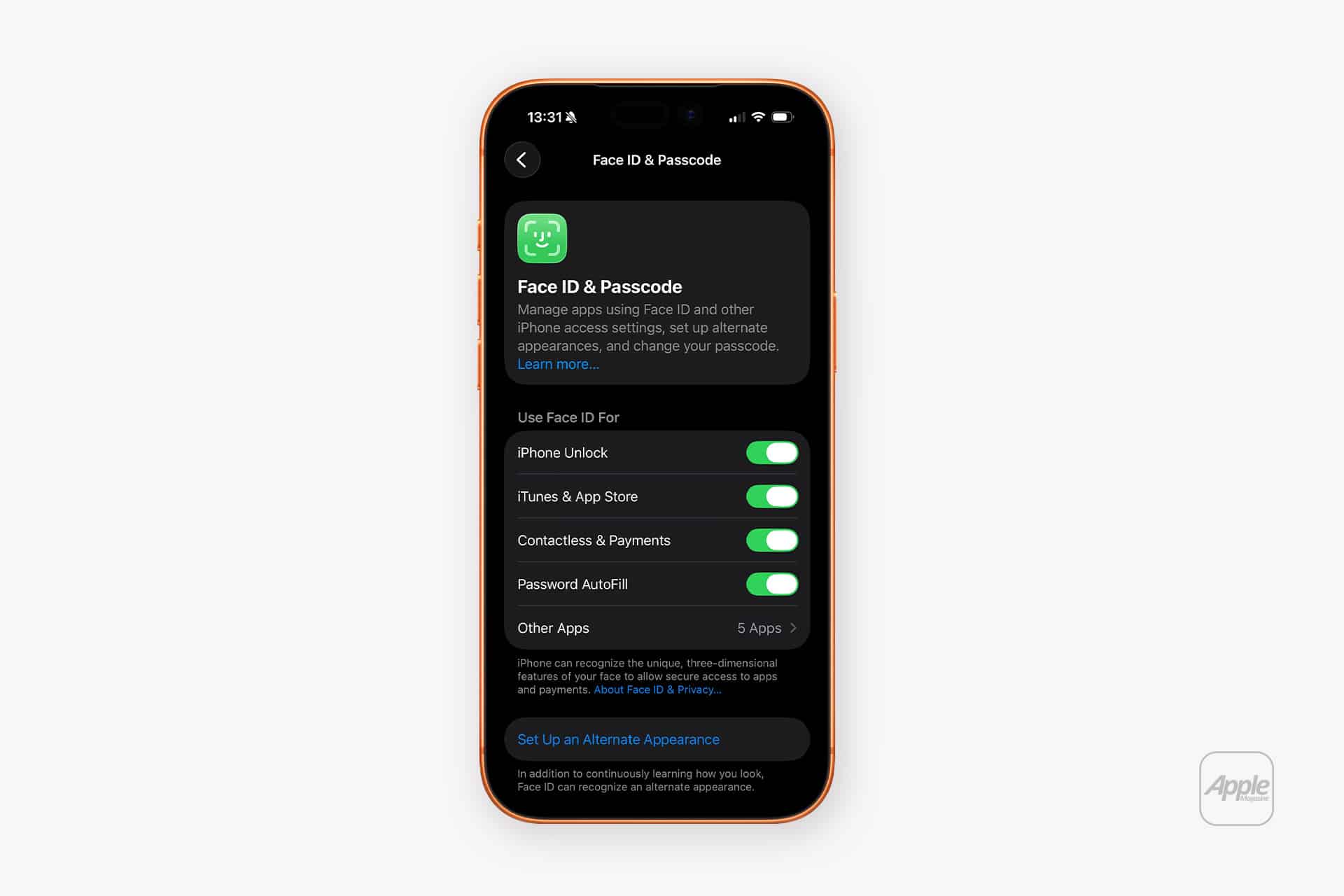
Face ID app lock depends on the iPhone’s security foundation. Face ID is fast and secure, but the device passcode remains the fallback. If someone knows the passcode, they may be able to open locked apps, depending on the situation and device settings. That makes a strong passcode essential.
A six-digit passcode is better than a four-digit code, but a custom alphanumeric passcode is stronger. Users should avoid simple codes, birthdays, repeated numbers, or codes shared with other people.
To change the passcode:
Settings > Face ID & Passcode > Change Passcode
To use a stronger passcode:
Settings > Face ID & Passcode > Change Passcode > Passcode Options > Custom Alphanumeric Code
Stolen Device Protection also helps protect sensitive account changes when the iPhone is away from familiar locations. It requires biometric authentication for certain actions and adds a Security Delay for some critical changes. This is especially useful if someone steals an iPhone after seeing the passcode.
To turn on Stolen Device Protection:
Settings > Face ID & Passcode > Stolen Device Protection > Turn On
Face ID app lock protects app access. Stolen Device Protection protects deeper account and device changes. A strong passcode protects the fallback. The three work best together.
Best Apps to Lock
Face ID app lock is most useful for apps with private, financial, personal, work, or identity-related information. Banking apps, payment apps, password managers, email, cloud storage, notes, journals, health-related apps, file managers, work chat apps, shopping apps, travel apps, and private messaging apps are strong candidates.
Social apps may also deserve app lock because they can expose messages, contacts, photos, posts, drafts, and account controls. Photos-related apps can reveal private images or albums. Delivery and shopping apps can show addresses and purchase history. Travel apps can show itineraries, documents, and location plans.
Users do not need to lock every app. Locking too many apps can make the iPhone feel slower to use. The best setup protects the apps that would create real privacy or security problems if opened by someone else.
A practical approach is to lock the top five to ten sensitive apps first, then add more only when needed.
What App Lock Does Not Protect
Face ID app lock should not be misunderstood. It does not encrypt an individual app separately from the rest of the iPhone. It does not remove app data from iCloud or the developer’s servers. It does not hide every system record that the app exists. It does not stop someone with the Apple Account password from seeing purchase history. It does not prevent screenshots already saved elsewhere from being viewed in Photos unless Photos itself is protected through available privacy controls and habits.
It also does not protect the iPhone if the entire device is left unlocked and sensitive information is already visible on screen. If a private chat is open, locking the Messages app later will not hide what is currently displayed until the app is closed or the device is locked.
The feature is strongest against casual access. It stops someone from opening selected apps during a brief handoff, shared-device moment, or unlocked-device situation. That is valuable, but it is not a complete privacy system by itself.
A Better Private iPhone Setup
Face ID app lock is one of the most practical privacy improvements Apple has added because it matches real life. People do lend their phones. They do leave devices nearby. They do unlock iPhones in public. They do have apps that should not be one tap away from anyone holding the device.
The best setup is direct: lock sensitive apps, hide apps that should not appear on the Home Screen, keep notification previews hidden until unlocked, use a strong passcode, enable Stolen Device Protection, and use Guided Access when lending the iPhone for one specific task.
That combination turns the iPhone into a more private everyday device without making it difficult to use. Face ID stays fast for the owner, while private apps require proof before opening. Hidden apps reduce casual visibility. Notification settings reduce accidental exposure. Guided Access makes temporary sharing safer.
Apple’s system-level app lock works because it protects the moments between fully private and fully shared. An iPhone can be personal while still being usable around other people. Face ID app lock gives users a clearer boundary.