


There is a difference between locking a phone and locking an app. Most people assume that once their iPhone is protected by Face ID or Touch ID, everything inside is automatically secure. In daily life, though, phones get handed around. A friend wants to see a photo. A colleague borrows your device to make a call. A child opens YouTube and starts tapping everywhere. That is when app-level protection starts to matter.
Face ID app lock is less about paranoia and more about boundaries. Banking apps, health records, private notes, and even messaging threads can be protected individually, so even if the device is unlocked, sensitive content stays behind biometric authentication.
Built-In Face ID App Lock
Many Apple apps already support biometric protection natively. Notes, for example, allows individual notes to be locked.
To lock a note:
Open Notes > Select Note > Tap Three Dots > Lock
Then enable:
Settings > Notes > Password > Use Face ID
Once activated, locked notes require Face ID or Touch ID every time they are opened.
The same logic applies to certain third-party apps like banking, password managers, and payment platforms. Most financial institutions now integrate Face ID authentication directly inside their apps. Once enabled, even if someone unlocks the phone, the app will request biometric confirmation again.
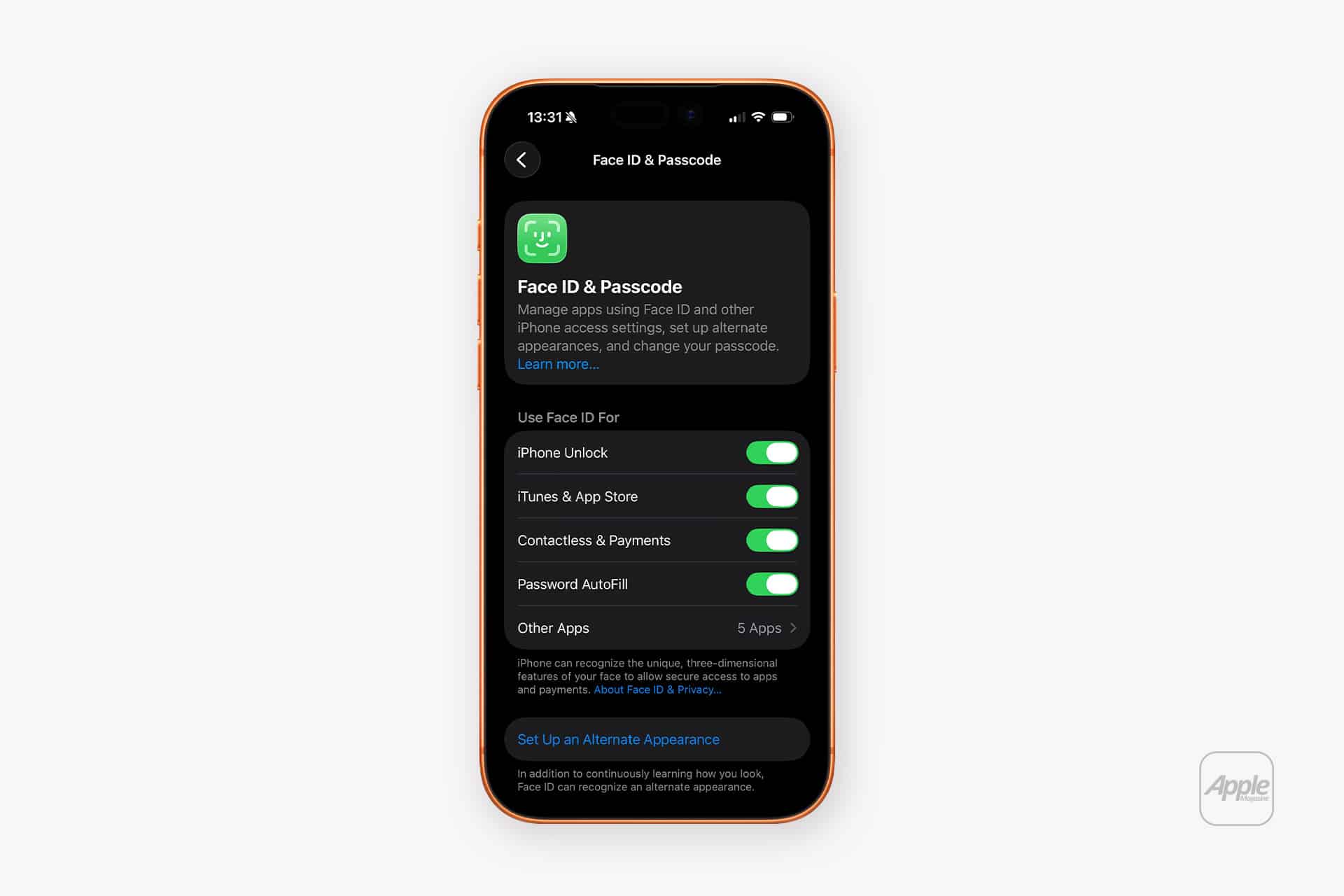
To check Face ID permissions:
Settings > Face ID & Passcode > Other Apps
From here, you can toggle which apps are allowed to request Face ID authentication.

Face ID App Lock With Screen Time
iOS also allows indirect app locking through Screen Time limits. While originally designed for parental controls, it can be used creatively to require authentication before reopening selected apps.
To set this up:
Settings > Screen Time > App Limits > Add Limit
Choose the specific app, set the limit to 1 minute, and enable “Block at End of Limit.” Once the minute is used, reopening the app requires Screen Time passcode approval.
If the Screen Time passcode is separate from the device passcode, this creates an additional security barrier.
Protecting Hidden and Recently Added Apps
With recent iOS updates, users can hide apps or require Face ID before opening certain system-level features.
To hide and protect apps:
Touch and Hold App Icon > Require Face ID
This moves the app into a hidden folder and restricts access behind biometric authentication.
It is a subtle but powerful privacy option, especially for apps that handle payments, confidential documents, or private conversations.
App Permissions
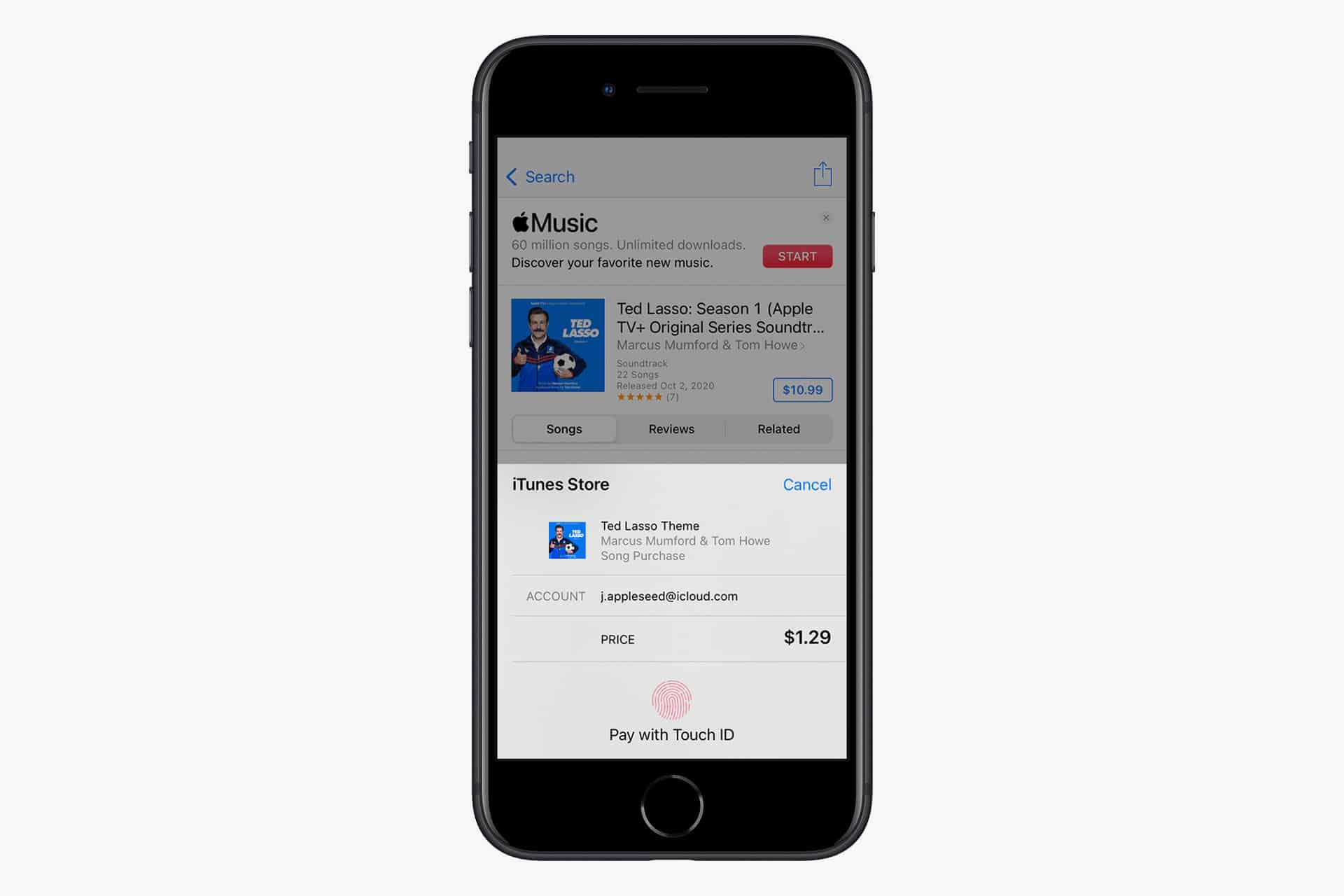
While newer iPhones rely on Face ID, Touch ID remains active on supported models and iPads. The same principles apply. Apps can require fingerprint authentication before granting access.
To review Touch ID app permissions:
Settings > Touch ID & Passcode > Other Apps
From there, you can manage which apps use fingerprint authentication.
Touch ID can feel slightly faster in certain environments, such as when wearing sunglasses or in bright sunlight where Face ID might struggle.
Why App-Level Locking Is Useful
There are everyday situations where Face ID app lock makes sense. A freelancer handing their iPhone to a client to review photos may not want email notifications visible. A parent letting a child play a game may not want access to messaging apps. A traveler showing boarding passes might not want banking apps one tap away.
Instead of turning off notifications or logging out repeatedly, biometric app protection keeps boundaries intact without friction.
Biometric authentication happens locally on the device. Face ID data is stored securely inside the Secure Enclave and never uploaded to servers. That architecture is what allows app-level protection to feel seamless instead of intrusive.
Privacy Without Complexity
Face ID app lock is not a separate product or subscription. It is built into iOS and integrated into many third-party apps by default. The key is knowing where to enable it.
- Settings > Face ID & Passcode
- Settings > Screen Time
- Settings > Notes
These areas control most of the system’s app-level protections.
In a world where phones hold financial records, private conversations, and personal documents, locking the device itself is only the first step. Adding biometric protection to individual apps creates a second layer that works quietly in the background — only activating when it truly matters.