
When you share purchases with your family in Apple’s Family Sharing group, things can get confusing — especially if someone buys an app, subscription, or in-app item you didn’t expect. Before you open a complaint with Apple Support or dispute a charge, it’s important to review your Apple Account, confirm the details of the purchase, and check your security settings. Many unexpected charges come from a family member’s intentional purchase, a subscription renewal, or a mis-tapped confirmation.
Family Sharing is a powerful system that lets up to six people share access to Apple services, apps, music, iCloud storage, and more. But the purchases are billed to the family organizer’s payment method by default. That means if a child buys a game, or someone accidentally authorizes an in-app purchase, the charge will appear on your card. Understanding how to identify these charges and manage them can save frustration.
Why It’s Important to Double-Check
Opening a complaint with Apple Support or requesting a refund should be a last step — after you’ve confirmed that the charge was not a family-shared purchase you or someone in your group intended. Many disputes turn out to be misunderstandings because the purchase was real but simply overlooked.
Also, confirming that the purchase was legitimate protects your security. If the charge truly wasn’t made by anyone in your Family Sharing group or authorized devices, then you might be dealing with a compromised account or Apple ID login. In that case, locking your account and changing your credentials immediately is crucial.


Where to See Family Purchases
Your purchase history shows every charge tied to your Apple ID, including those initiated by family members.
Settings > [your name] > Media & Purchases > View Account > Tap Purchase History
On this screen, you’ll see a list of recent purchases, the date, the app or service, and which account initiated the purchase. If a purchase shows as “From Family Member,” that means someone in your shared group authorized it.
You can also review purchase history on Mac:
App Store > Click your name > Account Settings > Scroll to Purchase History
If you spot an unfamiliar or unexpected purchase, take a moment to check with the person in your Family Sharing group. Many times the issue resolves with a simple question. Kids and teens often tap “Buy” before realizing what they’re purchasing.
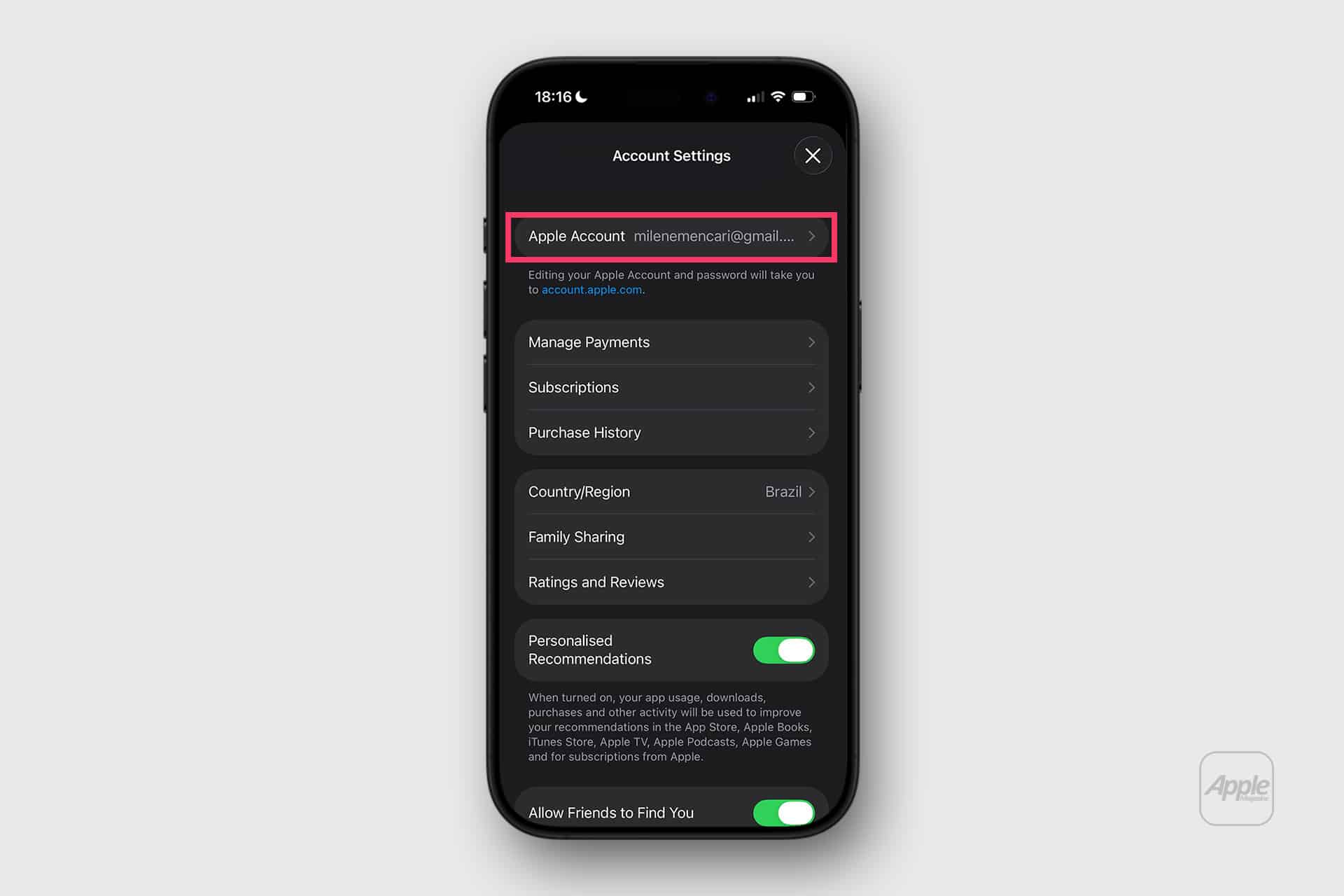
Confirming Intent Before Dispute
Before contacting Apple Support to dispute a charge, follow these steps:
-
Check Purchase History — Confirm whether the charge was authorized by a device in your Family Sharing group.
-
Ask the Family Member — A quick check with the person who owns that device often clears up confusion.
-
Look at Subscriptions — Some apps automatically renew monthly or yearly. These will appear as family charges without a separate prompt.
-
Review App Details — Tapping the purchase in history shows more detail, including the app name, developer, and order ID.
Many subscription charges can be managed directly rather than disputed:
Settings > [your name] > Subscriptions
Cancel any unwanted automatic renewals here to prevent future charges.
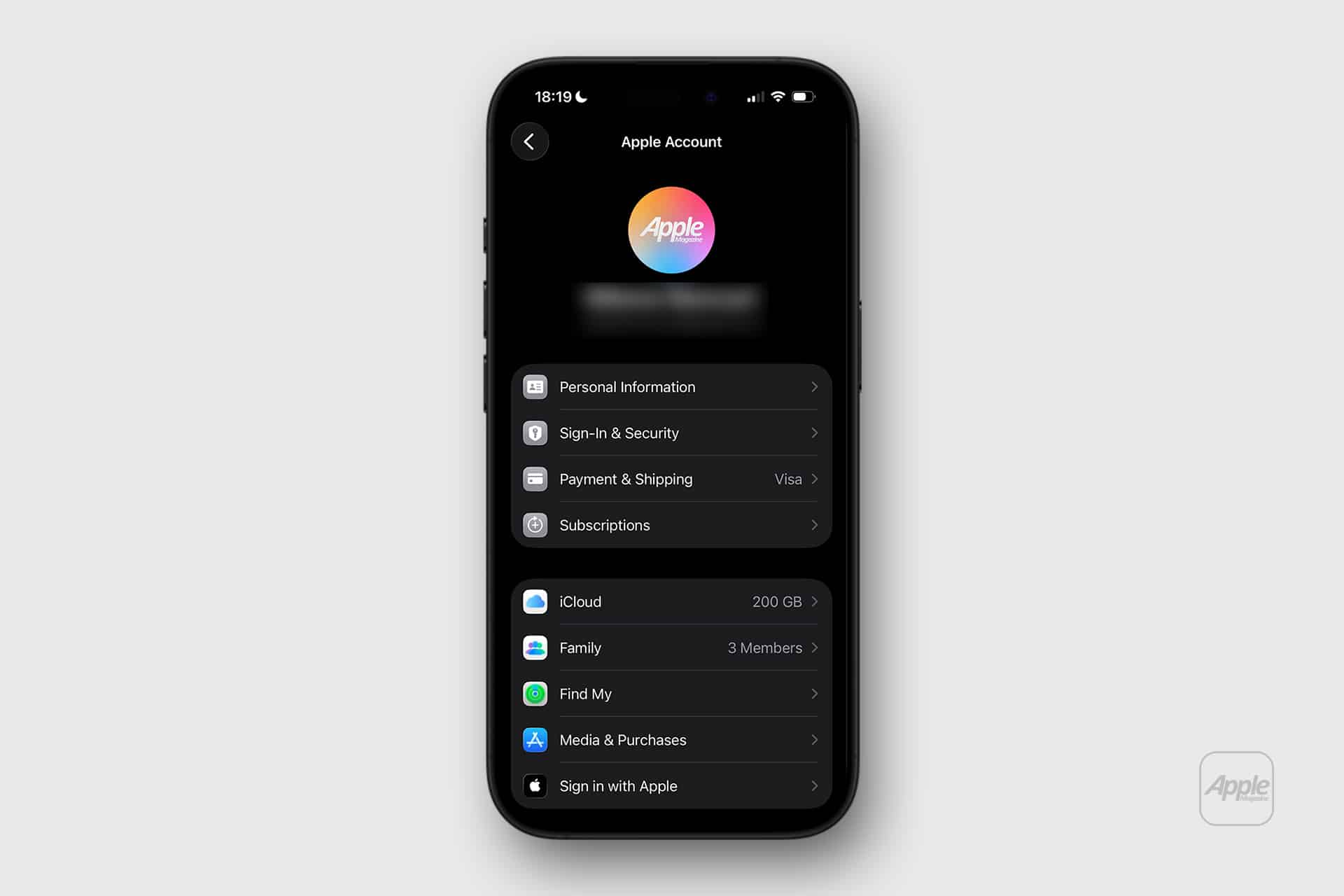
Security Checks Before You Complain
If you confirm that nobody in your family made the purchase, it’s time to protect your account.
- Change your Apple ID password immediately.
- Enable two-factor authentication (if not already on).
- Review devices signed in with your Apple ID and remove unfamiliar ones.
Change your payment method if necessary.
Settings > [your name] > Password & Security
Settings > [your name] > Devices
Two-factor authentication adds a verification step when someone signs in. This prevents unauthorized sign-ins even if a password is known.
Settings > Password & Security > Two-Factor Authentication
When to Contact Apple Support
If after reviewing purchase history and confirming with your family you still see charges you did not authorize, contact Apple Support. Have these details ready:
- Date and amount of the charge
- App or service name
- Whether it showed as a family purchase
- Any screenshots of purchase history
Apple Support can investigate and, if needed, reverse unauthorized charges. But having the details ready speeds the process and improves the likelihood of a quick resolution.

Small Habits That Protect Your Wallet
Parent Approval
Turn on Ask to Buy for kids’ accounts — this requires parent approval for every purchase.
Settings > Family Sharing > Child Account > Ask to Buy
Notification Alerts
Enable notification alerts for purchases so you see charges in real time.
Settings > Notifications > Apple Store
Subscriptions
Review subscriptions monthly to avoid unexpected renewals.
Settings > Subscriptions
By knowing how Family Member Purchase works and relying on built-in tools first, you protect your account and only escalate when necessary — with clarity instead of confusion.