

Files app workflows can make iPhone and iPad feel much less confusing for people moving from Android or Windows. The biggest adjustment is not that Apple hides files. It is that iOS and iPadOS treat files differently from a traditional desktop or Android phone. Instead of one obvious storage tree, Files brings together local storage, iCloud Drive, third-party cloud services, downloads, external drives and servers in one place.
For someone coming from Windows, that can feel strange at first. There is no C: drive. There is no desktop full of random folders unless the user chooses to mirror Desktop and Documents through iCloud on Mac. For someone coming from Android, the change can be just as awkward. There is no broad “internal storage” view where every app leaves folders behind.
That is not a weakness once the structure clicks. Files is built around locations. On My iPhone or On My iPad stores local folders. iCloud Drive syncs files across Apple devices. Google Drive, Microsoft OneDrive, Dropbox and other cloud providers can appear beside them. External drives and SD cards can show up when connected. File servers can be added for local network access.
The trick is learning to stop asking, “Where is the phone’s file system?” and start asking, “Which location should this file live in?”
Start With Browse, Not Recents
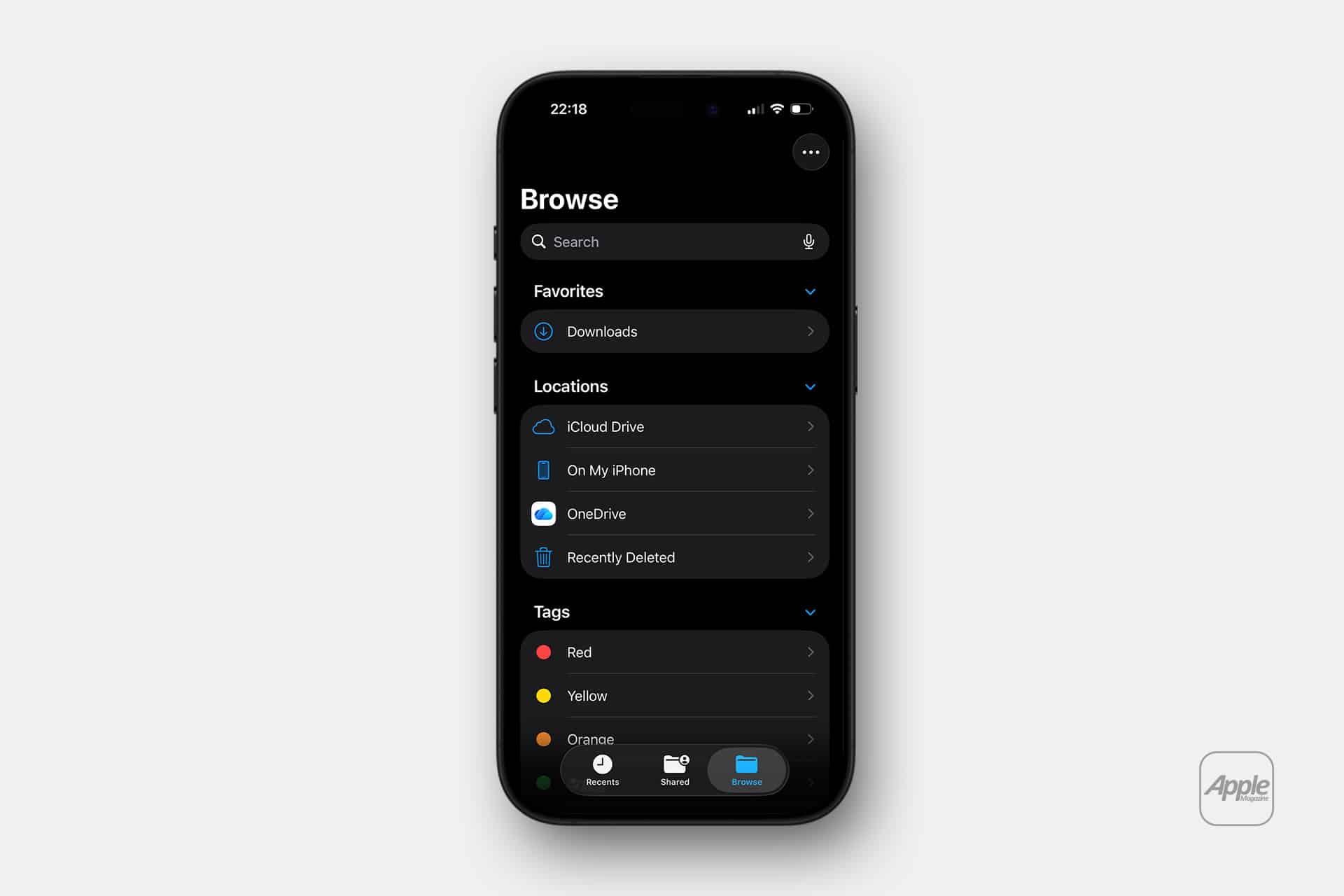
The first habit to build is using the Browse tab. Recents is useful when a file was just opened, downloaded or edited, but it can make the system feel messy. Browse shows the real structure: Locations, Favorites, Shared items and tags.
To open the main file view:
Files > Browse
From there, users should check which locations are available. The most common are iCloud Drive, On My iPhone or On My iPad, and any installed cloud services. If a cloud service does not appear, it usually needs to be installed first as a separate app, then enabled inside Files.
To enable third-party cloud services:
Files > Browse > More button > Edit > turn on the cloud service
This is useful for switchers because it means they do not need to abandon their old workflow immediately. A Windows user who already works in OneDrive can keep OneDrive visible inside Files. An Android user with years of folders in Google Drive can bring that cloud structure into the same file browser.
Files becomes less of an Apple-only tool and more of a control center for storage.

Understand Local Storage Versus Cloud Storage
The most useful distinction is local versus cloud. On My iPhone and On My iPad are local device storage. Files stored there are available on that device, even offline, unless they are inside an app folder with its own sync behavior. iCloud Drive is cloud-synced storage that can appear across iPhone, iPad, Mac and iCloud.com.
Windows users can think of iCloud Drive as closer to OneDrive than to a normal local folder. Android users can think of it as Apple’s version of Google Drive, but more deeply integrated with apps and system sharing.
For daily use, a simple rule works well. Keep temporary files, one-off downloads and app exports in On My iPhone or On My iPad. Keep documents that should appear across devices in iCloud Drive. Keep work files in OneDrive, Google Drive or Dropbox if that is where the workplace already lives.
To create a folder:
Files > Browse > choose a location > More button > New Folder
To move a file:
Files > touch and hold a file > Move > choose a destination
The habit matters. Many switchers download everything and leave it scattered. A better workflow is to create a few simple folders: Documents, Work, Receipts, PDFs, Travel, School, Exports and Temp. That gives iPhone or iPad a familiar structure without turning it into a messy desktop.
Downloads Have a Real Place
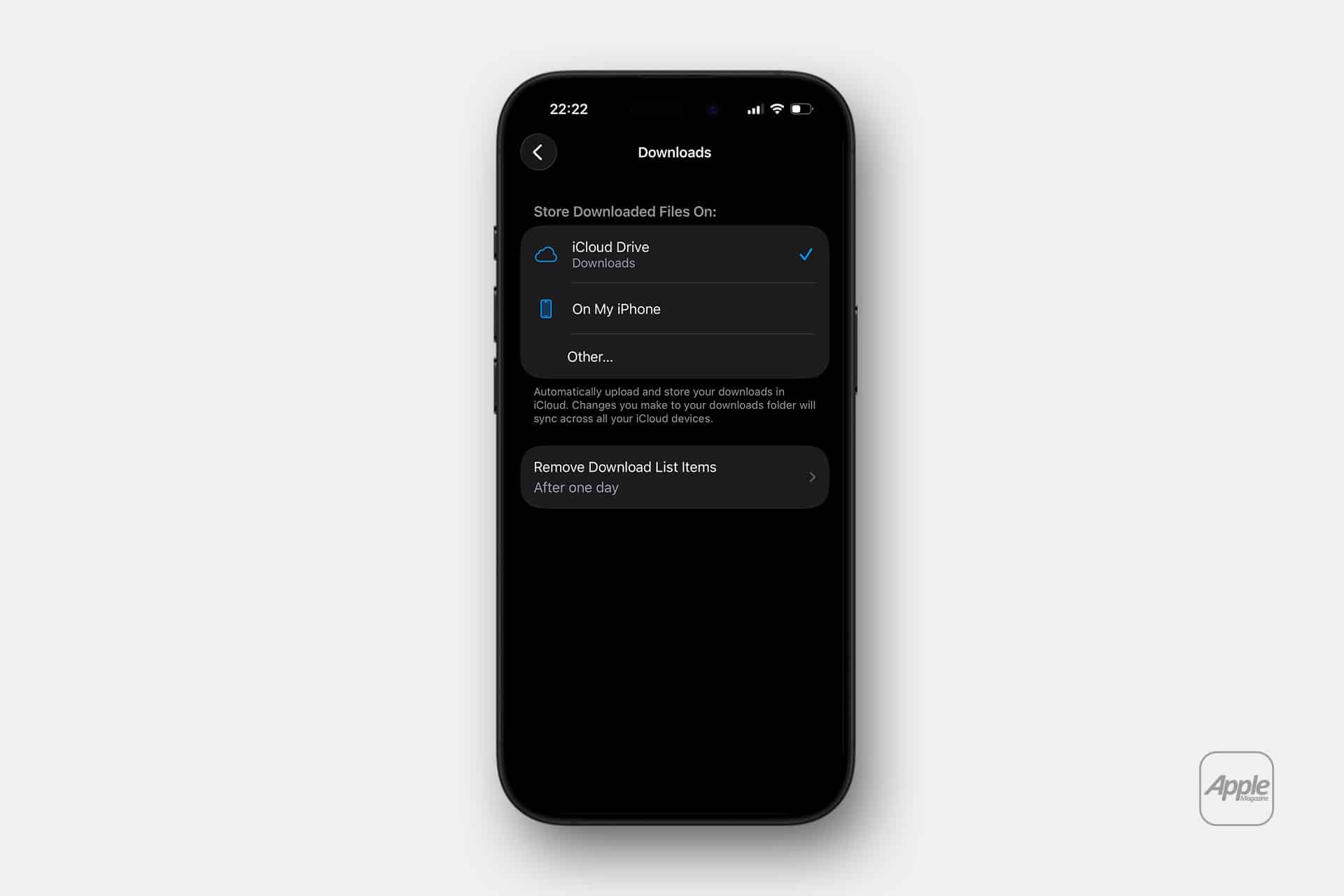
People moving from Windows or Android often ask where downloads go. On iPhone and iPad, Safari downloads are handled through Files. The Downloads folder may be in iCloud Drive or on the device, depending on the setting.
To check the Safari download location:
Settings > Apps > Safari > Downloads
Users can choose iCloud Drive, On My iPhone or another available location. This setting is worth reviewing immediately after switching. A user who wants downloads available on Mac and iPad should choose iCloud Drive. A user who wants downloads to stay only on the iPhone should choose local storage.
To find downloaded files:
Files > Browse > Downloads
This single change makes iPhone feel more familiar. PDFs from websites, ZIP files, tickets, forms, attachments and exported documents all become easier to manage once the Downloads folder is understood.
External Drives Make iPhone and iPad Feel More Like Computers
USB-C has made external storage more practical on newer iPhone and iPad models. Apple says the Files app and supported apps can access files on external devices such as USB drives and SD cards connected to iPhone. For iPad users, especially those moving from Windows laptops, this is one of the most comforting workflows.
To use an external drive:
Connect the drive > Files > Browse > select the drive under Locations
This is useful for photos, videos, documents, presentations, audio files and backups from cameras or recorders. A creator can copy video from a drive, move files into an editing app, then export finished work back to external storage. A student can carry PDFs and presentations. A business user can open documents from a USB-C drive without sending everything through email.
There are limits. Some drives may need more power. Some formats may not be ideal. Some apps handle files better than others. But the direction is clear: iPhone and iPad are no longer sealed off from external storage in the way many switchers assume.
File Servers Help Windows Users Feel at Home
Files also supports connecting to file servers, including local network storage. This matters for Windows users, small offices and home setups with NAS drives or shared folders.
To connect to a server:
Files > Browse > More button > Connect to Server
The user can enter a local hostname or network address, then connect as a guest or registered user depending on the server. Once connected, the server can appear again in the Recent Servers list.
This is a practical bridge for people who still live around shared folders. An iPad can access documents from a network drive. A user can copy files between a server and iCloud Drive. A small business can keep existing storage while adding iPads into the workflow.
It is not the same as using File Explorer on Windows, but it is much closer than many people expect.
The Share Sheet Replaces Drag-and-Drop Thinking
On Windows and Android, users often think in terms of moving files between folders and apps. On iPhone and iPad, the Share Sheet is just as important as the folder system. It is the menu that sends a file from one app to another, saves it to Files, exports it, prints it, shares it, compresses it or opens it in a compatible app.
To save something into Files:
Share button > Save to Files > choose a location > Save
This works from Safari, Mail, Photos, Messages, Notes and many third-party apps. A PDF can be saved into a folder. A photo can be exported. A document can move from email into cloud storage. A scanned file can be saved directly into a project folder.
For switchers, this is the biggest mental shift. Files is not always the place where work begins. Often, the work begins in an app, and Save to Files is how the user places the result in the right location.
Use Tags and Favorites Carefully
Files supports tags and favorites, which can help people who manage many folders. A folder can be added to Favorites for faster access from Browse. Tags can group files across different locations.
To add a folder to Favorites:
Files > touch and hold a folder > Favorite
To tag a file:
Files > touch and hold a file > Tags
Windows users may be used to shortcuts and pinned folders. Favorites play that role well. Android users may be used to searching or opening files through app-specific folders. Tags can help, but they should be used sparingly. Too many tags can become another mess.
A good setup is simple: favorite the folders used every week, such as Work, Downloads, Receipts, School or Projects. Use tags only for categories that cut across folders, such as Taxes, Travel, Urgent or Shared.
Scanning Documents Belongs in the Workflow
One of the most useful Files workflows is scanning paper directly into a folder. This can replace many Android scanning apps or Windows scanner routines for receipts, forms, handwritten notes and signed documents.
To scan a document into Files:
Files > Browse > choose a folder > More button > Scan Documents
The scan is saved as a PDF in the selected location. From there, it can be renamed, shared, moved or uploaded to a cloud folder. This is especially useful for people switching from Windows who are used to scanning into a desktop folder. On iPhone, the camera becomes the scanner and Files becomes the destination.
A clean workflow is to create a Receipts or Scans folder in iCloud Drive, then scan directly into it. The same PDF can later be opened from Mac, iPad or iCloud.com.
Moving From Android Without Losing the Old System
Apple’s Move to iOS app can transfer many kinds of content from Android during iPhone setup, including contacts, message history, camera photos and videos, mail accounts, calendars, call logs, accessibility settings, display settings, web bookmarks, free apps, WhatsApp data and voice memos. It is the best starting point for a full switch.
But files are often more personal than migration tools can fully understand. Many Android users have years of documents, downloads, APKs, exported chats, PDFs and random folders. The cleanest method is to move long-term files into a cloud service first, then bring that service into Files on iPhone.
For Google Drive users, install Google Drive on iPhone, sign in, then enable it in Files. For Microsoft users, do the same with OneDrive. This avoids turning the switch into a weekend of cables, duplicated folders and mystery ZIP files.
A good rule is to migrate the essentials, then archive the rest. Not every old Android folder deserves to become part of the new iPhone workflow.
A Better File Habit for iPhone and iPad
The Files app becomes powerful when it is treated as a front door, not a hidden utility. Keep downloads in one place. Save important attachments to folders instead of leaving them buried in email. Use cloud locations intentionally. Connect external drives when needed. Add work storage through OneDrive, Google Drive or servers. Scan paper directly into organized folders.
For Windows and Android switchers, the goal is not to recreate the old file system exactly. It is to build a cleaner version of it around the way iPhone and iPad work. Apps remain central, but files are not trapped inside them. Cloud services remain available, but they can live in one browser. External storage is possible, but it should support the workflow, not become another junk drawer.
The Files app is not File Explorer, and it is not Android’s internal storage view. It is Apple’s answer to a modern file life spread across device storage, cloud services, servers, downloads, scans and external drives. Once that idea clicks, switching becomes less about losing control and more about putting the right files in the right place.