

FileVault is one of the most important security features built into macOS because it protects what matters most on a Mac: the data stored inside it. Photos, documents, downloads, messages, browser data, saved files, work projects, school assignments, passwords, app data, tax documents, personal notes, and private folders all depend on the same basic question if a Mac is lost or stolen: can someone access the disk?
FileVault is Apple’s answer to that risk. It encrypts the Mac’s startup disk, which means the information stored there is scrambled and unreadable without an authorized user password or recovery key. Apple describes FileVault as built-in encryption that helps prevent unauthorized access to the information on a Mac’s startup disk. Once enabled, the Mac requires the correct login credentials before the encrypted data can be unlocked.
The feature is especially important on MacBooks. A desktop Mac usually stays in one place, but a MacBook moves through classrooms, offices, cafés, airports, cars, hotels, libraries, backpacks, and repair shops. A lost MacBook without disk encryption is a much bigger privacy risk than most people realize. Even if the account password blocks casual access, encryption adds a deeper layer that protects the disk itself.
FileVault is clever because it works mostly in the background. After setup, the user logs in normally. Apps open normally. Files behave normally. The difference is that the data remains protected at the disk level when the Mac is powered off, locked, or outside the owner’s control.
How FileVault Works
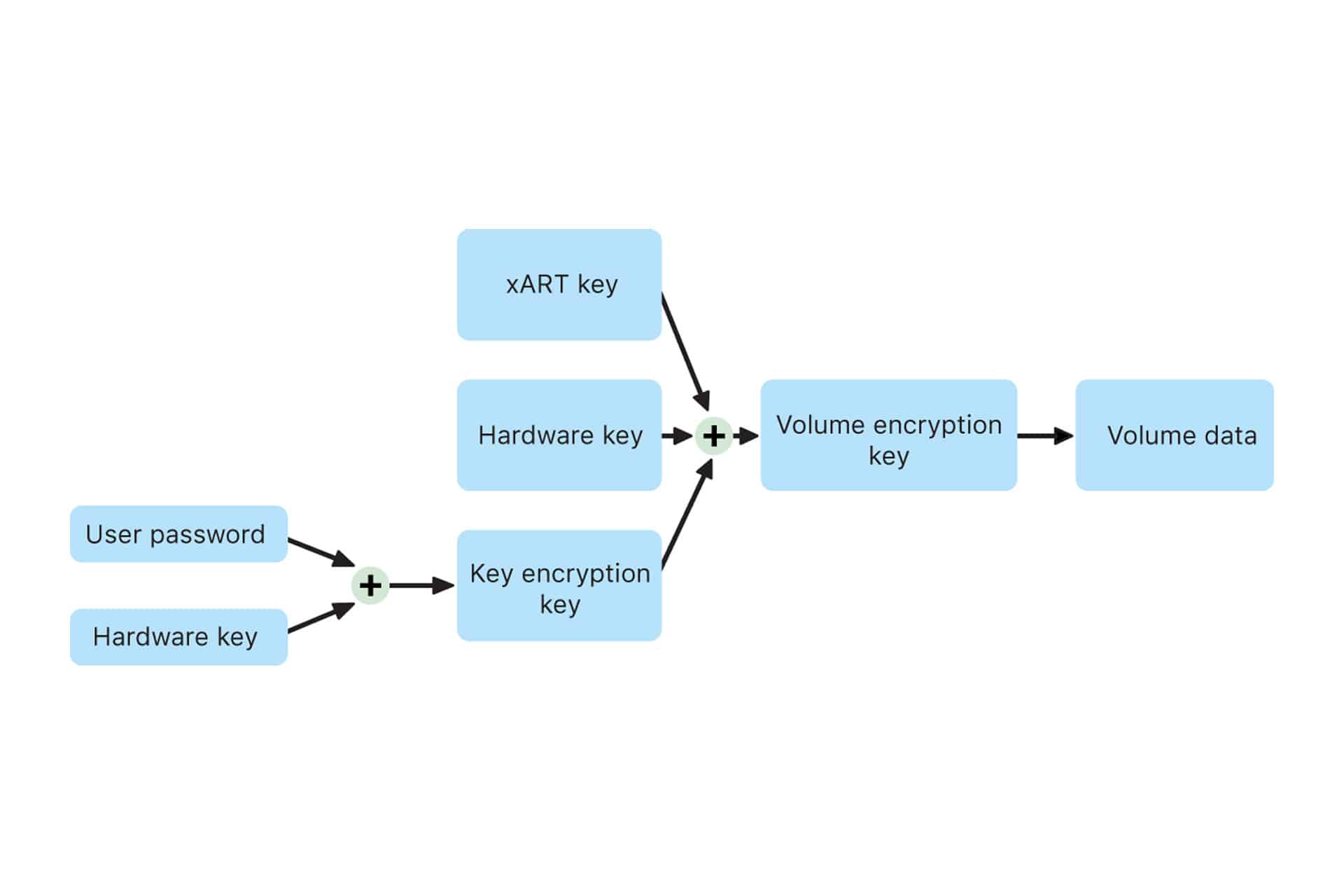
FileVault works by encrypting the startup disk, which is the main drive macOS uses to boot and store user data. When the Mac is off or locked before login, the data on that disk is not readable in ordinary form. The disk must be unlocked with an authorized user account or a recovery key.
Apple’s platform security documentation explains that FileVault encryption protects the startup volume and that macOS provides recovery options if the user loses access. On current macOS versions, a recovery key may be generated when FileVault is turned on. Apple describes this recovery key as a 24-character sequence of random letters and numbers that can be used to unlock the startup disk or turn off FileVault.
That recovery key is extremely important. If a user forgets their password and cannot unlock the Mac another way, the recovery key may be the only path back into the encrypted disk. Apple’s FileVault guidance says the key should be kept somewhere safe, away from the encrypted startup disk itself. In other words, saving the recovery key only on the same Mac defeats the point, because it may not be accessible when needed.
FileVault can also be managed by a school, company, or organization. In that case, an administrator may hold or manage the recovery key. Apple notes that if a message says a recovery key was set by an organization, the user may need to ask the administrator to unlock the encrypted Mac and reset the password.

Why It Matters Most on a Lost or Stolen Mac
FileVault matters because a Mac can contain far more personal information than the owner sees on the desktop. A thief may not only want the hardware. They may want access to files, saved browser sessions, documents, financial records, photos, work materials, emails, school accounts, and other private data.
A login password is important, but disk encryption is stronger protection for the data itself. Without FileVault, someone with physical access and technical knowledge may have more ways to try to access the contents of the drive, especially on older or improperly secured systems. With FileVault enabled, the data remains encrypted until the disk is unlocked.
This makes FileVault one of the best settings to enable before something goes wrong. It is not a feature to think about after a Mac disappears. It has to be active beforehand. Once the device is lost, stolen, or left somewhere, the protection already needs to be in place.
FileVault is also useful for repairs, resale, travel, offices, and shared environments. A Mac that leaves the owner’s hands for any reason is safer when the startup disk is encrypted. Even if the chance of theft is low, the potential damage from exposed data can be high.
How to Turn On FileVault
FileVault is managed from Privacy & Security settings on current macOS versions. The exact layout can vary slightly depending on macOS version and whether the Mac is personally owned or managed by an organization.
To turn on FileVault:
System Settings > Privacy & Security > FileVault > Turn On
macOS may ask how the user wants to recover the disk if the login password is forgotten. Depending on setup and macOS version, the user may be offered recovery through an iCloud account or a recovery key. The recovery key option must be stored carefully, exactly as shown.
To check FileVault status:
System Settings > Privacy & Security > FileVault
If FileVault is already on, there is usually nothing else to do. If it is off, turning it on may start an encryption process. The Mac can usually be used while encryption continues, but it should remain plugged in during the process, especially if it is a MacBook.
The Recovery Key Is the Tradeoff
FileVault’s biggest advantage is also its biggest responsibility. Encryption is strong because it does not give easy back doors. If the owner forgets the password and loses the recovery key, the data may be impossible to recover.
That is not a flaw. It is how real encryption protects the data. A system that allowed easy recovery without the password or key would also be weaker against attackers.
The safest approach is to store the recovery key in more than one secure place. It can be written down and kept somewhere physically safe, such as a secure home document folder. It should not be stored in a plain text file on the same Mac. It should not be photographed and left in an unlocked camera roll. It should not be shared casually.
For managed Macs, the organization may store the key through device-management tools. That can be useful for schools and companies because it lets IT recover a device if an employee or student forgets the password.
For personal Macs, the user should treat the recovery key like a house key to the data. Losing it may not matter if the password is remembered, but it becomes critical when something goes wrong.

FileVault and Guest User
FileVault also affects Guest User behavior. When FileVault is turned on, Apple says a guest can use Safari but cannot access the encrypted disk or create files on the Mac. That is because the startup disk remains protected until an authorized user unlocks it.
This is one reason FileVault is useful on shared Macs. A guest session can be allowed for limited browsing, while the main user’s encrypted data stays protected. It creates a safer separation between temporary access and personal files.
For a family Mac or a Mac used by multiple people, FileVault should be paired with proper user accounts. The main owner can be an administrator, regular users can have standard accounts, and Guest User can be used only for temporary access. Encryption protects the disk, but account separation still helps protect privacy while the Mac is in normal use.
What FileVault Does Not Do
FileVault protects data on the disk, especially when the Mac is locked, powered off, lost, or stolen. It does not protect against every security problem.
If someone knows the user’s password and logs in successfully, FileVault will not stop them from seeing the user’s files. If malware runs inside an unlocked account, FileVault alone does not solve that. If files are uploaded to a cloud service, shared by mistake, or sent through email, FileVault does not control what happens outside the Mac.
FileVault also does not replace backups. Encryption protects data from unauthorized access, but it does not protect against accidental deletion, hardware failure, liquid damage, or a lost device with no backup. Time Machine, iCloud Drive, or another backup system is still important.
To set up Time Machine:
System Settings > General > Time Machine
The best security setup is layered: FileVault for disk encryption, a strong login password, Touch ID when available, Find My enabled, regular software updates, careful app permissions, and backups.
A Quiet Feature With Major Value
FileVault is not exciting in the way a new display, camera, chip, or AI feature is exciting. Its value is quieter. It protects the Mac when the owner is not there to protect it.
That makes it one of the smartest features in macOS. It takes a complex security idea — full-disk encryption — and turns it into a setting most people can enable once and then forget. The user keeps working normally, while the Mac keeps the startup disk protected in the background.
For a MacBook, FileVault should be treated as essential. For a desktop Mac, it is still a strong privacy setting, especially in shared homes, offices, dorms, studios, and any place where someone else could access the machine. The small responsibility of storing a recovery key is worth the protection it provides.
A Mac can be replaced. The data inside it is often harder to replace and far more personal. FileVault exists for that moment when the hardware is no longer in the owner’s hands, but the information still needs to stay private.