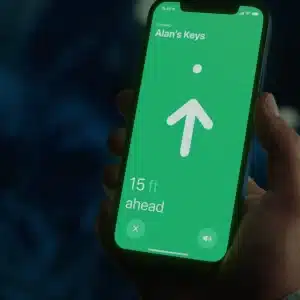
Find My is one of the most important safety features inside the Apple ecosystem because it turns every Apple device into part of a larger protection network. It is not only the app people open when an iPhone disappears under a couch cushion. It is the place where devices, items, family members, shared locations, AirTags, AirPods, Macs, Apple Watches, and Activation Lock all come together. When set up correctly, Find My can help recover a lost device, protect personal data, check whether family members are safe, and reduce the panic that comes when something important goes missing.
The strength of Find My comes from how deeply it is built into Apple’s ecosystem. An iPhone can help locate an Apple Watch. A Mac can appear on a map. AirPods can play a sound. An AirTag can guide someone toward keys, a backpack, or luggage. Family Sharing can make it easier to help locate a missing device belonging to a parent, partner, or child. Apple says Find My can locate people, devices, and items, including iPhone, iPad, Mac, Apple Watch, AirPods, Beats headphones, AirTag, and compatible third-party items.
That makes Find My more than a convenience app. It is a personal safety layer. It helps protect the things people use every day and the people they care about. But it only works well when the setup is done before something goes wrong. The best time to master Find My is not after losing a device. It is while every device is still safely in your hand.

Set Up Find My Before You Need It
Find My should be treated as a basic setup step for every Apple device. When Find My is enabled, the device can appear on a map, play a sound, be marked as lost, and use Activation Lock to help prevent someone else from using it if it is lost or stolen. Apple says Activation Lock turns on automatically when Find My is enabled on iPhone or iPad, which makes this setting one of the most important parts of device security.
To check Find My on iPhone or iPad:
Settings > Apple Account > Find My > Find My iPhone > On
To choose which device shares your location:
Settings > Apple Account > Find My > Use This iPhone as My Location
On Mac, Find My should also be enabled because a Mac can be one of the most valuable devices to lose. A Mac often holds work files, personal documents, passwords, photos, and business material. Keeping Find My active gives you a better chance to locate it and protect it.
To enable Find My on Mac:
System Settings > Apple Account > iCloud > Find My Mac > On
Apple’s iCloud guide also notes that Find My must be set up before a device is missing. That detail matters. If Find My is off, the device cannot suddenly join the network after it disappears. A few minutes of setup can save hours of panic later.
Use Devices, Items, and People the Right Way
The Find My app is divided into sections for a reason. Devices are Apple hardware connected to your Apple Account. Items include AirTags and compatible accessories. People are friends or family members who share location with you. Keeping these categories clear makes the app much easier to use when time matters.
To find one of your devices:
Find My > Devices > Select Device > Play Sound or Directions
To find an AirTag or item:
Find My > Items > Select Item > Find or Play Sound
To check a shared location:
Find My > People > Select Person
If the device is nearby, Play Sound is often faster than opening Maps. This is useful for AirPods, Apple Watch, iPhone, iPad, or a Mac somewhere in the house. If the device is farther away, Directions opens Apple Maps and guides you toward the last known or current location.
AirTag works best for objects that move with you but do not have their own internet connection, such as keys, bags, backpacks, luggage, wallets, or camera cases. It should not replace caution with valuable items, but it adds a useful layer when something is misplaced.

Mark a Device as Lost Quickly
Lost Mode is one of the most important Find My features. Apple says marking a device as lost locks it with a passcode or Apple Account password, suspends payment cards and passes for devices compatible with Apple Pay, and lets you display a message so someone can contact you if they find it. That makes it a critical step when a device is not simply misplaced at home.
To mark a device as lost:
Find My > Devices > Select Missing Device > Mark As Lost > Activate
To add a message and phone number:
Find My > Devices > Select Missing Device > Mark As Lost > Continue > Add Contact Info
For an item such as AirTag, Find My can also show contact information or share item location, depending on the situation. Apple’s current support guidance notes that Share Item Location for AirTag does not mark the AirTag as lost, but it can help in some recovery situations.
To mark an item or show contact details:
Find My > Items > Select Item > Lost Mode or Show Contact Info
The most important rule is simple: do not erase the device too quickly unless you are sure recovery is unlikely or personal safety requires it. Erasing can protect data, but it may also limit some recovery options. Mark as Lost should usually come first because it locks the device and keeps the recovery path open.
Family Sharing Makes Find My More Powerful
Find My becomes even stronger when Family Sharing is configured. Apple says family members can share location with their Family Sharing group and help locate each other’s missing devices. This can be useful for parents, partners, siblings, older relatives, and anyone managing multiple Apple devices in one household.
To share location with Family Sharing:
Settings > Family > Location Sharing > Share My Location
To choose the device used for your shared location:
Settings > Apple Account > Find My > Use This iPhone as My Location
Inside Find My, family members’ devices can appear below your own devices when sharing is active. That means someone in the family can help find a missing iPhone, iPad, Apple Watch, or Mac without needing the owner to be physically present. For families, this can be the difference between a stressful search and a quick recovery.
This is especially useful for children and older family members. A child may misplace an iPad at school. A parent may leave an Apple Watch at the gym. An older relative may forget where an iPhone was last used. With the right sharing settings, the family can help without needing passwords or complicated troubleshooting.
Still, location sharing should be handled with care. It should be based on trust, clarity, and consent. Find My is a safety tool, not a way to create pressure inside a family. Everyone old enough to understand should know what is being shared and why.

Use Location Notifications With Care
Find My can also send notifications when someone arrives at or leaves a location, if that person shares location and the feature is set up. This can help with family routines, school pickup, travel days, and safety check-ins. For example, a parent may want to know when a child arrives at school, or someone may want a notification when a partner leaves work.
To create a location notification:
Find My > People > Select Person > Add > Notify Me > Choose Arrival or Departure
To set a location label:
Find My > Me > Location Label > Choose or Add Custom Label
These tools are helpful when used thoughtfully. Too many notifications can make the feature feel invasive or noisy. The best setup is limited to moments that genuinely reduce stress, such as school arrival, airport pickup, or a family member reaching home after travel.
Protect Privacy While Staying Safe
Find My works best when privacy and safety are balanced. Apple lets users stop sharing with a specific person or hide location from everyone. This is important because location sharing should always remain controllable.
To stop sharing with one person:
Find My > People > Select Person > Stop Sharing My Location
To hide your location from everyone:
Find My > Me > Share My Location > Off
To stop receiving new location sharing requests:
Find My > Me > Allow Friend Requests > Off
These controls matter because Find My is powerful. A good safety system should never make someone feel trapped. Apple gives users ways to share, pause, or stop location sharing depending on the relationship and situation.
Activation Lock Adds a Strong Theft Protection Layer
Activation Lock is one of the strongest reasons to keep Find My enabled. Apple says Find My includes Activation Lock, designed to prevent anyone else from using your iPhone or iPad if it is lost or stolen. When Activation Lock is active, the device remains tied to the owner’s Apple Account. That makes a stolen device harder to reuse or resell.
This is also why selling, trading, or giving away an Apple device requires preparation. Before transferring ownership, Find My should be turned off and the device should be erased properly so Activation Lock does not block the next owner.
To turn off Find My before selling or giving away a device:
Settings > Apple Account > Find My > Find My iPhone > Off
To erase an iPhone or iPad before transfer:
Settings > General > Transfer or Reset iPhone > Erase All Content and Settings
For a device that is already offline, Apple says Activation Lock can sometimes be removed through iCloud.com/find by signing in to the Apple Account, selecting the device, and removing it. That should only be done when you intentionally want to release the device from your account, such as after selling or recycling it.

Build a Find My Safety Routine
The best Find My setup is simple but consistent. Make sure every device has Find My enabled. Confirm your main iPhone is the device sharing your location. Add AirTags to important items that are often misplaced. Set up Family Sharing for people who need mutual location support. Review shared people occasionally. Keep device names clear so lost devices are easy to identify.
To rename an iPhone:
Settings > General > About > Name
To rename a Mac:
System Settings > General > About > Name
To rename an AirTag or item:
Find My > Items > Select Item > Rename Item
Clear names make a real difference. “Evan’s MacBook Pro,” “Mom’s Apple Watch,” “House Keys,” “Blue Backpack,” or “Carry-On Bag” are easier to recognize than generic names. During a stressful search, clarity helps.
Find My is strongest when it becomes part of normal Apple device care. It protects expensive hardware, but it also protects time, privacy, and peace of mind. A lost iPhone is not only a lost phone. It can be messages, photos, cards, passwords, work files, travel documents, and family access. A missing Apple Watch or AirTag-tracked bag can quickly turn into a stressful day. With Find My set up properly, Apple users have a better chance of keeping devices, items, and family routines safe before small problems become bigger ones.