The Find My app sits quietly on every iPhone, but it becomes essential the moment something goes wrong. Whether a device is misplaced at home, left behind during travel, or stolen, Find My provides tools that go far beyond simple location tracking. It connects devices, people, and accessories into a single security network designed to protect both hardware and personal data.
Understanding how Find My works — and configuring it properly — makes a meaningful difference when time and access matter.
What the Find My App Actually Does
Find My combines three core functions into one system: locating devices, tracking personal items, and sharing locations with trusted contacts. It uses Apple’s Find My network, which leverages millions of nearby Apple devices to help locate items even when they are offline or out of battery range.
When enabled correctly, Find My can:
• Show real-time or last known device location
• Secure a lost device remotely
• Prevent unauthorized reactivation
• Help recover AirTags and accessories
• Share live location with family or friends
This system works quietly in the background and becomes active only when needed.
How to Enable Find My on iPhone
Find My must be enabled through your Apple ID settings. This is the foundation of device protection.
Settings > [your name] > Find My > Find My iPhone
Enable all available options:
• Find My iPhone
• Find My network
• Send Last Location
The Find My network option is especially important. It allows your device to be located even when offline by securely using nearby Apple devices as anonymous relay points. Send Last Location automatically uploads your device’s location when the battery is critically low.
Once enabled, your iPhone becomes permanently linked to your Apple ID through Activation Lock, preventing anyone else from using it without your credentials.
Using Find My to Locate Devices
All Apple devices signed in with the same Apple ID automatically appear in the Find My app. This includes iPhone, iPad, Mac, Apple Watch, AirPods, and supported accessories.
Find My app > Devices
Each device shows:
• Current or last known location
• Battery level
• Connectivity status
From here, you can play a sound to locate nearby devices, get directions, or mark a device as lost.
How Lost Mode Protects Your iPhone
Lost Mode is one of Find My’s most powerful features. It locks your device remotely and displays a custom message on the Lock Screen.
Find My app > Devices > Select device > Mark As Lost
Lost Mode allows you to:
• Lock the device instantly
• Suspend Apple Pay
• Display a contact number
• Track movement updates
Even if the device is powered off or offline, Lost Mode activates automatically once it reconnects to any network.
Location Sharing With People
Find My is not limited to devices. It also allows secure location sharing with trusted contacts.
Find My app > People > Share My Location
You can choose:
• Continuous sharing
• Time-limited sharing
• Precise or general location
This feature is especially useful for families, travel coordination, or safety check-ins without relying on third-party apps.

AirTags and Personal Item Tracking
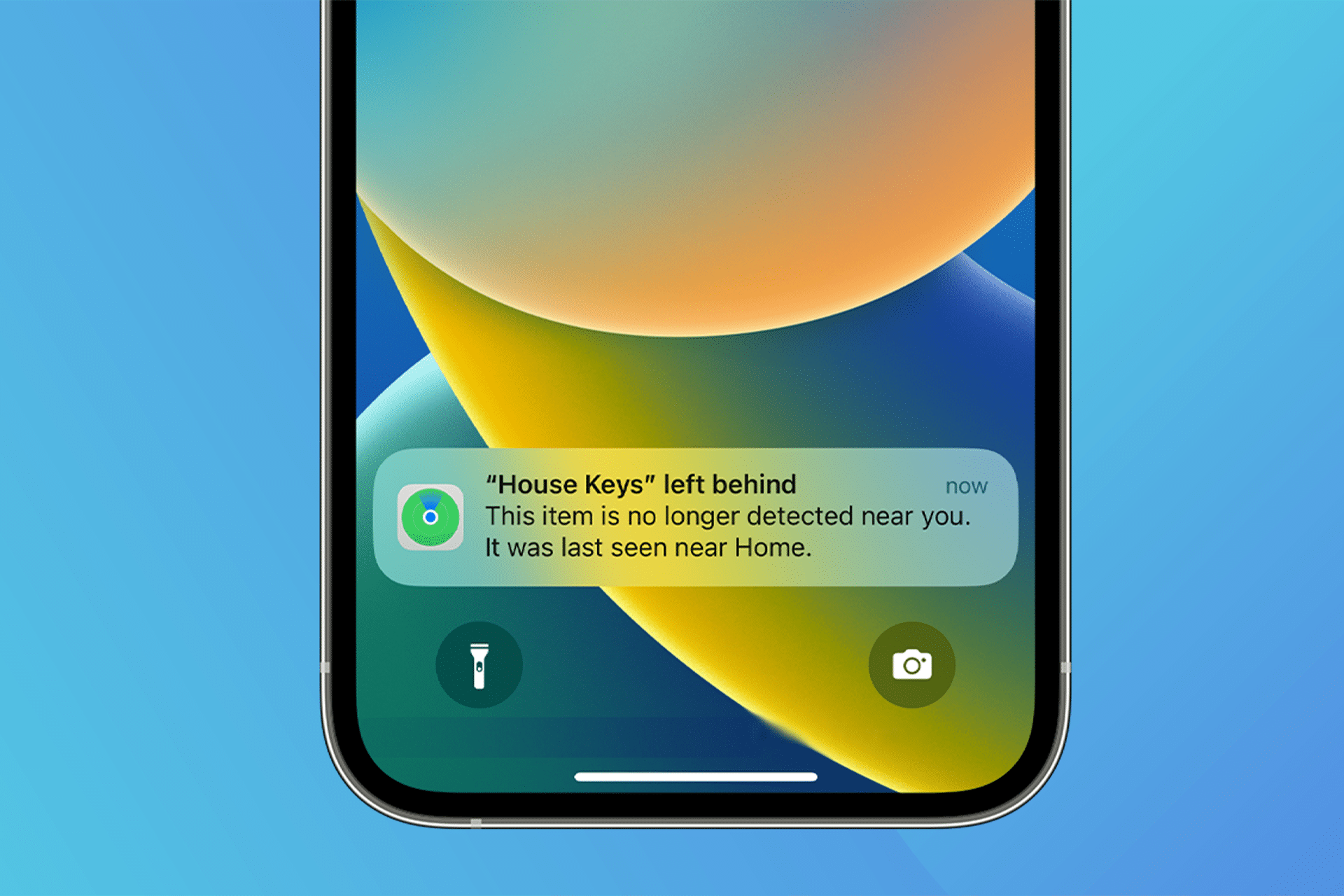
AirTags integrate directly into Find My, extending tracking to personal items like luggage, backpacks, keys, or wallets.
Find My app > Items > Add Item
Once paired, AirTags appear alongside your devices and benefit from the same global Find My network. Precision Finding uses Ultra Wideband technology on supported iPhones to guide you visually and audibly to nearby items.
Privacy and Security Built Into Find My
Apple designed Find My with privacy at its core. Location data is end-to-end encrypted, anonymous, and cannot be accessed by Apple or third parties. Devices participating in the Find My network do not know whose device they are helping locate.
Location sharing can be stopped instantly, and all permissions are controlled directly from your device.
Preparing Find My Before Travel
Find My becomes especially valuable when traveling. Before departure, confirm:
• All Find My toggles are enabled
• Devices appear correctly in the app
• AirTags are named and assigned properly
• Location sharing is configured if needed
This preparation ensures that if something goes wrong, recovery options are already in place.