


Notifications are designed to keep you informed, but across multiple Apple devices they can quickly multiply. A single message can light up an iPhone, vibrate an Apple Watch, and appear on a Mac simultaneously. Focus Mode was created to centralize that control.
Rather than turning off notifications entirely, Focus allows you to define when, how, and from whom alerts are allowed. The system syncs through iCloud, meaning one adjustment applies across all signed-in devices.
Understanding How Focus Mode Works
Focus Mode is an evolution of Do Not Disturb. Instead of silencing everything, it lets you create tailored profiles for different parts of your day.
To access Focus:
Settings > Focus
From there, you can select built-in options such as:
- Do Not Disturb
- Work
- Personal
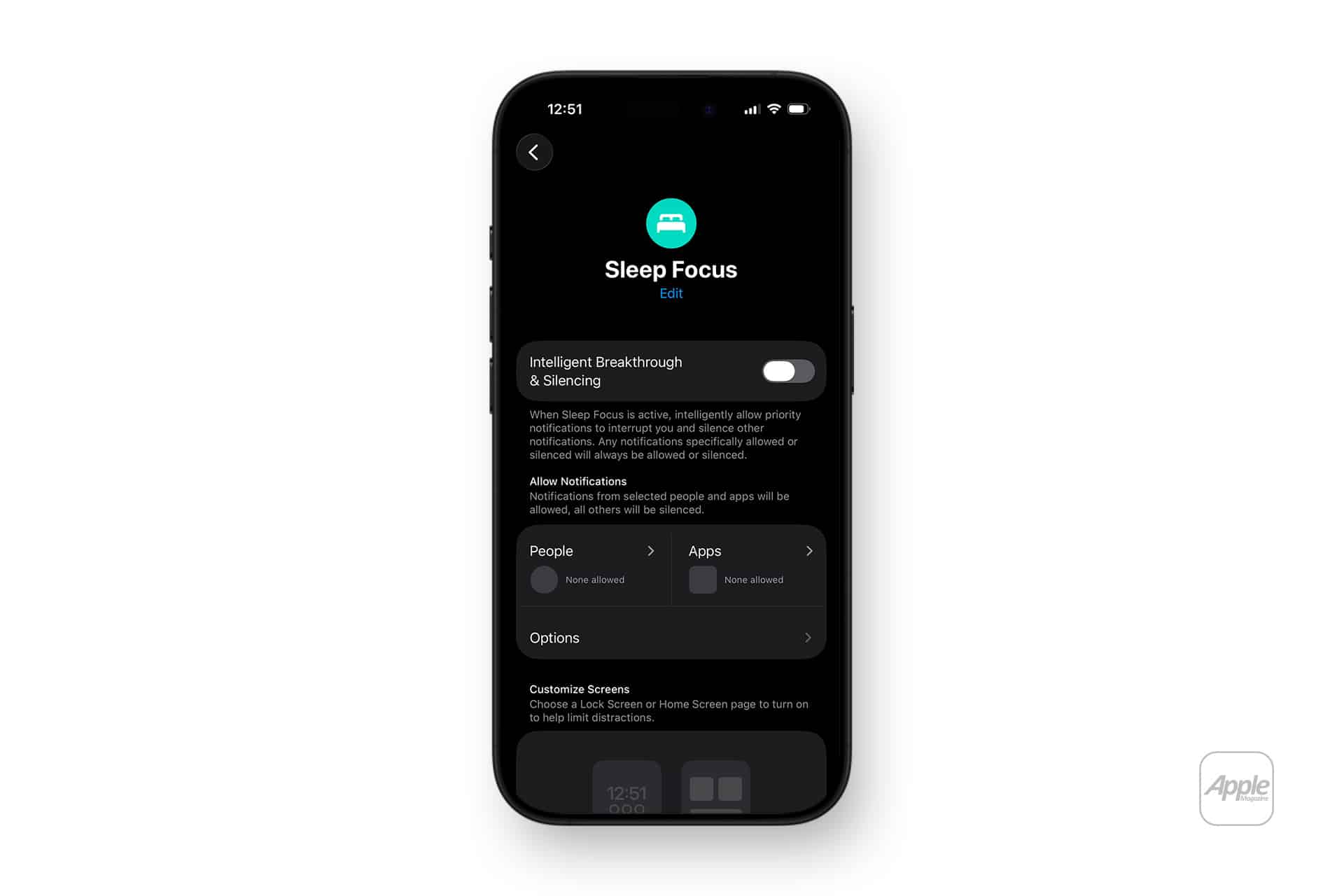
- Sleep
Or create a custom Focus profile.
Each Focus includes two core filters:
- Allowed People
- Allowed Apps
This means you can silence social media alerts during work hours while still allowing calls from specific contacts.
When enabled on one device, Focus automatically applies to all Apple devices signed into the same Apple ID — unless you disable cross-device sharing.
Settings > Focus > Share Across Devices
When toggled on, activation on iPhone immediately reflects on Mac and Apple Watch.


Customizing Allowed Notifications
Inside a Focus profile:
Settings > Focus > Select Focus > People
You can allow notifications from specific contacts. Others will be silenced.
Then:
Settings > Focus > Select Focus > Apps
Select which apps can break through the filter.
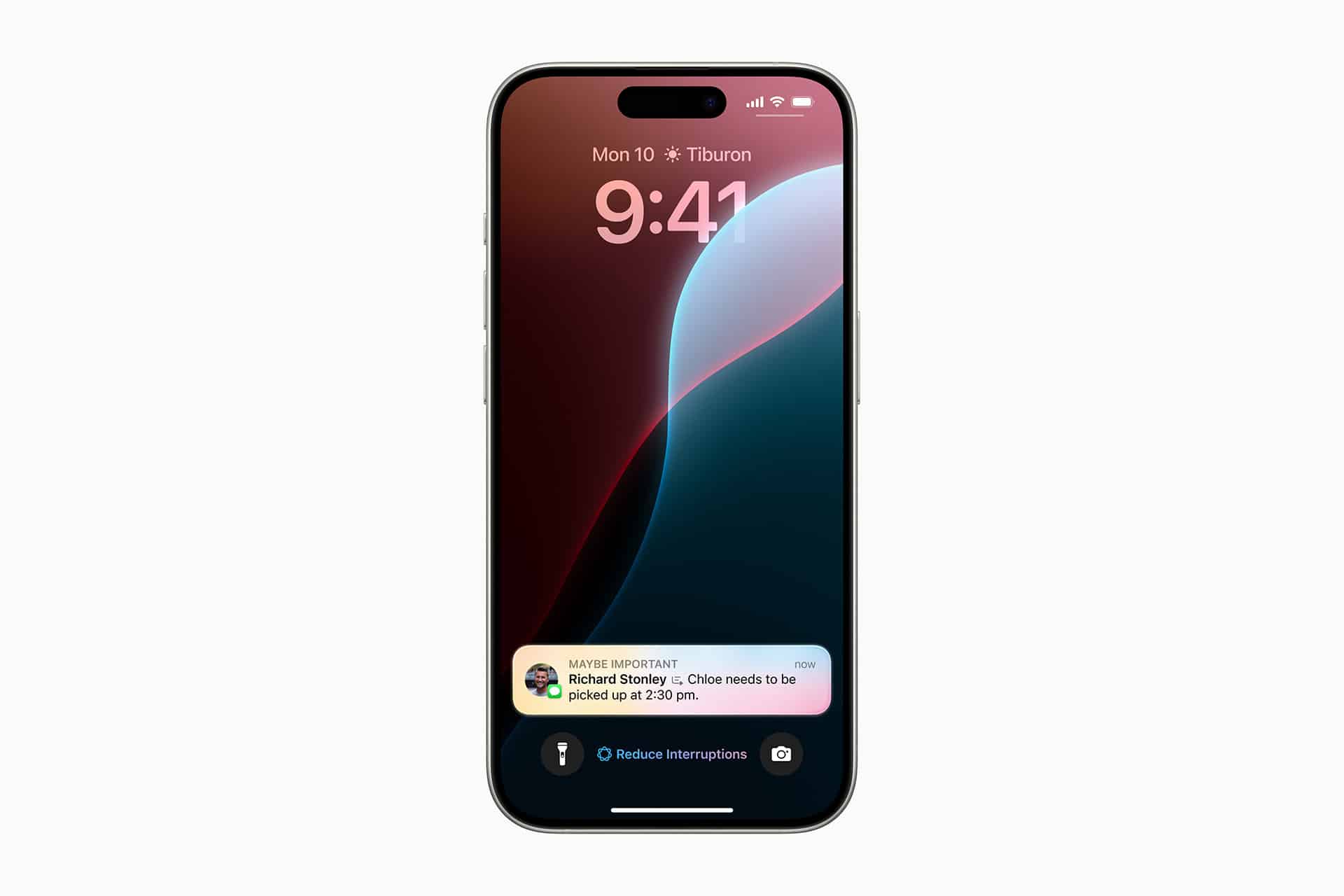
You can also allow time-sensitive notifications — such as delivery alerts or emergency warnings — even when most apps are blocked.
Focus Filters and App-Level Control
Recent updates expanded Focus capabilities with Filters. These adjust content inside apps, not just notifications.
For example:
- Filter Mail inboxes
- Restrict Calendar views
- Limit Safari Tab Groups
To configure:
Settings > Focus > Select Focus > Add Filter
Filters extend Focus beyond silence into contextual restriction. During Work Focus, personal email accounts can disappear from the Mail interface. During Personal Focus, work calendars can be hidden.
This ensures that even when you open an app, irrelevant content does not distract.
Automating Focus Activation
Focus can activate automatically based on time, location, or app usage.
To schedule:
Settings > Focus > Select Focus > Add Schedule
Options include:
- Time-based schedule
- Location-based activation
- App-based trigger
For instance, Work Focus can turn on automatically when arriving at the office location. Sleep Focus can activate at bedtime.
Apple Watch and Mac Integration
On Apple Watch, Focus mirrors iPhone settings automatically. When enabled, the watch face dims and notifications follow the same filters.
On Mac:
System Settings > Focus
You can customize behavior further, including dimming the Lock Screen or hiding notification badges. Because Focus syncs across devices, activating it on Mac during deep work hours prevents iPhone alerts from interrupting.
Reducing Notification Noise Without Losing Control
Focus Mode is not about complete disconnection. It’s about prioritization. Instead of receiving every notification immediately, you define which ones are relevant in each context.
For example:
- Work Focus: allow email and calls from colleagues
- Personal Focus: allow family and close contacts
- Sleep Focus: allow emergency calls only
The system creates layers rather than a single on/off switch.
Temporary Overrides and Status Sharing
When Focus is active, others see a “Notifications Silenced” indicator in Messages. They can still choose to notify you urgently if needed.
You can disable status sharing:
Settings > Focus > Focus Status
This keeps your Focus private if preferred.
Focus Mode Across the Apple Ecosystem
The real strength of Focus lies in ecosystem continuity.
A single toggle manages behavior across:
- iPhone
- iPad
- Mac
- Apple Watch
This unified structure prevents the need to configure each device separately.
As digital environments grow busier, Focus Mode offers structured control without fully disconnecting from communication. It transforms notification management from reactive to intentional, allowing each device to align with the context of your day rather than competing for attention.