


Ideas rarely stay contained inside a single device anymore. A rough sketch starts on an iPad during a meeting, a note is added from an iPhone while commuting, and later the structure takes shape on a Mac. Freeform board sharing turns that scattered process into a coordinated collaboration space where multiple people can build on the same canvas without version confusion or email attachments.
Freeform works as a flexible digital whiteboard, but the real strength appears when a board moves beyond a solo workspace. Sharing transforms it into a collaborative surface where images, handwritten notes, PDFs, shapes, links, and typed text coexist while syncing through iCloud in near real time.
When everyone involved sees updates as they happen, planning sessions, design drafts, research boards, and story outlines gain speed and clarity.
How Freeform Board Sharing Works
Freeform board sharing relies on iCloud synchronization. Once a board is shared, all invited participants access the same version of the canvas across iOS, iPadOS, and macOS. Edits appear dynamically, and contributors can move objects, add annotations, or insert files without duplicating the board.
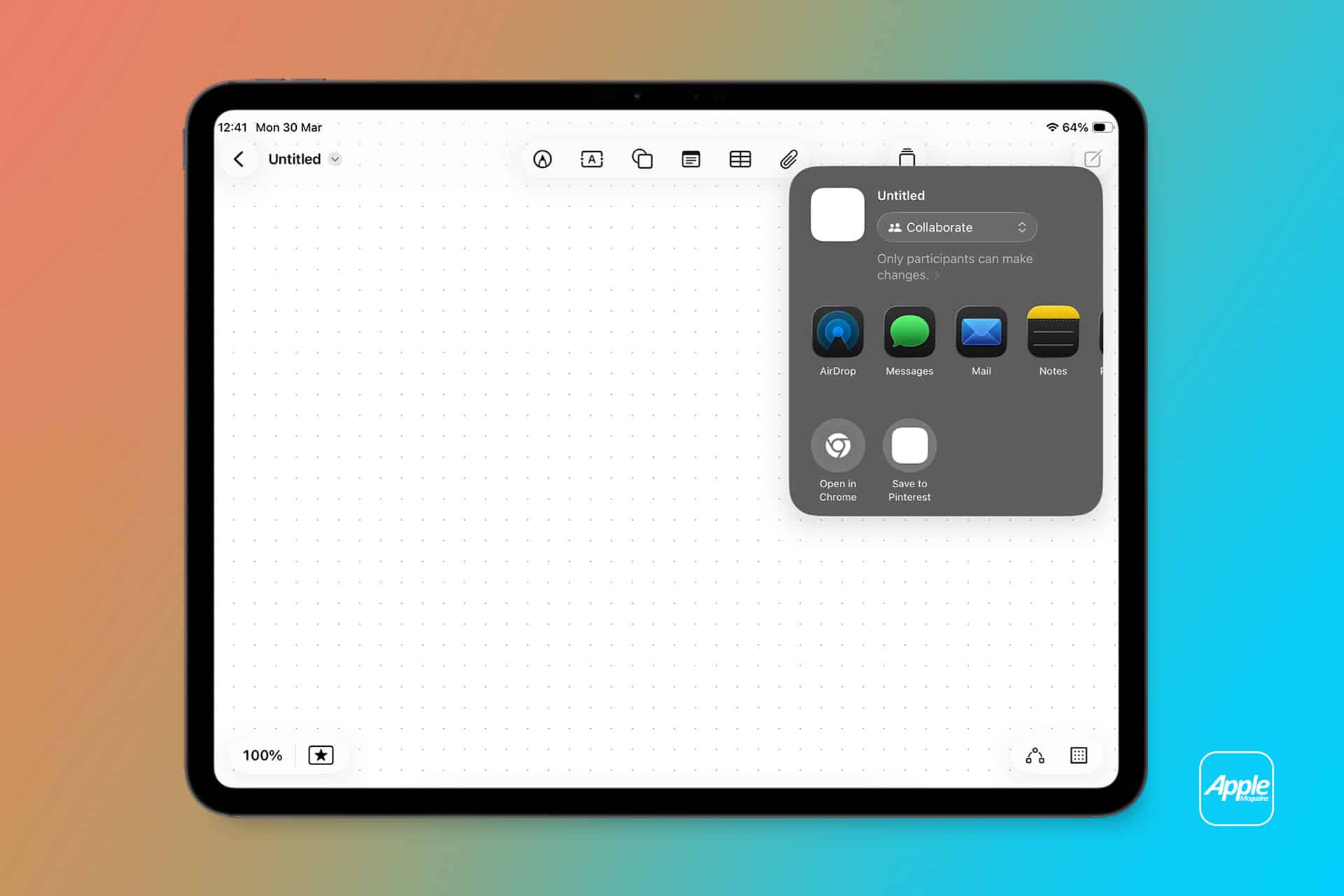
To share a board on iPhone or iPad:
Freeform > Open Board > Share Button (top right) > Choose Sharing Method
On Mac:
Freeform > Open Board > Share Button > Select Invite Option
Users can invite collaborators through Messages, Mail, AirDrop, or generate a shareable link. Before sending the invitation, permission settings can be adjusted to determine whether collaborators can make changes or only view the board.
This permission control becomes essential for structured projects. A brainstorming session may require full editing rights, while a presentation draft might allow broader viewing access without modification privileges.

Managing Access and Permissions
Freeform board sharing includes flexible control options. When preparing to share, users can define:
- Can Make Changes
- View Only
These access levels can be modified at any time. If a collaborator no longer needs access, permissions can be updated or revoked directly from the board’s sharing settings.
To manage access:
Freeform > Open Shared Board > Share > Manage Shared Board
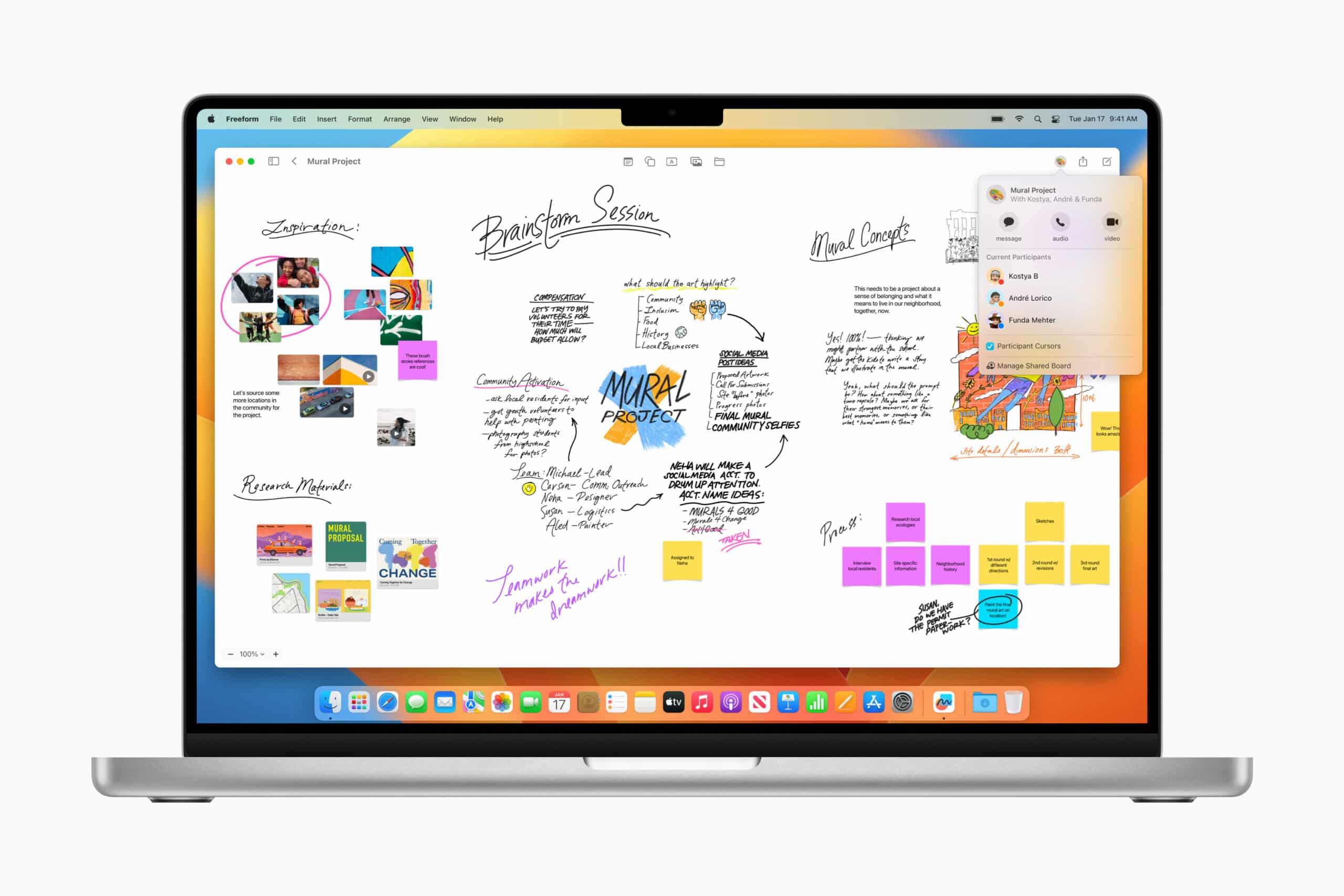
From there, users can add new collaborators, adjust permissions, or stop sharing entirely. Once sharing is disabled, external collaborators immediately lose access.
For teams working on sensitive material, controlling access ensures that brainstorming and drafts remain visible only to intended participants.
Real-Time Collaboration Across Devices
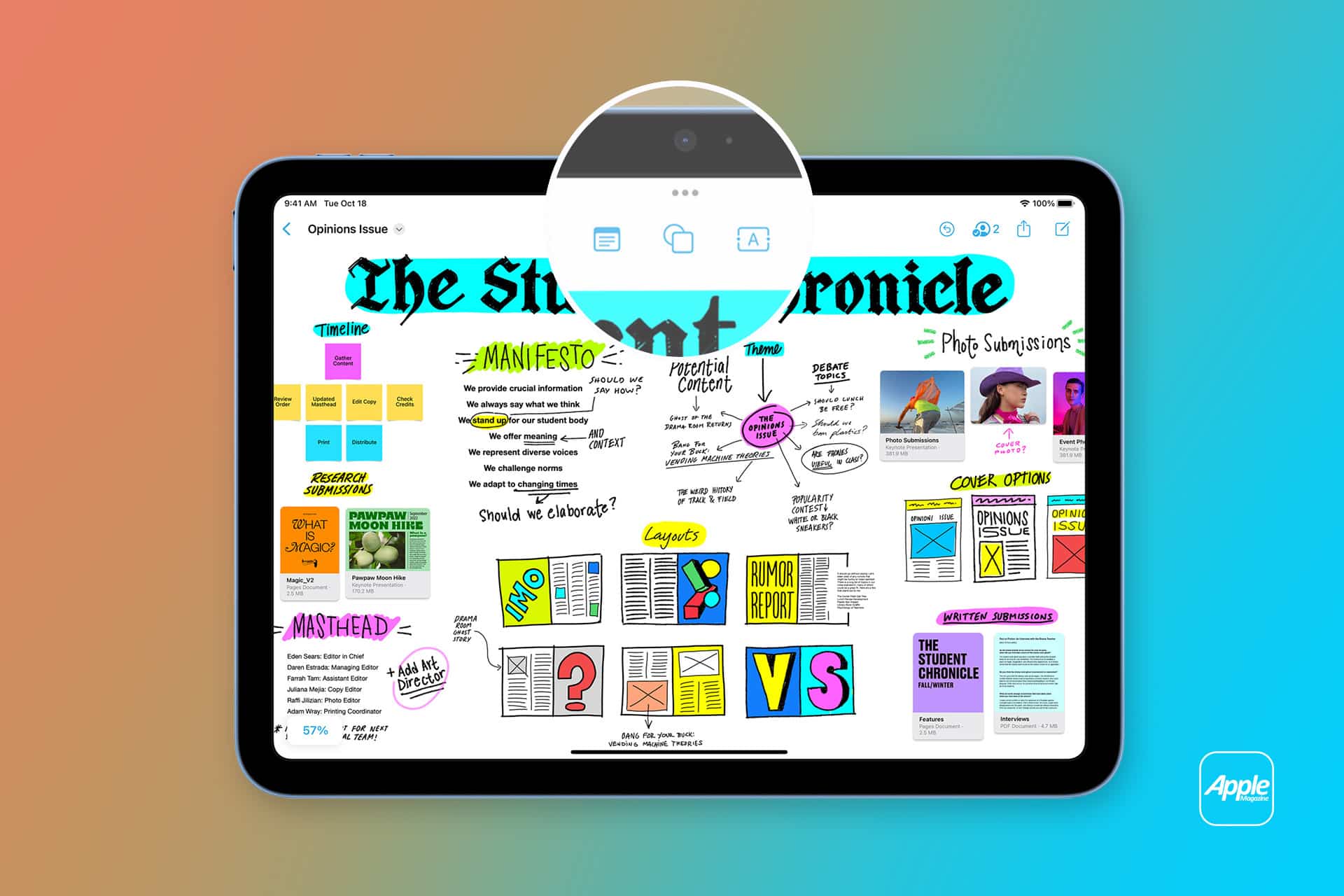
Freeform board sharing becomes particularly effective when collaborators use different devices. One person may draw diagrams with Apple Pencil on iPad, another may refine layout structure on Mac using a trackpad, while a third adds reference links from an iPhone.
Because the canvas expands freely without fixed page limits, projects are not restricted to traditional document boundaries. Boards can stretch horizontally or vertically, accommodating large concept maps or layered design workflows.
Notifications inside Messages or other apps help alert collaborators when updates occur, reducing the need for separate communication threads.
In educational settings, Freeform board sharing supports group projects where research material, diagrams, and notes live on a single evolving surface. In professional environments, it becomes a shared planning space for campaigns, interface drafts, product maps, or editorial planning.
Integration With the Apple Ecosystem
Freeform board sharing integrates with Files, Photos, Safari, and other system-level tools. Users can drag images directly from Photos, drop PDFs from Files, or paste web links from Safari into the board.
Because everything syncs through iCloud, collaborators see the same assets regardless of device. The experience remains consistent whether working from a MacBook at a desk or an iPad during travel.
This integration removes the friction typically associated with exporting, re-uploading, or manually merging changes from multiple contributors.
Security and Privacy Considerations
Shared Freeform boards operate under Apple’s standard iCloud security model. Access requires Apple ID authentication, and permission settings determine who can interact with the content.
Users should review link-sharing settings carefully. If sharing via link, they can limit access to invited participants only, preventing unintended distribution. When projects conclude, stopping sharing ensures that the board returns to a private workspace.
Keeping boards organized also matters when collaborating across multiple teams. Naming conventions and periodic cleanup help avoid confusion as shared boards accumulate.

Practical Collaboration Scenarios
Freeform board sharing fits a wide range of use cases:
- Brainstorming sessions with remote teams
- Visual mood boards for design projects
- Research organization for academic collaboration
- Event planning layouts with schedules and attachments
- Storyboarding video productions
Because objects can be grouped, layered, and repositioned, teams can refine structure over time without recreating content.
Unlike static documents, Freeform boards encourage spatial thinking. Contributors can cluster ideas, map relationships, and iterate visually in a shared environment.