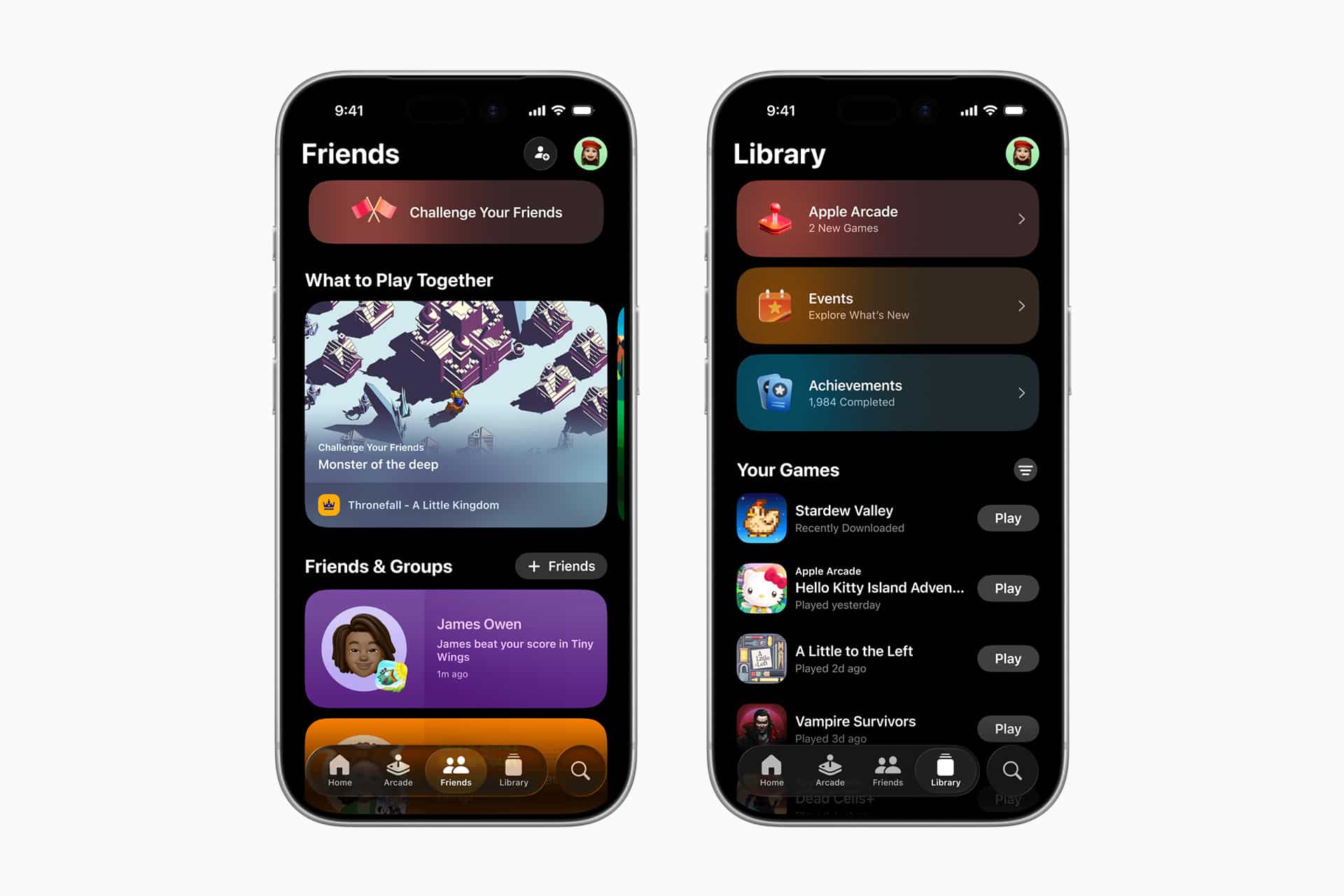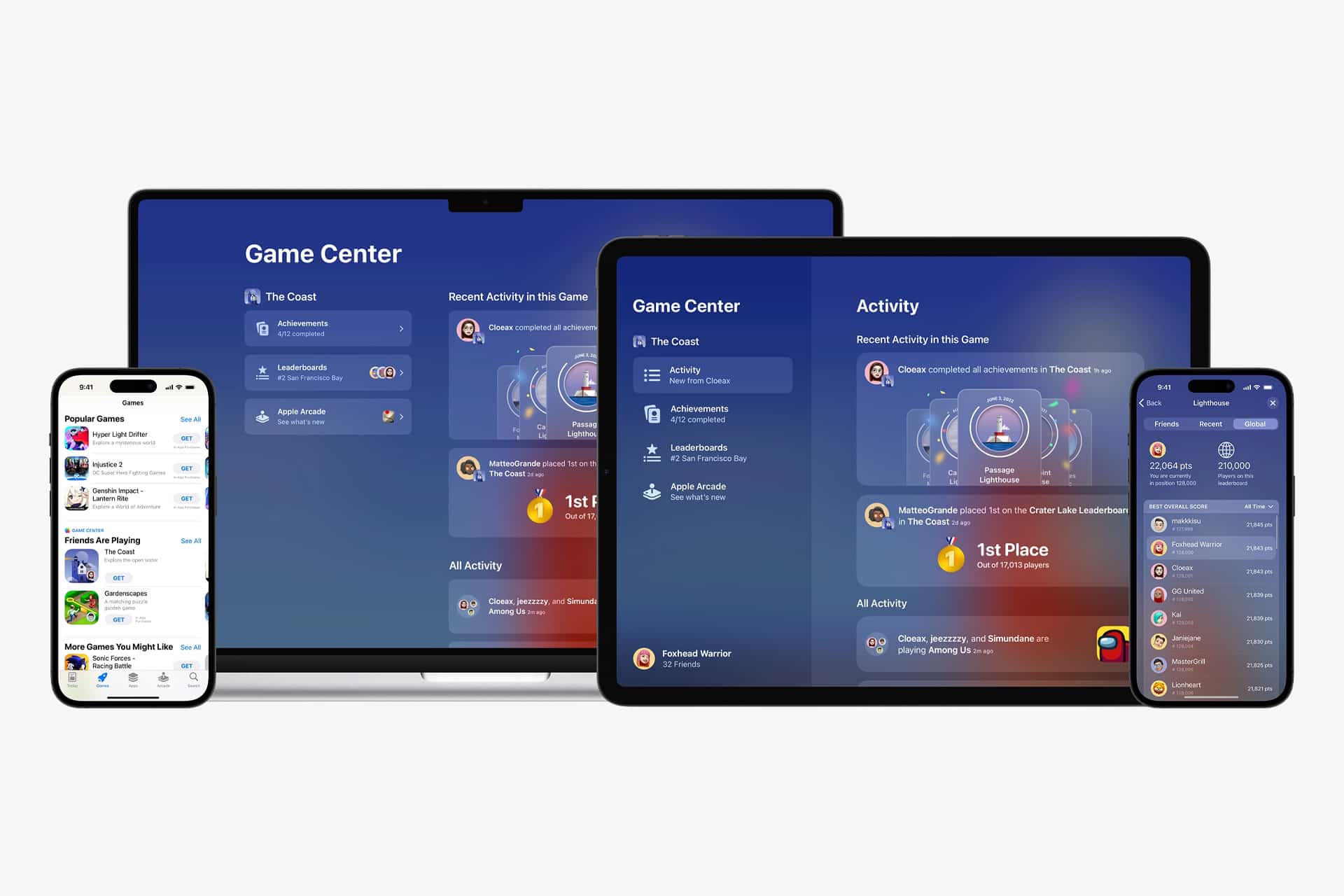
Game Center friend invites have become a more useful part of Apple’s gaming experience now that Apple has given the system a clearer home inside the Apple Games app. For years, Game Center lived mostly in the background, appearing through achievements, leaderboards, and occasional multiplayer prompts inside supported games. The experience worked, but it often felt scattered. Adding friends, discovering contacts, accepting requests, and starting play sessions was not always obvious.
The Apple Games app makes that social layer easier to understand. Instead of treating Game Center as something hidden inside settings or individual games, Apple now gives players a place to view friends, send invites, track activity, and move into multiplayer more naturally. That matters because modern casual gaming is often social first. A game becomes more fun when the people already in your contacts can join quickly, challenge your score, or start a shared session without a confusing setup process.
Game Center is also more personal than a public gaming network. It connects through an Apple Account, uses Messages for invitations, and can discover people from Contacts when the right permissions are enabled. That gives it a different rhythm from platforms built around usernames alone. It is designed for friends, family members, classmates, coworkers, and people already close enough to be part of the same Apple environment.
Set Up Game Center Before Sending Invites
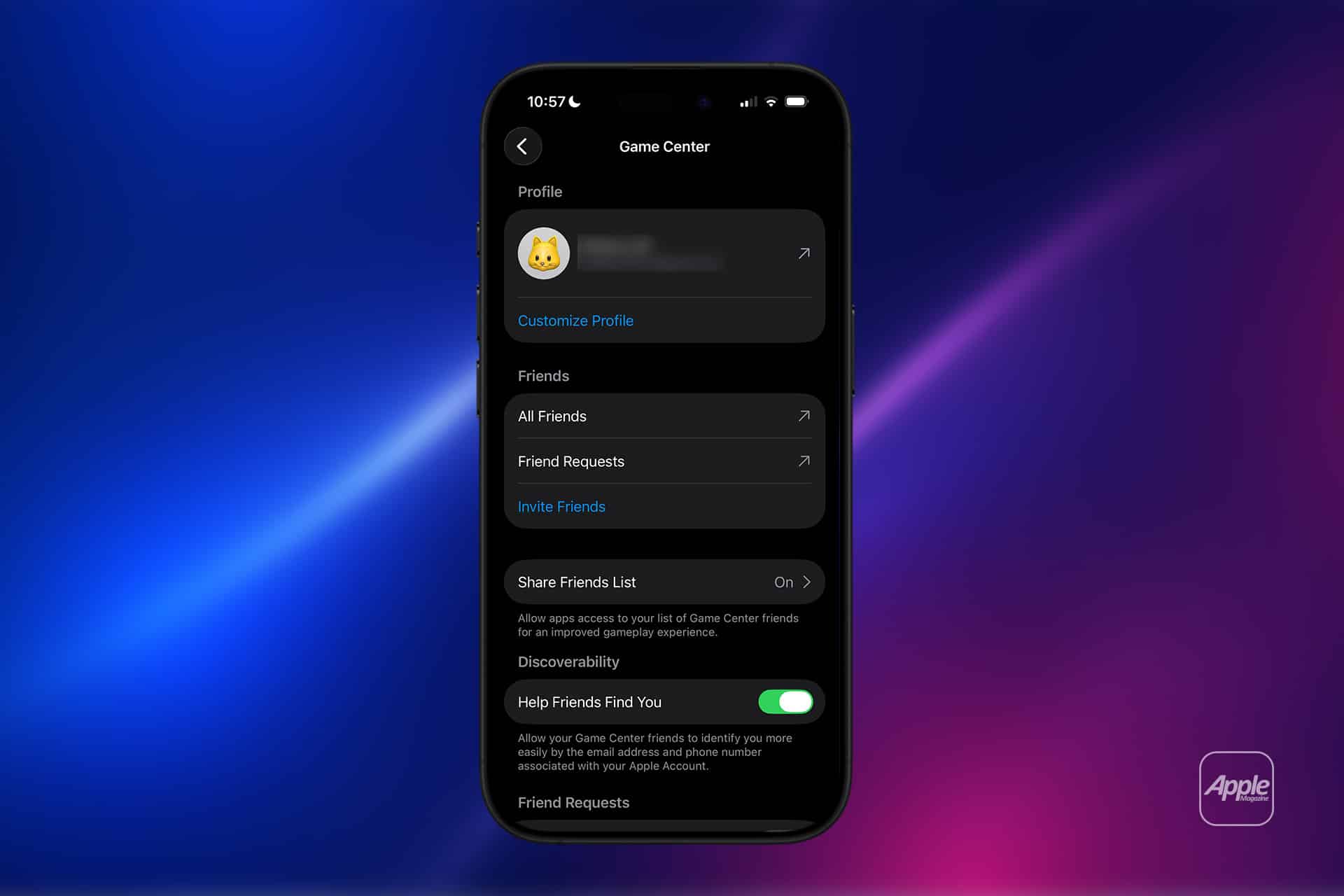
Before Game Center friend invites work smoothly, the profile needs to be ready. This includes confirming the Game Center account, choosing a nickname, and making sure the profile is visible in the way you prefer. A clean profile helps friends recognize the invite and makes multiplayer discovery less awkward, especially when someone has a nickname that does not match their real name.
To check your Game Center profile on iPhone or iPad:
Settings > Game Center > Profile
To customize your Game Center nickname on iPhone or iPad:
Settings > Game Center > Nickname
On Mac, Game Center settings live inside System Settings, while friend management is also available through the Apple Games app. This is useful for players who use Apple Arcade or Mac games and want the same friend list to follow across devices.
To check Game Center settings on Mac:
System Settings > Game Center
A useful habit is to choose a nickname that friends can recognize easily. It does not need to be formal, but it should not be so random that invitations look suspicious. When Game Center uses Messages to send a request, the invitation already has a personal layer. A recognizable profile makes accepting it easier.

Invite Friends From the Apple Games App
The easiest way to send Game Center friend invites is through the Apple Games app. Apple’s current support guidance points users to the Friends section, where they can search for a contact, send an invitation, and let Messages deliver the request. This makes the process feel close to how people already communicate instead of forcing them into a separate gaming account system.
To invite a friend on iPhone or iPad:
Apple Games > Friends > Invite > Search Contact > Invite > Send
To invite a friend on Mac:
Apple Games > Friends > Invite Friends > Search Contact > Invite > Send
The invitation is sent through Messages, which gives the recipient a familiar place to respond. That is one of the strongest parts of Apple’s approach. A friend request does not arrive as a strange notification from an unknown gaming service. It arrives inside a conversation format people already use.
You can also add a Game Center friend from Contacts on iPhone. This is helpful when you already have someone’s contact card open and want to connect without switching apps first.
To invite from a contact card:
Contacts > Select Contact > Add Friend on Game Center
This method is especially useful for families or small friend groups setting up multiplayer sessions together. Instead of searching through nicknames, you can start from the person you already know.
Discover Contacts and Control Friend Visibility
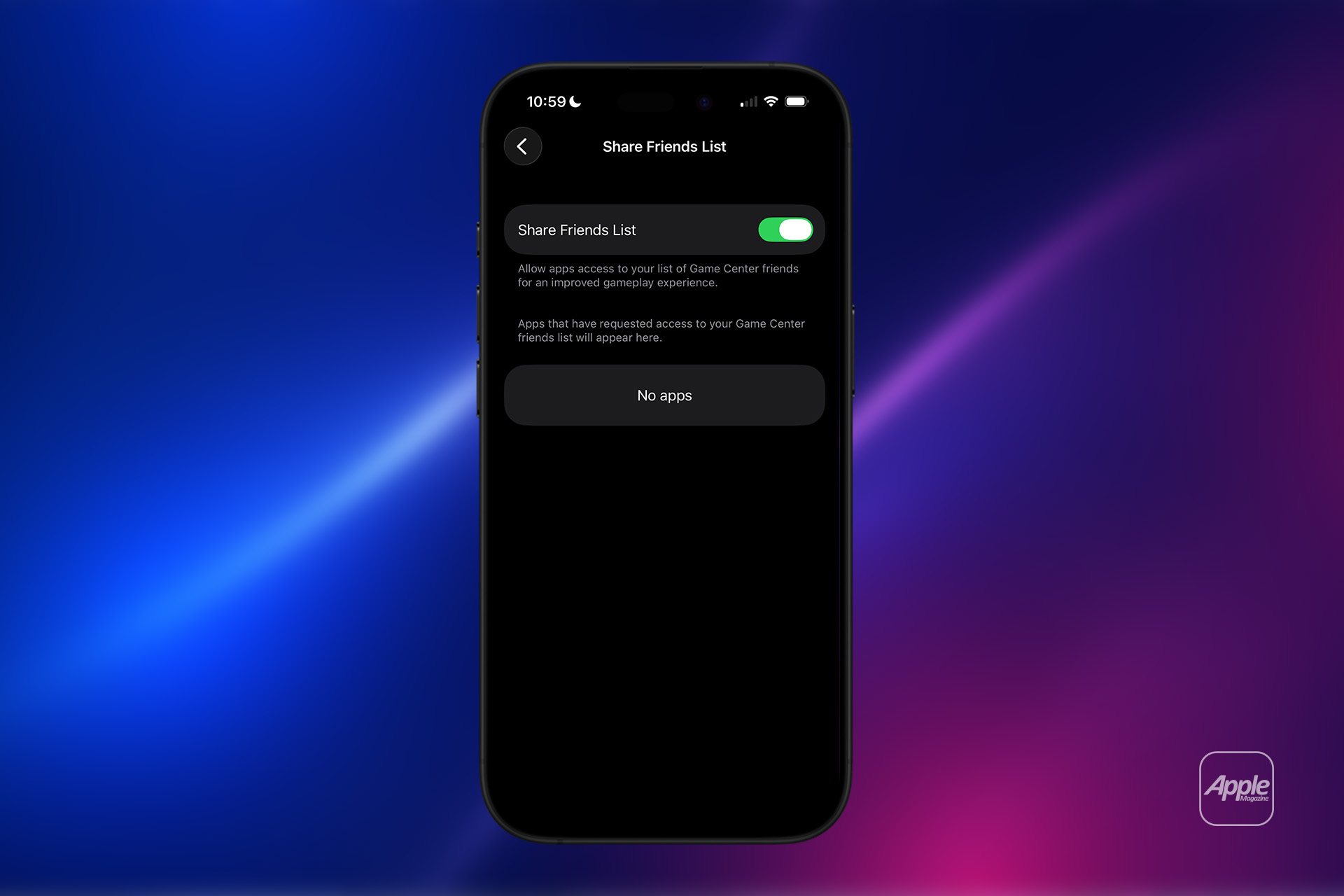
Game Center friend invites work best when discovery is balanced with privacy. Apple gives users controls for whether games can access the Game Center friends list and whether friends can identify you more easily through account information. These settings help avoid the feeling that every game has too much social access while still keeping multiplayer convenient.
To manage Game Center friend discovery on iPhone or iPad:
Settings > Game Center > Friends
To manage nearby multiplayer invitations on iPhone or iPad:
Settings > Game Center > Nearby Players
Nearby Players allows people in the same game and nearby over Wi-Fi or Bluetooth to send multiplayer invitations. This can be useful at home, school, events, or local gaming sessions, but not everyone will want it enabled all the time. If you prefer a more controlled experience, keeping nearby invites off can reduce unexpected requests.
On Mac, Game Center settings include options for friend requests, sharing the friends list, and helping friends identify you. These controls are worth reviewing if you play across multiple devices.
To manage Game Center friend settings on Mac:
System Settings > Game Center > Friend Requests
To manage whether apps can access your Game Center friends list on Mac:
System Settings > Game Center > Share Friends List
The best setup depends on how social you want gaming to be. Players who mostly enjoy solo games may want tighter settings. Players who often join Apple Arcade multiplayer titles may prefer easier discovery and faster invites.
Start Multiplayer Sessions More Smoothly
Once friends are connected, Game Center can make multiplayer easier inside supported games. The exact flow depends on the game, but many titles allow players to add friends, challenge them, or start a session through Game Center. Apple’s support guidance for the Apple Games app describes adding players by searching for a contact or a friend’s Game Center nickname, then starting the challenge or session.
To start a multiplayer challenge in a supported game on iPhone or iPad:
Apple Games > Choose Game > Challenges > Add Players > Search Friend > Continue > Start
To start a multiplayer challenge in a supported game on Mac:
Apple Games > Choose Game > Challenges > Add Players > Search Friend > Continue > Start
Some games also support SharePlay, which can make multiplayer feel more natural during FaceTime calls. When a game supports it, friends can be on a FaceTime call and move into gameplay together without turning the session into a separate setup task. This works best for small groups who already use FaceTime socially and want gaming to sit inside the same moment.
To prepare for smoother multiplayer sessions, keep everyone signed into Game Center, confirm the game is updated, and make sure the same game version is installed across devices. For family gaming, Apple Arcade can simplify access because many games are available without separate in-app purchases or ads, though multiplayer support still depends on the individual title.
Game Center Matchmaking
The simplest tip is to send invites from the Apple Games app when possible. It keeps the experience clean, uses Messages, and reduces confusion. For people who do not check Game Center often, a Messages-based invite is easier to notice.
It also helps to build the friend list before game night. Waiting until everyone is ready to play can turn setup into the slowest part of the session. Sending Game Center friend invites earlier gives people time to accept, update games, and confirm their profiles.
Families should also review privacy and parental controls before relying on multiplayer. Younger players may have limits through Screen Time, Family Sharing, or communication settings. If a child cannot accept a friend request or join a session, the issue may not be the game itself. It may be the account settings around communication or multiplayer access.
Game Center friend invites work best when they stay simple: recognizable profile, clean friend list, updated games, and the right discovery settings. Once that foundation is ready, multiplayer across iPhone, iPad, and Mac becomes much smoother, especially in Apple Arcade titles and games designed around Game Center matchmaking.