Genmoji Creator is Apple’s new way of rethinking emojis. Instead of choosing from a fixed library, you can describe what you want and let Apple Intelligence create a custom emoji that feels personal, playful, and context-aware.
Built directly into the system, Genmoji Creator works across iPhone, iPad, and Mac, and integrates naturally with Messages and other apps where emojis are already part of daily conversations.
What Is Genmoji Creator
Genmoji Creator is an Apple Intelligence feature that uses generative AI to create emojis from text prompts. You type a short description, and the system generates one or more emoji-style images that match your request.
These Genmoji are designed to feel native to Apple’s emoji language, maintaining consistency in style, scale, and expression. They’re not static stickers pulled from the web, but system-level emojis you can reuse.
Genmoji can reflect moods, activities, objects, or even personalized variations that don’t exist in the standard emoji set.


How to Access Genmoji Creator
Genmoji Creator lives inside the emoji keyboard, so there’s no separate app to open.
Workflow
Open Messages > Tap the text field > Open the emoji keyboard > Select Genmoji
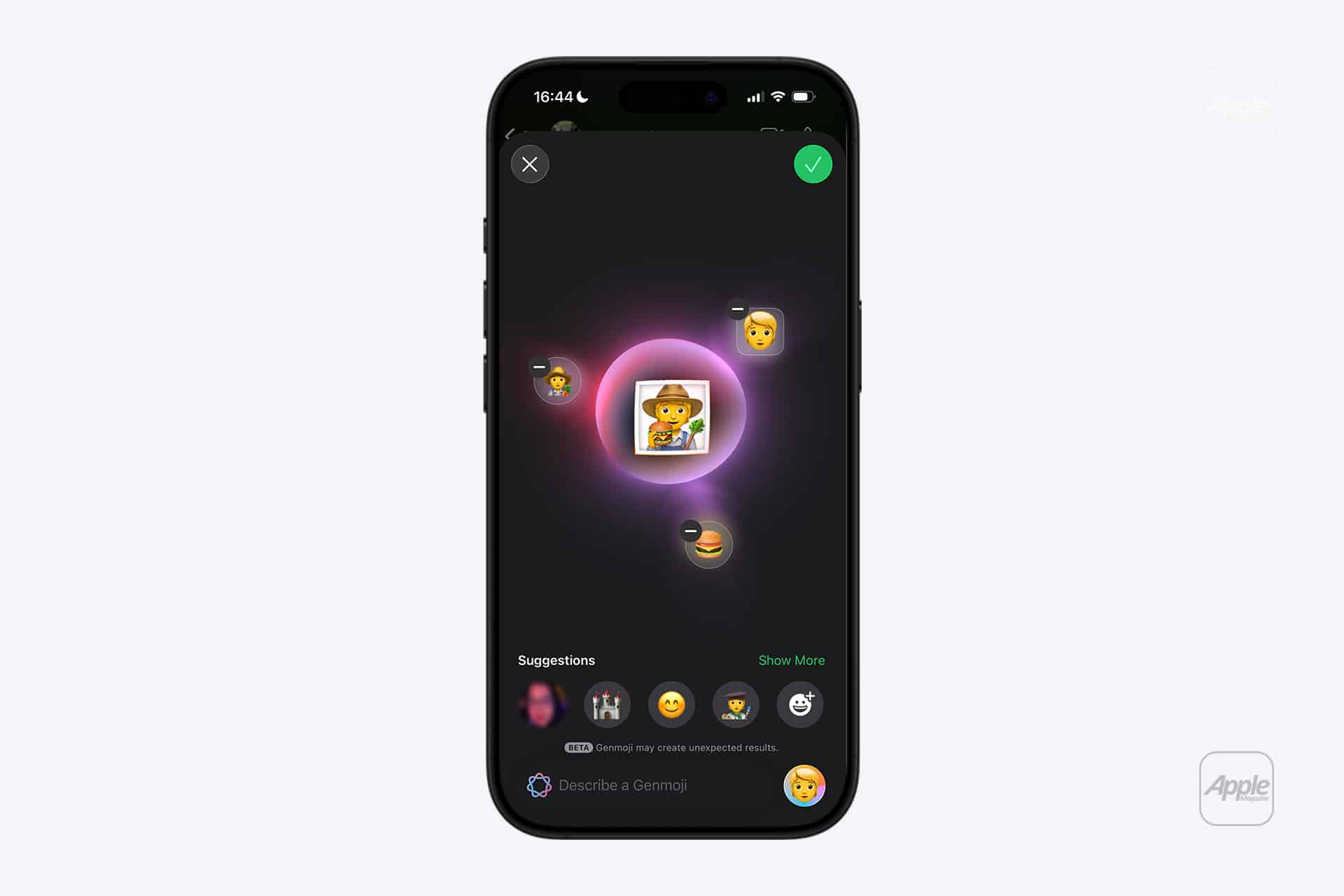
From there, you’ll see a prompt field where you can describe the emoji you want to create.
How to Create a Genmoji
Creating a Genmoji starts with a simple description. The clearer the prompt, the better the result.
Workflow
Emoji keyboard > Genmoji > Describe your emoji > Generate
For example, you might type something like “sleepy cat with coffee” or “smiling avocado wearing sunglasses.” Apple Intelligence processes the request and presents generated options.
You can regenerate variations or refine the description until it feels right.
Using Genmoji in Messages and Apps
Once created, Genmoji behave like emojis. You can insert them directly into Messages, reactions, and supported apps.
Workflow
Create Genmoji > Tap to insert > Send or react
Genmoji are saved to your recent emojis, making them easy to reuse without recreating them each time.
Because they’re system-level, Genmoji scale cleanly and blend naturally with text, unlike large stickers that interrupt message flow.
Tips for Better Genmoji Results
Simple descriptions tend to work best. Focus on the main subject and emotion rather than long sentences.
You can experiment with:
- Emotions like happy, tired, excited
- Actions like running, eating, relaxing
- Objects with personality
- Seasonal or situational themes
If a result isn’t what you expected, adjusting one word in the prompt often leads to a noticeably different outcome.

Privacy and Apple Intelligence
Genmoji Creator is part of Apple Intelligence, which prioritizes on-device processing whenever possible. Emoji generation is designed to respect user privacy, without building personal profiles for advertising or sharing data externally.
This approach keeps Genmoji playful and expressive without turning them into another data signal.
Why Genmoji Changes Everyday Messaging
Genmoji Creator makes emojis feel personal again. Instead of scrolling endlessly for something close enough, you create exactly what you mean in the moment.
Over time, Genmoji can become part of your personal language, reflecting inside jokes, moods, and situations that standard emojis never covered.
It’s a small feature with a surprisingly human effect, making digital conversations feel lighter, warmer, and more expressive.