


iOS includes a broad set of accessibility options designed for vision, hearing, touch and cognitive support, yet many of these tools are used by only a small portion of iPhone owners. Most features sit several layers deep inside the Settings app, making them easy to miss unless someone is actively exploring the menus or receives guidance from support teams. As iPhone screens grow brighter and multitasking habits increase, interest in these lesser-known options has grown, especially among users who want a more comfortable or simplified experience.
Vision and Display Tools Hidden in iOS
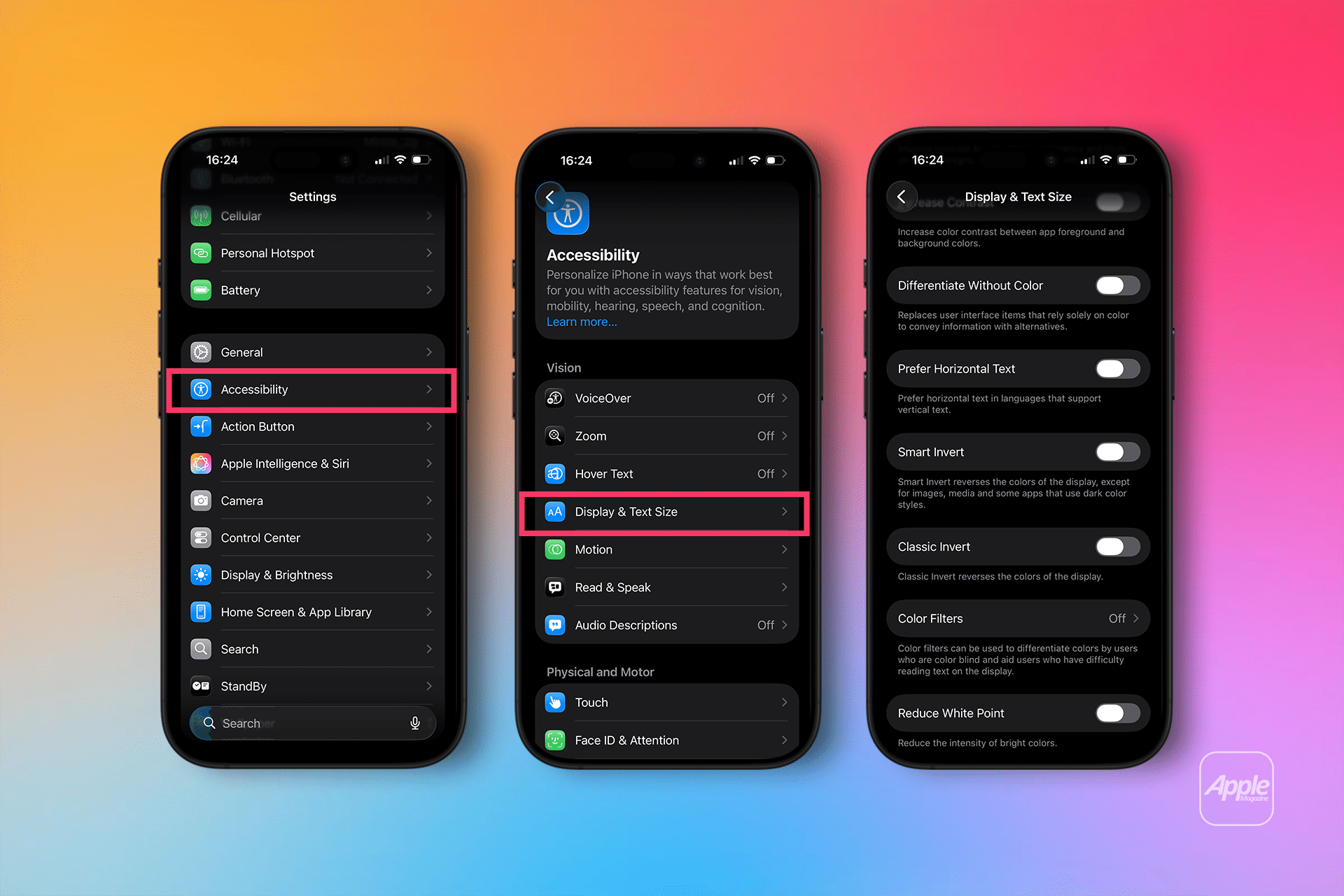
Several of the most practical adjustments for visibility are grouped inside Display & Text Size, allowing users to soften bright colors, adjust contrast or control animation intensity.
Smart Invert is often used by people who prefer darker interfaces without switching the entire system to Dark Mode.
Settings > Accessibility > Display & Text Size > Smart Invert
Color Filters provide visual support for users with color sensitivity or low-contrast environments, offering preset options that adjust the screen’s balance.
Settings > Accessibility > Display & Text Size > Color Filters
Reduce White Point lowers screen intensity for users who experience discomfort from bright or saturated tones, especially in low-light conditions.
Settings > Accessibility > Display & Text Size > Reduce White Point
These tools help users personalize the screen to reduce strain during reading, browsing or extended viewing sessions.
Hearing and Audio Features Hidden in Sound Settings
iOS includes multiple audio tools designed for quieter environments, clarity improvement and background support.
Headphone Accommodations adjust audio output profiles based on personal preference or hearing needs, available for both calls and media.
Settings > Accessibility > Audio & Visual > Headphone Accommodations
Background Sounds play steady ambient audio—such as balanced noise, ocean or rain—to help users concentrate or mask distracting environments.
Settings > Accessibility > Audio & Visual > Background Sounds
Mono Audio shifts stereo channels into a single balanced stream for users who prefer or require equal output from both ears.
Settings > Accessibility > Audio & Visual > Mono Audio
These audio options support personalized listening without requiring third-party apps.

Touch, Gesture, and Interaction Tools
Several touch-related features help users control gesture sensitivity, stabilize interactions or simplify navigation.
Touch Accommodations allow users to set hold duration, ignore repeated taps or adjust how quickly iOS recognizes touch input.
Settings > Accessibility > Touch > Touch Accommodations
AssistiveTouch provides an on-screen control that replaces gestures or hardware button combinations with customizable shortcuts.
Settings > Accessibility > Touch > AssistiveTouch
Back Tap assigns actions to double- or triple-tapping the rear of the device, enabling shortcuts for screenshots, flashlight, Zoom or accessibility tools.
Settings > Accessibility > Touch > Back Tap
These interaction tools offer alternatives for users who prefer more stable or predictable input methods.

Cognitive and Focus Tools Hidden in iOS
Cognitive-support features help users stay focused, reduce distractions or limit device complexity in active sessions.
Guided Access locks the device to a single app, disabling gestures, buttons or specific controls to create a simplified mode.
Settings > Accessibility > Guided Access
Reduce Motion lowers system animations and interface transitions for users who experience motion sensitivity or prefer static visuals.
Settings > Accessibility > Motion > Reduce Motion
Live Speech allows users to type phrases that iPhone reads aloud during calls or in-person conversations.
Settings > Accessibility > Live Speech
These tools support more controlled interactions and help reduce interruptions.

Many accessibility features can be toggled instantly with the shortcut menu, which consolidates them under a single gesture.
Accessibility Shortcut allows users to select which features appear when the side button is pressed three times.
Settings > Accessibility > Accessibility Shortcut
Users often pair this with tools like Magnifier, AssistiveTouch, or Color Filters for faster access during reading, navigation or daily use.
As users explore deeper iOS menus, interest in lesser-known accessibility features continues to grow. These tools offer meaningful improvements to comfort, visibility and navigation, giving iPhone owners the flexibility to tailor the device experience to their own needs.

