

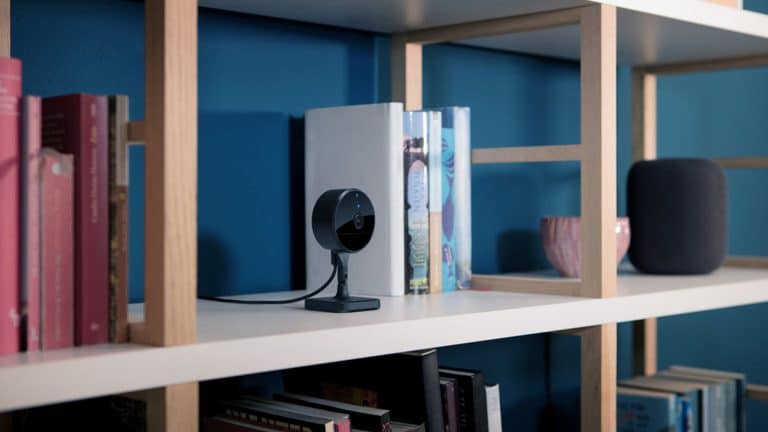
Home Activity Zones are one of the most useful settings for anyone using HomeKit Secure Video cameras because they make motion alerts more specific. A camera pointed at a porch, driveway, yard, hallway, garage, side gate, or front door may see far more movement than the user actually needs to know about. Cars pass by, trees move, pets cross the frame, neighbors walk past, shadows shift, and lights change. Without zones, every camera can become a constant notification source.
Activity Zones solve that by letting users define the part of the camera view that should count for detection. Instead of asking the camera to treat the entire frame equally, the Home app can focus on the area that matters most. A front-door camera can watch the porch and ignore the street. A driveway camera can focus on the car and ignore the sidewalk. A backyard camera can watch the gate and ignore tree branches. A garage camera can focus on the entry area instead of the whole room.
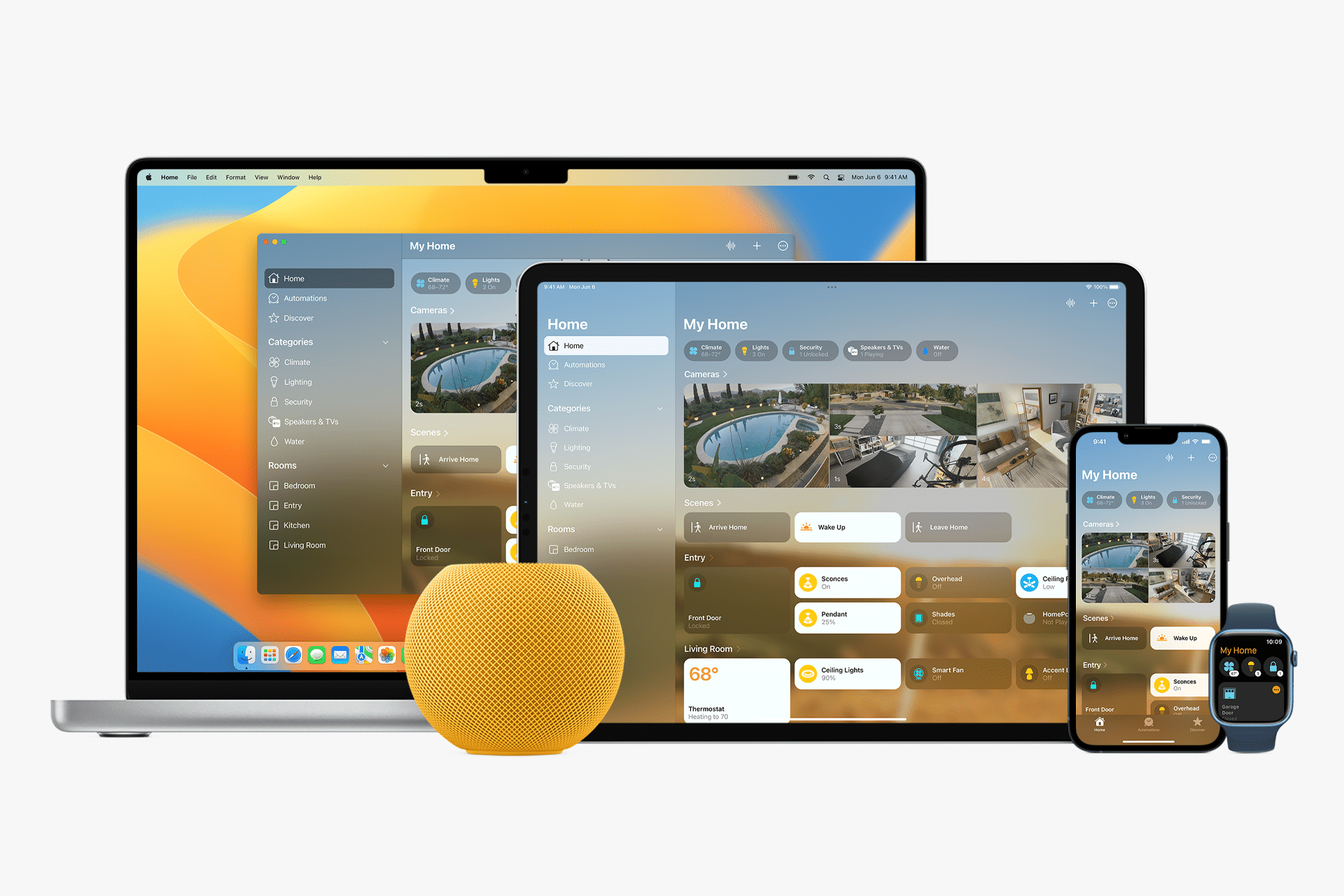
Apple’s Home app supports Activity Zones for HomeKit Secure Video cameras. Users open the camera tile, go to settings, choose Select Activity Zones, and tap the video view to create a zone. Apple also includes an Invert Zone option, which tells the camera to detect motion only outside the defined area. Multiple zones can be created inside one camera view, allowing users to separate a driveway, mailbox, gate, or entryway.
The value is not only fewer alerts. Better zones make camera notifications more useful. A security camera should not train users to ignore it. If too many alerts are caused by irrelevant movement, important events become easier to miss. Activity Zones help the Home app become more focused, less noisy, and better suited to everyday home monitoring.

Activity Zones Reduce Notification Fatigue
Home Activity Zones are most useful when a camera sees both private and public movement. A doorbell may capture the front porch, but also the street. A driveway camera may see the car, but also pedestrians. A side-yard camera may see the gate, but also a tree that moves every afternoon. A porch camera may see package deliveries, but also shadows from passing vehicles.
The problem is not that the camera sees too much. The problem is that the user receives too many notifications that do not require action. Over time, those alerts become background noise. A person who receives ten irrelevant notifications a day may be slower to respond to the one that matters.
Activity Zones give the user a way to make alerts more intentional. The camera can still cover a wide view, but alerts can focus on the area where motion is meaningful. That creates a better balance between visibility and attention.
To create an Activity Zone on iPhone:
Home > Camera Tile > Settings Button > Select Activity Zones > Tap Video to Create Zone > Done
To create one on Mac:
Home > Camera or Doorbell Tile > Options Button > Select Activity Zones > Click to Add Corners > Done
Apple’s setup examples include zones for a driveway or mailbox, which is exactly how the feature should be used. The user should think in terms of places where something important happens: door, gate, car, porch, package area, stairway, hallway, pool gate, garage entry, or side path.
The goal is not to draw a beautiful shape. The goal is to make the camera pay attention to the right part of the frame.
HomeKit Secure Video Adds Context
Home Activity Zones work best with HomeKit Secure Video because Apple’s camera system is built around event-based recording and privacy. With compatible cameras and an iCloud+ plan, HomeKit Secure Video can record clips when activity is detected, store video securely in iCloud, and support intelligent detection for people, animals, vehicles, and packages depending on camera placement and settings.
Activity Zones refine that system. They help decide where motion should matter before the Home app creates alerts or clips. That can be especially useful for outdoor cameras, where the environment changes constantly.
HomeKit Secure Video also has limits. It does not provide continuous 24/7 recording in the same way some dedicated security systems do. It records based on detected activity and selected settings. That makes zone setup more important because the camera should be aimed and configured around the events the user cares about.
Users should also remember that Activity Zones are not the same as full professional security monitoring. They help reduce false or irrelevant events, but they do not guarantee that every important motion event will be captured. Camera angle, Wi-Fi strength, lighting, distance, reflections, camera quality, and hub reliability all affect the result.
The best setup combines good camera placement with well-drawn zones and sensible notification settings.
Use Zones With Specific Alerts
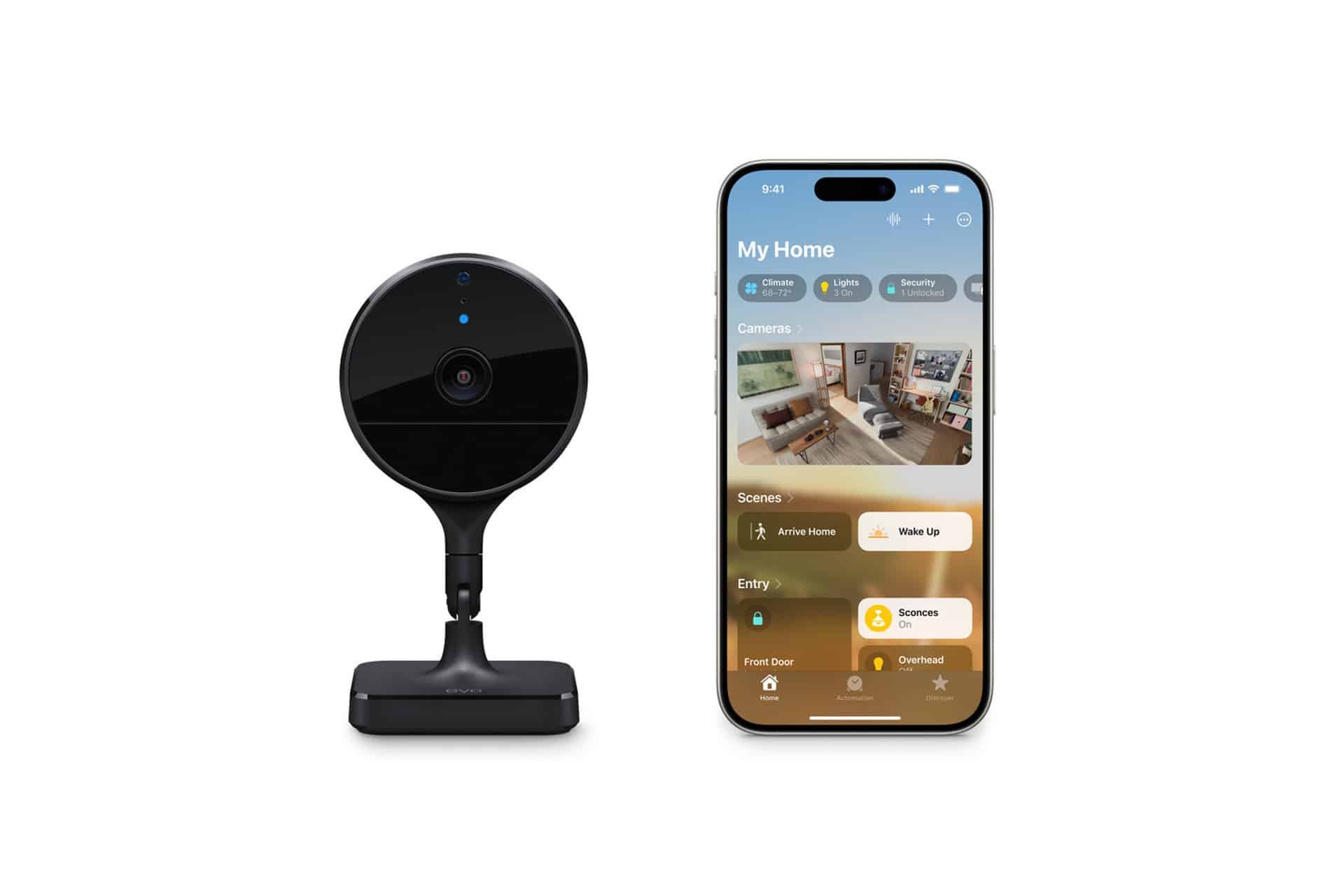
Home Activity Zones should be paired with notification controls. A camera that watches a front door may not need to alert for every motion event. It may only need to alert when a person, vehicle, animal, or package is detected, depending on what the camera supports and how the area is used.
To adjust camera notifications:
Home > Camera Tile > Settings Button > Notifications
Users can choose when notifications arrive, which activity types should trigger alerts, and whether alerts depend on people being home or away. These settings are useful because different cameras serve different roles.
A doorbell may need person and package alerts. A driveway camera may need vehicle alerts. A backyard gate may need person alerts. An indoor camera may need alerts only when nobody is home. A garage camera may need alerts at night or when the household is away.
Activity Zones define where the camera should focus. Notification settings define when the user should be interrupted. Both are needed for a clean setup.
This is where Apple Home becomes more useful than a basic camera feed. The goal is not only recording video. It is building a home system that respects attention, privacy, and routine.
Camera Placement Matters First
Home Activity Zones cannot fully fix poor camera placement. If a camera is pointed too far toward the street, too high, too low, too close to moving plants, or directly into glare, zones can help but not solve every problem. A good camera angle should show the important area clearly before zones are added.
For a front door, the camera should capture the person approaching, the package area, and enough context to understand the event. For a driveway, it should frame the vehicle and entry path without making the road the main part of the view. For a backyard, it should focus on entry points, gates, doors, or paths rather than large empty areas that create unnecessary motion triggers.
Lighting is also important. Nighttime alerts may be less accurate if the camera struggles with shadows, headlights, reflections, or poor contrast. A porch light, better angle, or camera with stronger night performance may improve results more than any software setting.
Wi-Fi also matters. A HomeKit Secure Video camera needs a reliable connection. If clips are delayed, missing, or inconsistent, the issue may be signal strength, router placement, camera firmware, or the home hub rather than Activity Zones.
Activity Zones should come after the basics: good placement, good lighting, good Wi-Fi, and the right camera view.
Privacy Benefits From Better Framing
Home Activity Zones can also support privacy. A camera may accidentally capture areas that are not relevant, such as a neighbor’s yard, public sidewalk, shared driveway, or window. Zones can reduce alerts from those areas, but camera placement should also be adjusted when possible to avoid unnecessary recording.
Privacy should start with where the camera points. If a camera can be angled more narrowly, that is better than relying only on software zones. The camera should monitor the user’s own property and access points, not more than necessary.
HomeKit Secure Video is designed with privacy protections, including encrypted video storage and processing tied to Apple’s ecosystem. But responsible camera use still matters. A home security camera can affect family members, visitors, delivery workers, neighbors, and guests. The best setup records what is necessary and avoids what is not.
For indoor cameras, privacy is even more important. Users may choose to record only when nobody is home or limit notifications based on household presence. Activity Zones can help focus on an entryway rather than a full room, but indoor camera placement should be especially thoughtful.
A smart home should not feel like constant surveillance. Activity Zones help make cameras more precise.
When to Use Invert Zone
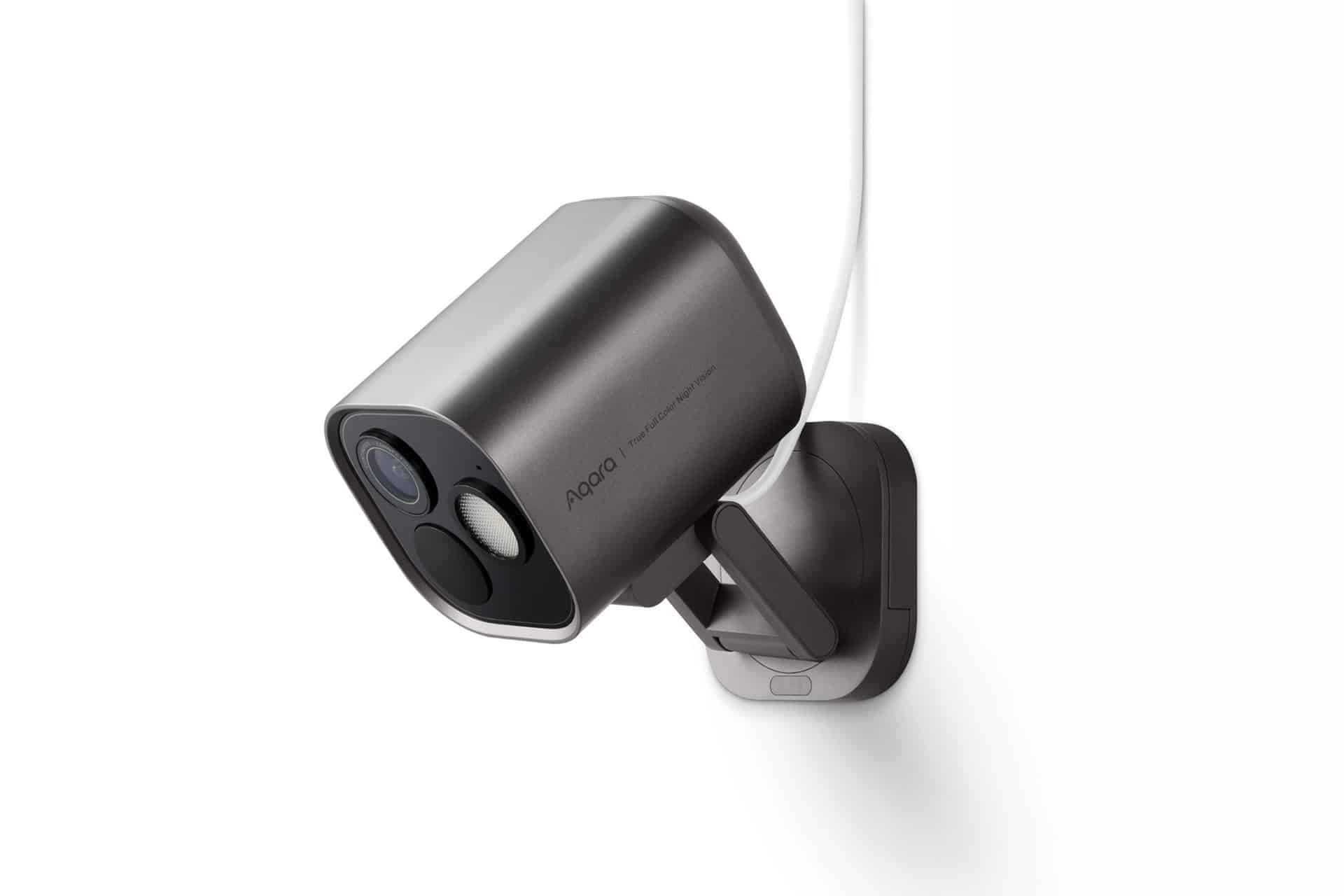
Home Activity Zones include an Invert Zone option. This is useful when the user wants to ignore a defined area and detect motion outside it. Instead of drawing the area to monitor, the user draws the area to exclude.
This can help when one part of the frame causes repeated movement. A tree, road, flag, reflection, fan, walkway, or neighbor’s driveway may trigger unnecessary events. Invert Zone can define that noisy area so the rest of the frame remains active.
The best use depends on the camera view. If only a small area matters, draw a normal Activity Zone around it. If one small area causes trouble but the rest of the frame matters, use Invert Zone.
Users may need to adjust over time. A zone that works in summer may behave differently in winter after lighting changes, plants grow, decorations move, or parking patterns shift. Activity Zones should be reviewed whenever notifications become noisy again.
A Better Home Camera Habit
Home Activity Zones make Apple Home cameras more useful because they shift the system from broad motion detection to focused monitoring. The camera still provides a view, but alerts can be shaped around the places where events matter most.
The best setup is practical. Position the camera carefully. Create zones for doors, driveways, gates, package areas, or paths. Use Invert Zone when one noisy area causes too many alerts. Pair zones with person, vehicle, animal, or package notifications where available. Review settings after a few days and adjust the shape if alerts are still too frequent.
Home cameras should help users understand what is happening without overwhelming them. Activity Zones are one of the simplest ways to make that happen inside the Apple Home app. They turn a camera from a wide-open motion detector into a more precise part of the smart home.