

Home app alerts are one of the most practical parts of smart-home ownership because they turn connected accessories into something easier to understand, monitor, and trust. A smart lock, door sensor, camera, thermostat, or smoke detector is useful on its own, but the real value often appears when iPhone sends a clear alert at the right moment.
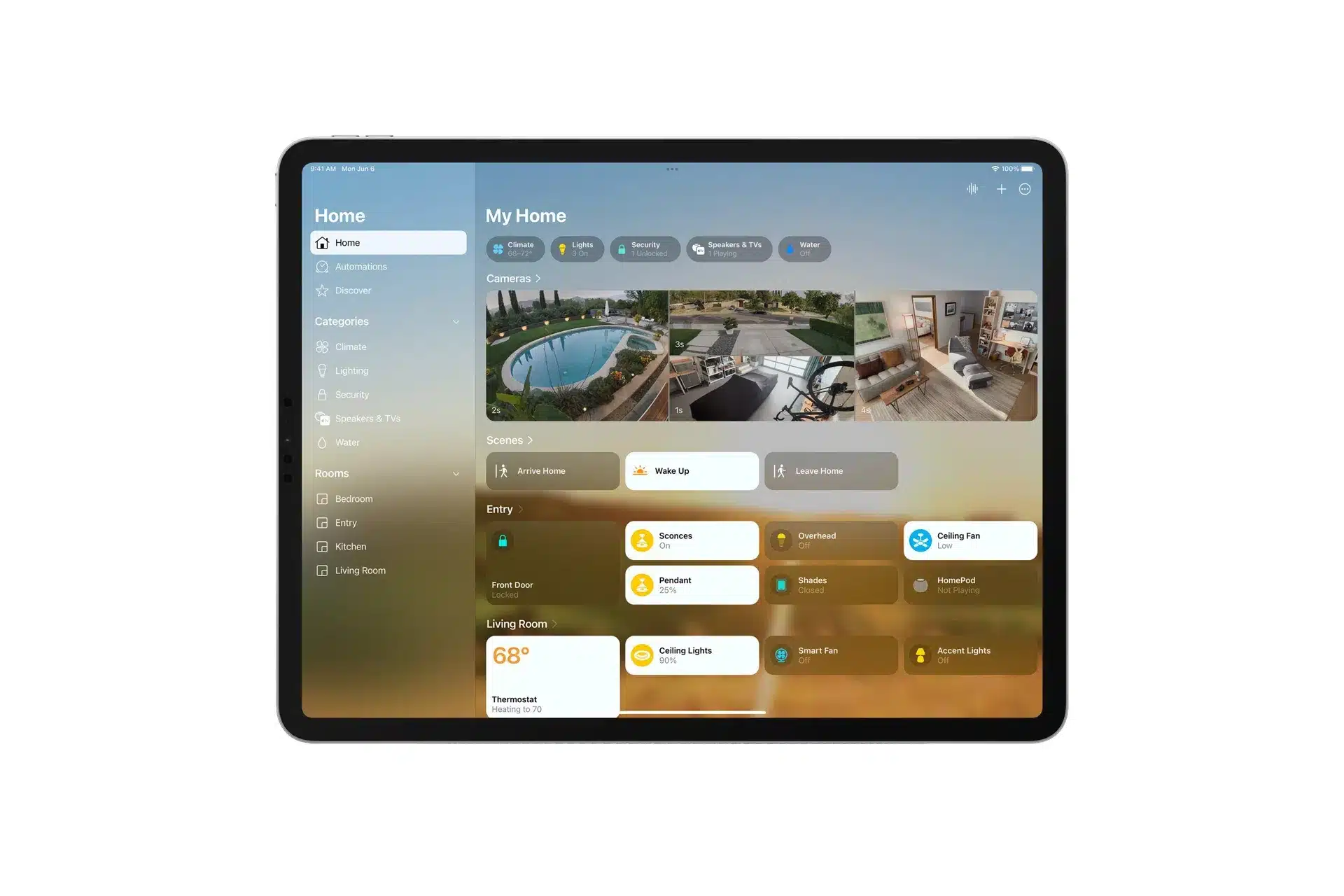
Apple’s Home app can show the status of compatible HomeKit and Matter accessories and send notifications when something changes. That can include a door opening, a lock being used, motion being detected, a camera going offline, or certain safety alerts appearing while someone is away from home. The goal is not to make a home feel busier. It is to make the important moments easier to see.
For many households, the practical side of a smart home is not the automation itself. It is knowing whether the garage door was left open, whether a lock changed status, whether a sensor detected movement, or whether an accessory stopped responding. Home app alerts make that information visible without forcing users to open the app all day.
Home App Alerts for Everyday Awareness
The Home app can send alerts for supported accessories, including locks, sensors, cameras, doorbells, and other connected devices. Some safety-related accessories, such as smoke sensors and door locks, may have notifications enabled by default, while other accessories can be customized manually.
To turn on accessory notifications:
Home > Accessory Tile > Accessory Settings > Status and Notifications > Turn On Notifications
The exact options depend on the accessory. A motion sensor may offer alerts when motion is detected. A lock may send alerts when it locks or unlocks. A camera or doorbell may notify when activity is detected, when the device changes status, or when it goes offline. The value comes from choosing alerts that match how the home is actually used.
A front door lock may deserve alerts at all times. A living room motion sensor may only be helpful when no one is home. A camera pointed toward a driveway may need notifications for people, vehicles, or packages, while an indoor camera may need fewer alerts to avoid constant interruptions.
Home app alerts work best when they are treated as a filter, not a flood. Too many notifications can make users ignore the important ones. A better setup keeps alerts for events that require attention and turns off alerts for normal movement, repeated triggers, or accessories that do not need constant monitoring.

Smart-Home Ownership Depends on Good Notifications
Smart homes often sound more exciting when described through automations, scenes, and voice control. In daily use, alerts are often more important. They answer the basic ownership questions that matter most: what changed, where did it happen, and does someone need to act?
That is especially true for shared homes. A family member may unlock the door, a pet may trigger a motion sensor, a child may arrive home from school, or a package may be left near the entrance. A useful alert keeps that information simple and timely.
For cameras, Apple’s HomeKit Secure Video can support richer notifications when compatible cameras detect people, pets, vehicles, or package deliveries. That makes alerts more specific than a generic motion notification and can reduce the number of times users open a camera feed unnecessarily.
To adjust camera notifications:
Home > Camera Tile > Accessory Settings > Status and Notifications > Activity Notifications
Some camera settings also allow users to choose when notifications should be sent, such as when someone is home or away. This can make alerts feel more personal to the household instead of turning every movement into a notification.
The practical benefit is peace of mind without constant attention. A user should not need to watch the Home app to know whether something happened. A good alert setup lets the home speak only when it has something useful to say.
Activity History Adds Context After the Alert
Home app alerts are most useful in the moment, but Activity History gives users a way to look back. Apple says the Home app can show up to 30 days of activity for supported accessories such as door locks, alarm systems, and thermostats that support Adaptive Temperature.
This matters because not every question comes while the notification is still on screen. A user may want to know when the front door was unlocked, whether a security system changed status, or whether a thermostat adjusted earlier in the day. Activity History turns those events into a timeline instead of leaving them scattered across missed notifications.
To view activity:
Home > Activity
Activity History is also useful for troubleshooting. If a door sensor keeps triggering, a lock appears to change status at unexpected times, or a thermostat behaves differently than expected, the activity view can help show patterns. It gives smart-home ownership a record, not just a set of live controls.
Apple notes that Activity History is end-to-end encrypted and that Apple cannot read the contents. That privacy detail matters because smart-home data can reveal sensitive household routines, including when people leave, arrive, sleep, or move through different areas of the home.
For households with multiple members, Home permissions also matter. People invited to control a home may have different levels of access depending on how the home is configured. A smart-home setup should make alerts useful without giving every person unnecessary access to every device or history detail.
Safety Alerts Need Special Attention
Safety alerts deserve a different level of care from ordinary motion or door notifications. Smoke, carbon monoxide, water leak, and security-related alerts should be configured clearly and tested with the manufacturer’s guidance. They should not be buried under less important alerts from routine motion sensors or lights.
Apple also supports Sound Recognition for smoke and carbon monoxide alarm sounds with HomePod in homes using the updated Home architecture. When enabled, HomePod can listen for those alarm sounds and send notifications if they are recognized. Apple warns that Sound Recognition should not be relied on in high-risk or emergency situations, which is important because it is an added alert layer, not a replacement for certified alarms.
To turn on Sound Recognition:
Home > More Button > Home Settings > Safety & Security > Sound Recognition
For users with HomePod, Apple TV, or another supported home hub, alerts can also become more useful away from home. A home hub helps users control accessories remotely and receive updates when they are not on the same local network. That is a major part of the ownership experience because many smart-home concerns happen after someone has already left.
The strongest smart-home setups keep safety alerts separate, clear, and limited to what needs immediate attention. Doorbells, package notifications, and motion alerts are useful, but safety alerts should be easy to recognize and harder to miss.
A Smarter Home Starts With Fewer, Better Alerts
The best Home app alert setup is usually built slowly. Start with the devices that matter most: front door, garage, lock, smoke or carbon monoxide sensor, leak sensor, camera, and security system. Then decide which events need immediate attention and which ones can stay visible only inside the Home app.
To adjust Home app notifications on iPhone:
Settings > Notifications > Home > Allow Notifications
That iPhone-level setting controls whether the Home app can send notifications at all. Accessory-level settings control which devices send alerts. Both need to be configured properly for the system to feel reliable.
A useful setup might send alerts when the front door unlocks, the garage opens, a camera detects a person near the entrance, or a water sensor detects a leak. It might stay quiet when someone walks through the hallway, when a light turns on, or when an accessory reports a minor status change that does not require action.
Smart-home ownership becomes more practical when the system is not trying to announce everything. Home app alerts work best when they are selective, accurate, and tied to real decisions. The right notification can confirm that a child arrived home, remind someone that a door stayed open, warn that a device is offline, or point to an event worth checking in Activity History.
Apple’s Home app gives users the tools to make those alerts part of daily life without turning the home into a constant stream of interruptions. The practical setup is simple: choose the accessories that matter, keep safety alerts visible, reduce noise from routine motion, review Activity History when needed, and let the home send fewer notifications that carry more meaning.


