
Homebridge is a community-driven bridge that expands what the Apple Home app can control. Many popular smart home brands don’t officially support HomeKit, but Homebridge fills that gap by translating their features into something Apple’s ecosystem understands.
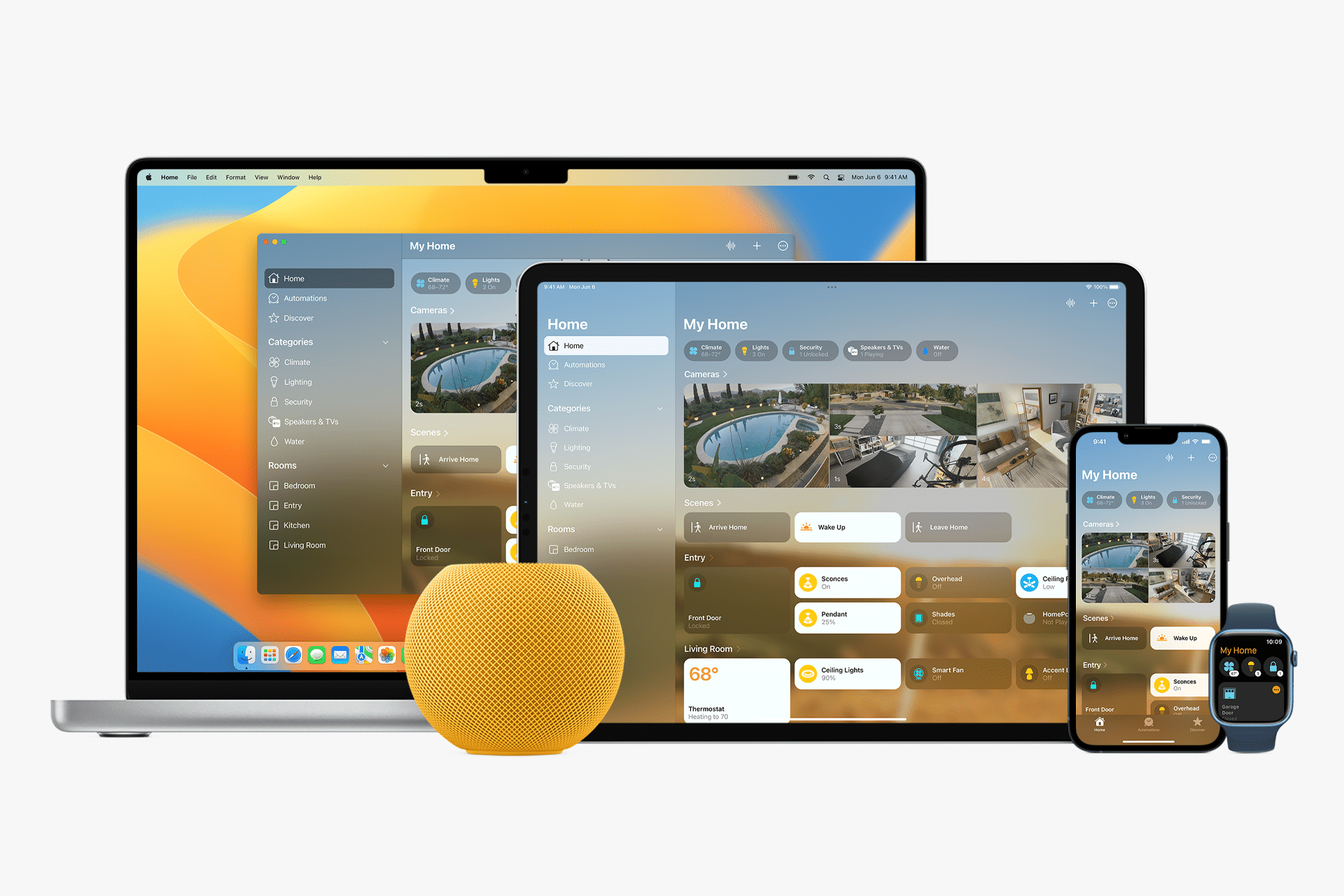
Once set up, supported devices appear in the Home app just like native HomeKit accessories, responding to Siri, automations, scenes, and schedules.
What Homebridge Actually Does
Homebridge works as a software bridge between HomeKit and non-HomeKit devices. It runs on a computer or small server in your home and communicates with smart devices using plugins created by the community.
HomeKit sees Homebridge as a certified bridge, while Homebridge handles the translation behind the scenes.
Devices commonly added include:
- Smart lights and switches
- Thermostats and climate systems
- Cameras and doorbells
- Sensors and plugs
- Garage doors and appliances
The result is a unified smart home experience inside the Home app.

What You Need to Run Homebridge
This tool doesn’t require special hardware, but it does need to stay online.
Common setups include:
- A Raspberry Pi running 24/7
- A Mac that stays powered on
- A small home server or NAS
You’ll also need:
- An Apple ID
- An iPhone or iPad with the Home app
- A stable home network
Once installed, the feature runs quietly in the background.
Installing Homebridge
Most beginners start with the official UI, which simplifies setup and management.
Workflow
Install Homebridge > Launch Homebridge UI > Sign in > Create Home
The web-based interface lets you install plugins, manage accessories, and monitor activity without command-line work.


Adding Devices With Plugins
The feature relies on plugins to support different brands and devices. Each plugin connects Homebridge to a specific ecosystem.
Workflow
Homebridge UI > Plugins > Search > Install Plugin
After installing a plugin, you usually sign in with the device manufacturer’s account or provide local network credentials. Once configured, devices appear automatically.
Popular plugin categories include:
- Philips Hue alternatives
- Smart plugs and switches
- Security cameras
- Robot vacuums
- Climate systems
Plugin quality varies, so it’s best to choose widely used and well-maintained options.
Adding to the Home App
Once Homebridge is running, you add it to the Home app like any HomeKit accessory.
Workflow
Home app > Add Accessory > More Options > Homebridge
After pairing, all supported devices appear inside the Home app. From there, they behave like native accessories.
You can:
- Control them with Siri
- Add them to scenes
- Include them in automations
- Share access with family members
This feature becomes invisible after setup, blending into your HomeKit environment.
Using in Daily Life
Mixed-brand smart homes feel unified in a way that native apps rarely achieve. Lights, sensors, plugs, and appliances from different manufacturers respond together inside the Home app, following the same logic, rooms, and scenes.
This makes daily routines simpler. A single “Good Night” scene can lock doors, turn off lights, adjust thermostats, and arm cameras, even if those devices come from different ecosystems. Over time, Homebridge fades into the background, quietly making your home behave like it was designed as one system from the start.
Examples include:
- Turning off all lights when leaving home
- Automating climate control based on occupancy
- Running scenes across multiple brands
- Controlling everything with Siri
For many users, Homebridge turns Apple Home into a true central hub.

Things to Keep in Mind
Homebridge is powerful, but it’s not officially supported by Apple. Stability depends on plugins, network quality, and updates from device manufacturers.
Good practices include:
- Keeping Homebridge updated
- Avoiding poorly maintained plugins
- Backing up your configuration
- Using strong passwords
When set up carefully, Homebridge can be extremely reliable.
The feature removes the barrier between Apple’s Home app and the wider smart home market. Instead of replacing devices, you bring them together.
For beginners, it opens the door to a more flexible smart home without giving up the simplicity of HomeKit. Over time, it becomes one of the most powerful tools for anyone who wants Apple-style control over a diverse home setup.