

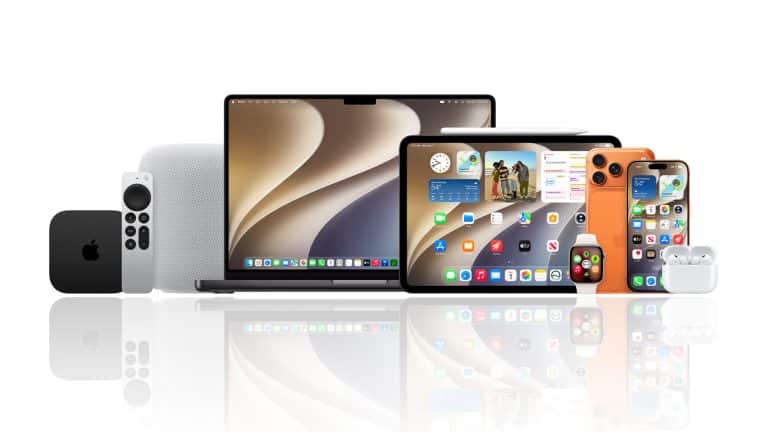
Apple public betas give early adopters a legal and official way to try new operating systems months before the final public release. For users following iOS 27, macOS Golden Gate, iPadOS 27 and the rest of Apple’s 2026 platform cycle, the appeal is obvious: new features, new interface changes, early access to Apple Intelligence updates and the satisfaction of using tomorrow’s software before most people touch it.
The trade-off is just as real. Beta software is unfinished by definition. It can bring bugs, battery drain, heat, app crashes, broken banking apps, Bluetooth problems, storage issues, missing features, sync errors or unexpected behavior that makes a daily device less dependable. That does not mean public betas should be avoided by everyone. It means users should make an informed decision before turning an iPhone, iPad, Mac, Apple Watch or Apple TV into a test device.
The smartest beta tester is not the first person to install. It is the person who knows what can go wrong and has a backup plan before tapping Update.
Apple Public Betas Versus Developer Betas
Apple offers more than one beta path. The Apple Beta Software Program is open to anyone with a valid Apple Account who accepts Apple’s beta agreement. Apple says the program and software are free. It is meant for users who want to test pre-release software and send feedback before final versions ship.
Developer betas are intended for developers who need to test apps, frameworks, APIs and compatibility before the public release. Apple’s developer support page says users can install developer betas from Software Update after signing in with the Apple Account used for the Apple Developer Program. In recent years, Apple has made developer beta access easier, but the purpose remains different: developer betas arrive earlier and are more likely to be unstable.
Public betas usually arrive later, after Apple has already moved through early developer builds. They can still be buggy, but they are generally the better option for curious mainstream users. A developer beta is best for people who build or maintain apps. A public beta is best for users who want early access and are prepared to give feedback without taking the highest level of risk.
The simple rule is this: if you do not need a developer beta, do not install the developer beta.

Before You Opt In
Back up first. This is the most important step, and it is not optional if the device matters to you. Apple’s own beta guidance warns users to back up their devices before installing beta software. A backup gives you a safer path if the beta creates problems or if you later need to erase and restore.
For iPhone or iPad, use iCloud Backup or make an encrypted backup on a Mac or PC. An encrypted computer backup is useful because it can preserve more account and health-related information than a basic backup.
To back up with iCloud:
Settings > your name > iCloud > iCloud Backup > Back Up Now
To back up to a Mac:
Connect iPhone or iPad to Mac > Finder > select your device > Back up all of the data on your device to this Mac > Encrypt local backup > Back Up Now
Mac users should make sure Time Machine or another full backup system is current before installing a macOS beta. A Mac beta can affect work apps, plug-ins, drivers, printers, external drives and professional software, so the backup should be recent and easy to restore from.
The safest device for a beta is a secondary device. If your iPhone is essential for work, banking, travel, authentication, family communication or health routines, think carefully before installing the first public beta. A beta on a backup iPhone is curiosity. A beta on your only phone is a commitment.
How to Opt In on iPhone or iPad
The public beta path begins at Apple’s official beta website. Use the Apple Account connected to the device you want to enroll.
To join Apple’s public beta program:
beta.apple.com > Sign in > accept the Apple Beta Software Program Agreement
After enrollment, the beta option should appear in Software Update on eligible devices. The exact name will depend on the platform and available release.
To install a public beta on iPhone or iPad:
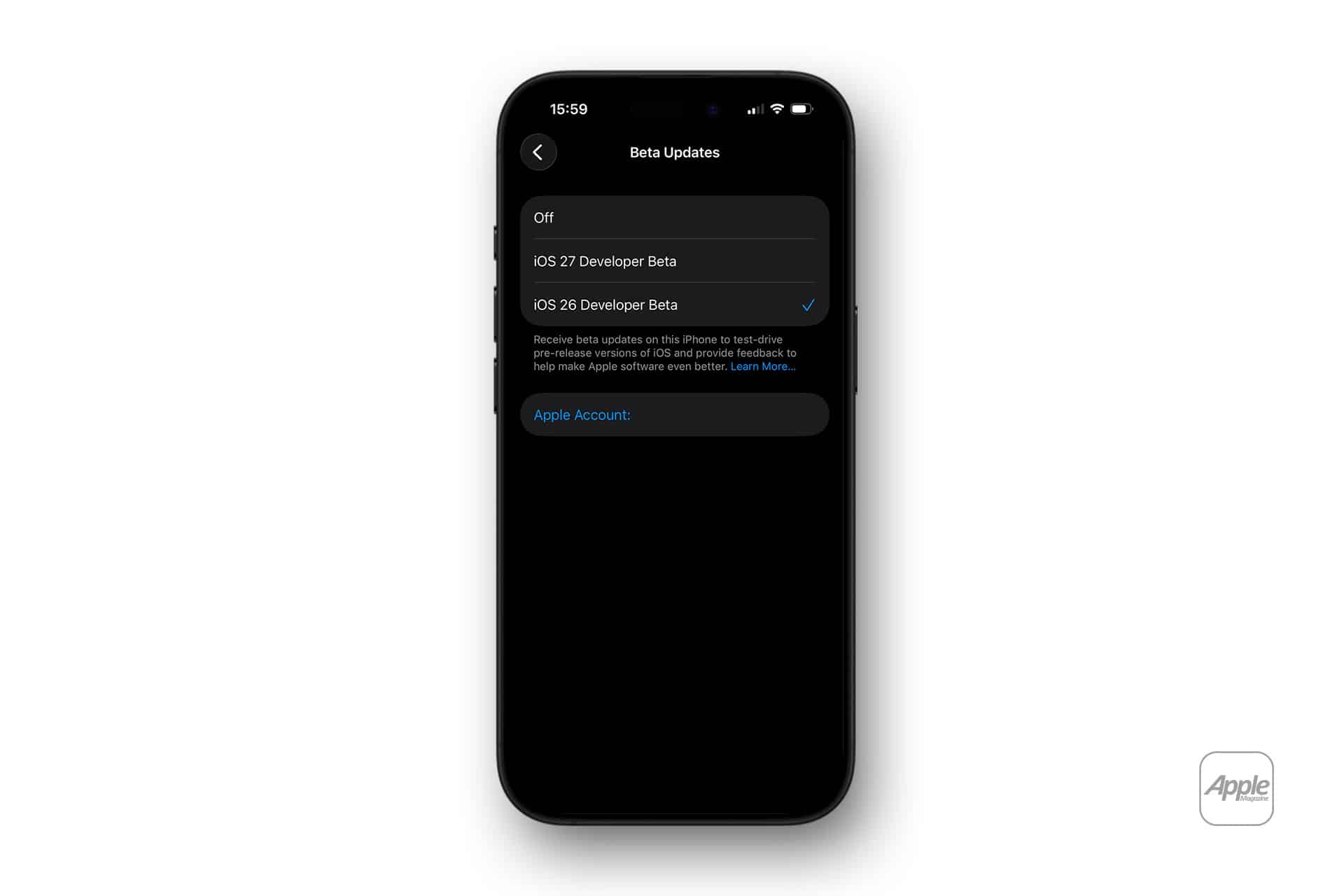
Settings > General > Software Update > Beta Updates > choose the public beta > Back > Update Now
If the beta does not appear immediately, confirm that the device is signed in with the same Apple Account used for the beta program. Also check whether the device is compatible with the beta release.
For developer betas, the path is similar after the Apple Account is connected to Apple’s developer program.
To install a developer beta on iPhone or iPad:
Settings > General > Software Update > Beta Updates > choose the developer beta > Back > Update Now
The visible difference is the beta channel. The practical difference is risk. Developer betas usually arrive earlier and may contain more serious issues.
How to Opt In on Mac
Mac users can also join the Apple Beta Software Program and select beta updates through System Settings. A macOS beta should be treated carefully because the Mac is often a work machine, not only a personal device.
To install a public beta on Mac:
System Settings > General > Software Update > Beta Updates > choose the public beta > Done > Update Now
Before installing, check app compatibility. Creative apps, development tools, audio plug-ins, printer software, VPN clients, security tools and corporate management software can behave differently on beta macOS releases. If your Mac is your main work machine, a public beta may not be worth the disruption until later builds are available.
A better option for advanced users is installing the beta on a separate volume or secondary Mac. That allows testing without replacing the main work environment. This is especially useful for developers, IT teams, writers, designers and editors who need daily reliability.
Apple Watch Needs Extra Caution
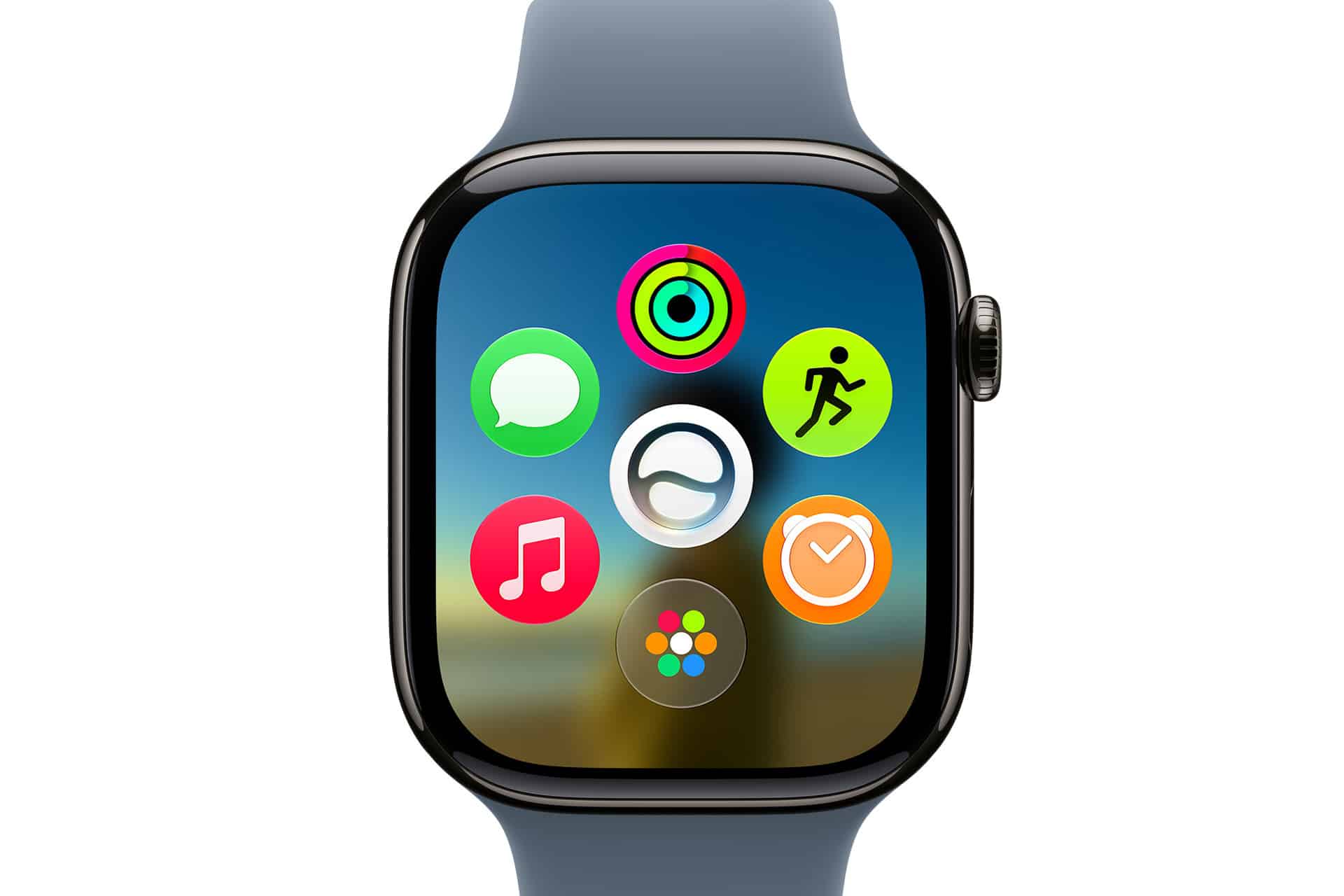
Apple Watch betas are more sensitive because they are harder to reverse than iPhone or iPad betas. Apple’s developer beta support page says Apple Watch needs at least a 50 percent charge, the paired iPhone must be connected to Wi-Fi, the watch must stay near the iPhone and the iPhone must be running the latest beta for watchOS beta installation.
To install a watchOS beta:
Watch app on iPhone > General > Software Update > Beta Updates > choose the watchOS beta
Do not install a watchOS beta casually. If your Apple Watch is important for health tracking, workouts, sleep, notifications, Apple Pay, medication reminders or safety features, waiting is usually smarter.
The Pros of Beta Testing
The biggest advantage is early access. Beta users can try new features months before final release, learn interface changes early and understand where Apple is taking the platform. For enthusiasts, that is part of the fun. For writers, developers, IT teams and creators, it can also be professionally useful.
Beta testing also helps users prepare. Someone who depends on iPhone for work may want to know how iOS 27 changes notifications, privacy settings, app behavior or Apple Intelligence features before the fall. A Mac user may want to see whether macOS Golden Gate affects workflows. An iPad user may want to test multitasking, Pencil behavior or Files app changes.
Another benefit is feedback. Apple includes Feedback Assistant so beta users can report problems. Good beta feedback helps Apple identify bugs before the final release. A user who finds a repeatable issue with an app, accessory or system feature can help improve the software for everyone.
Beta testing can also help families and small businesses. A technically comfortable user can test early on a secondary device, then decide whether the rest of the household or team should wait.
The Cons of Beta Testing
The downside is reliability. Beta software can behave badly in ways that are difficult to predict. Battery life may drop. Apps may crash. A keyboard may lag. A banking app may refuse to open. A smart-home device may stop responding. CarPlay may become inconsistent. Bluetooth accessories may disconnect. iCloud sync may feel slower. A feature announced at WWDC may not be included yet.
The first public beta can also create expectation problems. Users may install it for one headline feature and discover that the feature is limited, delayed, region-restricted or available only on newer hardware. That can make the beta feel disappointing even when the software is technically progressing.
There is also the restore problem. Apple says that to remove the iOS or iPadOS beta and return to the current public release immediately, users need to erase and restore the device. That can be stressful if the backup was incomplete or if important app data was not synced properly.
For most users, the safer exit is to turn off beta updates and wait until the next public release catches up.
To stop receiving beta updates on iPhone or iPad:
Settings > General > Software Update > Beta Updates > Off
That stops future beta updates, but it does not instantly downgrade the device. The device remains on the beta version until a newer public release becomes available, unless the user erases and restores.
Who Should Install Early
Public betas are best for users who enjoy testing, can tolerate bugs and have a backup plan. They are also useful for app developers, journalists, IT admins, accessibility testers, educators and enthusiasts who want to understand new software before final release.
A good candidate has a secondary device, current backup, stable Wi-Fi, enough storage and patience. They are comfortable searching for settings, reporting feedback and living with imperfect software.
A bad candidate needs the device to be flawless. If your iPhone is your work phone, banking device, travel boarding pass, two-factor authentication key, car key, medical tool or only reliable camera, do not rush into the first beta. Waiting for later public beta builds is not boring. It is practical.
The Best Beta Strategy
The best strategy is staged. Install the first public beta only on a secondary device. Use it for several days. Test your most important apps: banking, email, messaging, maps, authentication, work tools, photo apps, cloud storage, smart home, CarPlay and accessories. Watch battery life and heat. Read release notes when Apple provides them.
If the beta feels stable and the features are worth it, then consider whether a daily device should join later. If problems appear, keep the beta away from essential hardware.
For Mac, test professional apps before committing. For Apple Watch, be especially conservative. For iPad, consider how much you depend on it for school, work or creative projects. For Apple TV, the risk is lower for many users, but streaming apps and Home hub behavior can still matter.
Early access is exciting, but control is better.
Beta Testing Is a Choice, Not a Badge
There is nothing wrong with wanting to be first. Apple’s public betas exist because many users enjoy trying new software early and helping improve it. But beta testing is not a badge of loyalty. It is a risk decision.
The right question is not “Can I install it?” The right question is “Can I live with this device if something breaks?”
If the answer is yes, public beta testing can be a fun and useful way to explore iOS 27, macOS Golden Gate and Apple’s next platform updates before the fall release. If the answer is no, the smartest move is to read coverage, wait for later builds and install the final version when Apple is ready to ship it to everyone.
Being early has value. Being informed has more.